Overview
The Bill Pay dashboard has an always-visible checkbox column so you can act on several bills at once instead of repeating the same flow one bill at a time. Only Pending, Need Approval, and Approved bills can be selected - other statuses show a disabled checkbox, since they’ve already moved past the point where a batch action applies. Selecting the header checkbox selects every eligible row currently visible under the active status filter. Batch actions apply to up to 50 bills at a time, and every bill in a selection must share the same status - mixing, say, a Pending bill with a Need Approval bill blocks the action until you deselect one.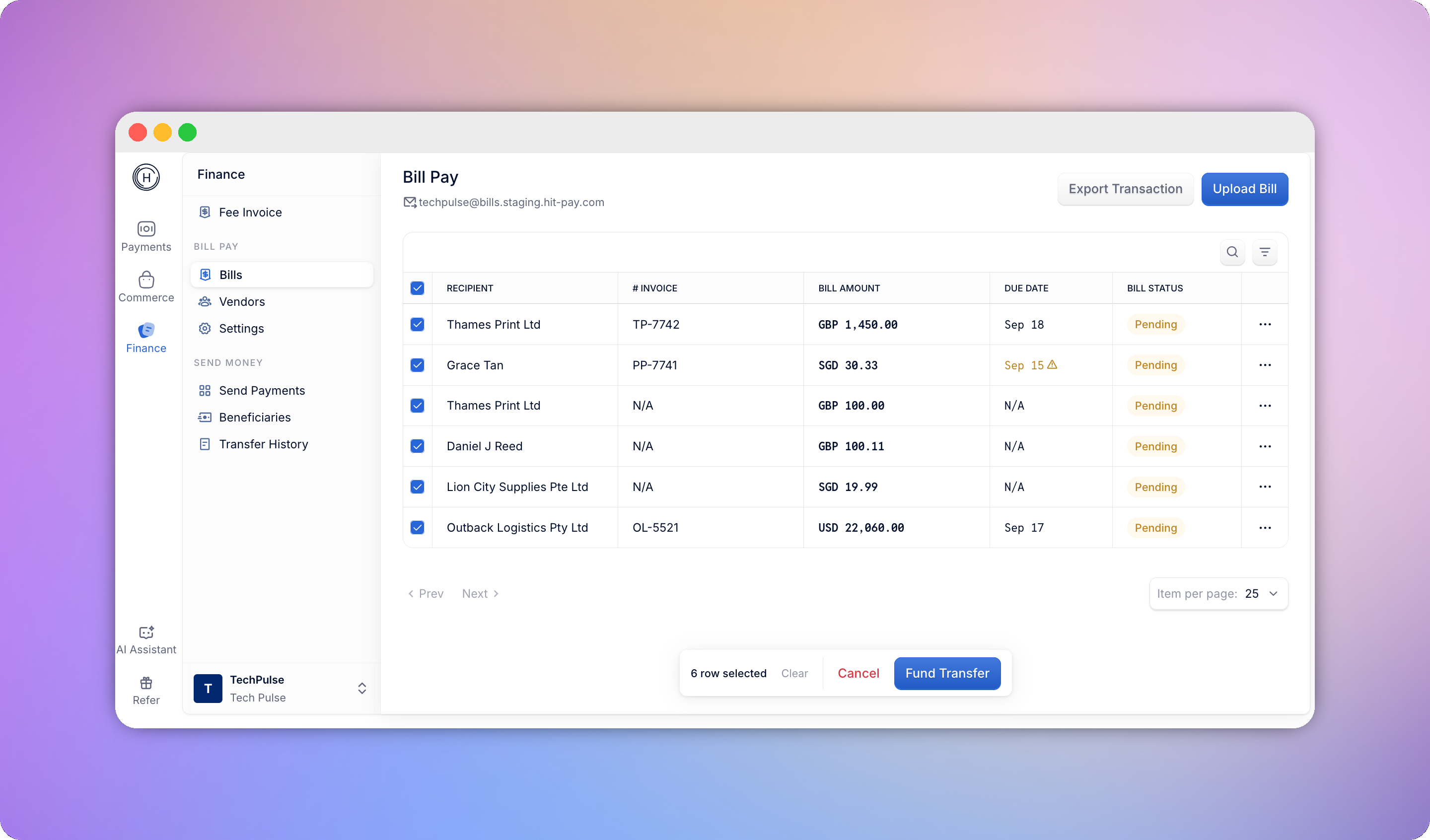
What you can do in bulk
Submitting or canceling in bulk
Submit for Approval moves every selected Pending bill straight to Need Approval - no confirmation needed, since it’s non-destructive and can still be rejected. Each bill triggers its usual submission notification to approvers. If a selected bill is missing required fields (like a vendor or amount), it’s skipped and stays Pending, and you’ll see a summary of how many were submitted versus skipped. Cancel opens a confirmation, since it’s destructive - confirming soft-deletes the selected drafts. Managers can only cancel drafts they created; Owners and Admins can cancel any draft.Approving and funding in bulk
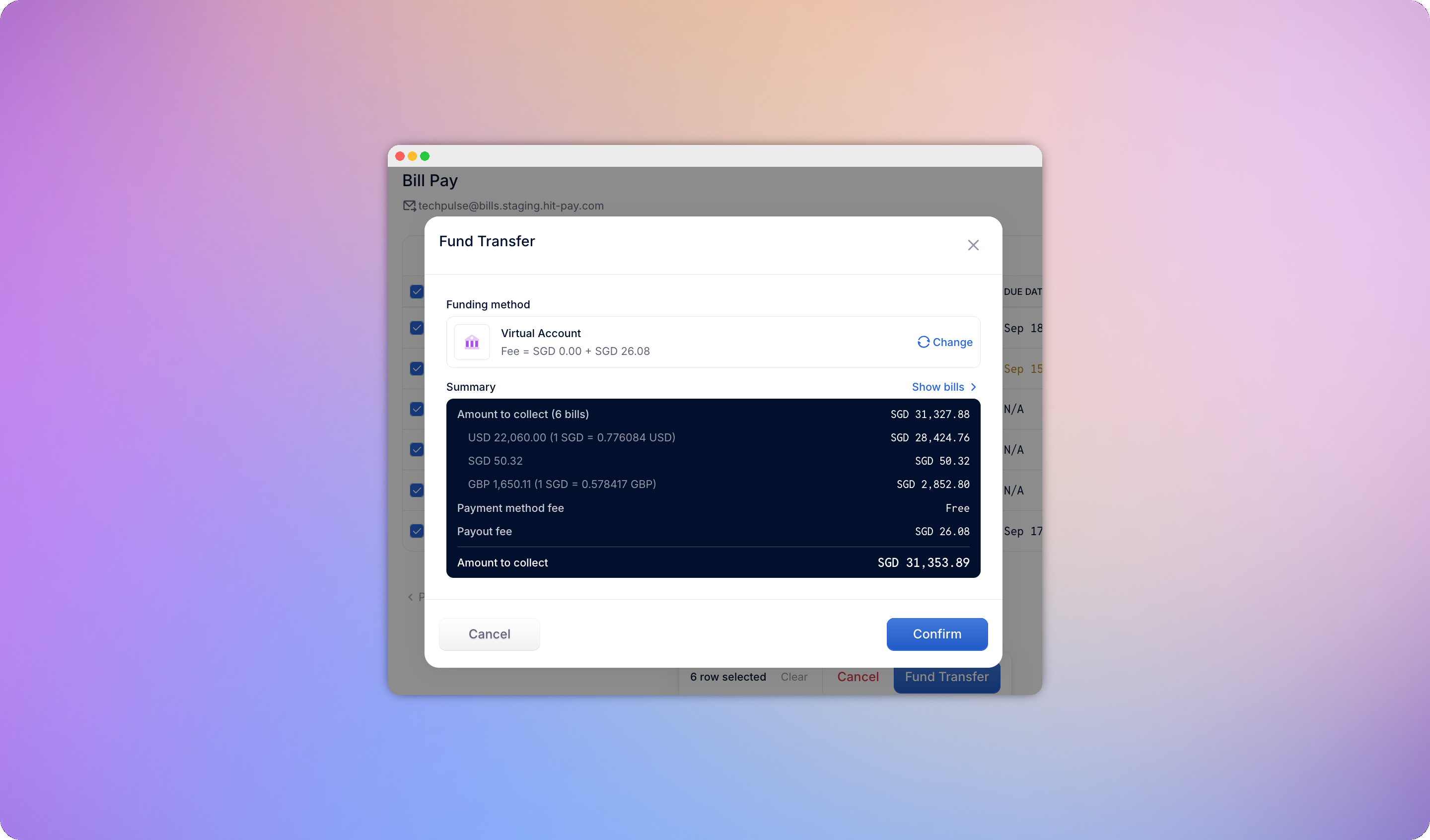
Selecting Need Approval bills and choosing Approve & Fund opens a review panel showing:- The total across all selected bills, and a separate “to collect” total that excludes bills already funded
- A row per bill (vendor, invoice number, amount, due date) - you can open any bill to inspect it, or remove it from the batch without losing your other selections