

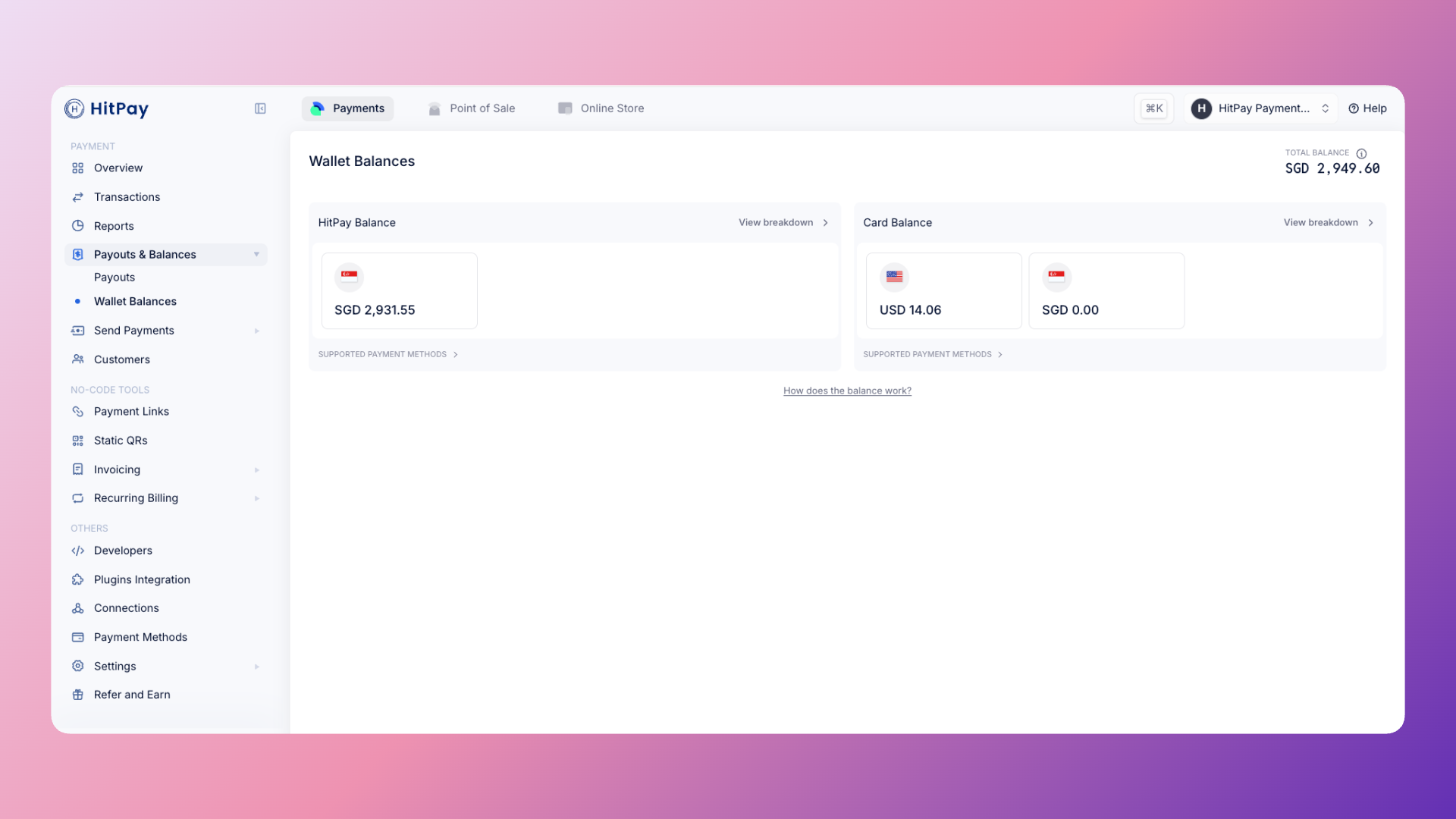
Singapore
- HitPay Balance: PayNow QR, GrabPay, GrabPay PayLater, ShopeePay, SPayLater, ShopBack Pay, Atome, WeChatPay, UPI, QRPH, QRIS, PromptPay, TrueMoney, Rabbit LINE Pay, PayCo, KakaoPay, LINEPay, VietQR, ZaloPay
- Card Balance (Stripe): Cards (Visa, Mastercard, Amex, UnionPay, Apple Pay, Google Pay)
Malaysia
- HitPay Balance: Touch ‘n Go, ShopeePay, SPayLater, GrabPay, GrabPay PayLater, Atome, WeChat Pay, DuitNow, ShopBack Pay, MayBank QR, AliPay, QRIS, PromptPay, TrueMoney, Rabbit LINE Pay, PayCo, KakaoPay, LINEPay, VietQR, ZaloPay
- Card Balance (Stripe): Cards (Visa, Mastercard, UnionPay, Apple Pay, Google Pay), FPX
Philippines
- HitPay Balance: All payment methods including Cards, QRPH, GCash, ShopeePay, SPayLater, Unionbank Online, PESONet, BillEase, GrabPay, Over the counter (Bayad, ECPay, Palawan, Instapay), QRIS, PromptPay, TrueMoney, Rabbit LINE Pay, PayCo, KakaoPay, LINEPay, VietQR, ZaloPay
Managing Your Balances
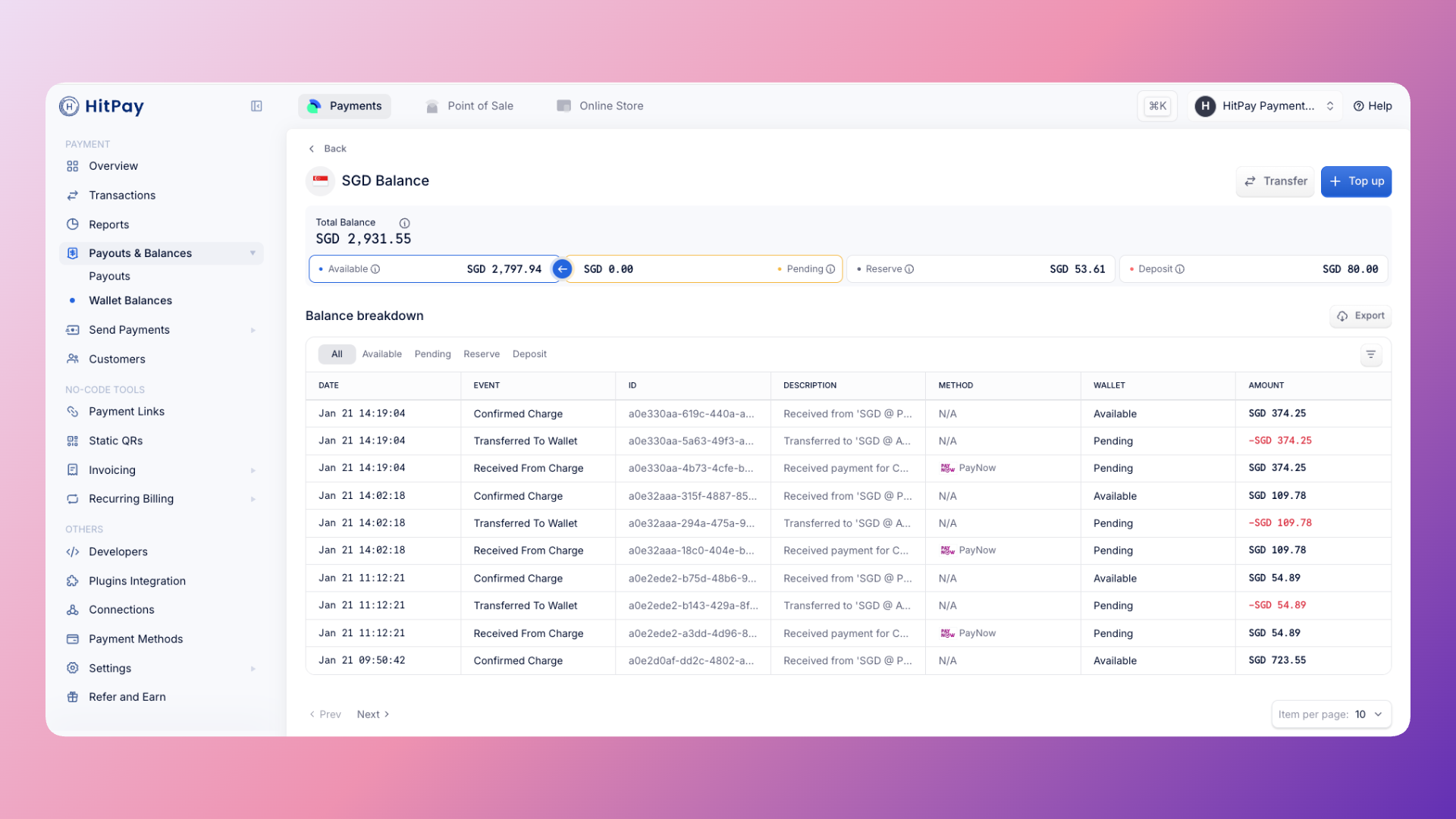
- Pending Balance: Funds from new payments appear here first while the payment is being confirmed.
- Available Balance: After approximately 1 day, confirmed payments move here. These funds are eligible for automatic payout and will be transferred to your bank account in the next payout cycle.
- In Transit: Funds that have been paid out and are currently being transferred to your bank account (not yet received).
- Reserve Balance: Funds set aside to cover refunds and chargebacks, ensuring refunds can be processed smoothly. Funds may be moved into the Reserve Balance from the Available Balance.
- Deposit Balance: Funds held to cover a negative account balance. Deposits may be applied by HitPay for merchant accounts in higher-risk categories.
Viewing Transaction History
You can easily review your complete transaction history within your HitPay account dashboard. Navigate to Bank Payouts > Transactions to access all relevant details.Holding Funds in Your Reserve Balance
If you wish to maintain a reserve of funds for refund purposes, you can easily move funds to your Reserve sub-balance. Funds in the Reserve sub-balance will not be included in regular payouts until they are moved back to the Available balance.- Go to Bank Payouts > HitPay Balance
- Click on Reserve
- Click on the link labeled here to transfer funds between available and reserve balance
- Select the transfer request, enter the transfer amount, and click Confirm
Balance Top Up
Maintain sufficient balance in your HitPay Balance (non-card payments) and Cards Balance (card payments) to execute refunds. If your balance is insufficient, you can top it up from the dashboard. HitPay Balance top-up is available for businesses in Singapore, Malaysia, and the Philippines. Cards Balance top-up is available in Singapore only.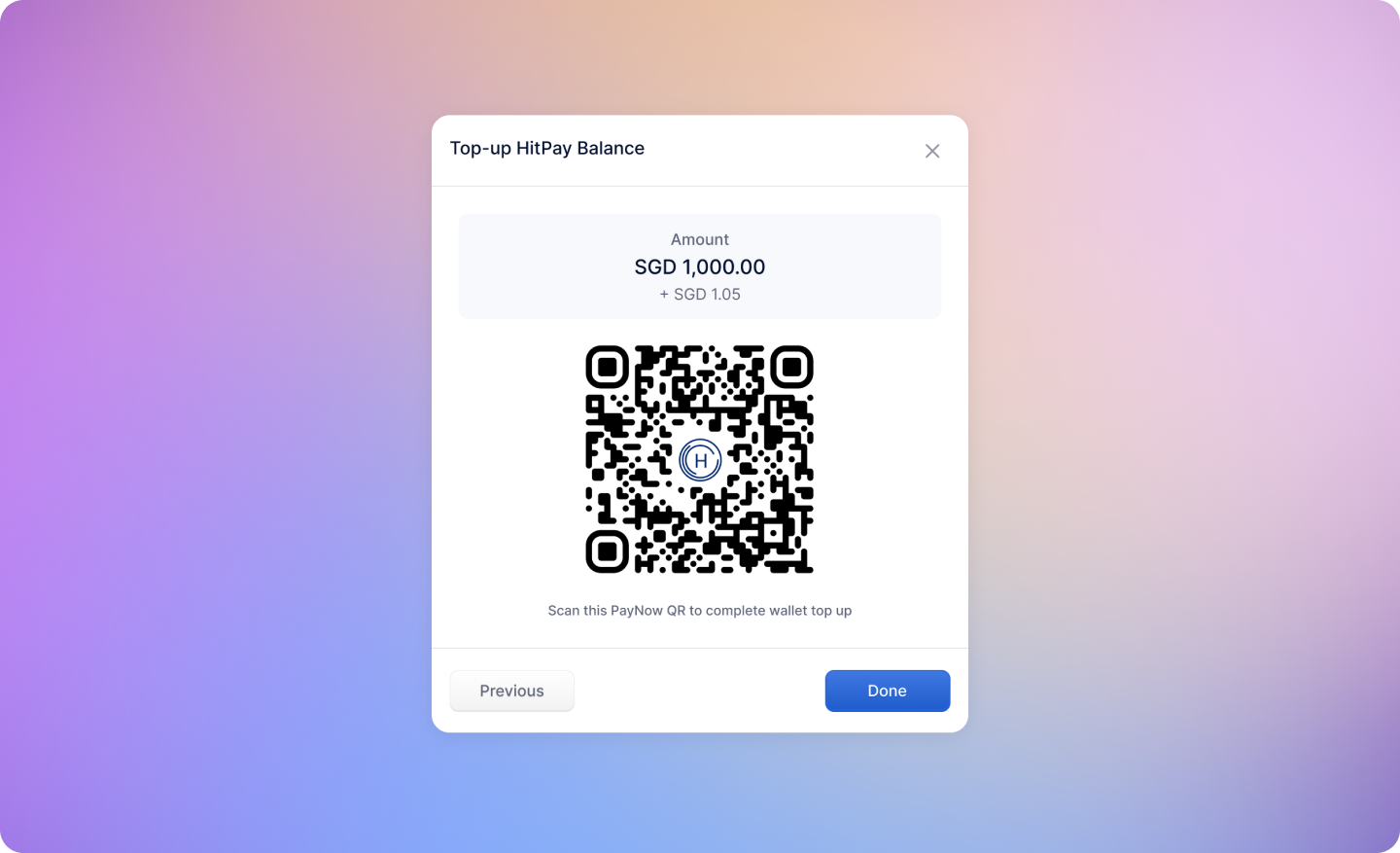
Top-up methods and fees
QR top-ups are credited as soon as the payment is made. Bank transfers are credited when the funds arrive in your virtual account.
Topping Up HitPay Balance
- Navigate to Bank Payouts
- Click on HitPay Balance
- Click on “Top up balance” button
- Enter the Top Up amount and click on “Next”
- Select the Payment Method you would like to top up with
- Make the payment. You will receive a success message once payment is made.
- The balance is automatically added to your “Reserve” sub-balance
The reserve sub-balance is used for deducting refund amounts for non-card payments. If the sub-balance is not updated, refresh the page.
Topping Up Cards Balance (Singapore only)
- Navigate to Bank Payouts
- Click on Cards Balance
- Enter the Top Up amount and click on “Next”
- Select the Payment Method you would like to top up with
- Make the payment. You will receive a success message once payment is made.
- The balance is automatically added to your “Available to Payout” sub-balance
The “Available to Payout” sub-balance is used for deducting refund amounts for card payments.
FAQs
Is the HitPay Balance available in my country?
Is the HitPay Balance available in my country?
HitPay Balance is available in Singapore, Malaysia, and Philippines.
Can I top up my Cards Balance in Malaysia or the Philippines?
Can I top up my Cards Balance in Malaysia or the Philippines?
No. Cards Balance top-up is currently available in Singapore only. In Malaysia, DuitNow QR top-ups go to your HitPay Balance, which covers non-card refunds. In the Philippines, all payment methods including cards settle to the HitPay Balance, so a separate Cards Balance top-up is not needed.
Can I link multiple payment methods to my HitPay Balance?
Can I link multiple payment methods to my HitPay Balance?
Yes, you can link various payment methods, such as bank accounts and credit/debit cards, to your HitPay Balance for added convenience.
Why is my balance negative?
Why is my balance negative?
HitPay merchants are required to maintain their account’s balance for card payments and ensure that it does not become negative. A negative card payments balance on your HitPay account may occur due to the time differences between HitPay payouts that are sent to your bank account and when a customer refund is executed.If you have a significant negative balance that needs to be addressed, please email compliance@hit-pay.com with the following header: HitPay [Your Account Name] Negative Card Payments Balance Top-Up Required for further instructions.