

https://mcp.hit-pay.com. It gives AI assistants such as Claude access to your HitPay business data: you can query sales, transactions, payouts, balances, and BillPay bills and vendors in natural language, and create payment links, invoices, products, and recurring plans.
Authentication uses OAuth. You sign in with your HitPay dashboard login and authorize the connection for one business. API keys are not involved, and each connection is scoped to the business it was authorized for.
Looking to build a payment integration with AI instead? That’s the Claude Code Plugin, a developer tool that connects Claude to the HitPay API using your API key. The MCP Server on this page connects an AI assistant to your business data using your HitPay login.
Setup
All clients connect to the same endpoint: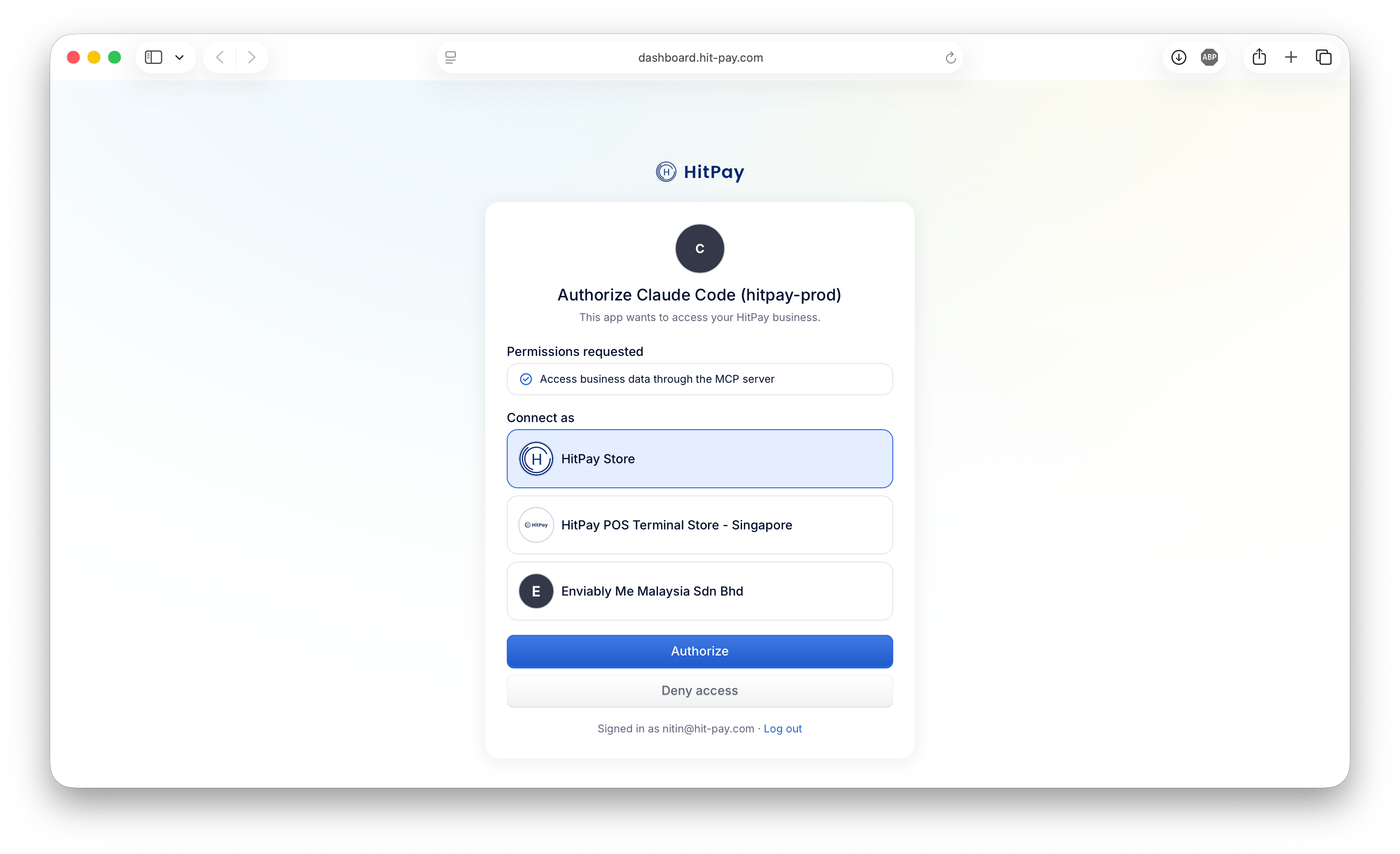
Claude
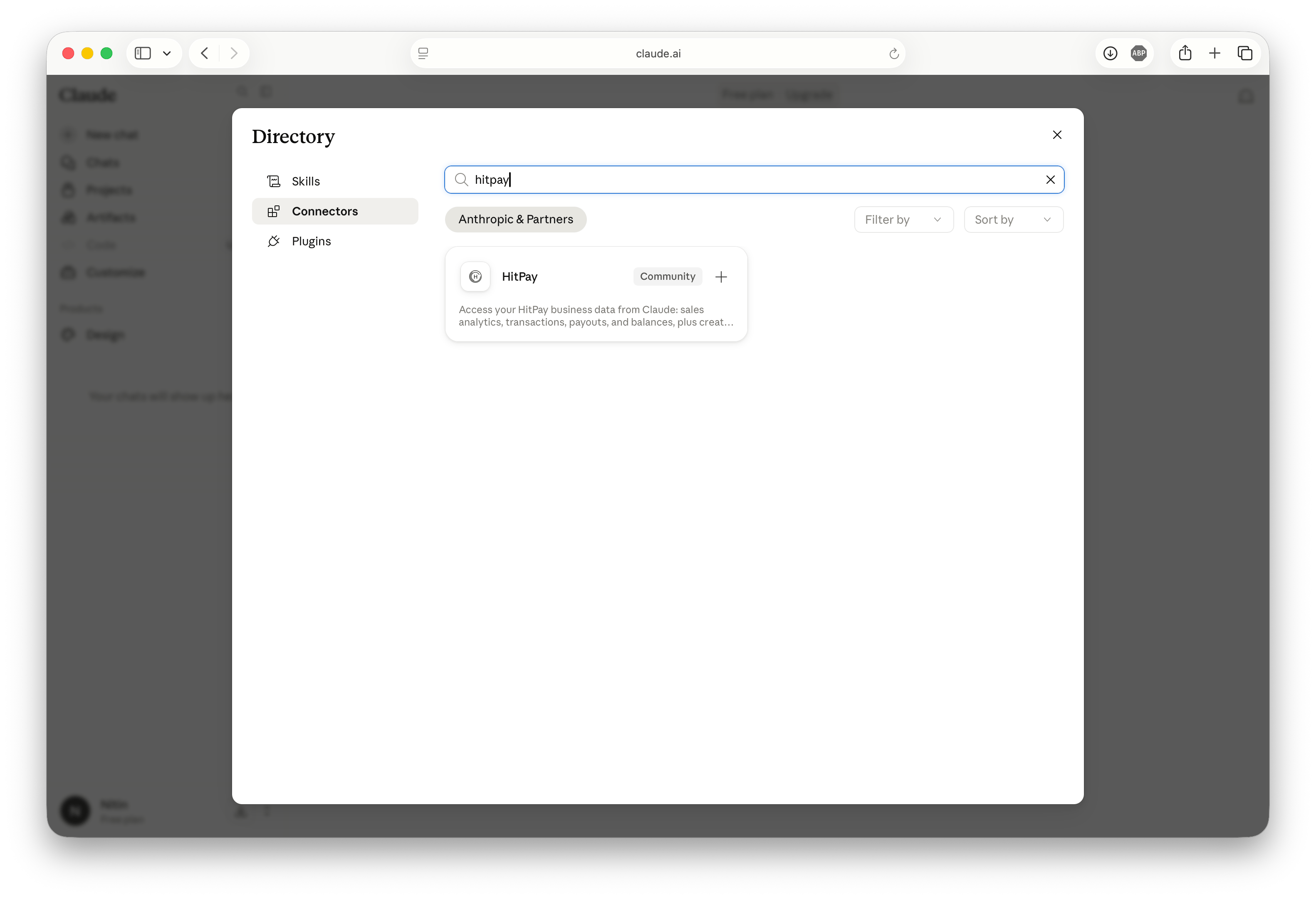
HitPay is listed in the Claude connector directory, so no URL entry is needed:- Open the Directory in claude.ai or the Claude desktop app and select Connectors
- Search for HitPay and add it — or go straight to the HitPay listing
- Click Connect, sign in, and approve access
Claude Code
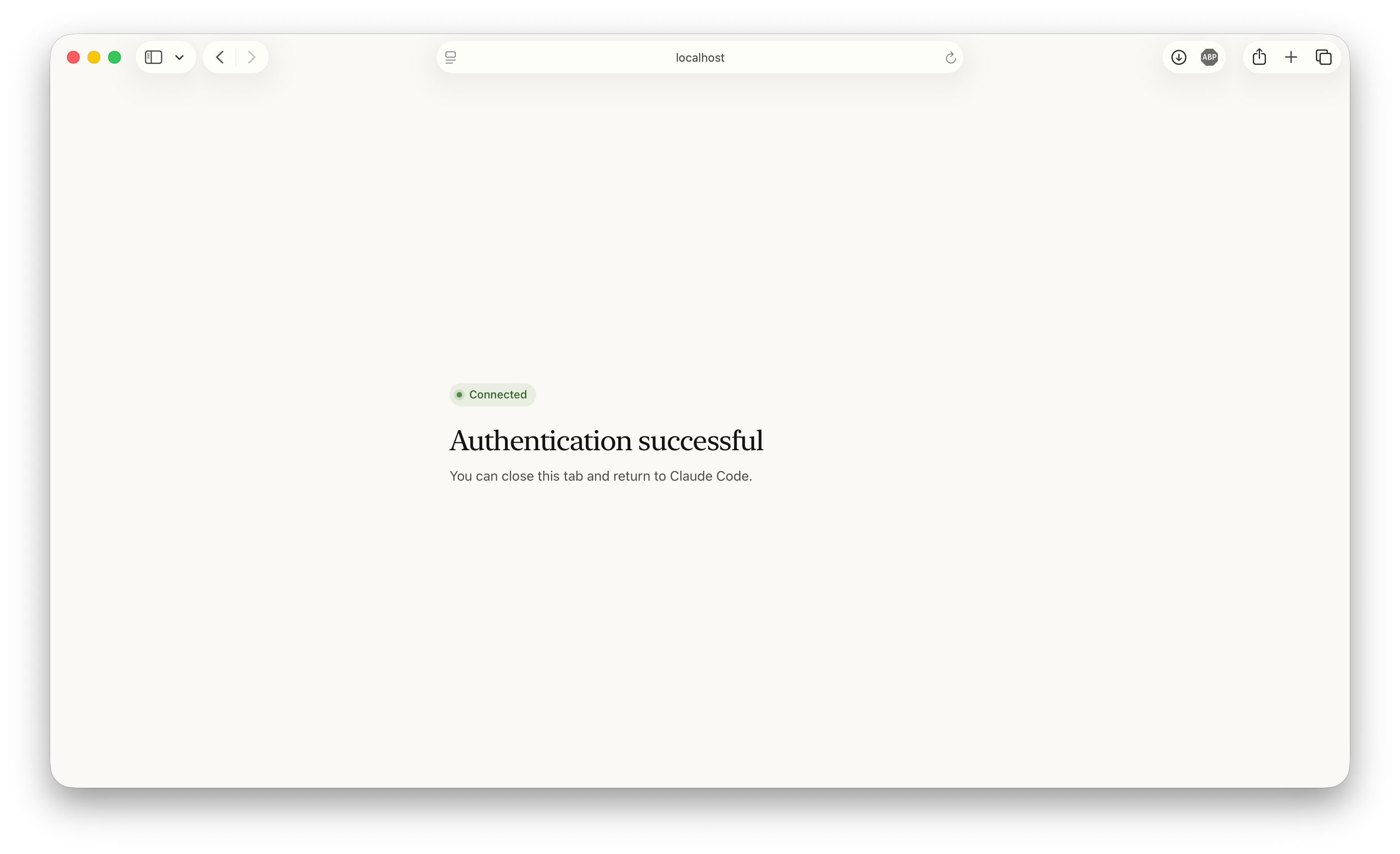
/mcp inside Claude Code, select hitpay, and choose Authenticate to complete the browser sign-in.
Codex
Cursor
Add the server to~/.cursor/mcp.json (or .cursor/mcp.json in a project), then complete the sign-in when Cursor prompts you:
Other clients
Any MCP client that supports the streamable HTTP transport and OAuth 2.0 with PKCE and dynamic client registration can connect. Discovery metadata is published athttps://mcp.hit-pay.com/.well-known/oauth-authorization-server. Native and desktop clients that use loopback (localhost) redirect URIs work without extra configuration; web-based clients other than claude.ai are not currently allowlisted for registration.
Example prompts
Once connected, the assistant can answer questions and perform tasks like:- “What were my total sales last month, and how do they compare to the month before?”
- “Show my top-selling products this quarter”
- “List my recent transactions above SGD 100”
- “When is my next payout, and what’s my current balance?”
- “Which payment methods do I have enabled?”
- “Create a payment link for SGD 49.90 for a consultation session”
- “Invoice acme@example.com SGD 1,200 for March services and email it to them”
- “Which bills are waiting for approval?”
- “List my vendors”
Available tools
The server exposes 24 tools for every connected business: 20 read tools and 4 create tools. Businesses with BillPay also get 4 extra read tools for bills and vendors.
The assistant selects tools automatically based on your prompt. You don’t call them directly.
Bills awaiting approval include an
approve_url that opens the bill in the HitPay dashboard. Vendor bank details are not returned.
Excluded operations
The server does not expose:- Refunds, or cancelling and modifying transactions
- Payout or transfer operations
- Submitting, approving, rejecting, funding, or paying bills
- Changes to account settings, payment methods, or team members
create_* tools listed above; everything else is read-only.
Security
- OAuth 2.0 authorization code flow with PKCE. You approve access on
dashboard.hit-pay.com, and your password is never shared with the AI assistant or client - Business-scoped tokens: a connection can only see the business it was authorized for
- Owner and admin only: other team-member roles cannot authorize a connection
- Rate limited to 30 requests per minute per business
- Revocable: remove the connector from your MCP client to stop it making new requests
Frequently Asked Questions
Do I need an API key?
Do I need an API key?
No. The MCP Server authenticates with your HitPay account login via OAuth. API keys are only used by the developer tools (Claude Code Plugin, Agent Skills, and the CLI).
How is this different from the Claude Code Plugin's MCP server?
How is this different from the Claude Code Plugin's MCP server?
Both use the Model Context Protocol, but they serve different audiences. The MCP Server (this page) is hosted by HitPay, authenticates with your account login, and is for querying and operating your business from an AI assistant. The Claude Code Plugin runs locally inside Claude Code, authenticates with an API key, and is for developers building payment integrations. It exposes integration-focused API tools and code-generation skills.
Is it safe to connect to my live business?
Is it safe to connect to my live business?
The server exposes no destructive operations: it cannot refund, cancel, transfer money, pay bills, or change settings. The only writes are creating payment links, invoices, products, and recurring plans, all of which are visible in your dashboard and can be deactivated there. For bills awaiting approval, it returns a dashboard
approve_url instead of approving the bill.Can my team members connect?
Can my team members connect?
Team members with the admin role can connect, in addition to the account owner. Other roles cannot authorize a connection. Tokens are always scoped to the single business that was authorized.
Does it work with the sandbox environment?
Does it work with the sandbox environment?
Not yet. The MCP Server is currently available for live accounts at
mcp.hit-pay.com only.Which AI assistants can I use?
Which AI assistants can I use?
Claude (web and desktop), Claude Code, Codex, and Cursor are covered above. Any other native MCP client that supports the streamable HTTP transport with OAuth and loopback redirects also works.
Resources
Claude Code Plugin
Build payment integrations with live API access
Agent Skills
Code generation for Cursor, Copilot, and Windsurf
HitPay CLI
Drive the API from your terminal and CI pipelines
Model Context Protocol
Learn more about MCP