

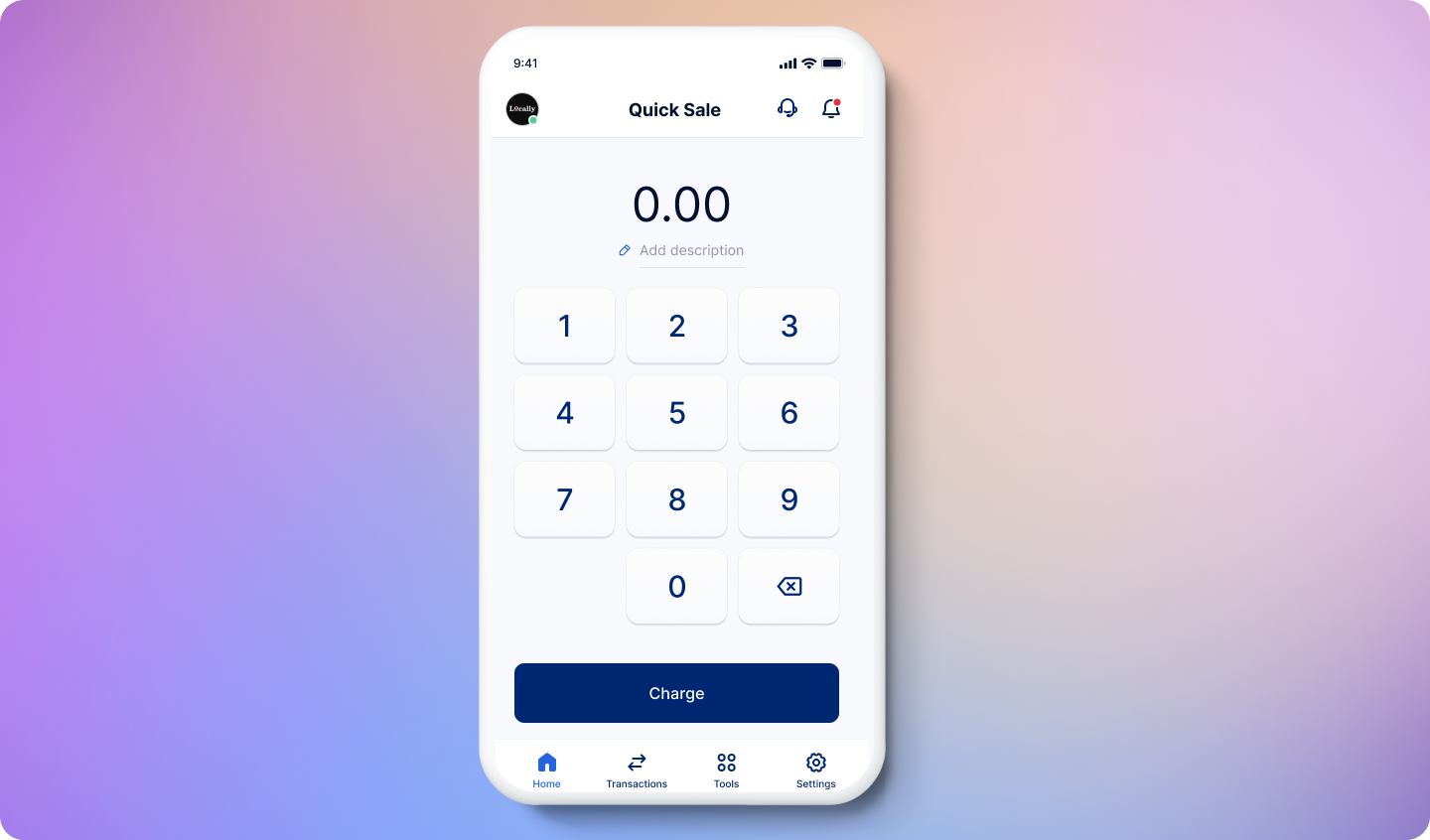
Accepting a Payment
You can either checkout using Quick Sale mode or Point of Sale modes.- Launch the HitPay App
You can also include an invoice number, remarks, or any necessary description under the Add Description field.
- Choosing Payment Method
- Completing Payment
Card Readers
To accept payment using Card Readers, make sure you’ve already completed the steps to connect a reader to the HitPay App.- Launch the HitPay App
You can also add an invoice number, remarks, or any description under the Add Description field.
- Choose Payment Method
- Completing Payment
You can choose to send a receipt by email or print a physical receipt using HitPay’s Bluetooth receipt printer
Accepting Card Payments
You can accept card payments in person using a HitPay Terminal or Tap to Pay on your phone. Customers can also pay by card on their own device using Scan to Pay.Manual card entry (Key in Card Details) is no longer available in the HitPay app. This change applies to all countries and helps reduce fraud and chargeback risk.
PayNow QR
You also have the option of processing payments via PayNow QR. You generate a QR code that can be scanned by your customer to complete a payment. HitPay collects payments on your behalf for any PayNow QR transactions. Upon collecting the funds from the customers, HitPay will payout to you according to your payout schedule. Hence upon scanning the PayNow QR in the HitPay checkout page, the customer would see the beneficiary as HitPay Payment Solutions Pte Ltd.- Launch the HitPay App
You can also add an invoice number, remarks, or any description under the Add Description field.
- Choose Payment Method
- Completing Payment
You can choose to send a receipt of the transaction to the customer via email or text
Scan to Pay
Scan to Pay is a convenient payment method that allows you to send the payment checkout experience to the customer’s phone. It also lets you offer various online payment methods at your POS (e.g., BNPL, ApplePay, etc.).Customers must use the camera or a QR code scanner to scan. Please do not use the banking app directly.
- Enter the amount and click on Charge
- Select “Scan to Pay”
- Display the generated QR code to your customer
- Customer should scan the QR code using their camera
- Wait for payment confirmation on your POS app
- Payment completed
Scan to Pay involves converting a payment link into a QR code.
Cash Transaction
The Cash Payment Method is a very straightforward process for logging in-person cash payments into HitPay. On the HitPay App home page, enter the transaction amount and tap the Charge button to continue.You can also add an invoice number, remarks, or any description under the Add Description field.
You can choose to send a receipt by email or print a physical receipt using HitPay’s Bluetooth receipt printer
Keypad Calculator
The keypad calculator is available on Android only.
- Single tap — toggles between
+(addition) and−(subtraction) - Long press — opens an operation picker with
+,−,×, and÷
1+2.50). Once the calculation is complete, the result becomes the starting value for the next operation.
FAQ
How can I change the currency for Quick Sale transactions?
How can I change the currency for Quick Sale transactions?
To modify the currency for quick sale transactions, navigate to your app’s Settings and select Quick Sale Currency.Please be aware that a non-home currency (currency other than the default currency) is not compatible with Terminal payments. To charge in a foreign currency, use Scan to Pay.
How can I reverse a cash transaction in the HitPay dashboard?
How can I reverse a cash transaction in the HitPay dashboard?
- Web Dashboard
- POS App
Follow these steps to reverse a cash transaction using HitPay Dashboard:
- Navigate to Bank Payouts > Transactions
- Click on the transaction that you would like to reverse
- Click on the Void button
- Click on the Confirm button and wait for the refund success message
If you want to fully reverse the transaction, leave the refund amount field empty or enter the specific refund amount if you want to partially reverse some funds from the transaction.
What are the payment methods supported by HitPay Card Readers?
What are the payment methods supported by HitPay Card Readers?
HitPay Terminals support Visa, Mastercard, and American Express cards. In addition, mobile wallets such as Apple Pay, Google Pay, Samsung Pay, and Fitbit Pay are also supported on HitPay Terminal.The Sunmi V2s terminal has the capabilities to generate PayNow QR code, or a Scan-to-Pay QR code which customers can scan using their own mobile devices to be redirected to a checkout page, wherein all other payment methods available for the your HitPay account will be available for use.
Which apps support PayNow QR payments?
Which apps support PayNow QR payments?
PayNow provides a peer-to-peer funds transfer service available to retail customers of ten participating banks and four participating Non-Bank Financial Institutions (NFIs) in Singapore – Bank of China, CIMB Bank Berhad, Citibank Singapore Limited, DBS Bank/POSB, HSBC, Industrial and Commercial Bank of China Limited, Maybank, OCBC Bank, Standard Chartered Bank, UOB, GrabPay, LiquidPay, Singtel Dash and Xfers.PayNow QR Scan and Pay is supported by the following apps:
- DBS/POSB Digibank
- UOB Mighty
- OCBC PayAnyone
- DBS PayLah!
- Google Pay Singapore
- Citibank Singapore Limited
- SC Mobile Singapore
- HSBC Singapore
- MayBank2u SG
- Industrial and Commercial Bank of China Limited
- Bank of China
- CIMB Bank Berhad, Standard Chartered Bank
- GrabPay
- LiquidPay
- Singtel Dash
- Xfers