> ## Documentation Index
> Fetch the complete documentation index at: https://docs.hitpayapp.com/llms.txt
> Use this file to discover all available pages before exploring further.
# Tax Settings
> Managing Tax Rates on HitPay
## Overview
Managing taxes is an essential part of your business operations. You can effortlessly create and manage tax rates directly from HitPay Dshboard. HitPay's fees are calculated from the total transaction amount, including taxes and [tips](https://hitpay.mintlify.app/point_of_sale/tips).
 ## Creating a Tax
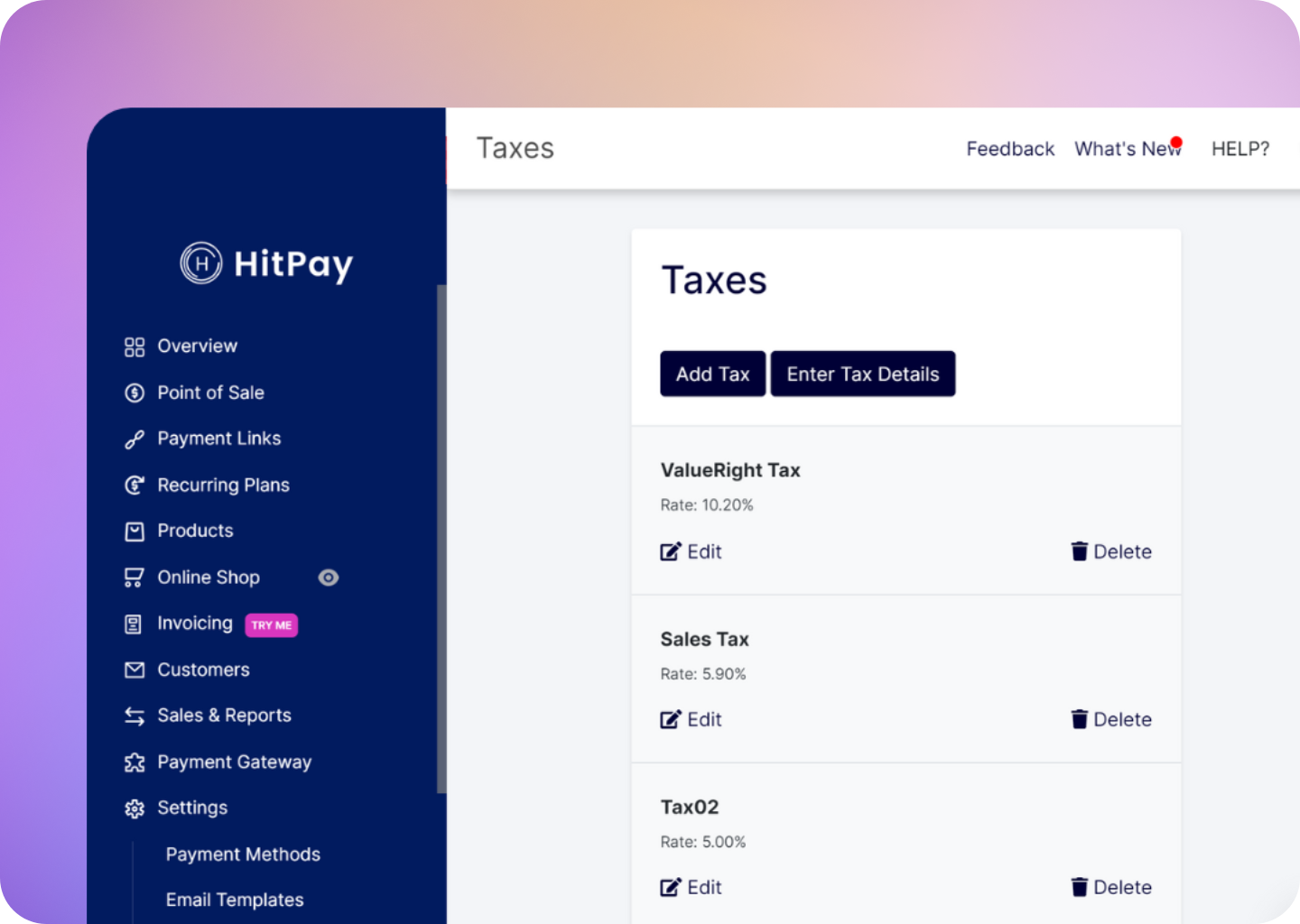
Navigate to **Settings > Tax Settings** in your dashboard. Here, you can create a new tax by clicking the **Add Tax** button.
Enter the necessary tax details:
* Tax name
* Tax rate
* Specify whether the tax is inclusive or exclusive of the total amount or product pricing.
Your newly created tax rates will be listed under the tax settings page.
## Applying a Tax at Checkout
Only one tax can be applied to each order. You can learn more about applying taxes by following the guide [here](https://hitpay.mintlify.app/pos/taxes#applying-an-automatic-default-tax-at-checkout).
If you've set a default tax, it will be automatically added to the total amount at Checkout.
## Tax-Inclusive vs Tax-Exclusive Tax
The choice between Tax-Inclusive and Tax-Exclusive Tax impacts how taxes are calculated in relation to the final transaction amount.
**Tax-Exclusive Tax**
A Tax-Exclusive Tax is added to the Total Amount at the point of the final transaction.
Example: You may charge #100 for a service and add a 7% GST tax. Adding a Tax-Exclusive GST tax adds an additional #7 at the point of purchase. The Total Amount becomes #107.00.
**Tax-Inclusive Tax**
A Tax-Inclusive Tax is already included in the price of purchase.
Example: You may charge #100 for a service with 7% GST included as a Tax-Inclusive Tax. The Total Amount remains #100.
Understanding the difference between these tax types helps you make informed decisions when configuring your tax rates in the HitPay app.
## FAQs
Yes, on the web dashboard, navigate to **Bank Payouts > Transactions > Export Transactions**. Make sure you check 'POS Order Details' field under Fields Required.
* **Tax Applied** = Name of tax that is applied
* **Tax Calculated** = Nominal amount of tax applied based on tax % and transaction amount
* **Tax Amount** = Amount of tax added to the sum. Inclusive tax will result in 0.
## Creating a Tax
Navigate to **Settings > Tax Settings** in your dashboard. Here, you can create a new tax by clicking the **Add Tax** button.
Enter the necessary tax details:
* Tax name
* Tax rate
* Specify whether the tax is inclusive or exclusive of the total amount or product pricing.
Your newly created tax rates will be listed under the tax settings page.
## Applying a Tax at Checkout
Only one tax can be applied to each order. You can learn more about applying taxes by following the guide [here](https://hitpay.mintlify.app/pos/taxes#applying-an-automatic-default-tax-at-checkout).
If you've set a default tax, it will be automatically added to the total amount at Checkout.
## Tax-Inclusive vs Tax-Exclusive Tax
The choice between Tax-Inclusive and Tax-Exclusive Tax impacts how taxes are calculated in relation to the final transaction amount.
**Tax-Exclusive Tax**
A Tax-Exclusive Tax is added to the Total Amount at the point of the final transaction.
Example: You may charge #100 for a service and add a 7% GST tax. Adding a Tax-Exclusive GST tax adds an additional #7 at the point of purchase. The Total Amount becomes #107.00.
**Tax-Inclusive Tax**
A Tax-Inclusive Tax is already included in the price of purchase.
Example: You may charge #100 for a service with 7% GST included as a Tax-Inclusive Tax. The Total Amount remains #100.
Understanding the difference between these tax types helps you make informed decisions when configuring your tax rates in the HitPay app.
## FAQs
Yes, on the web dashboard, navigate to **Bank Payouts > Transactions > Export Transactions**. Make sure you check 'POS Order Details' field under Fields Required.
* **Tax Applied** = Name of tax that is applied
* **Tax Calculated** = Nominal amount of tax applied based on tax % and transaction amount
* **Tax Amount** = Amount of tax added to the sum. Inclusive tax will result in 0.