> ## Documentation Index
> Fetch the complete documentation index at: https://docs.hitpayapp.com/llms.txt
> Use this file to discover all available pages before exploring further.
# Multi-Currency
> Enable multiple currencies in your online store to offer a localized shopping experience.
## Overview
The Multi-Currency Converter lets you display product prices in different currencies so customers can shop in the currency they are most familiar with. This improves the shopping experience and helps increase conversions from international buyers.
Navigate to **Online Store > Settings > Store Settings > Multi-Currency Converter** to configure your currency options.
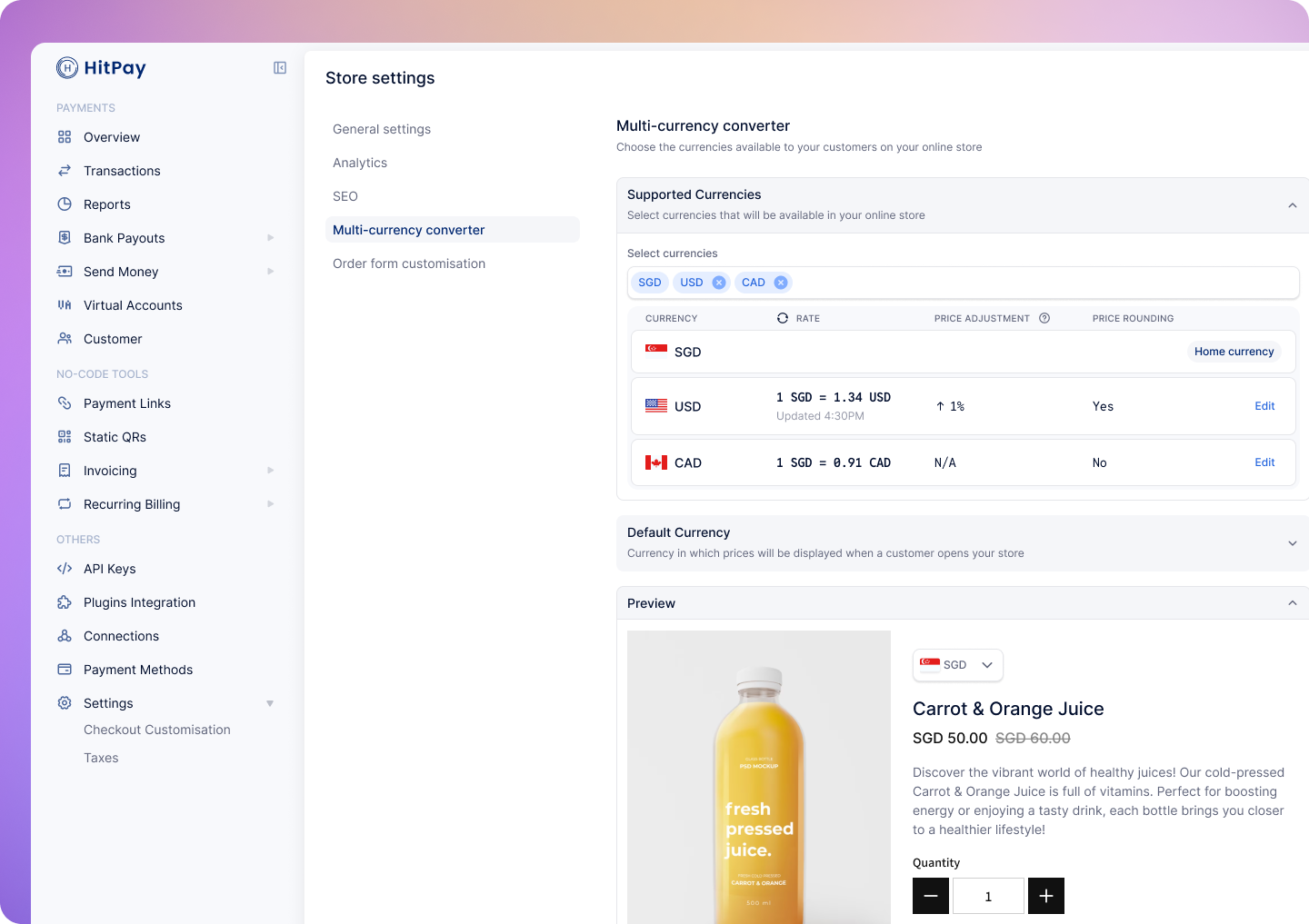 ## Supported Currencies
You can choose which currencies will be available to customers in your store.
* Your home currency is always included and cannot be removed.
* Additional currencies can be selected from a dropdown list.
* Each currency appears in a table with the following settings:
### Exchange Rate Mode
* **Automatic**\
HitPay automatically fetches FX rates from partnered providers, and the dashboard displays the last updated timestamp.
* **Manual (Fixed Rate)**\
You enter your own exchange rate for full pricing control.
### Price Adjustment
You may apply an optional percentage-based markup on top of the selected exchange rate.\
Useful for handling fees or FX fluctuations.\
Works with both automatic and manual rates.
## Default Currency
This is the currency shown when a customer first visits your store.
You can either:
* Select a default currency from your supported list, or
* Enable **Default currency based on customer’s location**
If the customer's country matches one of your supported currencies, the storefront will automatically switch to that currency.\
If not, the default currency will be used.
## Customer Storefront Experience
## Supported Currencies
You can choose which currencies will be available to customers in your store.
* Your home currency is always included and cannot be removed.
* Additional currencies can be selected from a dropdown list.
* Each currency appears in a table with the following settings:
### Exchange Rate Mode
* **Automatic**\
HitPay automatically fetches FX rates from partnered providers, and the dashboard displays the last updated timestamp.
* **Manual (Fixed Rate)**\
You enter your own exchange rate for full pricing control.
### Price Adjustment
You may apply an optional percentage-based markup on top of the selected exchange rate.\
Useful for handling fees or FX fluctuations.\
Works with both automatic and manual rates.
## Default Currency
This is the currency shown when a customer first visits your store.
You can either:
* Select a default currency from your supported list, or
* Enable **Default currency based on customer’s location**
If the customer's country matches one of your supported currencies, the storefront will automatically switch to that currency.\
If not, the default currency will be used.
## Customer Storefront Experience
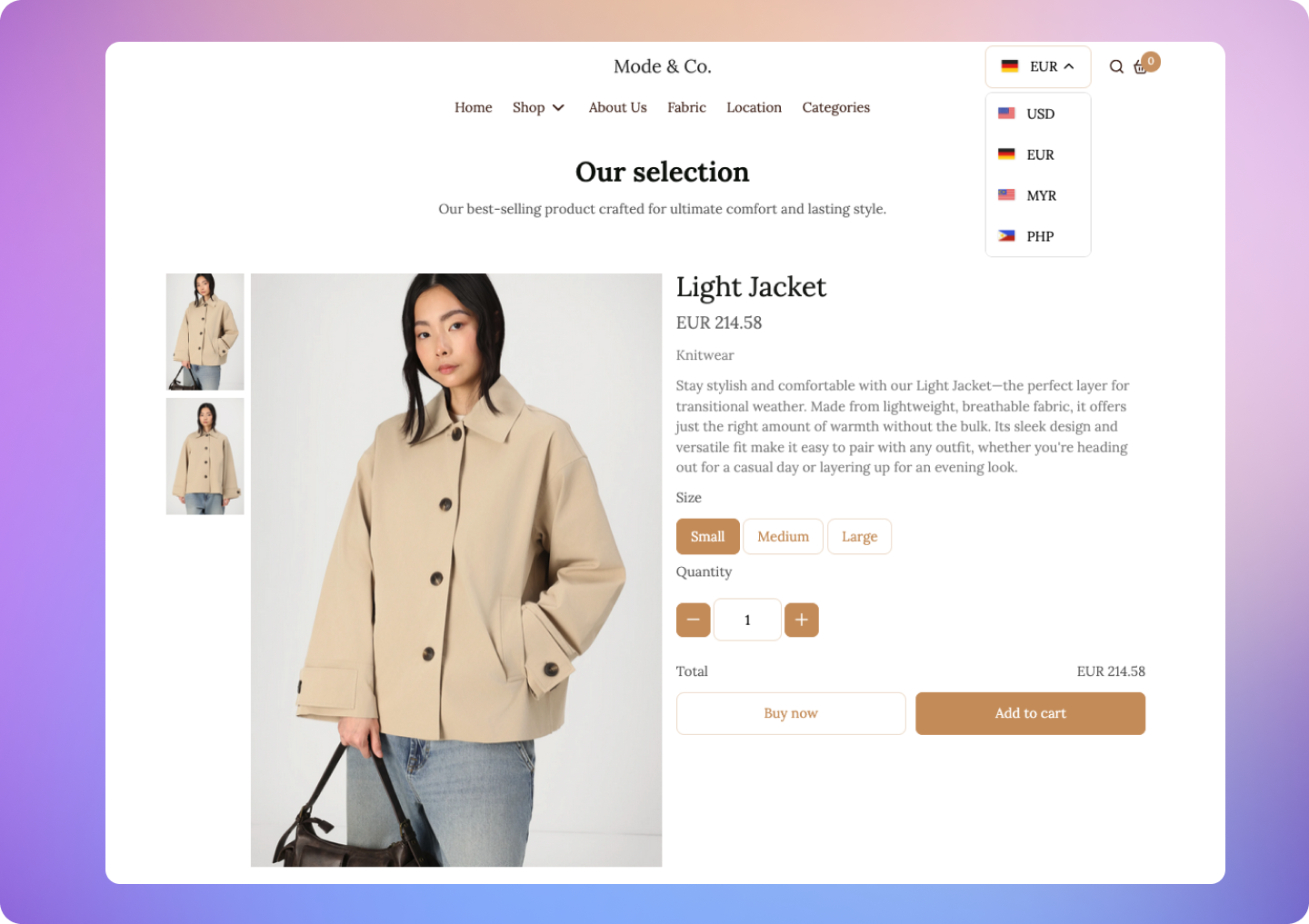 ### Automatic Currency Detection
When enabled, the system detects the customer's location and automatically displays prices in their local currency (if supported).
### Manual Currency Selection
Customers can switch currencies manually using the currency dropdown in your store’s header.
### Browsing Products
Product prices and discounts appear in the selected or auto-detected currency, including any adjustments or markups set by the merchant.
### Add to Cart and Checkout
Prices remain consistent throughout the entire purchase flow.\
Cart and checkout totals are shown in the selected currency.
### Order Confirmation
The confirmation page and customer-facing emails display amounts in the currency chosen by the customer.
## FAQs
Yes. Customers are charged in the currency displayed on the storefront at checkout.
Yes. You can see:
* The amount charged in the customer’s chosen currency
* The approximate equivalent in your home currency
Automatic FX rates are pulled from HitPay’s partnered FX providers. These rates update periodically and the dashboard shows the latest timestamp.
Yes. You can switch a currency to Manual mode and enter your own fixed rate.
No. Manual rates stay fixed until you change them yourself. This ensures predictable pricing.
The price adjustment percent applies on top of the base FX rate. For example, if 1 SGD equals 40 PHP and you set a 5 percent adjustment, the display rate becomes 42 PHP.
No. Customers only see the final product price. FX rates, adjustments, and rounding logic are visible to merchants only.
### Automatic Currency Detection
When enabled, the system detects the customer's location and automatically displays prices in their local currency (if supported).
### Manual Currency Selection
Customers can switch currencies manually using the currency dropdown in your store’s header.
### Browsing Products
Product prices and discounts appear in the selected or auto-detected currency, including any adjustments or markups set by the merchant.
### Add to Cart and Checkout
Prices remain consistent throughout the entire purchase flow.\
Cart and checkout totals are shown in the selected currency.
### Order Confirmation
The confirmation page and customer-facing emails display amounts in the currency chosen by the customer.
## FAQs
Yes. Customers are charged in the currency displayed on the storefront at checkout.
Yes. You can see:
* The amount charged in the customer’s chosen currency
* The approximate equivalent in your home currency
Automatic FX rates are pulled from HitPay’s partnered FX providers. These rates update periodically and the dashboard shows the latest timestamp.
Yes. You can switch a currency to Manual mode and enter your own fixed rate.
No. Manual rates stay fixed until you change them yourself. This ensures predictable pricing.
The price adjustment percent applies on top of the base FX rate. For example, if 1 SGD equals 40 PHP and you set a 5 percent adjustment, the display rate becomes 42 PHP.
No. Customers only see the final product price. FX rates, adjustments, and rounding logic are visible to merchants only.