> ## Documentation Index
> Fetch the complete documentation index at: https://docs.hitpayapp.com/llms.txt
> Use this file to discover all available pages before exploring further.
# Static QRs
## Overview
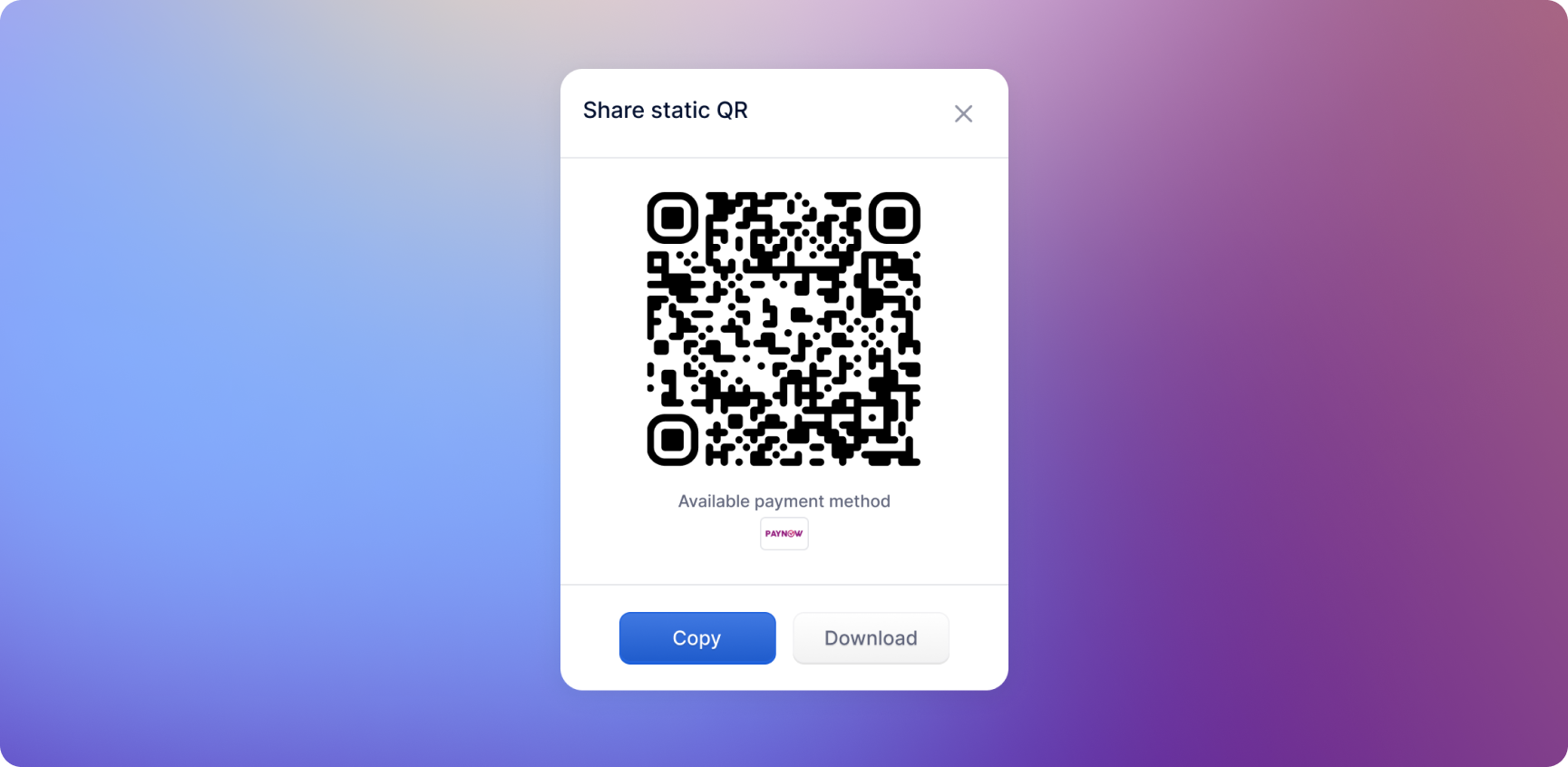
HitPay's Static QR feature enables businesses to accept QR code payments without the need for additional hardware like POS systems or terminals. This solution is particularly beneficial for small and micro businesses, donation drives, and businesses with multiple locations.
 ## Value Proposition
Create separate static QR codes for different locations or purposes to track sales effectively.
Receive instant payment alerts via email and mobile push notifications.
Simply print and display the QR code; no additional devices are necessary.
Compatible with popular payment methods such as PayNow and QRPH.
## How it works
**Generate a Static QR Code**
* Log in to your HitPay account.
* Navigate to the Static QR section.
* Create a new QR code, specifying details like location or purpose.
* Download and print the QR code for display.
**Customer Payment Process**
* Customer can scan their QR code using their supported banking apps
* Customer will manually enter the amount and click "Pay"
**Notification of Successful Payment**
* Upon successful payment, a confirmation is sent to the business.
Static QR codes do not integrate with HitPay POS inventory.
## Reconciling Static QR Payments
To effectively reconcile payments received through Static QR codes, follow these steps:
**1. Access Transaction Details / Export Transcation CSV**
**2. Identify relevant transactions**
* In the transaction list, locate the "Remarks" column. Here, you'll find the name associated with each Static QR code.
* Additionally, the Reference Number column will display the unique identifier for each Static QR.
## Managing Static QR on Mobile
You can view and manage all your Static QR codes directly from the HitPay mobile app — no desktop login required.
**To access Static QR on mobile:**
1. Open the HitPay app
2. Tap **More** in the bottom navigation
3. Select **No Code Tools**
4. Tap **Static QR**
From here you can browse all your QR codes in one place and tap any QR to see its full payment history — useful for end-of-day reconciliation and per-location checks. The app also plays an audio alert the moment a payment is confirmed, so you never miss a transaction while serving customers.
Learn more about [In-App Sound Notification](/static-qrs/soundbox-mobile)
## Integrating Static QR to your custom app/software
### Displaying Static QR in your Software
1. Upon creation of Static QR, you can access the details page
2. Click on "Share"
3. Click on "Copy", this will copy the QR-code value of the Static QR
4. Use the string to generate a QR code image on your software
### Handling payment notifications with webhooks
To receive real-time notifications of successful payments, configure webhooks in your HitPay account.
1. Navigate to Settings > API Keys > Event Webhook
2. Click on Add Webhook
3. Enter your webhook URL where you want to receive payment notifications.
4. Select the events you want to subscribe to (For successuful transaction, subscribe to charge.created).
5. Save the webhook configuration.
### Webhook Payload Example
When a payment is made via Static QR, you will receive a `charge.created` webhook with the following payload structure:
```json charge.created (Static QR) theme={"system"}
{
"id": "a0a09487-46cc-4eaa-b681-0e3446215a4c",
"business_id": "8ba72f77-6a56-4317-8c73-c9d82e81df05",
"channel": "point_of_sale",
"customer_id": null,
"status": "succeeded",
"customer": null,
"currency": "sgd",
"amount": 0.5,
"refunded_amount": 0,
"refunded_at": null,
"fixed_fee": 0.1,
"discount_fee": 0,
"discount_fee_rate": 0,
"failed_reason": null,
"order": null,
"order_id": null,
"remark": "Static QR for soundbox (My Soundbox) (DICNSQRPWTC07RYDHF2L)",
"payment_intents": [],
"payment_request_id": null,
"payment_request": null,
"all_inclusive_fee": 0.1,
"home_currency": "sgd",
"payment_provider": {
"code": "dbs_sg",
"account_id": "DBSSSGSGXXX@0200088298",
"charge": {
"type": "inward_credit_notification",
"id": "25121911374999252139",
"method": "paynow_online",
"transfer_type": "wallet",
"details": null,
"logo": "/icons/payment-methods-2/paynow.png"
}
},
"created_at": "2025-12-19T11:37:51+08:00",
"updated_at": "2025-12-19T11:37:51+08:00",
"closed_at": "2025-12-19T11:37:51+08:00",
"location_id": null,
"location": null,
"business_user_id": null,
"business_user_display": null,
"terminal_id": null,
"static_qr": {
"id": "9face84a-1323-4b67-b4b3-fe9866ebe3fe",
"reference": "DICNSQRPWTC07RYDHF2L"
}
}
```
#### Key Fields for Static QR Payments
| Field | Description |
| -------------------------------- | ----------------------------------------------------------- |
| `id` | Unique identifier for the charge/transaction |
| `status` | Payment status (`succeeded` for successful payments) |
| `currency` | Currency of the payment (e.g., `sgd`) |
| `amount` | Amount paid by the customer |
| `remark` | Contains the Static QR name and reference code |
| `static_qr.id` | Unique identifier of the Static QR |
| `static_qr.reference` | Reference code of the Static QR (useful for reconciliation) |
| `payment_provider.charge.method` | Payment method used (e.g., `paynow_online`) |
| `created_at` | Timestamp when the payment was created |
Use the `static_qr.reference` field to match incoming payments to specific Static QR codes in your system.
### Test the integration
1. Create a transaction
2. Validate webhook reception. Ensure your system correctly receives and processes webhook notifications.
For more information regarding Event Webhooks Integration, please check our API docs page [here](/apis/guide/events).
### Matching the Payment to Static QR
1. Match payments to the corresponding static QR codes using the `remark` fields.
## Payment Methods Supported
| Payment Method | Market |
| -------------- | ----------- |
| PayNow | Singapore |
| UPI | Singapore |
| QRPH | Philippines |
## FAQs
* **Static QR:** The Hint amount is entered manually by the customer.
* **Dynamic QR:** The system generates the amount automatically (e.g., from a POS or online invoice).
The business must check the transaction list in the HitPay dashboard or Mobile app
No, cashiers cannot view Static QR payments. Cashiers can only see transactions that are assigned to them. Static QR payments are not tied to individual cashier accounts, so they will not appear in a cashier's transaction view.
To view Static QR transactions, users need to have a **Manager** or **Admin** role. If a cashier needs to view Static QR payments, they must switch to a Manager or Admin role.
Yes, managers and admins can view all Static QR payments. Unlike cashiers, managers and admins have access to all transactions, including those made via Static QR codes, regardless of which staff member was logged in during the transaction.
If you are using the Static QR APIs to generate QR codes, payments received through these QR codes will be considered as online payments when it comes to pricing.
## Value Proposition
Create separate static QR codes for different locations or purposes to track sales effectively.
Receive instant payment alerts via email and mobile push notifications.
Simply print and display the QR code; no additional devices are necessary.
Compatible with popular payment methods such as PayNow and QRPH.
## How it works
**Generate a Static QR Code**
* Log in to your HitPay account.
* Navigate to the Static QR section.
* Create a new QR code, specifying details like location or purpose.
* Download and print the QR code for display.
**Customer Payment Process**
* Customer can scan their QR code using their supported banking apps
* Customer will manually enter the amount and click "Pay"
**Notification of Successful Payment**
* Upon successful payment, a confirmation is sent to the business.
Static QR codes do not integrate with HitPay POS inventory.
## Reconciling Static QR Payments
To effectively reconcile payments received through Static QR codes, follow these steps:
**1. Access Transaction Details / Export Transcation CSV**
**2. Identify relevant transactions**
* In the transaction list, locate the "Remarks" column. Here, you'll find the name associated with each Static QR code.
* Additionally, the Reference Number column will display the unique identifier for each Static QR.
## Managing Static QR on Mobile
You can view and manage all your Static QR codes directly from the HitPay mobile app — no desktop login required.
**To access Static QR on mobile:**
1. Open the HitPay app
2. Tap **More** in the bottom navigation
3. Select **No Code Tools**
4. Tap **Static QR**
From here you can browse all your QR codes in one place and tap any QR to see its full payment history — useful for end-of-day reconciliation and per-location checks. The app also plays an audio alert the moment a payment is confirmed, so you never miss a transaction while serving customers.
Learn more about [In-App Sound Notification](/static-qrs/soundbox-mobile)
## Integrating Static QR to your custom app/software
### Displaying Static QR in your Software
1. Upon creation of Static QR, you can access the details page
2. Click on "Share"
3. Click on "Copy", this will copy the QR-code value of the Static QR
4. Use the string to generate a QR code image on your software
### Handling payment notifications with webhooks
To receive real-time notifications of successful payments, configure webhooks in your HitPay account.
1. Navigate to Settings > API Keys > Event Webhook
2. Click on Add Webhook
3. Enter your webhook URL where you want to receive payment notifications.
4. Select the events you want to subscribe to (For successuful transaction, subscribe to charge.created).
5. Save the webhook configuration.
### Webhook Payload Example
When a payment is made via Static QR, you will receive a `charge.created` webhook with the following payload structure:
```json charge.created (Static QR) theme={"system"}
{
"id": "a0a09487-46cc-4eaa-b681-0e3446215a4c",
"business_id": "8ba72f77-6a56-4317-8c73-c9d82e81df05",
"channel": "point_of_sale",
"customer_id": null,
"status": "succeeded",
"customer": null,
"currency": "sgd",
"amount": 0.5,
"refunded_amount": 0,
"refunded_at": null,
"fixed_fee": 0.1,
"discount_fee": 0,
"discount_fee_rate": 0,
"failed_reason": null,
"order": null,
"order_id": null,
"remark": "Static QR for soundbox (My Soundbox) (DICNSQRPWTC07RYDHF2L)",
"payment_intents": [],
"payment_request_id": null,
"payment_request": null,
"all_inclusive_fee": 0.1,
"home_currency": "sgd",
"payment_provider": {
"code": "dbs_sg",
"account_id": "DBSSSGSGXXX@0200088298",
"charge": {
"type": "inward_credit_notification",
"id": "25121911374999252139",
"method": "paynow_online",
"transfer_type": "wallet",
"details": null,
"logo": "/icons/payment-methods-2/paynow.png"
}
},
"created_at": "2025-12-19T11:37:51+08:00",
"updated_at": "2025-12-19T11:37:51+08:00",
"closed_at": "2025-12-19T11:37:51+08:00",
"location_id": null,
"location": null,
"business_user_id": null,
"business_user_display": null,
"terminal_id": null,
"static_qr": {
"id": "9face84a-1323-4b67-b4b3-fe9866ebe3fe",
"reference": "DICNSQRPWTC07RYDHF2L"
}
}
```
#### Key Fields for Static QR Payments
| Field | Description |
| -------------------------------- | ----------------------------------------------------------- |
| `id` | Unique identifier for the charge/transaction |
| `status` | Payment status (`succeeded` for successful payments) |
| `currency` | Currency of the payment (e.g., `sgd`) |
| `amount` | Amount paid by the customer |
| `remark` | Contains the Static QR name and reference code |
| `static_qr.id` | Unique identifier of the Static QR |
| `static_qr.reference` | Reference code of the Static QR (useful for reconciliation) |
| `payment_provider.charge.method` | Payment method used (e.g., `paynow_online`) |
| `created_at` | Timestamp when the payment was created |
Use the `static_qr.reference` field to match incoming payments to specific Static QR codes in your system.
### Test the integration
1. Create a transaction
2. Validate webhook reception. Ensure your system correctly receives and processes webhook notifications.
For more information regarding Event Webhooks Integration, please check our API docs page [here](/apis/guide/events).
### Matching the Payment to Static QR
1. Match payments to the corresponding static QR codes using the `remark` fields.
## Payment Methods Supported
| Payment Method | Market |
| -------------- | ----------- |
| PayNow | Singapore |
| UPI | Singapore |
| QRPH | Philippines |
## FAQs
* **Static QR:** The Hint amount is entered manually by the customer.
* **Dynamic QR:** The system generates the amount automatically (e.g., from a POS or online invoice).
The business must check the transaction list in the HitPay dashboard or Mobile app
No, cashiers cannot view Static QR payments. Cashiers can only see transactions that are assigned to them. Static QR payments are not tied to individual cashier accounts, so they will not appear in a cashier's transaction view.
To view Static QR transactions, users need to have a **Manager** or **Admin** role. If a cashier needs to view Static QR payments, they must switch to a Manager or Admin role.
Yes, managers and admins can view all Static QR payments. Unlike cashiers, managers and admins have access to all transactions, including those made via Static QR codes, regardless of which staff member was logged in during the transaction.
If you are using the Static QR APIs to generate QR codes, payments received through these QR codes will be considered as online payments when it comes to pricing.