> ## Documentation Index
> Fetch the complete documentation index at: https://docs.hitpayapp.com/llms.txt
> Use this file to discover all available pages before exploring further.
# In-App Sound Notification
> Turn your phone into a Digital Soundbox that produces in-app voice or sound notifications
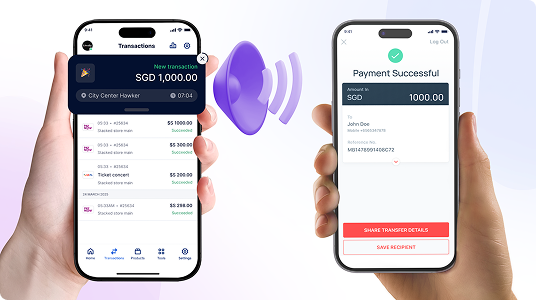 This feature is designed to be paired with [HitPay Static QRs](/static-qrs/static-qr)
## Overview
Using printed QR codes can make it hard to know when a customer has paid. This opens the door to fraud, confusion, and missed transactions.
With HitPay's In-App Audio Alerts, your phone announces every payment instantly — no extra device required.
Just print your QR or use the free standee we provide, and let your phone do the talking.
## Value Proposition
Receive real-time audio and on-screen notifications for every payment, so you never miss a transaction
You can just download the HitPay app on your mobile phone, no additional hardware needed!
Protect your business from fake payment screen scams with instant, reliable audio notifications.
## How to enable audio alerts on the mobile app
1. Download the HitPay app from the Play Store or App Store.
2. Log in and open the Transactions page.
3. Tap "Settings."
4. Select "Enable Audio Alerts."
5. Set the alert duration and preview the sound.
6. When a payment arrives, your phone announces the amount and shows a notification.
7. Stay on the Transactions page to keep receiving real-time alerts.
This feature is designed to be paired with [HitPay Static QRs](/static-qrs/static-qr)
## Overview
Using printed QR codes can make it hard to know when a customer has paid. This opens the door to fraud, confusion, and missed transactions.
With HitPay's In-App Audio Alerts, your phone announces every payment instantly — no extra device required.
Just print your QR or use the free standee we provide, and let your phone do the talking.
## Value Proposition
Receive real-time audio and on-screen notifications for every payment, so you never miss a transaction
You can just download the HitPay app on your mobile phone, no additional hardware needed!
Protect your business from fake payment screen scams with instant, reliable audio notifications.
## How to enable audio alerts on the mobile app
1. Download the HitPay app from the Play Store or App Store.
2. Log in and open the Transactions page.
3. Tap "Settings."
4. Select "Enable Audio Alerts."
5. Set the alert duration and preview the sound.
6. When a payment arrives, your phone announces the amount and shows a notification.
7. Stay on the Transactions page to keep receiving real-time alerts.