> ## Documentation Index
> Fetch the complete documentation index at: https://docs.hitpayapp.com/llms.txt
> Use this file to discover all available pages before exploring further.
# Account Setup
> Create your HitPay account and start accepting payments in minutes
## Overview
Welcome to the Account Creation process for HitPay! In this guide, we'll walk you through the steps to create your HitPay account, enabling you to seamlessly manage your business transactions and payments. Whether you're new to HitPay or looking to set up a test account, we've got you covered.
* **Sign Up**: To begin your journey with HitPay, please visit our [Sign Up Page](https://dashboard.hit-pay.com/register) and get started on unlocking a world of streamlined payment solutions.
**Sandbox Environment**: If you want to explore the APIs without creating a
full account, create a [Sandbox account](/apis/guide/sandbox).
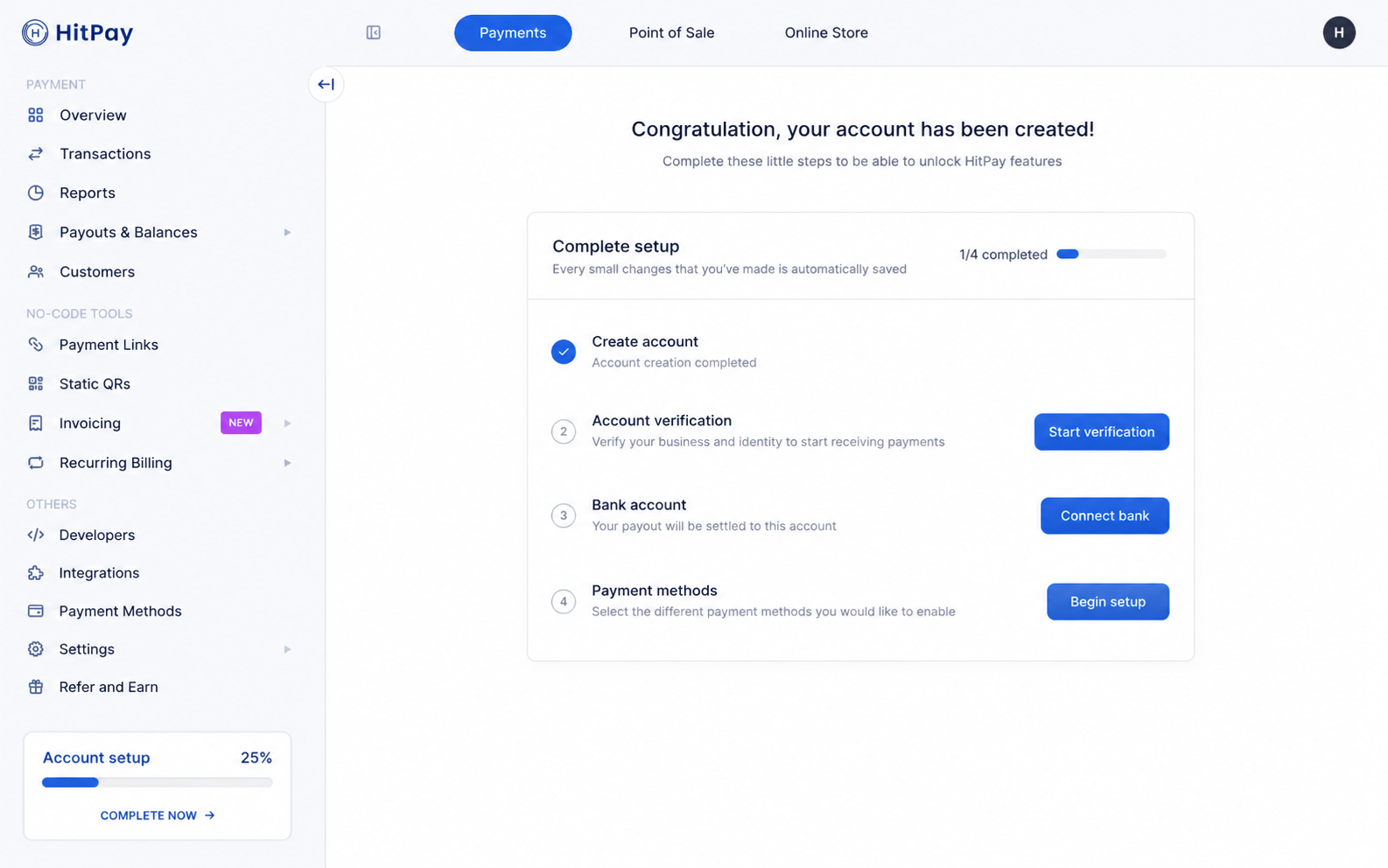 To create an account, follow these steps:
HitPay supports the following countries:
* Singapore
* Malaysia
* Philippines
* Thailand
* Indonesia
* Hong Kong
* New Zealand
* Australia
Other countries' signups are now on waitlist. For more information, please
contact the support team.
Complete account creation by selecting your country and registering. This
choice is permanent once confirmed. Visit our [Sign Up
Page](https://dashboard.hit-pay.com/register) to get started.
Verify your business and identity so you can start receiving payments. Click
**Start verification** on the setup checklist, then provide business
details, complete owner verification (including selfie and liveness checks
where required), and submit your application for approval.
Connect the bank account where your payouts will be settled. Use **Connect
bank** when this step becomes available after verification progresses as
required.
Choose which payment methods you want to enable for your customers. Select
**Begin setup** to configure the options that fit your business.
## Account Security
Learn about the shared responsibility model for account security and best
practices for maintaining secure access.
Set up two-factor authentication to add an extra layer of security to your
HitPay account.
## FAQs
If you encounter difficulties during the owner verification process, please ensure that you're following the guidelines provided in the verification instructions. Make sure the selfie is clear and that you're in a well-lit environment. If issues persist, reach out to our dedicated support team for prompt assistance.
If your business does not have a website, please use your social media links.
No, you cannot change your account type once the verification process has been completed based on your selected account type. If your verification is still pending, you can contact our support team to request a change.
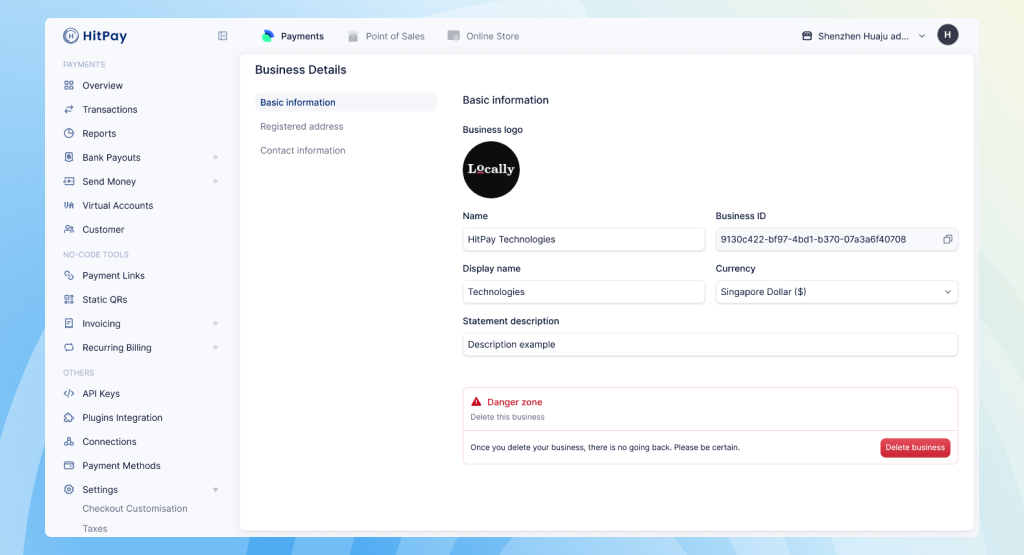
Only the business owner can delete a business. To delete your HitPay account:
1. Go to **Settings → Business Details**
2. Scroll down to the **Danger Zone** section
3. Click **Delete Business**
To create an account, follow these steps:
HitPay supports the following countries:
* Singapore
* Malaysia
* Philippines
* Thailand
* Indonesia
* Hong Kong
* New Zealand
* Australia
Other countries' signups are now on waitlist. For more information, please
contact the support team.
Complete account creation by selecting your country and registering. This
choice is permanent once confirmed. Visit our [Sign Up
Page](https://dashboard.hit-pay.com/register) to get started.
Verify your business and identity so you can start receiving payments. Click
**Start verification** on the setup checklist, then provide business
details, complete owner verification (including selfie and liveness checks
where required), and submit your application for approval.
Connect the bank account where your payouts will be settled. Use **Connect
bank** when this step becomes available after verification progresses as
required.
Choose which payment methods you want to enable for your customers. Select
**Begin setup** to configure the options that fit your business.
## Account Security
Learn about the shared responsibility model for account security and best
practices for maintaining secure access.
Set up two-factor authentication to add an extra layer of security to your
HitPay account.
## FAQs
If you encounter difficulties during the owner verification process, please ensure that you're following the guidelines provided in the verification instructions. Make sure the selfie is clear and that you're in a well-lit environment. If issues persist, reach out to our dedicated support team for prompt assistance.
If your business does not have a website, please use your social media links.
No, you cannot change your account type once the verification process has been completed based on your selected account type. If your verification is still pending, you can contact our support team to request a change.
Only the business owner can delete a business. To delete your HitPay account:
1. Go to **Settings → Business Details**
2. Scroll down to the **Danger Zone** section
3. Click **Delete Business**
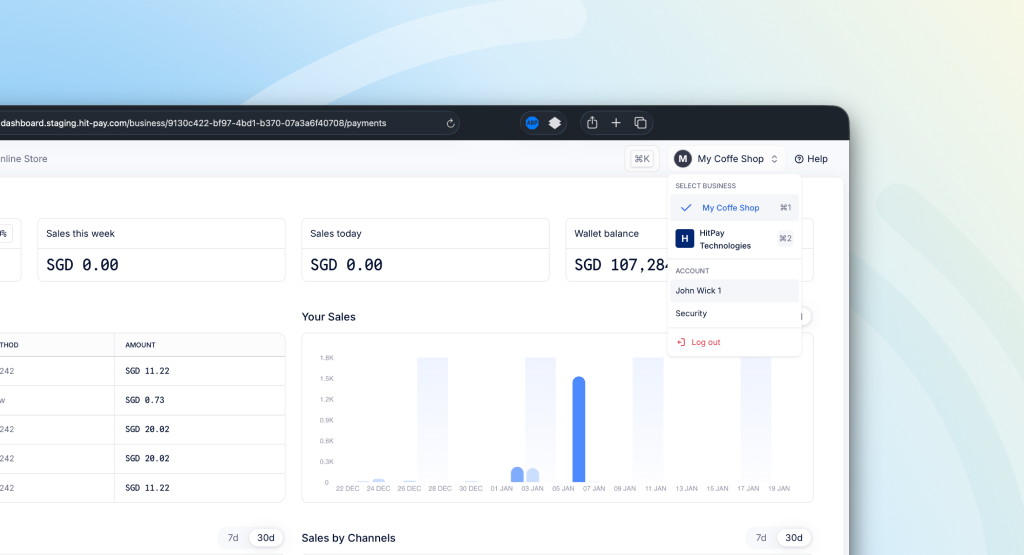
 To change your email address:
1. Click on your account avatar in the top right corner
2. Select **Account** from the dropdown menu
3. Click on **Change Email** to update your email address
To change your email address:
1. Click on your account avatar in the top right corner
2. Select **Account** from the dropdown menu
3. Click on **Change Email** to update your email address
 For any additional questions or concerns, our support team ([support@hit-pay.com](mailto:support@hit-pay.com)) is always available to provide assistance and ensure your account creation process is as smooth as possible.