> ## Documentation Index
> Fetch the complete documentation index at: https://docs.hitpayapp.com/llms.txt
> Use this file to discover all available pages before exploring further.
# Two-Factor Authentication
> Learn how to set up and manage two-factor authentication for your HitPay account
## Overview
Secure your HitPay account by enabling 2FA to provide an additional layer of security when logging in. Follow these steps to set up 2FA:
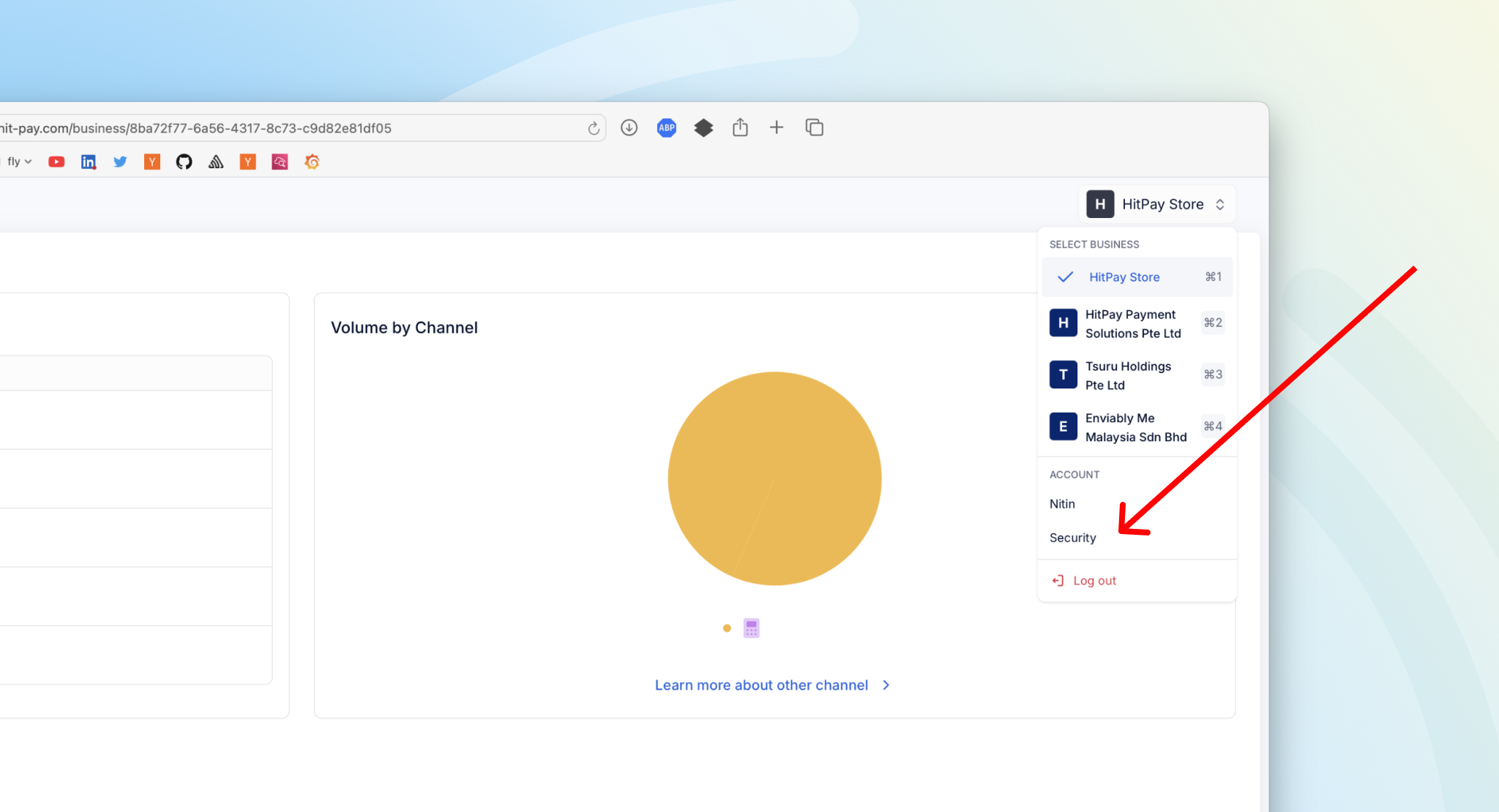
Click on Security from the top-right portion of the menu as shown below.
 Click on "Set up two-factor authentication".
You will need to use any authenticator app such as Google Authenticator or Microsoft Authenticator available from the Apple App Store or Google Play Store. Follow the on-screen guide to proceed.
Scan the Barcode generated using your chosen Authenticator App and click Continue.
Enter the code from your Authenticator App and Click Verify.
Click on "Set up two-factor authentication".
You will need to use any authenticator app such as Google Authenticator or Microsoft Authenticator available from the Apple App Store or Google Play Store. Follow the on-screen guide to proceed.
Scan the Barcode generated using your chosen Authenticator App and click Continue.
Enter the code from your Authenticator App and Click Verify.
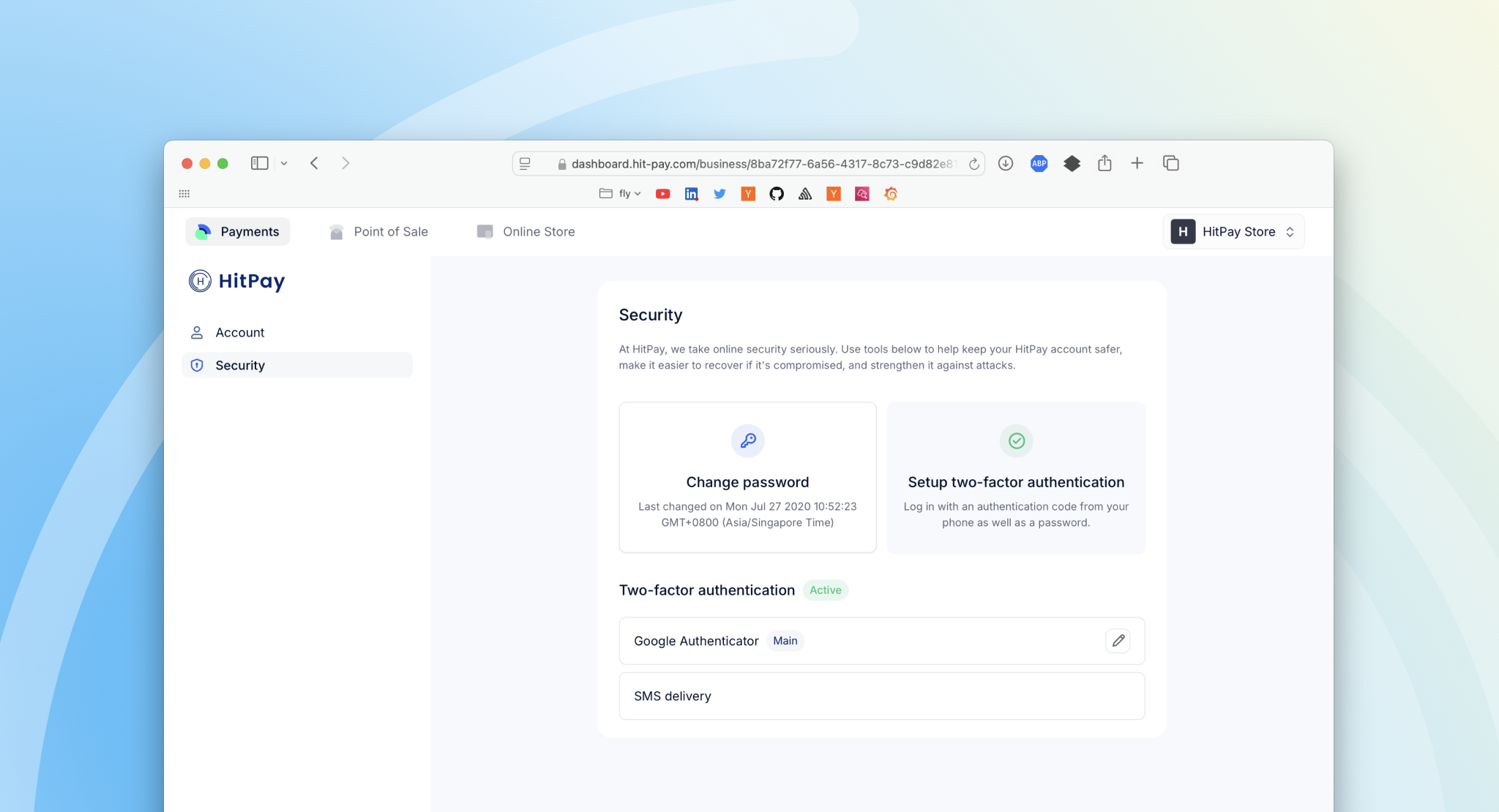 2FA is now activated! You will be prompted to enter a 2FA code from your authenticator app every time you log in to HitPay on the web and on mobile.