> ## Documentation Index
> Fetch the complete documentation index at: https://docs.hitpayapp.com/llms.txt
> Use this file to discover all available pages before exploring further.
# Payment Reports
## Overview
The HitPay dashboard provides you with the ability to monitor and analyze your transactions and gain insights into your business's performance. This guide takes you on an comprehensive journey through the Sales & Reports features on HitPay.
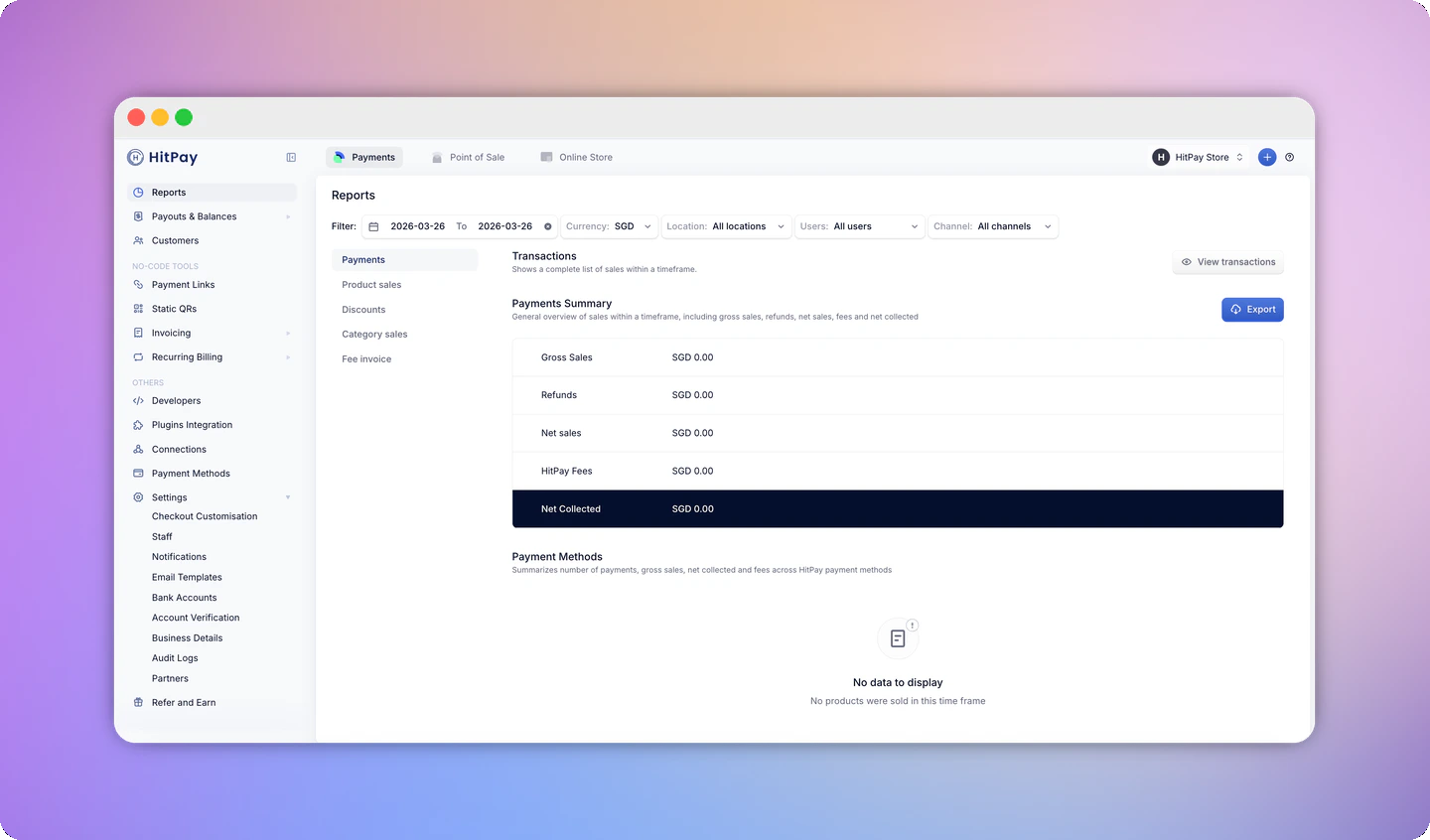 You can access your sales reports by navigating to **Bank Payouts > Reports** on your HitPay Dashboard.
### Types of Reports
| Report Type | Description | Accessibility | |
| :------------------------: | :----------------------------------------------------------------------------------------------------------------------------------------: | :-----------------------------------------------------------------------------------------------------------------------: | - |
| Transactions List | Displays a list of transactions processed within a specific time period. Accessible via the **Transactions** Tab. | Can be acccessed by navigating to the **Transactions** tab | |
| Sales Summary | Offers an overview of sales within a specific time frame, including gross sales, refunds, net sales, fees, and net collected. | Accessible by navigating to the **Tools** tab and clicking on **Reports**. | |
| Sales by Payment Methods | Summarizes the number of payments, gross sales, net collected, and associated fees based on various payment methods transacted via HitPay. | Accessible by navigating to the **Tools** tab and clicking on **Reports**. | |
| Sales by Products Summary | Provides an aggregated summary of total sales for each product. | Accessible by navigating to the **Tools** tab and clicking on **Reports**. | |
| Sales by Products Detailed | Offers a detailed breakdown of products sold and the quantity sold in each order. | You can access this information under the transaction details by selecting the transaction from the **Transactions** tab. | |
### Setting Report Filters
Before you can export your sales reports, you need to set a filter based on the "Sales Channel" and you also need to specify a **Date From**(Start Date) & **Date To**(End Date)
Cashiers will only be able to view their own transactions and cannot view other user's transactions.
## FAQs
Yes the reports feature includes all transactions made from your HitPay account regardless of channel.
**Refunds**
Below are the charges and processing time associated with refunds:
You can access your sales reports by navigating to **Bank Payouts > Reports** on your HitPay Dashboard.
### Types of Reports
| Report Type | Description | Accessibility | |
| :------------------------: | :----------------------------------------------------------------------------------------------------------------------------------------: | :-----------------------------------------------------------------------------------------------------------------------: | - |
| Transactions List | Displays a list of transactions processed within a specific time period. Accessible via the **Transactions** Tab. | Can be acccessed by navigating to the **Transactions** tab | |
| Sales Summary | Offers an overview of sales within a specific time frame, including gross sales, refunds, net sales, fees, and net collected. | Accessible by navigating to the **Tools** tab and clicking on **Reports**. | |
| Sales by Payment Methods | Summarizes the number of payments, gross sales, net collected, and associated fees based on various payment methods transacted via HitPay. | Accessible by navigating to the **Tools** tab and clicking on **Reports**. | |
| Sales by Products Summary | Provides an aggregated summary of total sales for each product. | Accessible by navigating to the **Tools** tab and clicking on **Reports**. | |
| Sales by Products Detailed | Offers a detailed breakdown of products sold and the quantity sold in each order. | You can access this information under the transaction details by selecting the transaction from the **Transactions** tab. | |
### Setting Report Filters
Before you can export your sales reports, you need to set a filter based on the "Sales Channel" and you also need to specify a **Date From**(Start Date) & **Date To**(End Date)
Cashiers will only be able to view their own transactions and cannot view other user's transactions.
## FAQs
Yes the reports feature includes all transactions made from your HitPay account regardless of channel.
**Refunds**
Below are the charges and processing time associated with refunds:
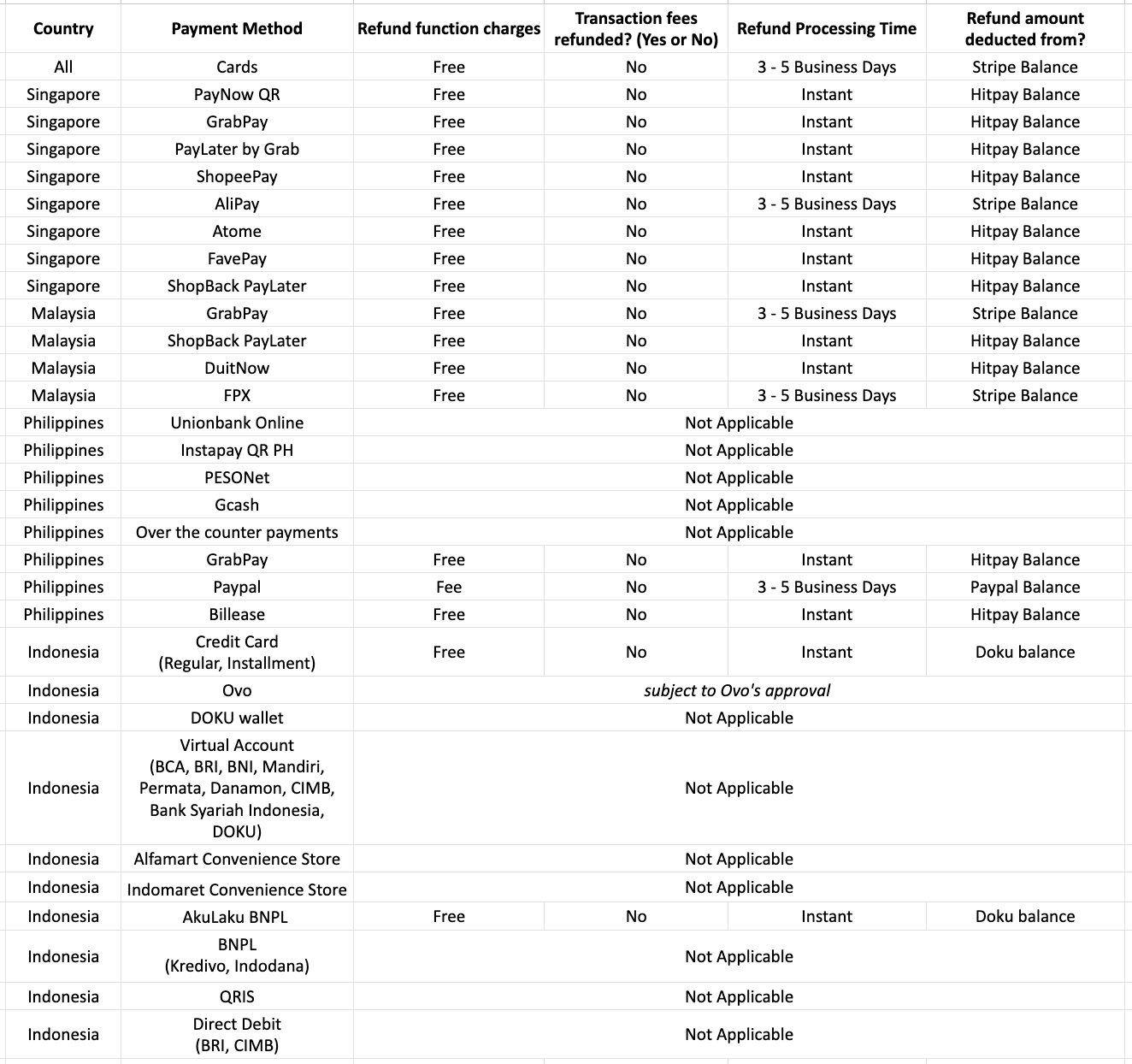 Refund function is currently not yet available for UPay Payment Method for Philippines-based merchants and for some payment methods for Indonesia-based merchants.
**Chargebacks**
Chargeback fee + full original transaction amount will be reversed from the merchant balance:
Refund function is currently not yet available for UPay Payment Method for Philippines-based merchants and for some payment methods for Indonesia-based merchants.
**Chargebacks**
Chargeback fee + full original transaction amount will be reversed from the merchant balance:
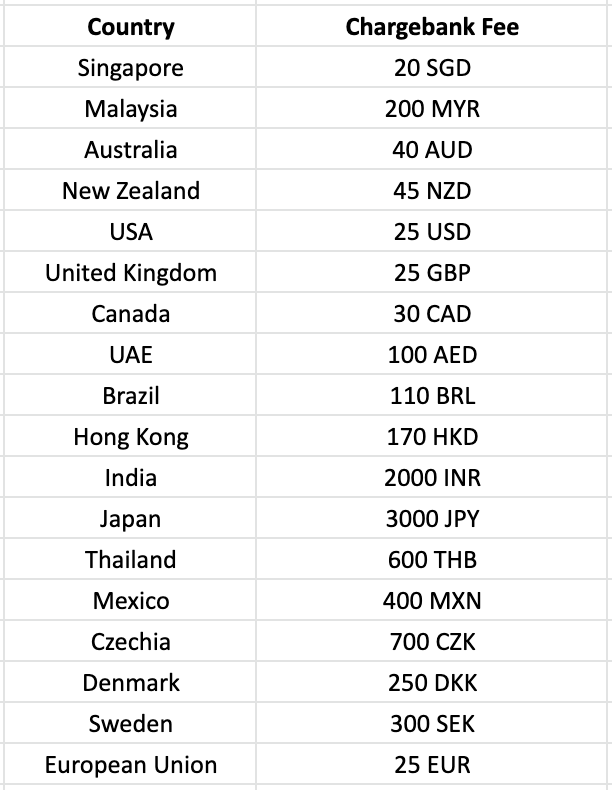 European Union includes Austria, Belgium, Finland, France, Germany, Luxembourg, Netherlands, Portugal, Ireland, Italy, and Spain.
All card payments are processed using 3DS technology which by default protects all HitPay merchants from chargeback and shifts the liability of the payment to the bank. However in the event that the issuing bank submits a chargeback, the above fees will be applicable.
As HitPay is the merchant on record and is taking risk on behalf of the merchant, in the event of a chargeback, HitPay will deduct the chargeback fees and full transaction amount immediately from the merchant's Stripe balance.
Payments that have been successfully authenticated using 3D Secure are covered by a liability shift. Should a 3D Secure payment be disputed as fraudulent by the cardholder, the liability shifts from you to the card issuer i.e the bank.
If a customer disputes a payment for any other reason (for example, product not received) then the standard dispute process applies.
Policies are subject to change without further notice.
## Fee Breakdown
You can now view a detailed breakdown of all fees applied to a transaction directly from the charge details page.
To access the fee breakdown:
1. Navigate to **Payments > Transactions** on your HitPay Dashboard.
2. Select any transaction to open its charge details.
3. Click the **"Fees breakdown"** link next to the HitPay fee amount.
A panel will open showing each fee component applied to that transaction:
* **Payment method fees** — The fixed fee and percentage fee charged for the payment method used (e.g. PayNow, cards, e-wallets).
* **Plugin fees** — Any additional fees from integrations such as Shopify or other online store software.
* **Currency conversion fees** — For cross-currency transactions, the FX conversion fee is listed separately.
* **Total fees** — The sum of all fee components for the transaction.
European Union includes Austria, Belgium, Finland, France, Germany, Luxembourg, Netherlands, Portugal, Ireland, Italy, and Spain.
All card payments are processed using 3DS technology which by default protects all HitPay merchants from chargeback and shifts the liability of the payment to the bank. However in the event that the issuing bank submits a chargeback, the above fees will be applicable.
As HitPay is the merchant on record and is taking risk on behalf of the merchant, in the event of a chargeback, HitPay will deduct the chargeback fees and full transaction amount immediately from the merchant's Stripe balance.
Payments that have been successfully authenticated using 3D Secure are covered by a liability shift. Should a 3D Secure payment be disputed as fraudulent by the cardholder, the liability shifts from you to the card issuer i.e the bank.
If a customer disputes a payment for any other reason (for example, product not received) then the standard dispute process applies.
Policies are subject to change without further notice.
## Fee Breakdown
You can now view a detailed breakdown of all fees applied to a transaction directly from the charge details page.
To access the fee breakdown:
1. Navigate to **Payments > Transactions** on your HitPay Dashboard.
2. Select any transaction to open its charge details.
3. Click the **"Fees breakdown"** link next to the HitPay fee amount.
A panel will open showing each fee component applied to that transaction:
* **Payment method fees** — The fixed fee and percentage fee charged for the payment method used (e.g. PayNow, cards, e-wallets).
* **Plugin fees** — Any additional fees from integrations such as Shopify or other online store software.
* **Currency conversion fees** — For cross-currency transactions, the FX conversion fee is listed separately.
* **Total fees** — The sum of all fee components for the transaction.