> ## Documentation Index
> Fetch the complete documentation index at: https://docs.hitpayapp.com/llms.txt
> Use this file to discover all available pages before exploring further.
# Transactions & Reports
> Learn more about the Transaction History and Reports for Your POS App
## Overview
The HitPay App provides you with the ability to monitor and analyze your business transactions. The transactions page presents crucial information about payment details at a glance, this view offers detailed insights into individual transactions, aiding in effective tracking of order specifics. This guide takes you on an comprehensive journey through the Transactions & Reports features.
## Viewing Transactions
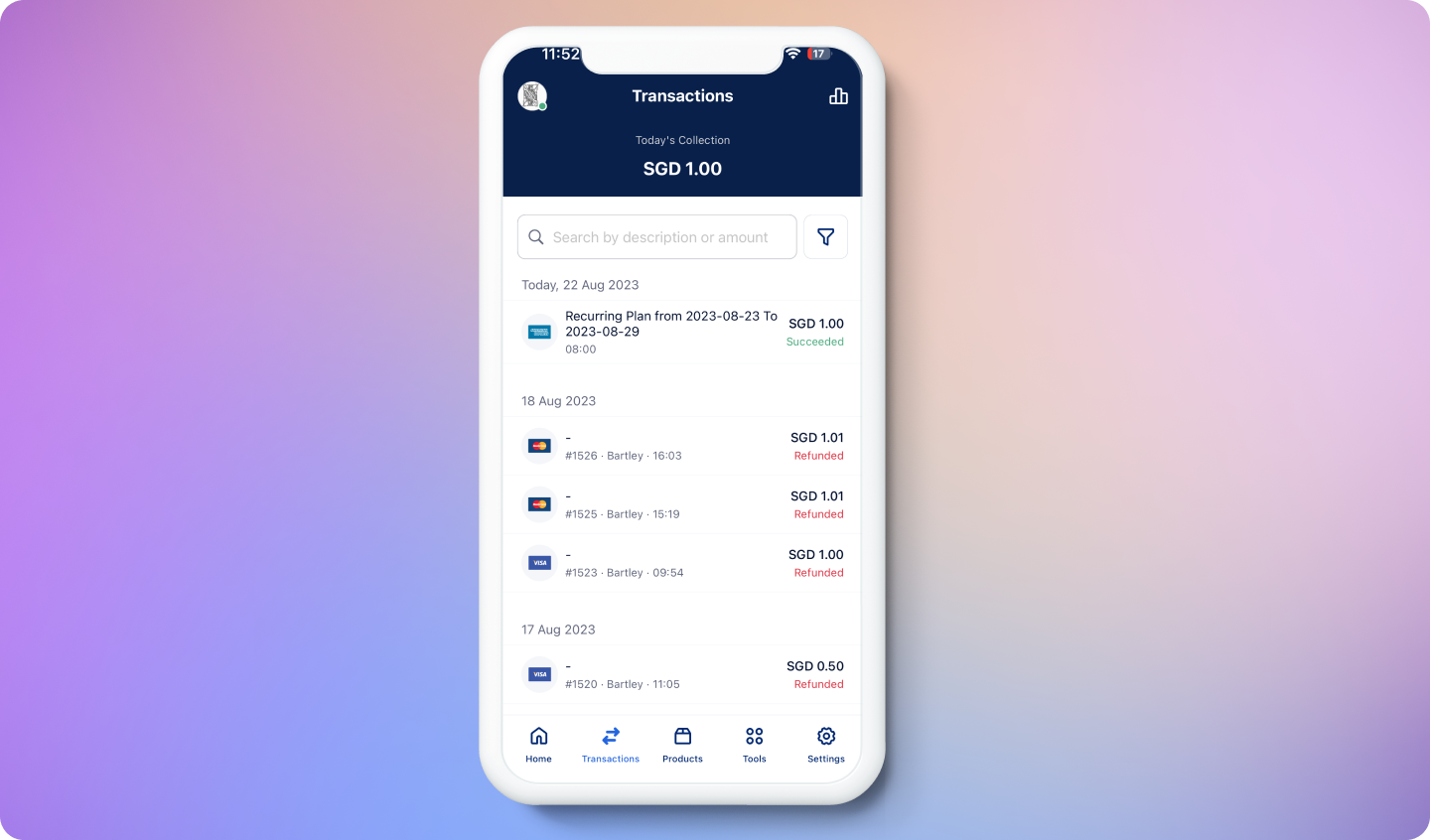
Exploring payment transactions processed through the HitPay App is simple and intuitive. To view your transactions, navigate to the **Transactions** tab, where a list of recent transactions are displayed.
 ### Viewing Transaction Details
Dive deeper into transaction details by clicking on any transaction in the list. Gain access to specific information such as:
* Payment method used
* Transaction fees, taxes, and additional charges
* Transaction description
* Order details, including the list of purchased products
* Refund details (if applicable)
* Customer information (if applicable)
* [Location](https://hitpay.mintlify.app/point_of_sale/locations) of the transaction (if applicable)
* [Cashier](https://hitpay.mintlify.app/setup/user_management#user-roles) associated with the transaction (if applicable)
### Receipts & Refunds
**Receipts:** Easily share receipts by clicking the **Share Receipt** button on the transaction details page. For more information about receipts, click [here](/pos/receipts).
**Refunds:** You can also process [refunds](https://hitpay.mintlify.app/payments/refund) effortlessly from the transaction details page by clicking the **Refund** button.
## Reports
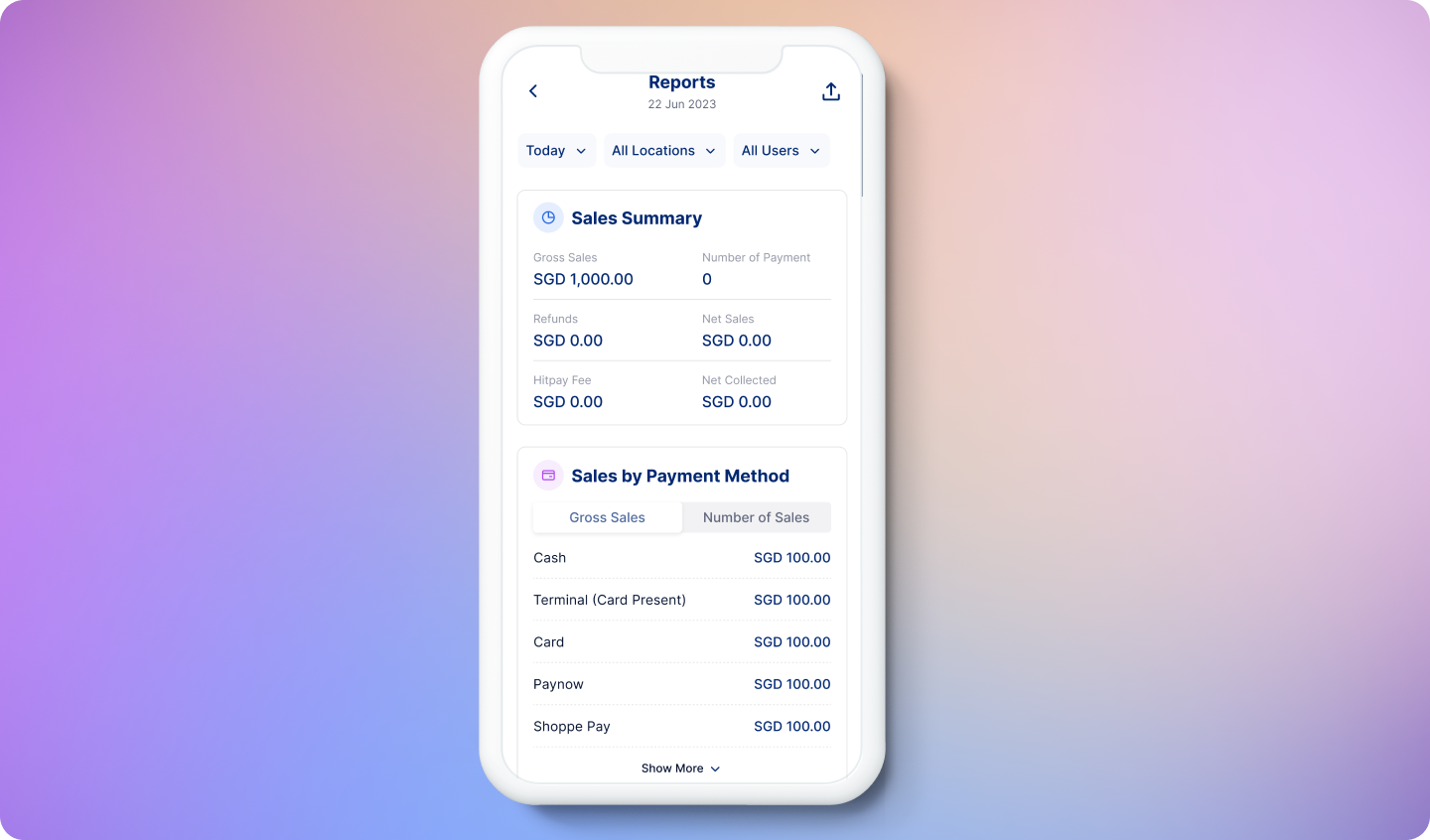
HitPay's reporting feature allows you to gain insights into your business's performance. You can view various types of reports to track sales, analyze payment methods, and delve into product-specific data. Reports can help you evaluate your business strategies effectively.
To view your sales reports by navigating to the **Tools** tab and clicking on **Reports** (You can also click the icon on the top right corner of the screen from the **Transactions** tab).
### Viewing Transaction Details
Dive deeper into transaction details by clicking on any transaction in the list. Gain access to specific information such as:
* Payment method used
* Transaction fees, taxes, and additional charges
* Transaction description
* Order details, including the list of purchased products
* Refund details (if applicable)
* Customer information (if applicable)
* [Location](https://hitpay.mintlify.app/point_of_sale/locations) of the transaction (if applicable)
* [Cashier](https://hitpay.mintlify.app/setup/user_management#user-roles) associated with the transaction (if applicable)
### Receipts & Refunds
**Receipts:** Easily share receipts by clicking the **Share Receipt** button on the transaction details page. For more information about receipts, click [here](/pos/receipts).
**Refunds:** You can also process [refunds](https://hitpay.mintlify.app/payments/refund) effortlessly from the transaction details page by clicking the **Refund** button.
## Reports
HitPay's reporting feature allows you to gain insights into your business's performance. You can view various types of reports to track sales, analyze payment methods, and delve into product-specific data. Reports can help you evaluate your business strategies effectively.
To view your sales reports by navigating to the **Tools** tab and clicking on **Reports** (You can also click the icon on the top right corner of the screen from the **Transactions** tab).
 ### Types of Reports
| Report Type | Description | Accessibility | |
| :------------------------: | :----------------------------------------------------------------------------------------------------------------------------------------: | :-----------------------------------------------------------------------------------------------------------------------: | - |
| Transactions List | Displays a list of transactions processed within a specific time period. Accessible via the **Transactions** Tab. | Can be acccessed by navigating to the **Transactions** tab | |
| Sales Summary | Offers an overview of sales within a specific time frame, including gross sales, refunds, net sales, fees, and net collected. | Accessible by navigating to the **Tools** tab and clicking on **Reports**. | |
| Sales by Payment Methods | Summarizes the number of payments, gross sales, net collected, and associated fees based on various payment methods transacted via HitPay. | Accessible by navigating to the **Tools** tab and clicking on **Reports**. | |
| Sales by Products Summary | Provides an aggregated summary of total sales for each product. | Accessible by navigating to the **Tools** tab and clicking on **Reports**. | |
| Sales by Products Detailed | Offers a detailed breakdown of products sold and the quantity sold in each order. | You can access this information under the transaction details by selecting the transaction from the **Transactions** tab. | |
### Setting Report Filters
You can filter reports by date, location and users. Cashiers will only be able to view their own transactions and cannot view other user's transactions.
### Print Your Daily Reports
Any reports that you see on the reports page can be printed if you have a [printer connected](/pos/receipts). If you need to print your daily summary, you can update the filter and select the date as "Today." Then, click on the *Export Icon* at the top right and select "Print."
## iOS Widgets
HitPay offers convenient ways to stay updated and informed about your business activities using widgets on iOS.
### Types of Reports
| Report Type | Description | Accessibility | |
| :------------------------: | :----------------------------------------------------------------------------------------------------------------------------------------: | :-----------------------------------------------------------------------------------------------------------------------: | - |
| Transactions List | Displays a list of transactions processed within a specific time period. Accessible via the **Transactions** Tab. | Can be acccessed by navigating to the **Transactions** tab | |
| Sales Summary | Offers an overview of sales within a specific time frame, including gross sales, refunds, net sales, fees, and net collected. | Accessible by navigating to the **Tools** tab and clicking on **Reports**. | |
| Sales by Payment Methods | Summarizes the number of payments, gross sales, net collected, and associated fees based on various payment methods transacted via HitPay. | Accessible by navigating to the **Tools** tab and clicking on **Reports**. | |
| Sales by Products Summary | Provides an aggregated summary of total sales for each product. | Accessible by navigating to the **Tools** tab and clicking on **Reports**. | |
| Sales by Products Detailed | Offers a detailed breakdown of products sold and the quantity sold in each order. | You can access this information under the transaction details by selecting the transaction from the **Transactions** tab. | |
### Setting Report Filters
You can filter reports by date, location and users. Cashiers will only be able to view their own transactions and cannot view other user's transactions.
### Print Your Daily Reports
Any reports that you see on the reports page can be printed if you have a [printer connected](/pos/receipts). If you need to print your daily summary, you can update the filter and select the date as "Today." Then, click on the *Export Icon* at the top right and select "Print."
## iOS Widgets
HitPay offers convenient ways to stay updated and informed about your business activities using widgets on iOS.
 **Installing the HitPay Widget**
1. From the Home Screen, touch and hold a widget or an empty area until the apps jiggle.
2. Tap the **+** button in the upper-left corner.
3. Select the HitPay widget and choose the widget type you'd like to add. HitPay offers both small and medium widget views.
4. Tap **Add Widget** and then tap **Done**.
**Customizing the HitPay Widget**
1. Long-press on the HitPay widget from your home screen.
2. Click on "Edit Widget."
3. Select your desired filters and adjust the following fields:
* Business
* Date Range
* Data (choose 2 for small widget, choose 4 for medium widget)
* Gross Sales
* Number of Sales
* Refunds
* Net Sales
* HitPay Fees
* Net Collected
## FAQs
Yes the reports feature includes all transactions made from your HitPay account regardless of channel.
**Refunds**
Below are the charges and processing time associated with refunds:
**Installing the HitPay Widget**
1. From the Home Screen, touch and hold a widget or an empty area until the apps jiggle.
2. Tap the **+** button in the upper-left corner.
3. Select the HitPay widget and choose the widget type you'd like to add. HitPay offers both small and medium widget views.
4. Tap **Add Widget** and then tap **Done**.
**Customizing the HitPay Widget**
1. Long-press on the HitPay widget from your home screen.
2. Click on "Edit Widget."
3. Select your desired filters and adjust the following fields:
* Business
* Date Range
* Data (choose 2 for small widget, choose 4 for medium widget)
* Gross Sales
* Number of Sales
* Refunds
* Net Sales
* HitPay Fees
* Net Collected
## FAQs
Yes the reports feature includes all transactions made from your HitPay account regardless of channel.
**Refunds**
Below are the charges and processing time associated with refunds:
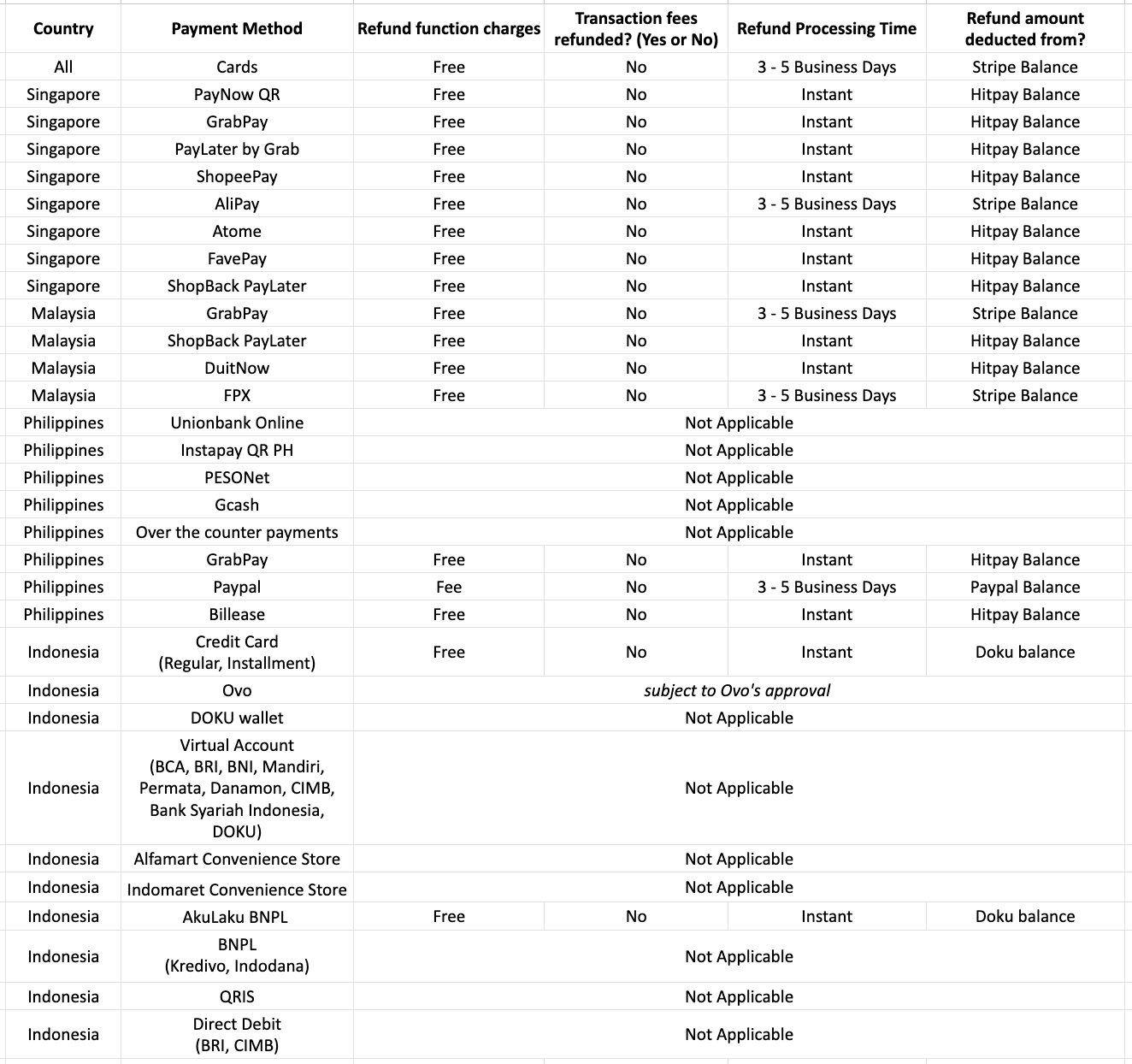 Refund function is currently not yet available for UPay Payment Method for Philippines-based merchants and for some payment methods for Indonesia-based merchants.
**Chargebacks**
Chargeback fee + full original transaction amount will be reversed from the merchant balance:
Refund function is currently not yet available for UPay Payment Method for Philippines-based merchants and for some payment methods for Indonesia-based merchants.
**Chargebacks**
Chargeback fee + full original transaction amount will be reversed from the merchant balance:
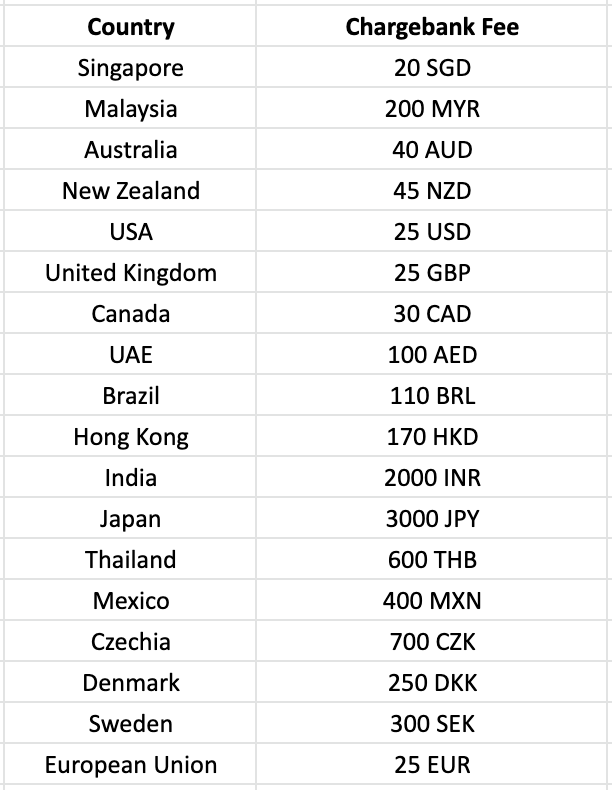 European Union includes Austria, Belgium, Finland, France, Germany, Luxembourg, Netherlands, Portugal, Ireland, Italy, and Spain.
All card payments are processed using 3DS technology which by default protects all HitPay merchants from chargeback and shifts the liability of the payment to the bank. However in the event that the issuing bank submits a chargeback, the above fees will be applicable.
As HitPay is the merchant on record and is taking risk on behalf of the merchant, in the event of a chargeback, HitPay will deduct the chargeback fees and full transaction amount immediately from the merchant's Stripe balance.
Payments that have been successfully authenticated using 3D Secure are covered by a liability shift. Should a 3D Secure payment be disputed as fraudulent by the cardholder, the liability shifts from you to the card issuer i.e the bank.
If a customer disputes a payment for any other reason (for example, product not received) then the standard dispute process applies.
Policies are subject to change without further notice.
European Union includes Austria, Belgium, Finland, France, Germany, Luxembourg, Netherlands, Portugal, Ireland, Italy, and Spain.
All card payments are processed using 3DS technology which by default protects all HitPay merchants from chargeback and shifts the liability of the payment to the bank. However in the event that the issuing bank submits a chargeback, the above fees will be applicable.
As HitPay is the merchant on record and is taking risk on behalf of the merchant, in the event of a chargeback, HitPay will deduct the chargeback fees and full transaction amount immediately from the merchant's Stripe balance.
Payments that have been successfully authenticated using 3D Secure are covered by a liability shift. Should a 3D Secure payment be disputed as fraudulent by the cardholder, the liability shifts from you to the card issuer i.e the bank.
If a customer disputes a payment for any other reason (for example, product not received) then the standard dispute process applies.
Policies are subject to change without further notice.