> ## Documentation Index
> Fetch the complete documentation index at: https://docs.hitpayapp.com/llms.txt
> Use this file to discover all available pages before exploring further.
# Sunmi V3 (All-in-One)
> Instructions on how to set up and use the Sunmi V3 terminal.
## Overview
**Sunmi V3 (HitPay All-in-One)** is a comprehensive point-of-sale solution designed for businesses seeking mobility and a feature-rich solution. This standalone terminal offers integrated card payments, in-built printing capabilities, and cellular connectivity.
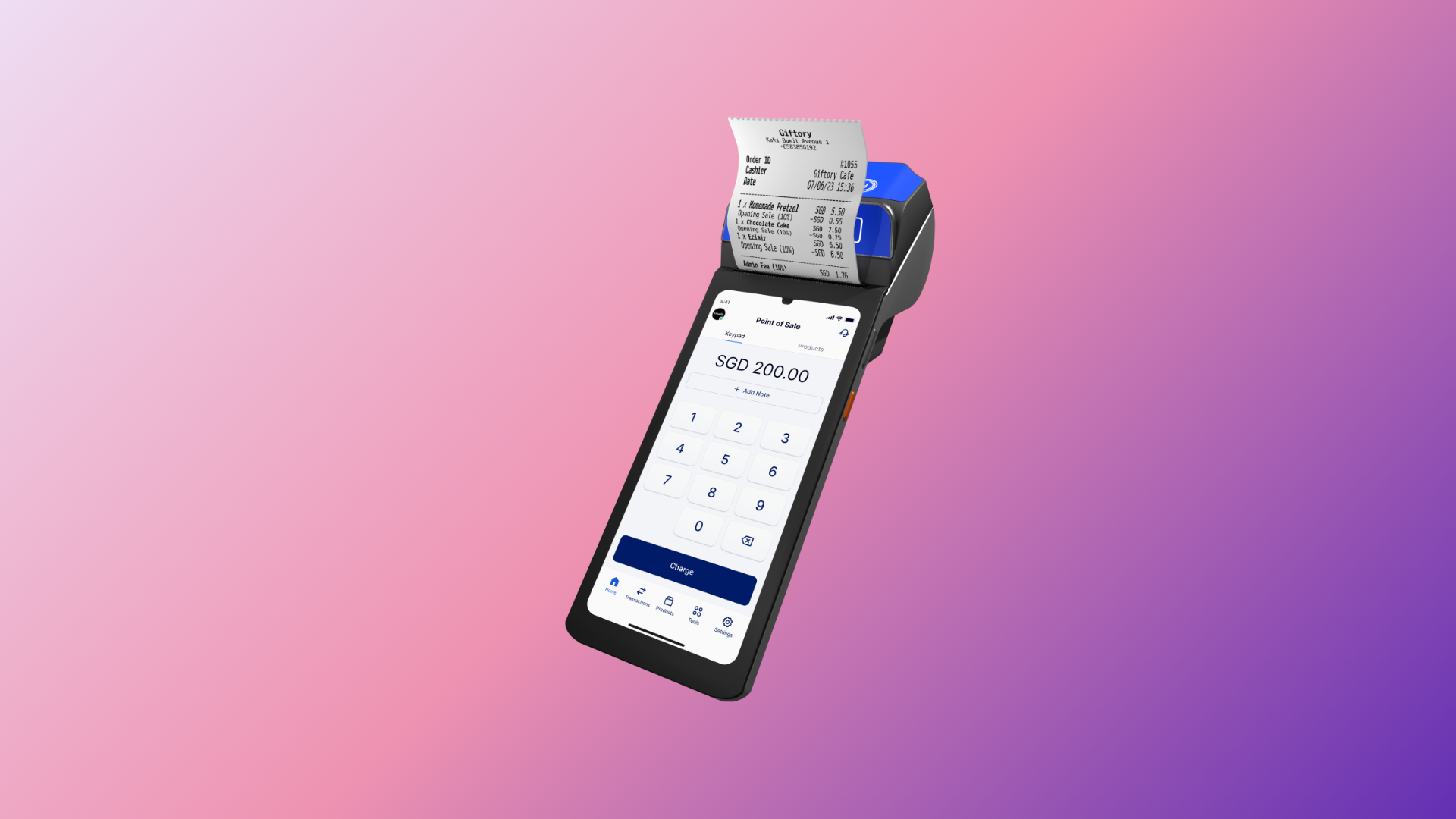 ## Steps to set up Sunmi V3
1. Power on the Sunmi V3 using the side power key.
2. Insert a SIM card or connect to a Wi-Fi network.
3. Sign in to the **Google Play Store**.\
You may use your business Gmail account or a shared account for easier management.
4. In the Sunmi App Store or Play Store, search for the **HitPay App (blue logo)**.\
[App Download Link](https://play.google.com/store/apps/details?id=com.hit_pay.hitpay\&hl=en_SG\&gl=US\&pli=1)
5. Log in using your HitPay credentials.
6. Enable Bluetooth and Location.
7. Wait for automatic pairing — the HitPay app will show **Connected** once successful.
8. You can now accept payments through **Quick Sale** or **Products**, choosing **Tap to Pay** or **Card Terminal** when processing cards.
Refer to this [setup video](https://www.youtube.com/shorts/WM_x_8muCOQ).
Sunmi V3 uses **58 mm × 40 mm** printer rolls
## Setting up HitPay POS Card Terminal
1. Go to **Settings > Terminal**.
2. Allow location permissions.
3. Wait for the terminal to connect.
4. When you see **Connected**, tap **Done**.
Keep your Sunmi V3 on auto-update to ensure optimal performance and latest fixes.
## Connecting the HitPay POS Card Terminal to Internet
1. Go to **Settings > Network & Internet** (or **Connection**).
2. Select **Wi-Fi** and toggle it on.
3. Choose your preferred network from the list.
4. Enter the Wi-Fi password if prompted.
5. Once connected, return to the HitPay app.
SIM cards should be nano sized. You can test the SIM card with your mobile phone first to make sure it is working before inserting it into the terminal.
If your SIM card does not auto connect to Cellular data (e.g. SIMBA), please follow the following steps to connect:
1. Go to **Settings > Network & Internet** (or **Connection**).
2. Go to **Mobile Data**, select your SIM.
3. Select **Access Point Names (APN)**.
4. Tap the menu (three dots) and choose **New APN** or tap **(+) Add New APN**.
5. In the **Name** field, type "TPG".
6. In the **APN** field, type "TPG".
7. Leave other fields blank unless you are instructed otherwise.
8. If prompted, enter `default,mms,supl` in the **APN type** field.
9. Click the three dots on the top right, and **Save** the new APN.
## Troubleshooting Tips
Gently pull it up and push it fully left before closing.
Go to **Settings > Edit Business Details > Receipt Customization**.
Close all apps and reopen HitPay.
Wait for the green tick and print prompt after card tap.
Wait 5–10 seconds. If it continues > 30 seconds, go to **Settings > Terminal**, select your terminal number, then tap **Done**.
* Width : 58 mm
* Diameter : 40 mm max\
Available online (Shopee, Lazada, Popular bookstores, etc.)
## Steps to set up Sunmi V3
1. Power on the Sunmi V3 using the side power key.
2. Insert a SIM card or connect to a Wi-Fi network.
3. Sign in to the **Google Play Store**.\
You may use your business Gmail account or a shared account for easier management.
4. In the Sunmi App Store or Play Store, search for the **HitPay App (blue logo)**.\
[App Download Link](https://play.google.com/store/apps/details?id=com.hit_pay.hitpay\&hl=en_SG\&gl=US\&pli=1)
5. Log in using your HitPay credentials.
6. Enable Bluetooth and Location.
7. Wait for automatic pairing — the HitPay app will show **Connected** once successful.
8. You can now accept payments through **Quick Sale** or **Products**, choosing **Tap to Pay** or **Card Terminal** when processing cards.
Refer to this [setup video](https://www.youtube.com/shorts/WM_x_8muCOQ).
Sunmi V3 uses **58 mm × 40 mm** printer rolls
## Setting up HitPay POS Card Terminal
1. Go to **Settings > Terminal**.
2. Allow location permissions.
3. Wait for the terminal to connect.
4. When you see **Connected**, tap **Done**.
Keep your Sunmi V3 on auto-update to ensure optimal performance and latest fixes.
## Connecting the HitPay POS Card Terminal to Internet
1. Go to **Settings > Network & Internet** (or **Connection**).
2. Select **Wi-Fi** and toggle it on.
3. Choose your preferred network from the list.
4. Enter the Wi-Fi password if prompted.
5. Once connected, return to the HitPay app.
SIM cards should be nano sized. You can test the SIM card with your mobile phone first to make sure it is working before inserting it into the terminal.
If your SIM card does not auto connect to Cellular data (e.g. SIMBA), please follow the following steps to connect:
1. Go to **Settings > Network & Internet** (or **Connection**).
2. Go to **Mobile Data**, select your SIM.
3. Select **Access Point Names (APN)**.
4. Tap the menu (three dots) and choose **New APN** or tap **(+) Add New APN**.
5. In the **Name** field, type "TPG".
6. In the **APN** field, type "TPG".
7. Leave other fields blank unless you are instructed otherwise.
8. If prompted, enter `default,mms,supl` in the **APN type** field.
9. Click the three dots on the top right, and **Save** the new APN.
## Troubleshooting Tips
Gently pull it up and push it fully left before closing.
Go to **Settings > Edit Business Details > Receipt Customization**.
Close all apps and reopen HitPay.
Wait for the green tick and print prompt after card tap.
Wait 5–10 seconds. If it continues > 30 seconds, go to **Settings > Terminal**, select your terminal number, then tap **Done**.
* Width : 58 mm
* Diameter : 40 mm max\
Available online (Shopee, Lazada, Popular bookstores, etc.)