> ## Documentation Index
> Fetch the complete documentation index at: https://docs.hitpayapp.com/llms.txt
> Use this file to discover all available pages before exploring further.
# Printer Configurations
> Learn about printer configuration options and settings
## Multi-Device Printing
You can connect multiple printers to HitPay POS.
To do so, you can simply :
1. Go to Printer > Connect Printer
2. Create a printer and name it (e.g Printer A), select the respective printer model and click "Test printer connection".
3. Once succesfully printed a test print, click Save
4. Go back to the printer list and add a new printer by following step 1
When you create a new transaction and click print, the HitPay POS will automatically print two receipts from both printers given that both printers are connected & online.
## Using HitPay POS for Kitchen Printers
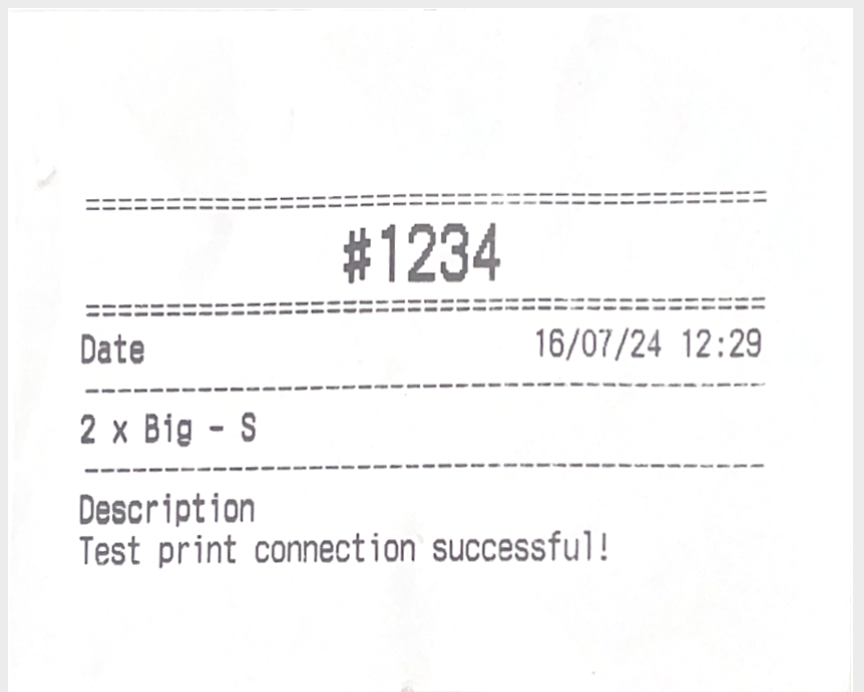 Cafes and restaurants can use order tickets to inform the cooking staff what to prepare for an order.
In order to do so you will need to set a printer to print "Order Tickets".
1. Go to Printer > Connect Printer
2. Create a printer and name it (e.g Printer A), select the respective printer model and click "Test printer connection".
3. Under "What is this printer for", you can select "Order Ticket"
4. Click save
5. Whenever a new order is printed, the printer will print the order ticket format and leave out the payment related details
Cafes and restaurants can use order tickets to inform the cooking staff what to prepare for an order.
In order to do so you will need to set a printer to print "Order Tickets".
1. Go to Printer > Connect Printer
2. Create a printer and name it (e.g Printer A), select the respective printer model and click "Test printer connection".
3. Under "What is this printer for", you can select "Order Ticket"
4. Click save
5. Whenever a new order is printed, the printer will print the order ticket format and leave out the payment related details