> ## Documentation Index
> Fetch the complete documentation index at: https://docs.hitpayapp.com/llms.txt
> Use this file to discover all available pages before exploring further.
# Multi-Currency Products
> Price your products in multiple currencies so overseas customers can pay in their local currency and payment methods.
Multi-Currency Products is currently available for **Point of Sale only**. It is not supported on the Online Store.
 ## Overview
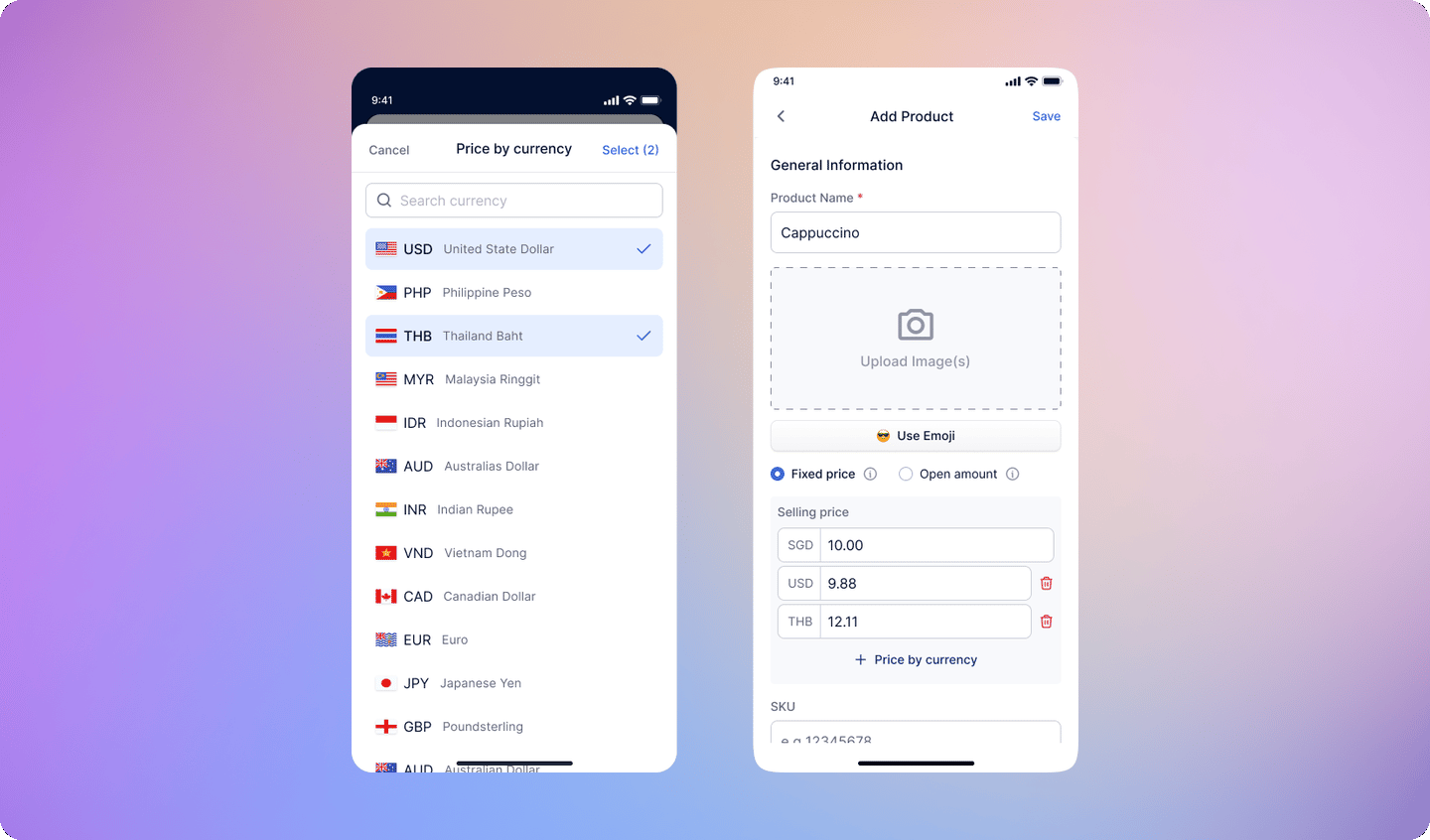
Multi-Currency Products lets you go beyond your local currency by pricing the same product in multiple currencies. Each currency gets its own defined price. For example, a single item can be priced at:
* SGD 3
* MYR 9
* PHP 140
This is designed for merchants who sell to customers across different countries. Instead of relying on live exchange rate conversions, you decide exactly what a product costs in each currency. Overseas customers see a clear local price and can pay using their familiar local payment methods, while you always receive your payout in your home currency.
### Benefits at a glance
* Sell to overseas customers without currency confusion
* Customers pay in their local currency using local payment methods (PayNow, QR Ph, Touch 'n Go, QRIS, and more)
* You set the price — no surprises from exchange rate fluctuations
* Works across popup events, cross-border markets, and multi-country operations
If you haven't set a price for a particular currency, HitPay will fall back to automatic real-time conversion from your home currency.
***
## Use Case
This feature is especially valuable for **popup merchants** selling at cross-border events.
**Example:** A Malaysian merchant selling at a Singapore popup sets prices in both SGD and MYR. Filipino, Indonesian, and Thai customers can each pay in their own currency, while the merchant receives their payout in MYR.
## Overview
Multi-Currency Products lets you go beyond your local currency by pricing the same product in multiple currencies. Each currency gets its own defined price. For example, a single item can be priced at:
* SGD 3
* MYR 9
* PHP 140
This is designed for merchants who sell to customers across different countries. Instead of relying on live exchange rate conversions, you decide exactly what a product costs in each currency. Overseas customers see a clear local price and can pay using their familiar local payment methods, while you always receive your payout in your home currency.
### Benefits at a glance
* Sell to overseas customers without currency confusion
* Customers pay in their local currency using local payment methods (PayNow, QR Ph, Touch 'n Go, QRIS, and more)
* You set the price — no surprises from exchange rate fluctuations
* Works across popup events, cross-border markets, and multi-country operations
If you haven't set a price for a particular currency, HitPay will fall back to automatic real-time conversion from your home currency.
***
## Use Case
This feature is especially valuable for **popup merchants** selling at cross-border events.
**Example:** A Malaysian merchant selling at a Singapore popup sets prices in both SGD and MYR. Filipino, Indonesian, and Thai customers can each pay in their own currency, while the merchant receives their payout in MYR.
 **Key things to know:**
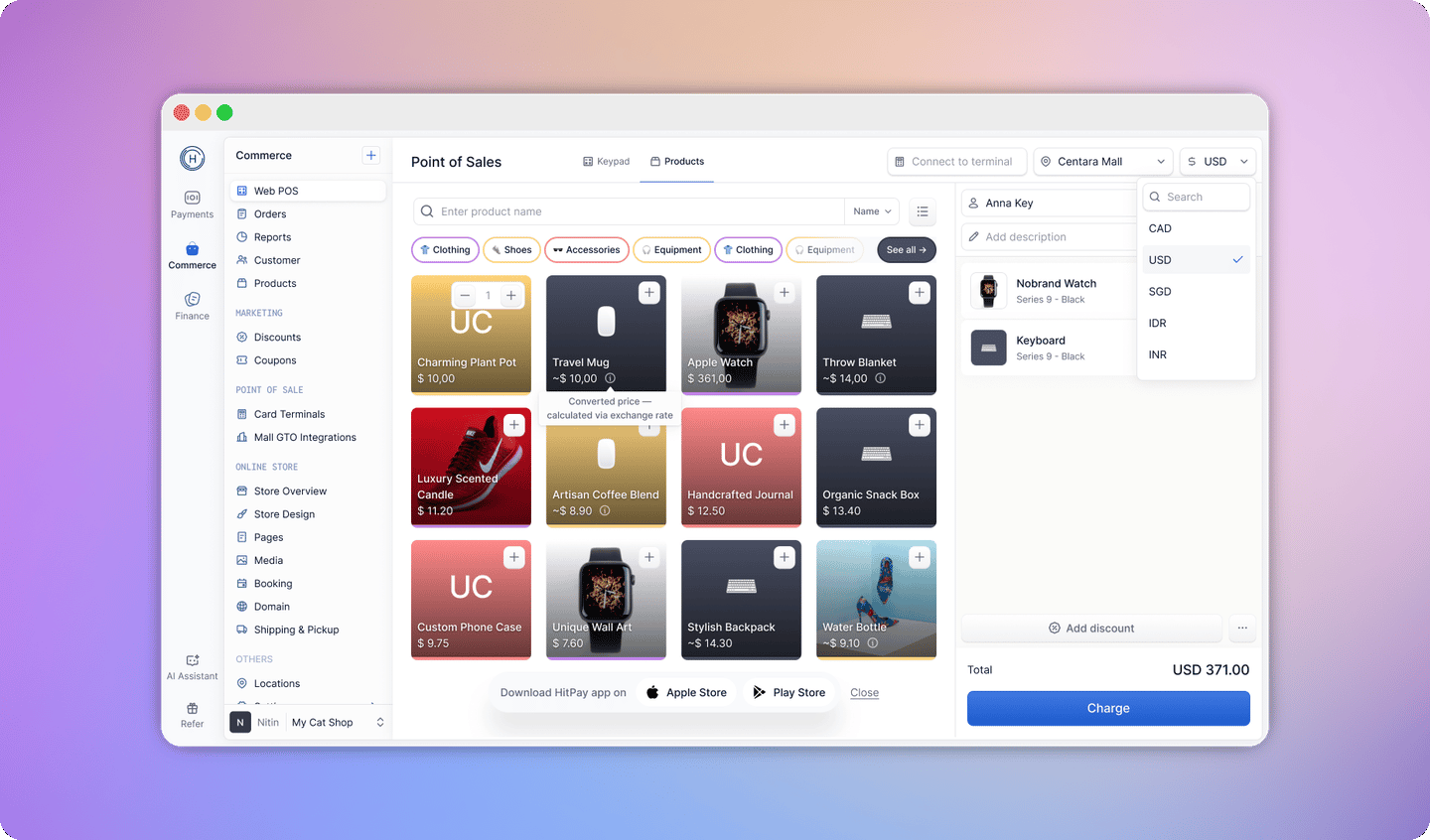
* Multi-currency prices are **manually set** — they do not automatically update when exchange rates change.
* If a price is set for a currency, that fixed amount is used at checkout.
* If no price is set for a currency, HitPay falls back to automatic conversion.
***
## How to set multi-currency product prices
#### Individual Product
1. From the Web Dashboard, go to **Point of Sale > Products**.
2. Click on an existing product or create a new one.
3. Under the **Pricing** section, click **Add a price by currency**.
4. Select the currency and enter the price for that currency.
5. Repeat for each additional currency you want to support.
6. Click **Save** when done.
#### Product with Variants
1. From the Web Dashboard, go to **Point of Sale > Products**.
2. Open a product that has variants (e.g., sizes or colors).
3. Select a specific variant.
4. Under the **Pricing** section for that variant, click **Add a price by currency**.
5. Enter the price for each currency you want to support.
6. Repeat for all variants as needed.
7. Click **Save** when done.
Each variant can have its own set of currency prices independently.
#### Individual Product
1. Open the HitPay app and navigate to the **Products** tab.
2. Tap on an existing product or tap the **+** icon to create a new one.
3. Under the **Pricing** section, tap **Add a price by currency**.
4. Select the currency and enter the price.
5. Repeat for each additional currency.
6. Tap **Save** when done.
#### Product with Variants
1. Open the HitPay app and navigate to the **Products** tab.
2. Tap on a product that has variants.
3. Tap on the variant you want to configure.
4. Under the **Pricing** section, tap **Add a price by currency**.
5. Enter the price for each currency you want to support.
6. Repeat for all variants as needed.
7. Tap **Save** when done.
***
## How to checkout with a multi-currency product
First, set your checkout currency to the customer's currency. Product prices will then be displayed in that currency.
1. Go to **Commerce > Web POS**.
2. Select the checkout currency and change it to the customer's currency.
3. Navigate to **Products** — prices will be shown in the selected currency.
4. Add the product(s) to the cart and proceed to checkout as usual.
1. Go to **More > Checkout Currency** and select the customer's currency.
2. Return to the **Home** screen and tap **Products** — prices will be displayed in the selected currency.
3. Add the product(s) to the cart and proceed to checkout as usual.
### How the displayed price is determined
When a checkout currency is selected, HitPay resolves the product price in the following order:
1. **Manual price** — if you've set a price for that currency on the product, that amount is used.
2. **Store-configured exchange rate** — if no manual price is set, HitPay applies the exchange rate configured in your store settings. See [Multi-Currency](https://docs.hitpayapp.com/store/multi-currency) for more details.
3. **Live market exchange rate** — if no store rate is configured, HitPay falls back to the mid-market exchange rate, which is refreshed every 6 hours.
***
## FAQs
Bulk import of multi-currency prices is **not supported yet**. You will need to set currency-specific prices individually on each product or variant through the Web Dashboard or mobile app.
No. Once you set a price for a specific currency, it stays fixed until you manually update it. If you haven't set a price for a currency, HitPay will use automatic real-time conversion at checkout.
You can add prices for any currency that is supported by HitPay Borderless QR in your market. Refer to the [Borderless QR supported countries and payment methods](/pos/borderless-qr#supported-countries--payment-methods) table for the full list.
HitPay will automatically convert your home currency price to the customer's currency using real-time exchange rates — the same as standard Borderless QR behavior.
Yes. You can set multi-currency prices at the variant level, so each size, color, or configuration can have its own currency-specific price.
**Key things to know:**
* Multi-currency prices are **manually set** — they do not automatically update when exchange rates change.
* If a price is set for a currency, that fixed amount is used at checkout.
* If no price is set for a currency, HitPay falls back to automatic conversion.
***
## How to set multi-currency product prices
#### Individual Product
1. From the Web Dashboard, go to **Point of Sale > Products**.
2. Click on an existing product or create a new one.
3. Under the **Pricing** section, click **Add a price by currency**.
4. Select the currency and enter the price for that currency.
5. Repeat for each additional currency you want to support.
6. Click **Save** when done.
#### Product with Variants
1. From the Web Dashboard, go to **Point of Sale > Products**.
2. Open a product that has variants (e.g., sizes or colors).
3. Select a specific variant.
4. Under the **Pricing** section for that variant, click **Add a price by currency**.
5. Enter the price for each currency you want to support.
6. Repeat for all variants as needed.
7. Click **Save** when done.
Each variant can have its own set of currency prices independently.
#### Individual Product
1. Open the HitPay app and navigate to the **Products** tab.
2. Tap on an existing product or tap the **+** icon to create a new one.
3. Under the **Pricing** section, tap **Add a price by currency**.
4. Select the currency and enter the price.
5. Repeat for each additional currency.
6. Tap **Save** when done.
#### Product with Variants
1. Open the HitPay app and navigate to the **Products** tab.
2. Tap on a product that has variants.
3. Tap on the variant you want to configure.
4. Under the **Pricing** section, tap **Add a price by currency**.
5. Enter the price for each currency you want to support.
6. Repeat for all variants as needed.
7. Tap **Save** when done.
***
## How to checkout with a multi-currency product
First, set your checkout currency to the customer's currency. Product prices will then be displayed in that currency.
1. Go to **Commerce > Web POS**.
2. Select the checkout currency and change it to the customer's currency.
3. Navigate to **Products** — prices will be shown in the selected currency.
4. Add the product(s) to the cart and proceed to checkout as usual.
1. Go to **More > Checkout Currency** and select the customer's currency.
2. Return to the **Home** screen and tap **Products** — prices will be displayed in the selected currency.
3. Add the product(s) to the cart and proceed to checkout as usual.
### How the displayed price is determined
When a checkout currency is selected, HitPay resolves the product price in the following order:
1. **Manual price** — if you've set a price for that currency on the product, that amount is used.
2. **Store-configured exchange rate** — if no manual price is set, HitPay applies the exchange rate configured in your store settings. See [Multi-Currency](https://docs.hitpayapp.com/store/multi-currency) for more details.
3. **Live market exchange rate** — if no store rate is configured, HitPay falls back to the mid-market exchange rate, which is refreshed every 6 hours.
***
## FAQs
Bulk import of multi-currency prices is **not supported yet**. You will need to set currency-specific prices individually on each product or variant through the Web Dashboard or mobile app.
No. Once you set a price for a specific currency, it stays fixed until you manually update it. If you haven't set a price for a currency, HitPay will use automatic real-time conversion at checkout.
You can add prices for any currency that is supported by HitPay Borderless QR in your market. Refer to the [Borderless QR supported countries and payment methods](/pos/borderless-qr#supported-countries--payment-methods) table for the full list.
HitPay will automatically convert your home currency price to the customer's currency using real-time exchange rates — the same as standard Borderless QR behavior.
Yes. You can set multi-currency prices at the variant level, so each size, color, or configuration can have its own currency-specific price.