> ## Documentation Index
> Fetch the complete documentation index at: https://docs.hitpayapp.com/llms.txt
> Use this file to discover all available pages before exploring further.
# Customer Display
> Learn how to set up and use customer display features
## Overview
The HitPay POS Customer Display Mode converts the HitPay app into a customer-facing display. This allows your customers to easily monitor and review items being added to their cart.
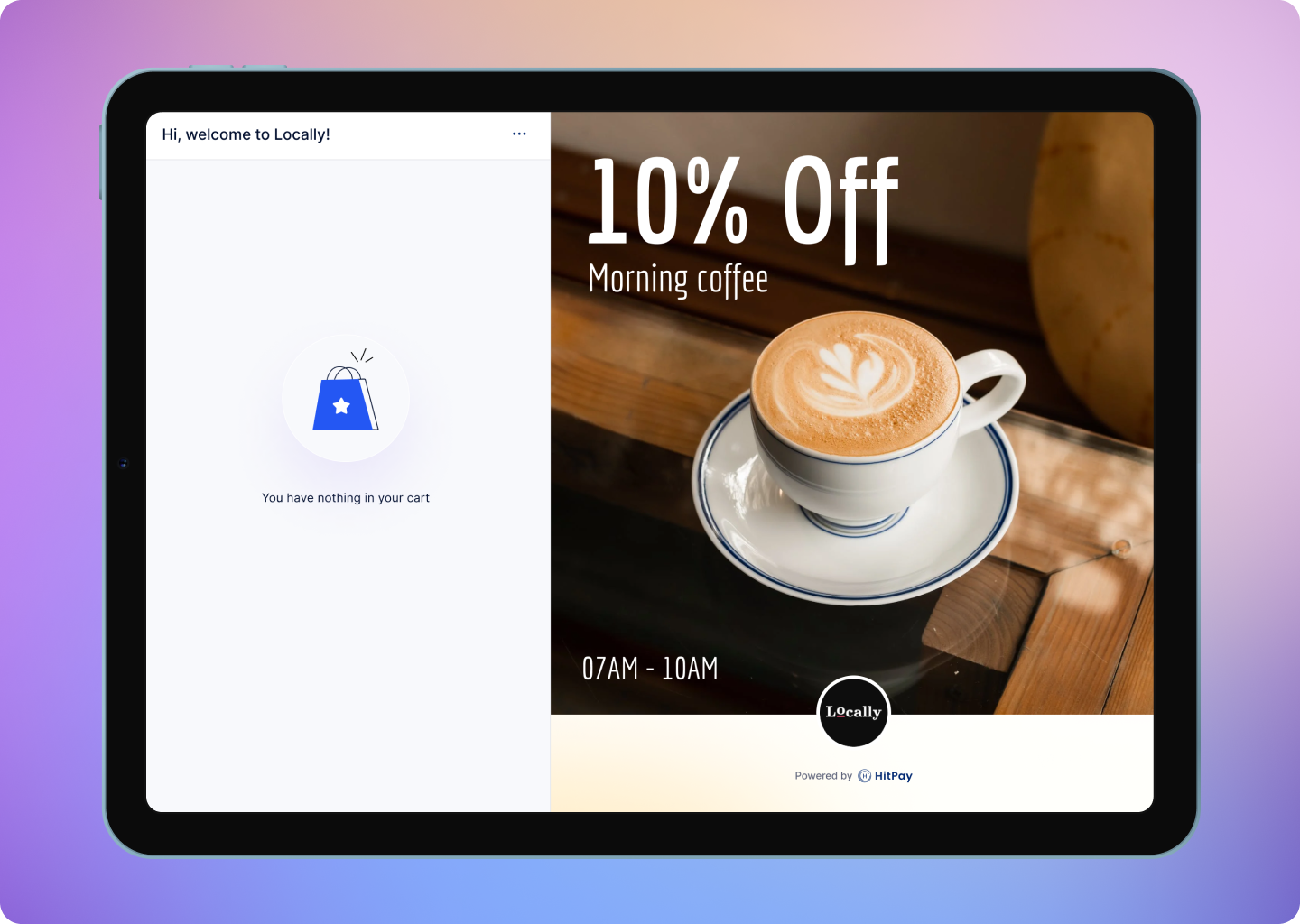 During checkout, the Customer Display device will show the following information:
* Product's name, quantity, price
* Customer details
* Discounts
* Surcharges
* Taxes
* Order subtotal & total
The Customer Display device also enables end-customers to:
* Select tips
* Enter email/phone number details for receipt delivery
* Scan payment QR codes
### Device Requirements
| Platform | Device Requirements |
| -------- | ----------------------------------------- |
| iOS | iOS 16, iPhone 8 or later |
| iPadOS | iPad models released in 2019 or later |
| MacOS | MacBook or MacBook Air with Apple Silicon |
| Android | Android 9 or above with 3GB or more RAM |
## Set Up Video
## Pairing
### Customer Display Device
1. Download the HitPay app on your dedicated customer-facing device.
2. Open the HitPay app to generate the pairing code.
1. If you are not logged in, click on the icon on the top-left of the home screen & select Customer Display Mode.
2. If you are already logged in, switch to "Customer Display" from the side menu > Mode.
### POS Device
1. Open the HitPay app on your dedicated Point of Sale device. Go to Settings > Hardware > Customer Display.
2. Scan the pairing code.
Once the Customer Display app is paired with your main HitPay POS device, it remains paired.
The Customer Display mode requires network connectivity. Ensure both devices are connected to a network source.
## Disconnecting
### Customer Display Device
1. Click on the "…" on the top navbar.
2. Click on Exit Customer Display mode.
### POS Device
1. Open the HitPay app on your dedicated Point of Sale device. Go to Settings > Hardware > Customer Display.
2. Click on the Customer Display device from the list.
3. Click on "Forget device".
## Usage
When the HitPay Customer Display mode is paired with the HitPay POS app, it displays checkout information for any order processed using the paired HitPay POS device.
## Customizing the Customer Display Mode
Customize the Customer Display mode from the HitPay POS app. Through the settings, you can add/update:
* **Welcome message:** Add a welcome message for your customers. The default message is "Welcome to \[Business Name]".
* **Profile image:** Display your company logo. If you've uploaded your logo in business settings, it will be displayed by default.
* **Promotional banners:** Add promotional images to be displayed on the customer display mode when idle.
Only jpg, jpeg, png images are allowed. For best preview, upload a square-sized image.
## Troubleshooting
If you're experiencing connectivity problems between the HitPay POS app and the Customer Display app, then follow these steps:
1. Ensure both devices have a stable network connection.
2. Close and reopen the HitPay POS app.
3. Disconnect the Customer Display mode from the POS app and attempt re-pairing.
4. If the issue persists, contact HitPay support.
## FAQs
Unfortunately we do not provide/sell any hardware devices. However, the app is compatible with both Android & iOS devices as listed above.
You can use [Guided Access](https://support.apple.com/en-sg/111795) which lets you limit your device to only display a single app so your customers do not accidentally quit the app.
To unpin a screen you can follow the steps[here](https://support.google.com/android/answer/9455138?hl=en)
During checkout, the Customer Display device will show the following information:
* Product's name, quantity, price
* Customer details
* Discounts
* Surcharges
* Taxes
* Order subtotal & total
The Customer Display device also enables end-customers to:
* Select tips
* Enter email/phone number details for receipt delivery
* Scan payment QR codes
### Device Requirements
| Platform | Device Requirements |
| -------- | ----------------------------------------- |
| iOS | iOS 16, iPhone 8 or later |
| iPadOS | iPad models released in 2019 or later |
| MacOS | MacBook or MacBook Air with Apple Silicon |
| Android | Android 9 or above with 3GB or more RAM |
## Set Up Video
## Pairing
### Customer Display Device
1. Download the HitPay app on your dedicated customer-facing device.
2. Open the HitPay app to generate the pairing code.
1. If you are not logged in, click on the icon on the top-left of the home screen & select Customer Display Mode.
2. If you are already logged in, switch to "Customer Display" from the side menu > Mode.
### POS Device
1. Open the HitPay app on your dedicated Point of Sale device. Go to Settings > Hardware > Customer Display.
2. Scan the pairing code.
Once the Customer Display app is paired with your main HitPay POS device, it remains paired.
The Customer Display mode requires network connectivity. Ensure both devices are connected to a network source.
## Disconnecting
### Customer Display Device
1. Click on the "…" on the top navbar.
2. Click on Exit Customer Display mode.
### POS Device
1. Open the HitPay app on your dedicated Point of Sale device. Go to Settings > Hardware > Customer Display.
2. Click on the Customer Display device from the list.
3. Click on "Forget device".
## Usage
When the HitPay Customer Display mode is paired with the HitPay POS app, it displays checkout information for any order processed using the paired HitPay POS device.
## Customizing the Customer Display Mode
Customize the Customer Display mode from the HitPay POS app. Through the settings, you can add/update:
* **Welcome message:** Add a welcome message for your customers. The default message is "Welcome to \[Business Name]".
* **Profile image:** Display your company logo. If you've uploaded your logo in business settings, it will be displayed by default.
* **Promotional banners:** Add promotional images to be displayed on the customer display mode when idle.
Only jpg, jpeg, png images are allowed. For best preview, upload a square-sized image.
## Troubleshooting
If you're experiencing connectivity problems between the HitPay POS app and the Customer Display app, then follow these steps:
1. Ensure both devices have a stable network connection.
2. Close and reopen the HitPay POS app.
3. Disconnect the Customer Display mode from the POS app and attempt re-pairing.
4. If the issue persists, contact HitPay support.
## FAQs
Unfortunately we do not provide/sell any hardware devices. However, the app is compatible with both Android & iOS devices as listed above.
You can use [Guided Access](https://support.apple.com/en-sg/111795) which lets you limit your device to only display a single app so your customers do not accidentally quit the app.
To unpin a screen you can follow the steps[here](https://support.google.com/android/answer/9455138?hl=en)