> ## Documentation Index
> Fetch the complete documentation index at: https://docs.hitpayapp.com/llms.txt
> Use this file to discover all available pages before exploring further.
# Cash Drawer
> Learn how to set up and use cash drawers in your POS system
## Overview
The **Cash Drawer Integration** allows merchants using the HitPay POS app to connect and automatically trigger compatible cash drawers. This is ideal for retail stores, F\&B outlets, and any business that accepts cash and needs secure, seamless cash management.
> 🛠️ **Supported Hardware:**
>
> * **HitPay POS App** on Android or iOS + HitPay Advanced Receipt Printer + RJ12 or RJ11 cable supported cash drawer
> * \*\*HitPay POS Max (Sunmi V3 Mix) + RJ12 or RJ11 cable supported cash drawer
***
## How to Set Up Cash Drawer Integration
### Option 1: Standard HitPay POS App Setup (with Bluetooth Printer that can connect to Cash Drawer via RJ11/RJ12 Cable)
| Requirement | Details |
| --------------------------------- | ---------------------------------------------------------------------------- |
| Android POS Device | Android tablet or phone running HitPay POS app |
| HitPay Advanced Bluetooth Printer | Required to bridge connection to cash drawer |
| Cash Drawer (RJ12 or RJ11) | Must be physically connected to the Bluetooth printer via RJ11 or RJ12 cable |
#### Steps:
1. **Plug in the Cash Drawer**
* Connect the **RJ12 cable** from your cash drawer to the back of the **HitPay Advanced Receipt Printer**.
2. **Power on all devices**
* Ensure your POS device, printer, and cash drawer are powered on.
3. **Pair the Printer to Device**
* Open your device Bluetooth settings and pair with the HitPay Advanced Receipt Printer via Bluetooth.
***
### Option 2: HitPay POS Max with Cradle
| Requirement | Details |
| ----------------------------- | ----------------------------------------------- |
| HitPay POS Max (Sunmi V3 Mix) | All-in-one Android POS terminal |
| Sunmi V3 Mix Cradle (Dock) | Must be connected to power and charging the POS |
| Cash Drawer (RJ12) | Must be connected to the cradle's RJ12 port |
#### Steps:
1. **Dock the POS Max into the Cradle**
* Insert the **HitPay POS Max** into the **Sunmi V3 Mix Cradle** and ensure it is firmly seated and **charging** (receiving power from the dock).
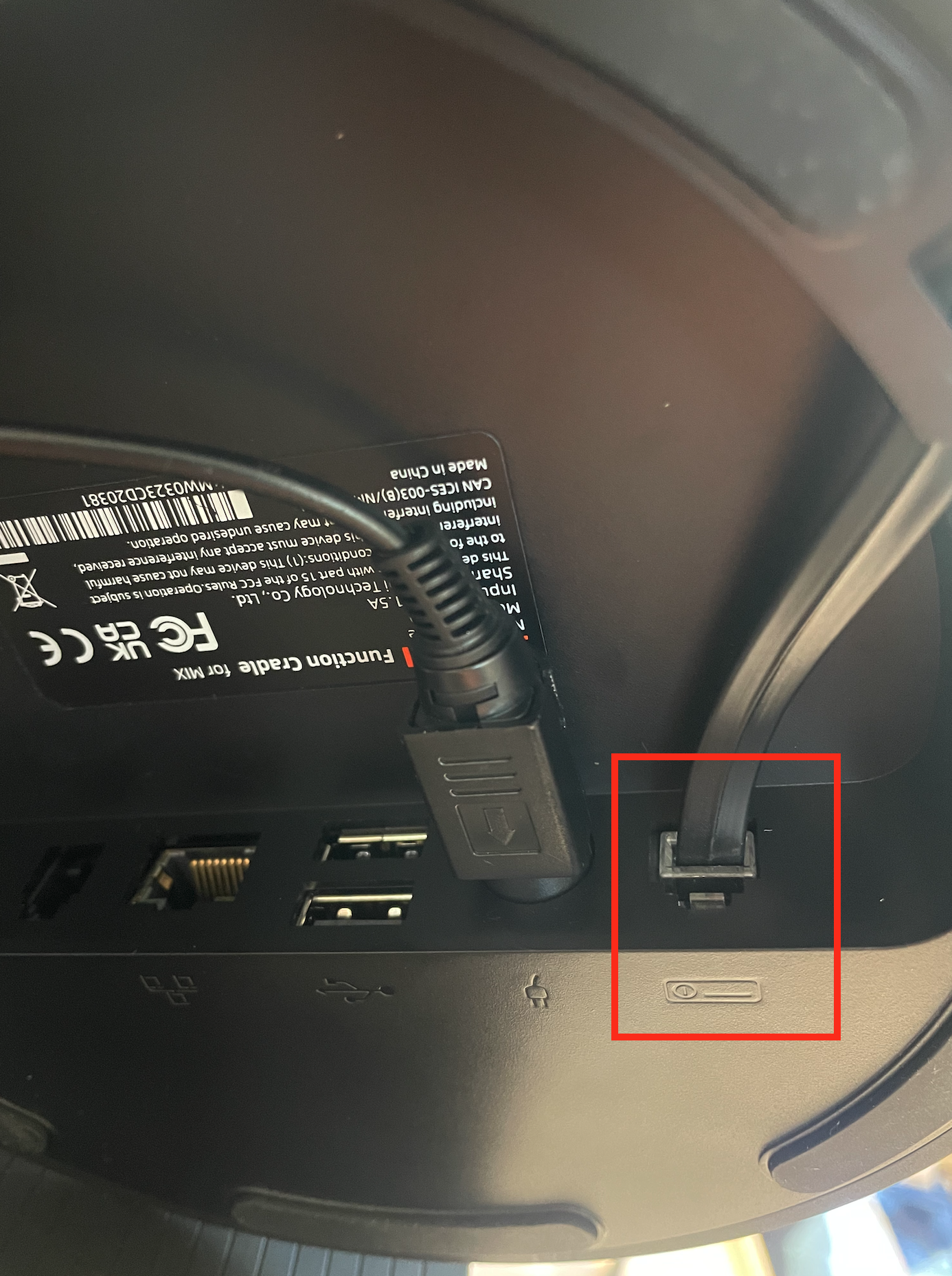
2. **Connect the Cash Drawer**
* Use the **RJ12 cable** to connect your cash drawer to the **RJ12 port on the cradle**.
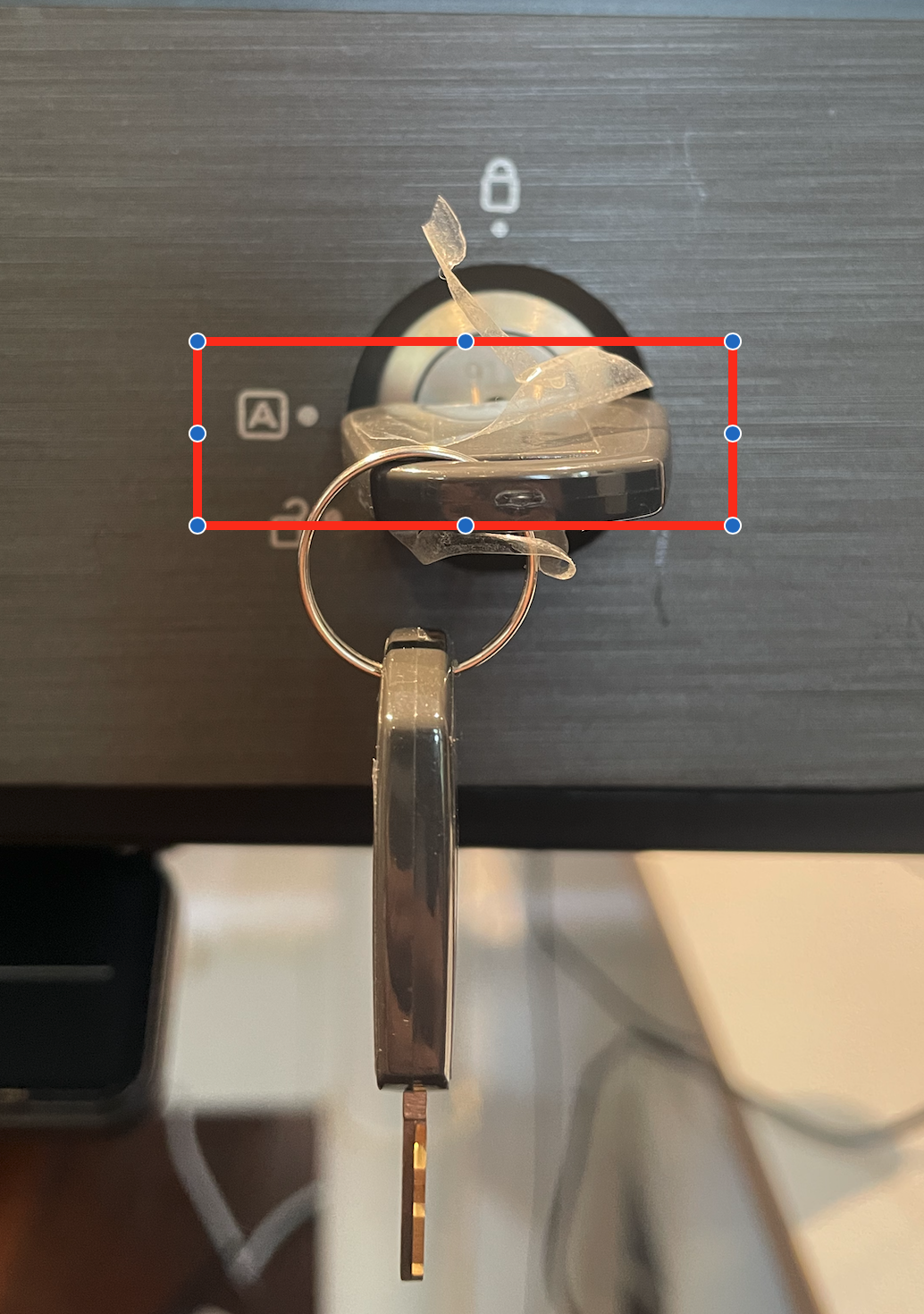
 * Ensure that the cash drawer key is positioned to "Automatic" so it can kick the cash drawer open via the Software.
 3. **Accept Cash Payment in POS App**
* When completing a sale, tap **"Charge by Cash"** and confirm the payment.\
👉 **Drawer automatically opens**
***
## When Does the Cash Drawer Open?
The cash drawer will automatically trigger in the following scenarios:
### A) **Payment Acceptance via Cash**
1. Cashier selects **Cash** as the payment method on the POS.
2. Customer hands over the cash.
3. Cashier taps **"Received"** to confirm the payment.\
👉 **Drawer automatically opens**
***
### B) **Refund of Cash Payment**
1. Go to **Transactions** in the HitPay POS app.
2. Select a transaction where the **payment method = Cash**.
3. Tap **Refund**.
4. A confirmation dialog appears — user taps **OK**.\
👉 **Drawer automatically opens**
***
## FAQs
Only drawers with **RJ12** or **RJ11** connectors are supported. The drawer must be connected via the **HitPay Advanced Receipt Printer**.
he HitPay POS app does not directly support cash drawer control via the Android device. A **HitPay Advanced Bluetooth Printer** is required because it sends an **electric pulse** to trigger the drawer to open.
Not yet. Cash drawer integration is currently available **only on Android** devices.
3. **Accept Cash Payment in POS App**
* When completing a sale, tap **"Charge by Cash"** and confirm the payment.\
👉 **Drawer automatically opens**
***
## When Does the Cash Drawer Open?
The cash drawer will automatically trigger in the following scenarios:
### A) **Payment Acceptance via Cash**
1. Cashier selects **Cash** as the payment method on the POS.
2. Customer hands over the cash.
3. Cashier taps **"Received"** to confirm the payment.\
👉 **Drawer automatically opens**
***
### B) **Refund of Cash Payment**
1. Go to **Transactions** in the HitPay POS app.
2. Select a transaction where the **payment method = Cash**.
3. Tap **Refund**.
4. A confirmation dialog appears — user taps **OK**.\
👉 **Drawer automatically opens**
***
## FAQs
Only drawers with **RJ12** or **RJ11** connectors are supported. The drawer must be connected via the **HitPay Advanced Receipt Printer**.
he HitPay POS app does not directly support cash drawer control via the Android device. A **HitPay Advanced Bluetooth Printer** is required because it sends an **electric pulse** to trigger the drawer to open.
Not yet. Cash drawer integration is currently available **only on Android** devices.