> ## Documentation Index
> Fetch the complete documentation index at: https://docs.hitpayapp.com/llms.txt
> Use this file to discover all available pages before exploring further.
# Bluetooth Printer
> Learn how to set up and use Bluetooth printers in your POS system
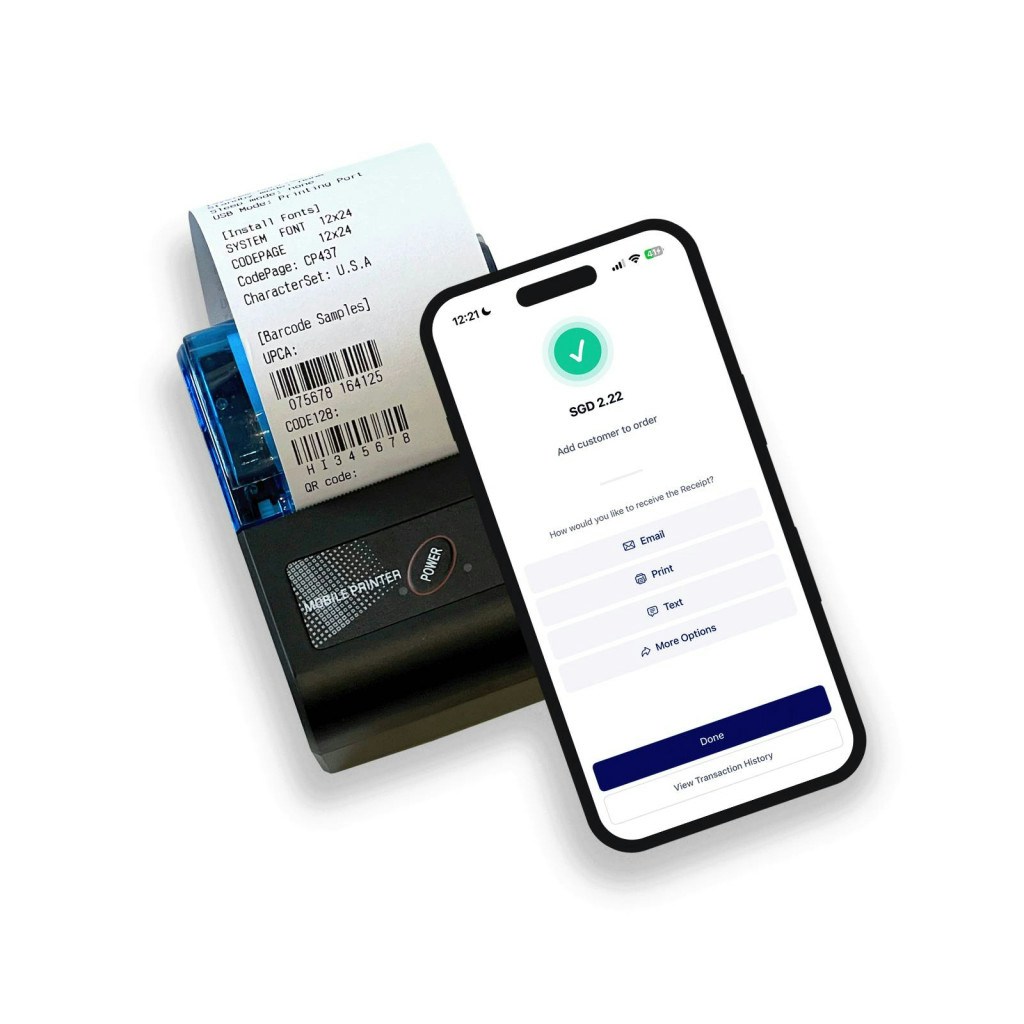
HitPay Advanced printer works with the following HitPay POS set up :
* HitPay app on iOS
* HitPay app on Android
It supports the following paper receipt dimensions:
* Paper width: 58mm
* Paper roll diameter: 40mm max
Refer to the user manual provided in the printer box for instructions on setting up the printer, charging the printer, and loading paper into the printer.
### How to print a receipt using the HitPay app (iPhone/iOS)
### How to print a receipt using the HitPay app (Android)
### Troubleshooting Bluetooth Printer Connectivity
If your printer is encountering connectivity issues, follow these steps to troubleshoot:
1. Ensure that the printer is disconnected from any other device.
2. For Android, ensure you follow the steps above and pair the printer from the Device Settings first before connecting from the HitPay app.
3. For iPhone, only connect directly from the HitPay app.
4. If the above steps fail, try restarting the printer by holding down the power button to turn it off and then on again.
### Bluetooth Printer Compatibility
The Bluetooth printer can only be paired with HitPay App on an iOS or Android device.
## FAQs
If your printer is connected but not printing, it could be due to a battery issue or the size of your business logo on receipts.
1. Check the Printer Battery:
Newly purchased Bluetooth printers often come with a yellow tape covering the battery. To verify:
Open the battery compartment of your printer.
Remove any yellow tape covering the battery.
Reinsert the battery securely and try printing again.
2. Check Business Logo Settings:
The size of your business logo might interfere with printing. To troubleshoot:
Open the HitPay app.
Navigate to Settings > Receipt Customization.
Toggle off the option that says "Show company logo".
Close the HitPay app completely and reopen it.
Attempt to print again to see if the issue is resolved.
If the issue persists after following these steps, consider restarting your printer or checking for firmware updates.
You can check the status of your Bluetooth printer's battery by looking at the LED indicator, which provides the following information:
1. **Off**: The printer is turned off.
2. **Green**: The printer has battery power but is not connected to the HitPay app.
3. **Blue**: The printer has battery power and is connected to the HitPay app.
4. **Red**: The printer has no battery, and a buzzer will beep to give a warning.
Unfortunately, it is not possible to rename your printer due to current technical limitations related to the printer hardware. The printer's name cannot be controlled or modified.
While we do support most 58mm Bluetooth thermal printers, we strongly recommend using our own printer, which is available for purchase on our Online Store. We specifically test our software with this printer to ensure compatibility. Please be aware that our online store currently only ships within Singapore.
For optimal performance, it's advisable to maintain a communication distance of up to 10 meters between your device and the Bluetooth printer.
 HitPay Advanced printer works with the following HitPay POS set up :
* HitPay app on iOS
* HitPay app on Android
It supports the following paper receipt dimensions:
* Paper width: 58mm
* Paper roll diameter: 40mm max
HitPay Advanced printer works with the following HitPay POS set up :
* HitPay app on iOS
* HitPay app on Android
It supports the following paper receipt dimensions:
* Paper width: 58mm
* Paper roll diameter: 40mm max