> ## Documentation Index
> Fetch the complete documentation index at: https://docs.hitpayapp.com/llms.txt
> Use this file to discover all available pages before exploring further.
# Xero Invoices Payment
> Integrate HitPay payment gateway into your Xero Invoices
## Overview
This section elaborates on how you can integrate HitPay payments into your Xero invoices. With this integration, your customers can pay your Xero invoices using HitPay payment methods like PayNow, Credit Card, etc. To get started, make sure you have the following:
1. Fully verified [HitPay](/setup/account_creation) account.
2. Make sure the payment methods you want to offer are [enabled](/payments/online_payments#how-to-enable-payment-methods) in your HitPay account.
## Integration Guide
Follow these steps to seamlessly integrate HitPay payments into your Xero Invoice:
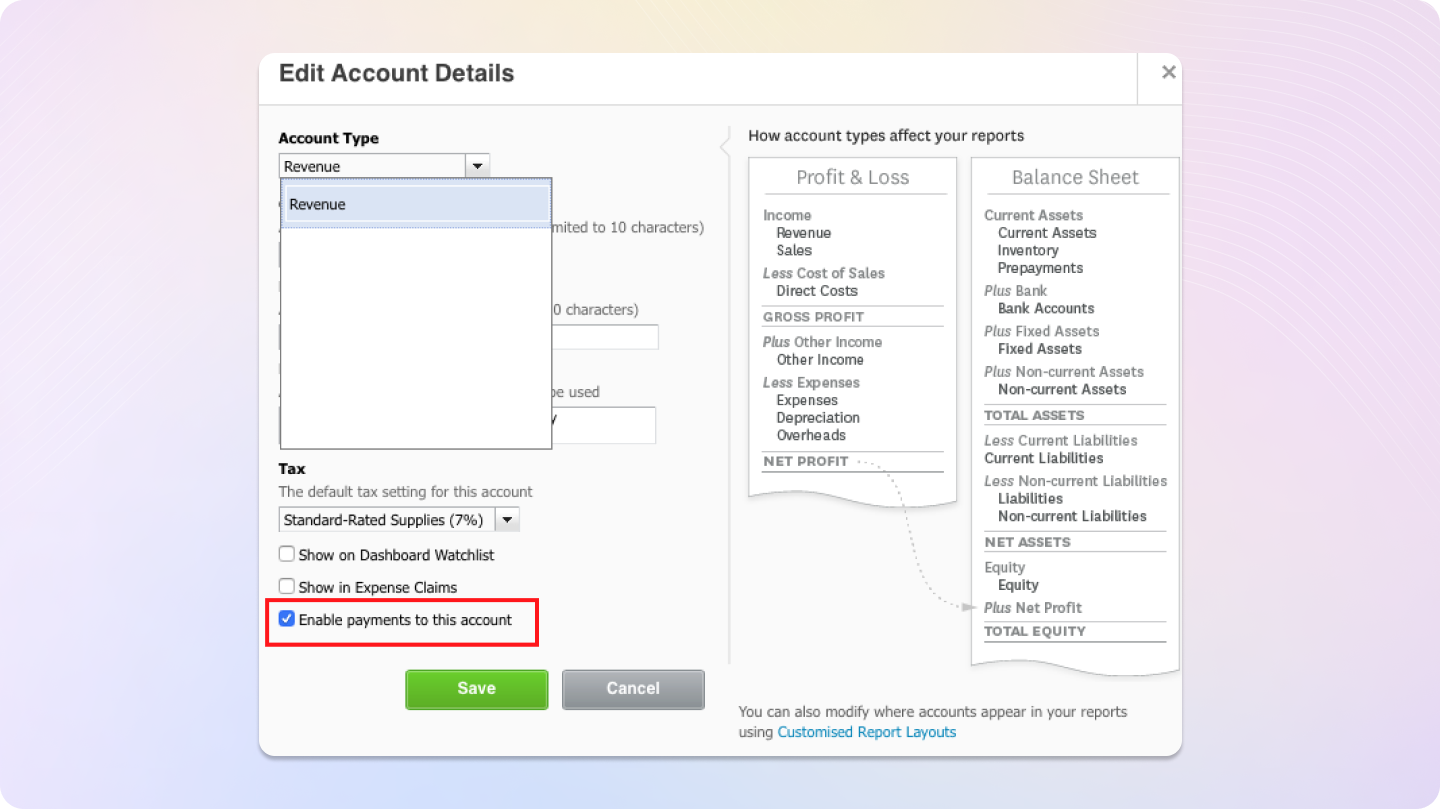
1. Log in to your **Xero Dashboard**, navigate to **Accounting > Chart of Accounts > Add Account**, and enable the option "Enable payments to this account".
 2. Log in to your [HitPay Dashboard](https://dashboard.hit-pay.com), go to **Others > Integrations**, and click the **Xero (Payment Gateway)** card under the **Payments** section.
3. Click the **Connect to Xero** button. This will navigate you to the Xero Login screen. Enter your Xero credentials, select your organisation, and continue.
4. After you authorise, you are returned to the HitPay dashboard with a **"Successfully authorized"** confirmation — your Xero connection is now active.
5. Next, set up the payment integration. Go to the **Integrations** page, switch to the **Available** tab, and select **Xero (Payment Gateway)**:
2. Log in to your [HitPay Dashboard](https://dashboard.hit-pay.com), go to **Others > Integrations**, and click the **Xero (Payment Gateway)** card under the **Payments** section.
3. Click the **Connect to Xero** button. This will navigate you to the Xero Login screen. Enter your Xero credentials, select your organisation, and continue.
4. After you authorise, you are returned to the HitPay dashboard with a **"Successfully authorized"** confirmation — your Xero connection is now active.
5. Next, set up the payment integration. Go to the **Integrations** page, switch to the **Available** tab, and select **Xero (Payment Gateway)**:
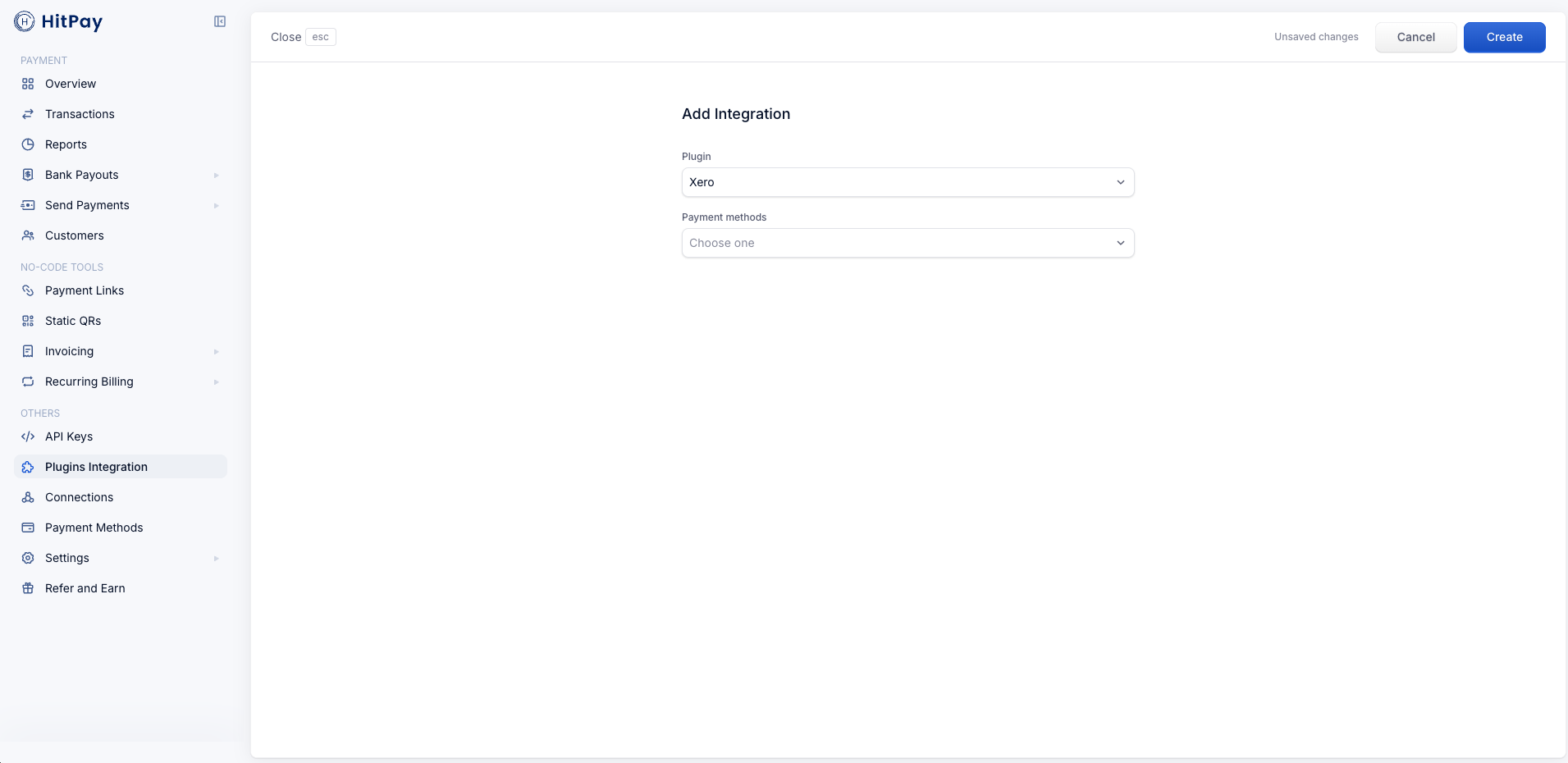 * **Payment methods**: choose the payment methods you want to offer on your Xero invoices
* Click **Create**
That's it! Your Xero invoices can now be paid using HitPay payment methods 🎉 Your customers will see a payment button (e.g. "PayNow") on your Xero online invoices:
* **Payment methods**: choose the payment methods you want to offer on your Xero invoices
* Click **Create**
That's it! Your Xero invoices can now be paid using HitPay payment methods 🎉 Your customers will see a payment button (e.g. "PayNow") on your Xero online invoices:
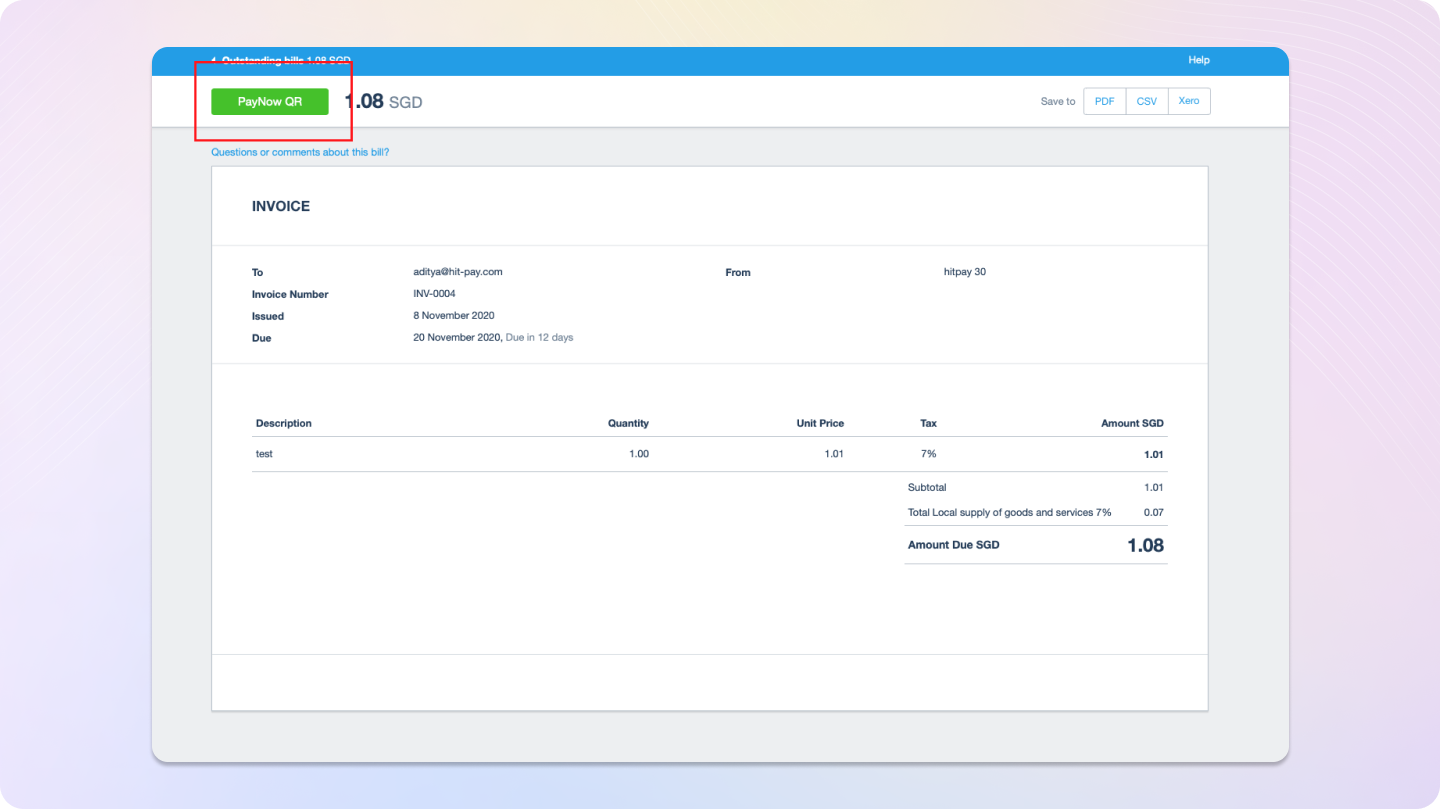 You can customise the payment button label in your Xero sync settings (the **Xero PayNow button text** field). See [Xero Sync settings](/connections/xero#configuring-sync-settings).
Please note: There will be a 0.2% surcharge in the fees when payments are processed using this plugin, in addition to the existing pricing.
## Feed Sales Data to Xero
The same Xero connection can also feed your HitPay sales, fees, and refund data into Xero automatically once a day — including a **HitPay Clearing Account** (created when you first save your sync settings) and a daily settlement transfer to your bank account for easy reconciliation.
See [Xero Sync](/connections/xero) for the full setup and configuration guide.
Payments made on Xero invoices through this plugin are reconciled against the invoice itself, so the sales feed intentionally excludes them — no double counting.
## FAQs
No — HitPay does not send an email confirmation to your customer when the payment is made through Xero. Xero handles invoice communication.
You can customise the payment button label in your Xero sync settings (the **Xero PayNow button text** field). See [Xero Sync settings](/connections/xero#configuring-sync-settings).
Please note: There will be a 0.2% surcharge in the fees when payments are processed using this plugin, in addition to the existing pricing.
## Feed Sales Data to Xero
The same Xero connection can also feed your HitPay sales, fees, and refund data into Xero automatically once a day — including a **HitPay Clearing Account** (created when you first save your sync settings) and a daily settlement transfer to your bank account for easy reconciliation.
See [Xero Sync](/connections/xero) for the full setup and configuration guide.
Payments made on Xero invoices through this plugin are reconciled against the invoice itself, so the sales feed intentionally excludes them — no double counting.
## FAQs
No — HitPay does not send an email confirmation to your customer when the payment is made through Xero. Xero handles invoice communication.