> ## Documentation Index
> Fetch the complete documentation index at: https://docs.hitpayapp.com/llms.txt
> Use this file to discover all available pages before exploring further.
# Shoplazza
> Integrate HitPay payment gateway into your Shoplazza store
## Account Setup
Before you begin integrating HitPay payments into your Shoplazza store, you need to set up your HitPay account and ensure some prerequisites are met:
1. If you haven't already, create an account on [HitPay](/setup/account_creation).
2. Ensure that you have the necessary payment methods [activated](payments/payments#how-to-activate-payment-methods) in your HitPay account.
3. Make sure the payment methods you want to offer are [enabled](/payments/payments#how-to-enable-payment-methods) in your Shoplazza sales channel.
## Integration Guide
Follow these steps to seamlessly integrate HitPay payments into your Shoplazza store:
1. Login to your Shoplazza dashboard
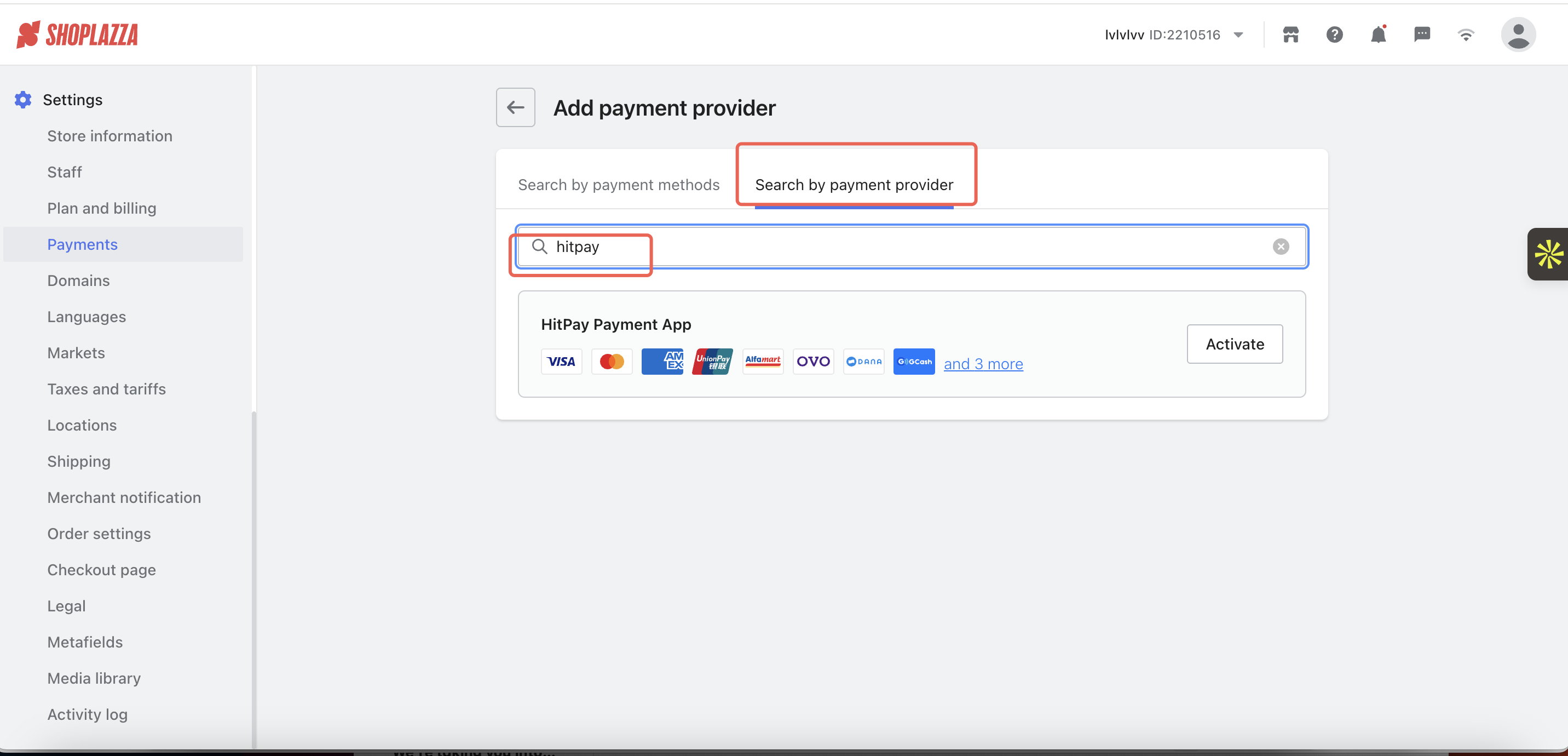
2. Navigate to **Settings > Payments** in the Shoplazza Admin Dashboard
3. Click on **Add payment provider**
4. Switch to the **Search by payment provider** tab
5. Search for "HitPay" in the search bar
6. Click **Activate** next to HitPay Payment App
 7. Enter your API Keys and Salt Values under Account Information and click **Connect**. You can get API keys from **Developers > API and Salt Keys** in your HitPay dashboard.
You're done! Your HitPay integration is now live.
Please note: There will be a 0.2% surcharge in the fees when payments are processed using this plugin, in addition to the existing pricing.
## Selecting Payment Methods
Enable/disable the payment methods for your Shoplazza Checkout by updating your Integration Settings for Shoplazza. Login to the HitPay dashboard and select the methods under **Integrations > Shoplazza Payments App**.
### Reconciling Orders between Shoplazza and HitPay
Navigate to **Finances > Payments** in the Shoplazza Dashboard and download the transactions report. You will find the HitPay payment reference ID which you can match with the Plugin Reference column in the Transactions Report downloaded from **Sales and Reports > Transactions** in the HitPay Dashboard.
### Refunds
Refunds are fully integrated into the Shoplazza dashboard, so you can directly proceed to refund an order from the Shoplazza dashboard, and it will automatically refund the payment back to the customer.
Refunds will only be successful if they meet the criteria of the payment method used. Click [Here](https://docs.hitpayapp.com/payments/refund#refund-process) for more details.
If the refund fails, please try to refund directly from the HitPay dashboard under "Transactions > Select > Refund" to know the exact error.
If you initiate a refund from the **HitPay dashboard**, your Shoplazza order will **not** be refunded. You need to manually update your order in Shoplazza.
**Steps to Refund an Order in Shoplazza**
1. Log in to your Shoplazza Admin.
2. Navigate to "Orders" in the dashboard.
3. Select the order you wish to refund.
4. Click the "Refund" button within the order details.
5. Specify refund details, including items and amount.
6. Choose the refund method.
7. Check and ensure the order status is updated to "Refunded" or similar.
8. Monitor the refund status for completion.
## FAQs
No, HitPay does not send an email confirmation to your customer if the payment is made through Shoplazza. This is because Shoplazza, by default, sends an email to your customer with the order details. To avoid sending duplicate emails, HitPay does not send an additional email to your customers. As a merchant, you will receive a payment alert email.
This depends on the customization options available in Shoplazza. Please check with Shoplazza support for specific customization capabilities.
7. Enter your API Keys and Salt Values under Account Information and click **Connect**. You can get API keys from **Developers > API and Salt Keys** in your HitPay dashboard.
You're done! Your HitPay integration is now live.
Please note: There will be a 0.2% surcharge in the fees when payments are processed using this plugin, in addition to the existing pricing.
## Selecting Payment Methods
Enable/disable the payment methods for your Shoplazza Checkout by updating your Integration Settings for Shoplazza. Login to the HitPay dashboard and select the methods under **Integrations > Shoplazza Payments App**.
### Reconciling Orders between Shoplazza and HitPay
Navigate to **Finances > Payments** in the Shoplazza Dashboard and download the transactions report. You will find the HitPay payment reference ID which you can match with the Plugin Reference column in the Transactions Report downloaded from **Sales and Reports > Transactions** in the HitPay Dashboard.
### Refunds
Refunds are fully integrated into the Shoplazza dashboard, so you can directly proceed to refund an order from the Shoplazza dashboard, and it will automatically refund the payment back to the customer.
Refunds will only be successful if they meet the criteria of the payment method used. Click [Here](https://docs.hitpayapp.com/payments/refund#refund-process) for more details.
If the refund fails, please try to refund directly from the HitPay dashboard under "Transactions > Select > Refund" to know the exact error.
If you initiate a refund from the **HitPay dashboard**, your Shoplazza order will **not** be refunded. You need to manually update your order in Shoplazza.
**Steps to Refund an Order in Shoplazza**
1. Log in to your Shoplazza Admin.
2. Navigate to "Orders" in the dashboard.
3. Select the order you wish to refund.
4. Click the "Refund" button within the order details.
5. Specify refund details, including items and amount.
6. Choose the refund method.
7. Check and ensure the order status is updated to "Refunded" or similar.
8. Monitor the refund status for completion.
## FAQs
No, HitPay does not send an email confirmation to your customer if the payment is made through Shoplazza. This is because Shoplazza, by default, sends an email to your customer with the order details. To avoid sending duplicate emails, HitPay does not send an additional email to your customers. As a merchant, you will receive a payment alert email.
This depends on the customization options available in Shoplazza. Please check with Shoplazza support for specific customization capabilities.