> ## Documentation Index
> Fetch the complete documentation index at: https://docs.hitpayapp.com/llms.txt
> Use this file to discover all available pages before exploring further.
# Shopify
> Integrate hitpay payments app into your Shopify store
## Account Setup
Before you begin integrating HitPay payments into your Shopify store, you need to set up your HitPay account and ensure some prerequisites are met:
1. If you haven't already, create an account on [HitPay](/setup/account_creation).
2. Ensure that you have the necessary payment methods [activated](payments/online_payments#how-to-activate-payment-methods) in your HitPay account.
3. Make sure the payment methods you want to offer are [enabled](/payments/online_payments#how-to-enable-payment-methods) in your Shopify sales channel.
## Integration Guide
Follow these steps to seamlessly integrate HitPay payments into your Shopify store:
1. Install the HitPay App from the Shopify App Store by clicking on the following link:
[https://apps.shopify.com/hitpay-payment-gateway](https://apps.shopify.com/hitpay-payment-gateway).
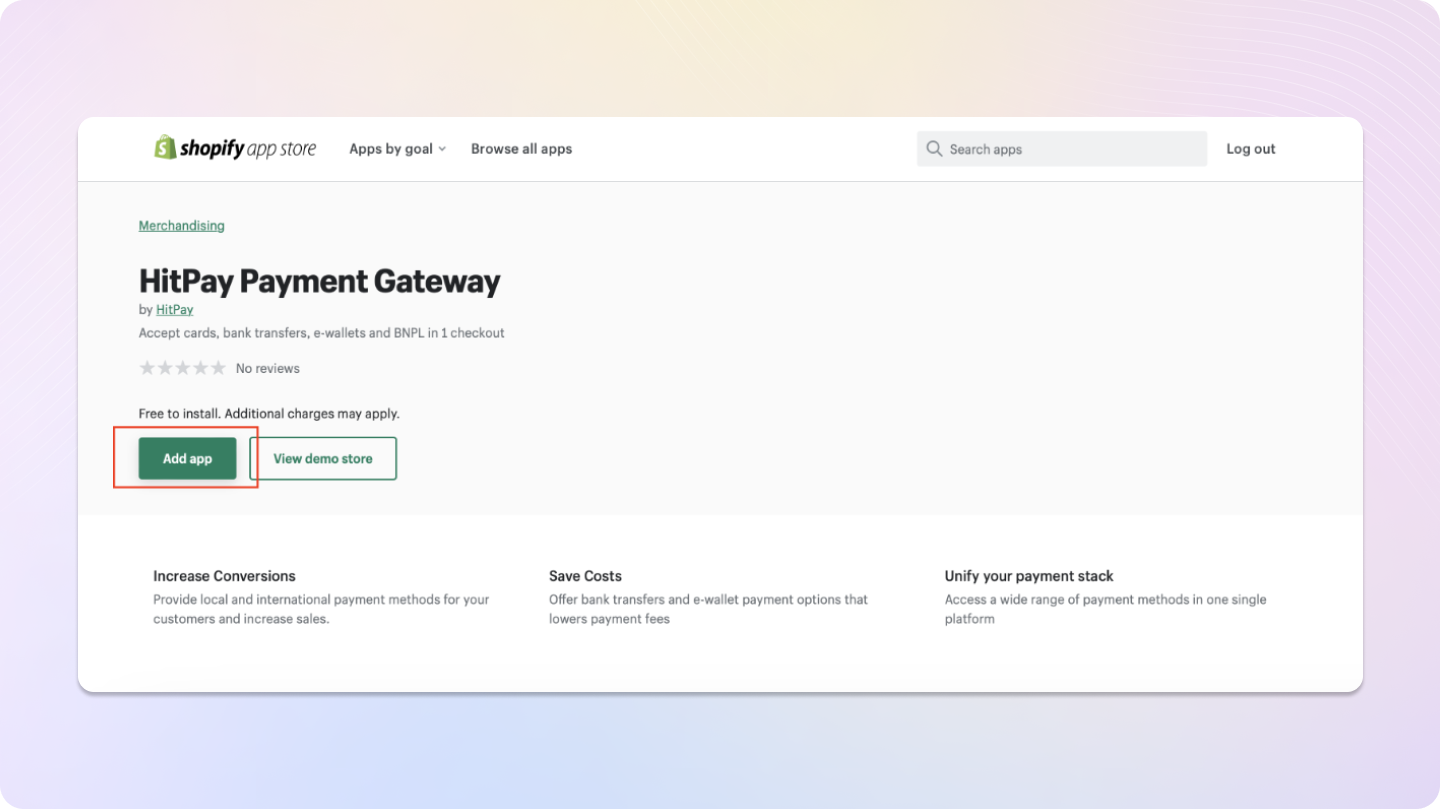
2. On the app page, click "Add App".
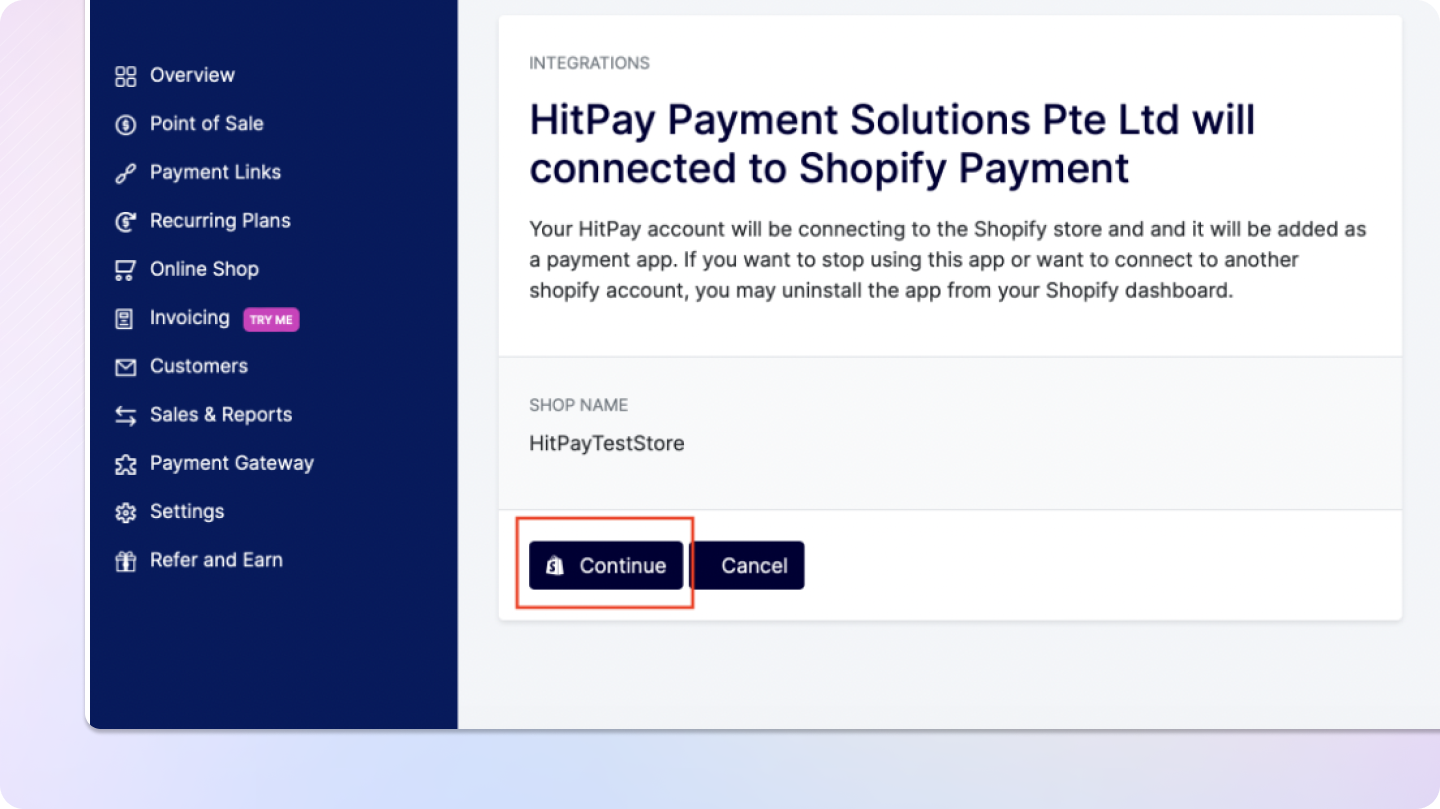
 3. You will be redirected to the HitPay dashboard. Enter your HitPay account details.
4. After entering your login details, click "Continue".
3. You will be redirected to the HitPay dashboard. Enter your HitPay account details.
4. After entering your login details, click "Continue".
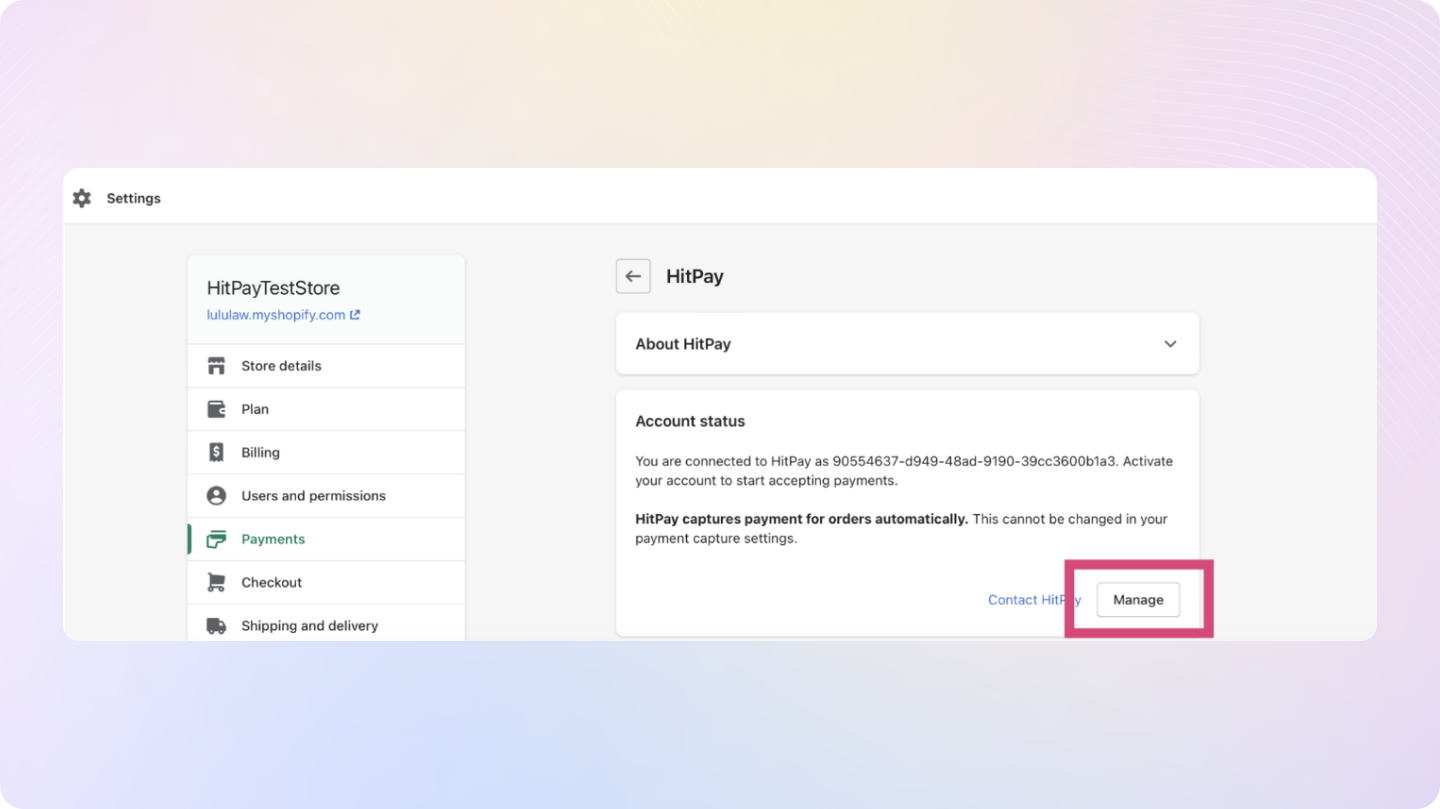
 5. You will be redirected back to the Shopify admin. Click "Manage" in the HitPay App.
 6. Customize the payment method logos and scroll down to "Activate App". Note that this step is for payment logos appearing on your Shopify Checkout Page. Only check the boxes for payment methods available for your account and matching those visible at the checkout page to avoid customer confusion.
7. Choose payment methods to display on your Shopify Checkout by updating Integration Settings on the HitPay dashboard > **Integrations** > **Available** tab > select **Shopify** and choose desired payment methods.
8. Once activated, the HitPay checkout option will appear on the customer checkout page.
9. You're done! Your HitPay integration is now live.
Please note: There will be a 0.5% surcharge in the fees when payments are processed using this plugin, in addition to the existing pricing.
### Testing on Shopify
If you want to test transactions using the HitPay plugin, follow these steps:
6. Customize the payment method logos and scroll down to "Activate App". Note that this step is for payment logos appearing on your Shopify Checkout Page. Only check the boxes for payment methods available for your account and matching those visible at the checkout page to avoid customer confusion.
7. Choose payment methods to display on your Shopify Checkout by updating Integration Settings on the HitPay dashboard > **Integrations** > **Available** tab > select **Shopify** and choose desired payment methods.
8. Once activated, the HitPay checkout option will appear on the customer checkout page.
9. You're done! Your HitPay integration is now live.
Please note: There will be a 0.5% surcharge in the fees when payments are processed using this plugin, in addition to the existing pricing.
### Testing on Shopify
If you want to test transactions using the HitPay plugin, follow these steps:
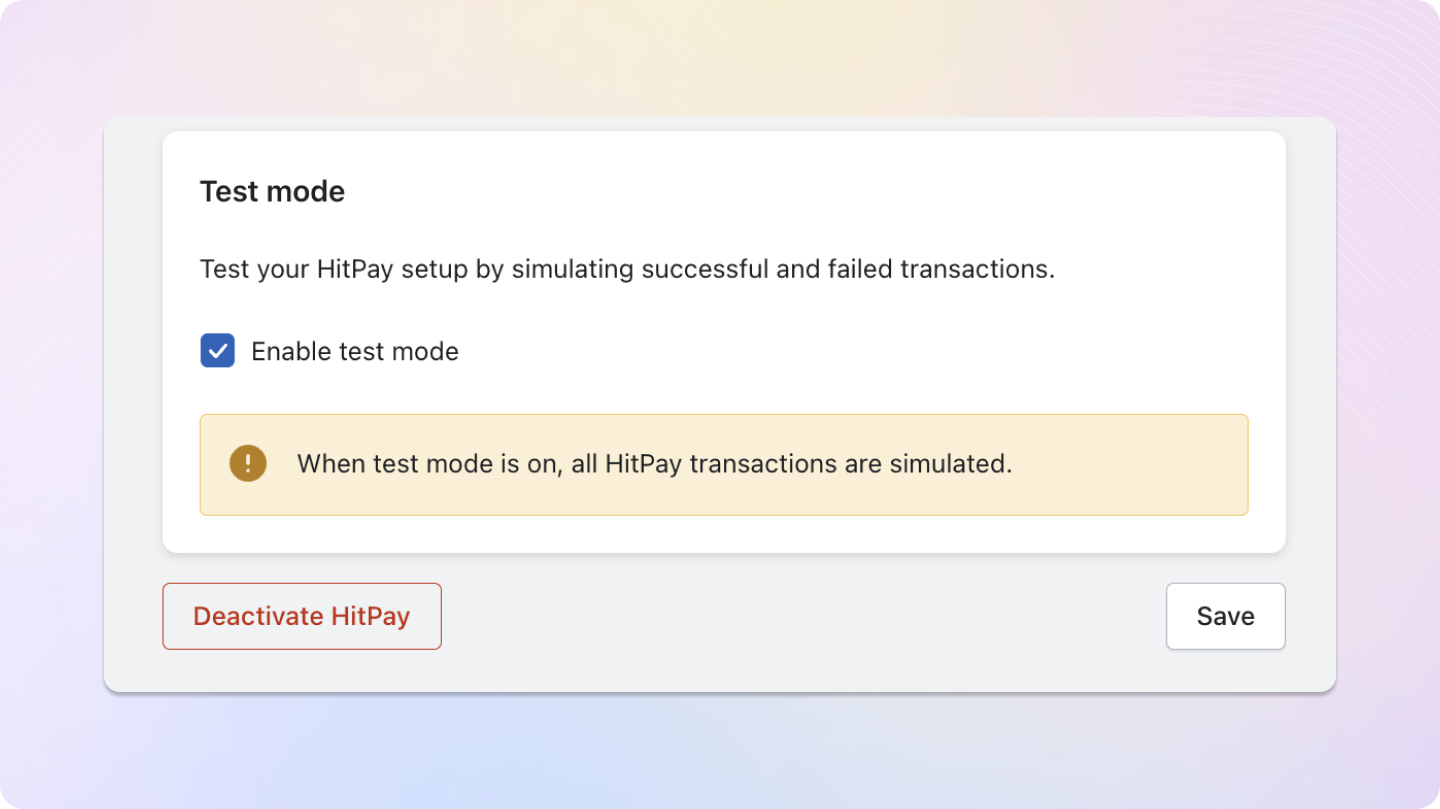 * Enable test mode by checking the box.
* In test mode, sandbox-supported payment methods (PayNow, cards, ShopeePay, GrabPay, GrabPay PayLater, Atome, DOKU QRIS) will be available for testing, and all transactions will be simulated.
Alternatively, you can experience the checkout process at the [HitPay Shopify Test Store](https://lululaw.myshopify.com).
### Reconciling Orders between Shopify and HitPay
* All HitPay transactions made through Shopify generate a unique payment ID.
* The payment ID is visible in the HitPay transaction reports under Sales and Reports.
* You can find this payment ID in the Shopify orders report under column BX.
### Refunds
Refunds are fully integrated into the Shopify dashboard, so you can directly proceed to refund an order from the Shopify dashboard, and it will automatically refund the payment back to the customer.
Refunds will only be successful if they meet the criteria of the payment method used. Click [Here](https://docs.hitpayapp.com/payments/refund#refund-process) for more details.
If the refund fails, please try to refund directly from the Hitpay dashboard under "Transactions > Select > Refund" to know the exact error.
If you initiate a refund from the **Hitpay dashboard**, your Shopify order will **not** be marked as refunded. You need to manually update your order in Shopify.
**Steps to Refund an Order in Shopify**
1. Log in to your Shopify Admin.
2. Navigate to "Orders" in the left-hand menu.
3. Select the order to refund.
4. Click the "Refund" button within the order details.
5. Specify refund details, including items and amount.
6. Choose the refund method (original payment or store credit).
7. Confirm and process the refund.
8. Notify the customer about the refund.
9. Check and ensure the order status is updated to "Refunded" or similar.
10. Monitor the refund status for completion.
## FAQs
No, HitPay does not send an email confirmation to your customer if the payment is made through Shopify. This is because Shopify, by default, sends an email to your customer with the order details. To avoid sending duplicate emails, HitPay does not send an additional email to your customers. As a merchant, you will receive a payment alert email.
No, you cannot edit the payment method title on your Shopify checkout page as it's a limitation imposed by Shopify.
* Enable test mode by checking the box.
* In test mode, sandbox-supported payment methods (PayNow, cards, ShopeePay, GrabPay, GrabPay PayLater, Atome, DOKU QRIS) will be available for testing, and all transactions will be simulated.
Alternatively, you can experience the checkout process at the [HitPay Shopify Test Store](https://lululaw.myshopify.com).
### Reconciling Orders between Shopify and HitPay
* All HitPay transactions made through Shopify generate a unique payment ID.
* The payment ID is visible in the HitPay transaction reports under Sales and Reports.
* You can find this payment ID in the Shopify orders report under column BX.
### Refunds
Refunds are fully integrated into the Shopify dashboard, so you can directly proceed to refund an order from the Shopify dashboard, and it will automatically refund the payment back to the customer.
Refunds will only be successful if they meet the criteria of the payment method used. Click [Here](https://docs.hitpayapp.com/payments/refund#refund-process) for more details.
If the refund fails, please try to refund directly from the Hitpay dashboard under "Transactions > Select > Refund" to know the exact error.
If you initiate a refund from the **Hitpay dashboard**, your Shopify order will **not** be marked as refunded. You need to manually update your order in Shopify.
**Steps to Refund an Order in Shopify**
1. Log in to your Shopify Admin.
2. Navigate to "Orders" in the left-hand menu.
3. Select the order to refund.
4. Click the "Refund" button within the order details.
5. Specify refund details, including items and amount.
6. Choose the refund method (original payment or store credit).
7. Confirm and process the refund.
8. Notify the customer about the refund.
9. Check and ensure the order status is updated to "Refunded" or similar.
10. Monitor the refund status for completion.
## FAQs
No, HitPay does not send an email confirmation to your customer if the payment is made through Shopify. This is because Shopify, by default, sends an email to your customer with the order details. To avoid sending duplicate emails, HitPay does not send an additional email to your customers. As a merchant, you will receive a payment alert email.
No, you cannot edit the payment method title on your Shopify checkout page as it's a limitation imposed by Shopify.