> ## Documentation Index
> Fetch the complete documentation index at: https://docs.hitpayapp.com/llms.txt
> Use this file to discover all available pages before exploring further.
# PrestaShop
> Integrate HitPay payment gateway into your PrestaShop store
## Account Setup
Before you begin integrating HitPay payments into your PretaShop store, you need to set up your HitPay account and ensure some prerequisites are met:
1. If you haven't already, create an account on [HitPay](/setup/account_creation).
2. Ensure that you have the necessary payment methods [activated](payments/online_payments#how-to-activate-payment-methods) in your HitPay account.
3. Make sure the payment methods you want to offer are [enabled](/payments/online_payments#how-to-enable-payment-methods) in your PretaShop sales channel.
## Integration Guide
Follow these steps to seamlessly integrate HitPay payments into your PretaShop store:
1. Upload Module File
Download the zip files below and follow the installation guide below:
For Prestashop 1.7 versions - use the 1.1.7 plugin below:
[Download Here](https://github.com/hit-pay/prestashop1.7-extension/releases)
For Prestashop 1.8 versions - will be compatible with 9 version too - or 9 version can use 1.8 extension.
[Download Here](https://github.com/hit-pay/prestashop1.8-extension/releases)
For Prestashop 1.6 versions - use the 1.1.4 plugin below:
[Download Here](https://github.com/hit-pay/prestashop1.6-extension/releases)
2. Log into your [PrestaShop account](https://addons.prestashop.com/en/)
3. Navigate to **Modules > Module Manager** and click **Upload a Module**
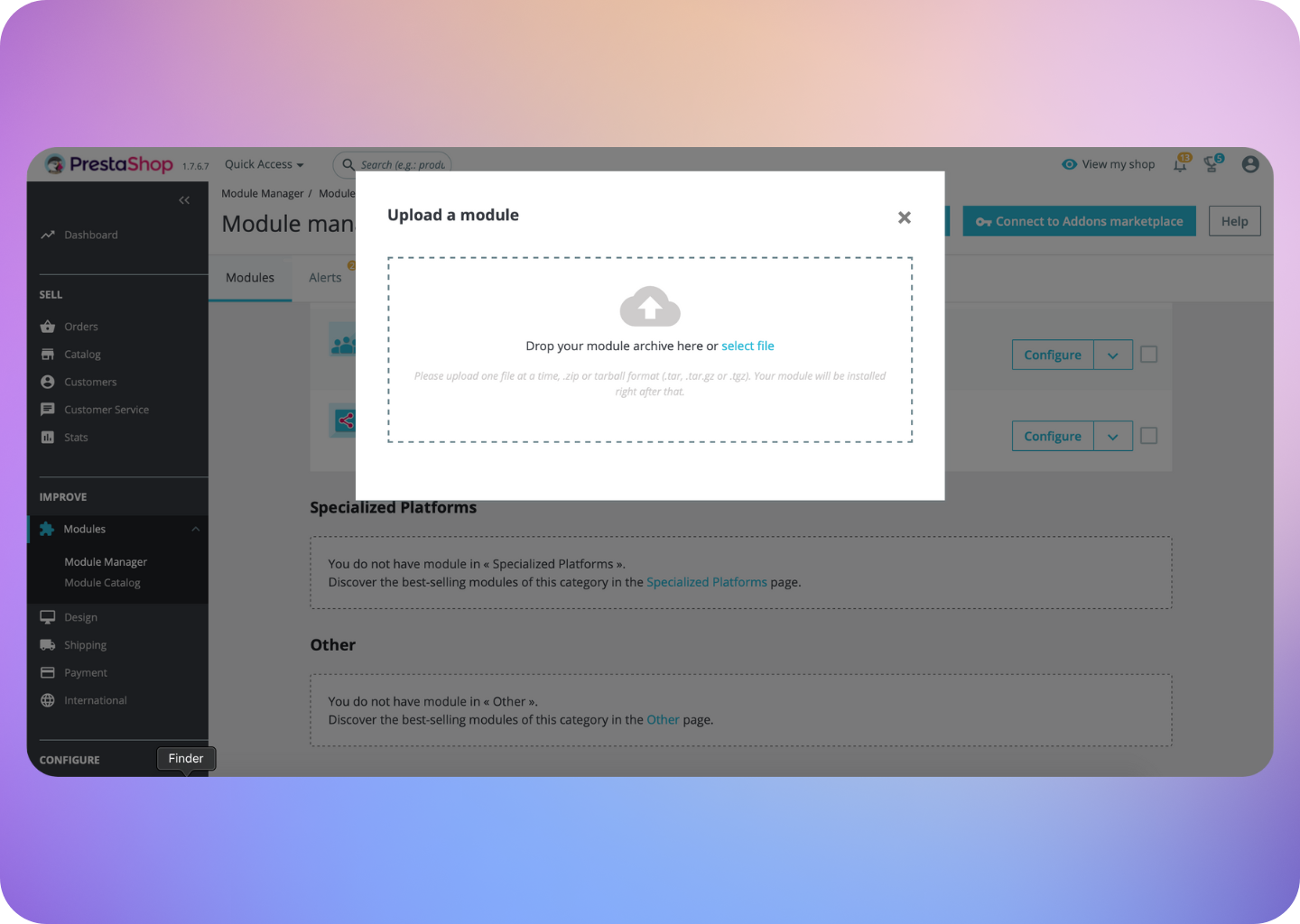
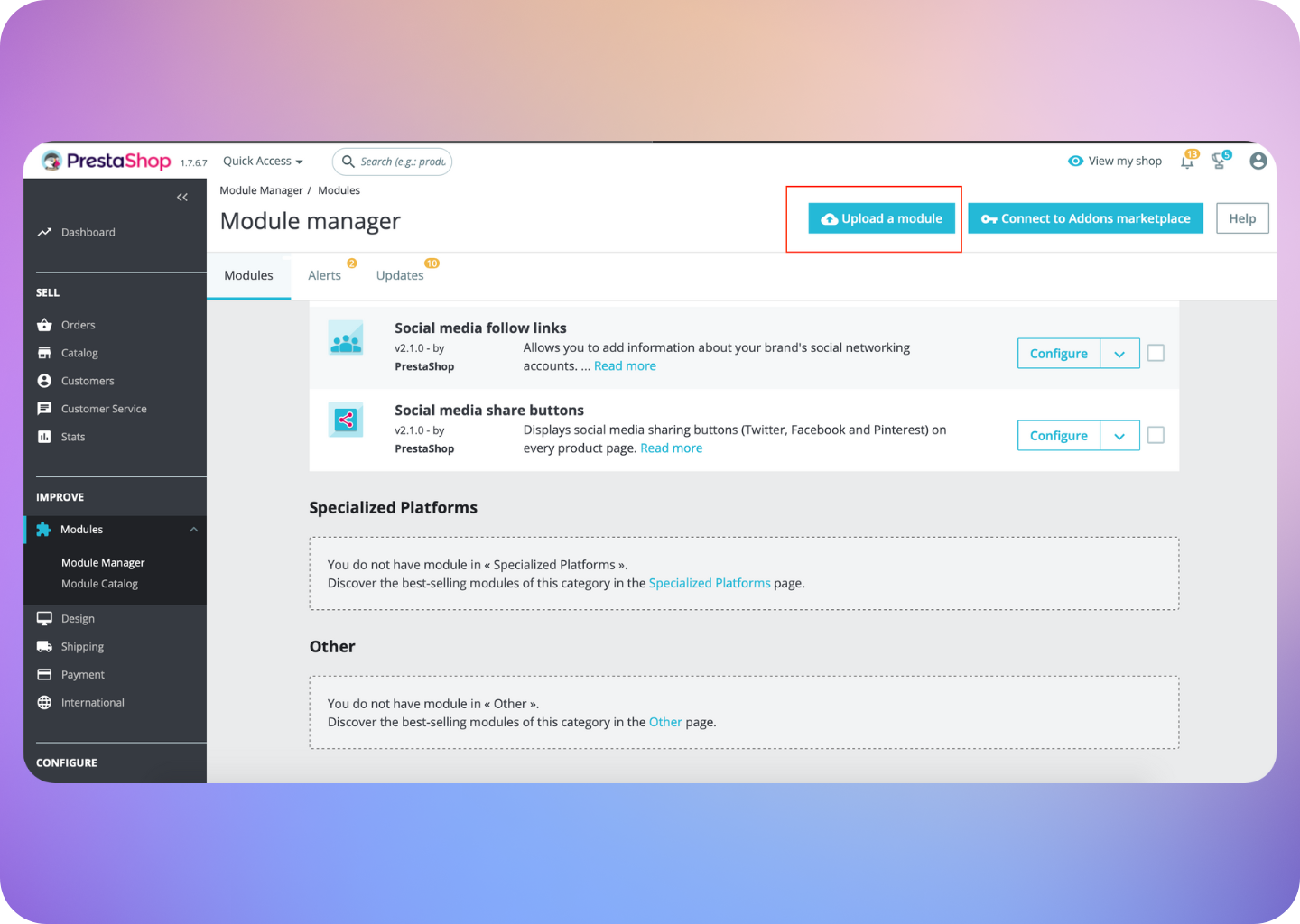 4. Upload the source code zip file from your computer
Please ensure the file is compressed or zipped before uploading
4. Upload the source code zip file from your computer
Please ensure the file is compressed or zipped before uploading
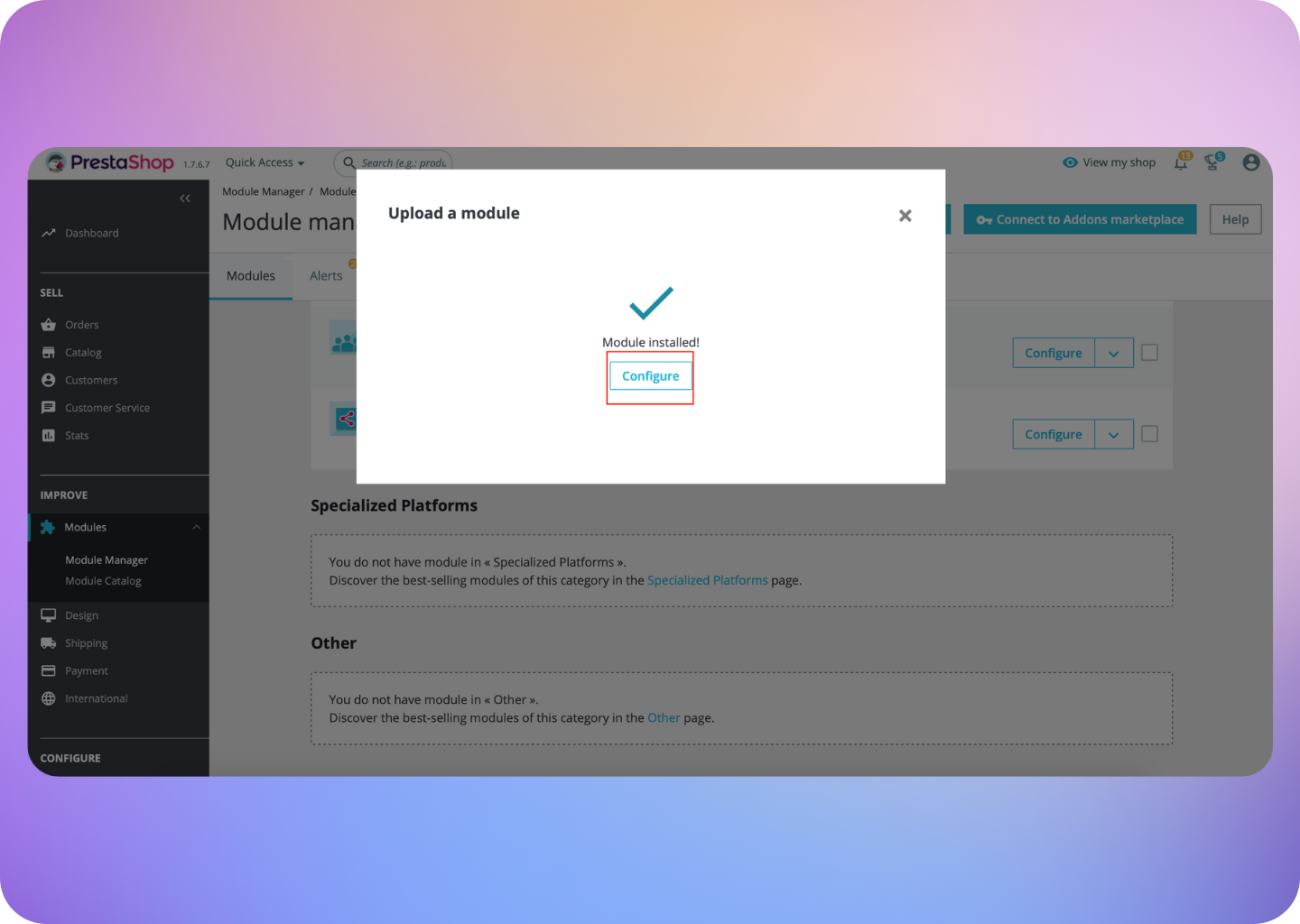
 5. Click Configure
 You will now be redirected to the below page:
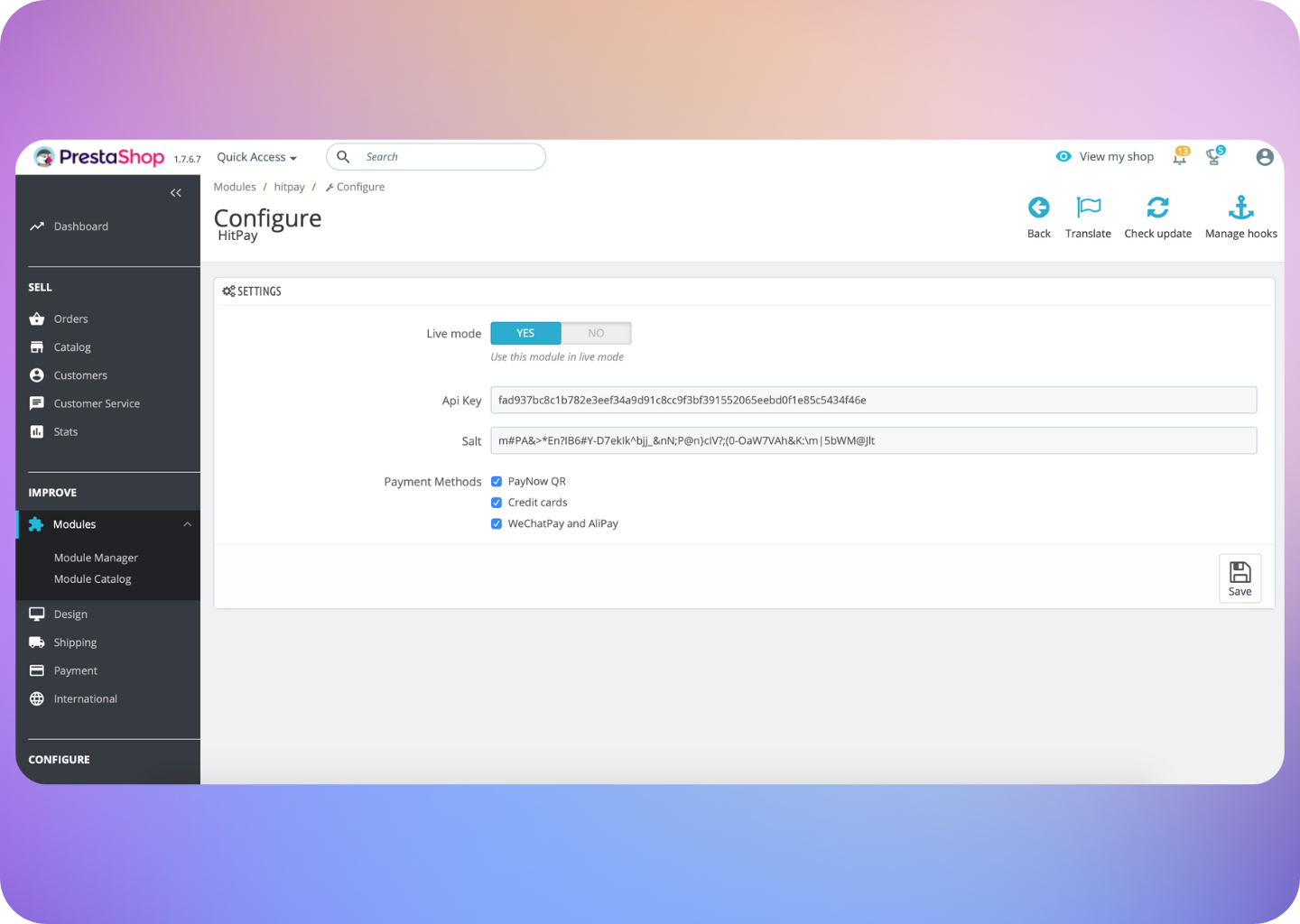 6. Copy/Paste the API Keys and Salt Values from HitPay to PretaShop. You can find your API and Salt Keys by navigating to **Developers > API and Salt Keys** in the HitPay dashboard.
7. Paste the values in the Configure panel, enable Live mode and click **Save**
6. Copy/Paste the API Keys and Salt Values from HitPay to PretaShop. You can find your API and Salt Keys by navigating to **Developers > API and Salt Keys** in the HitPay dashboard.
7. Paste the values in the Configure panel, enable Live mode and click **Save**
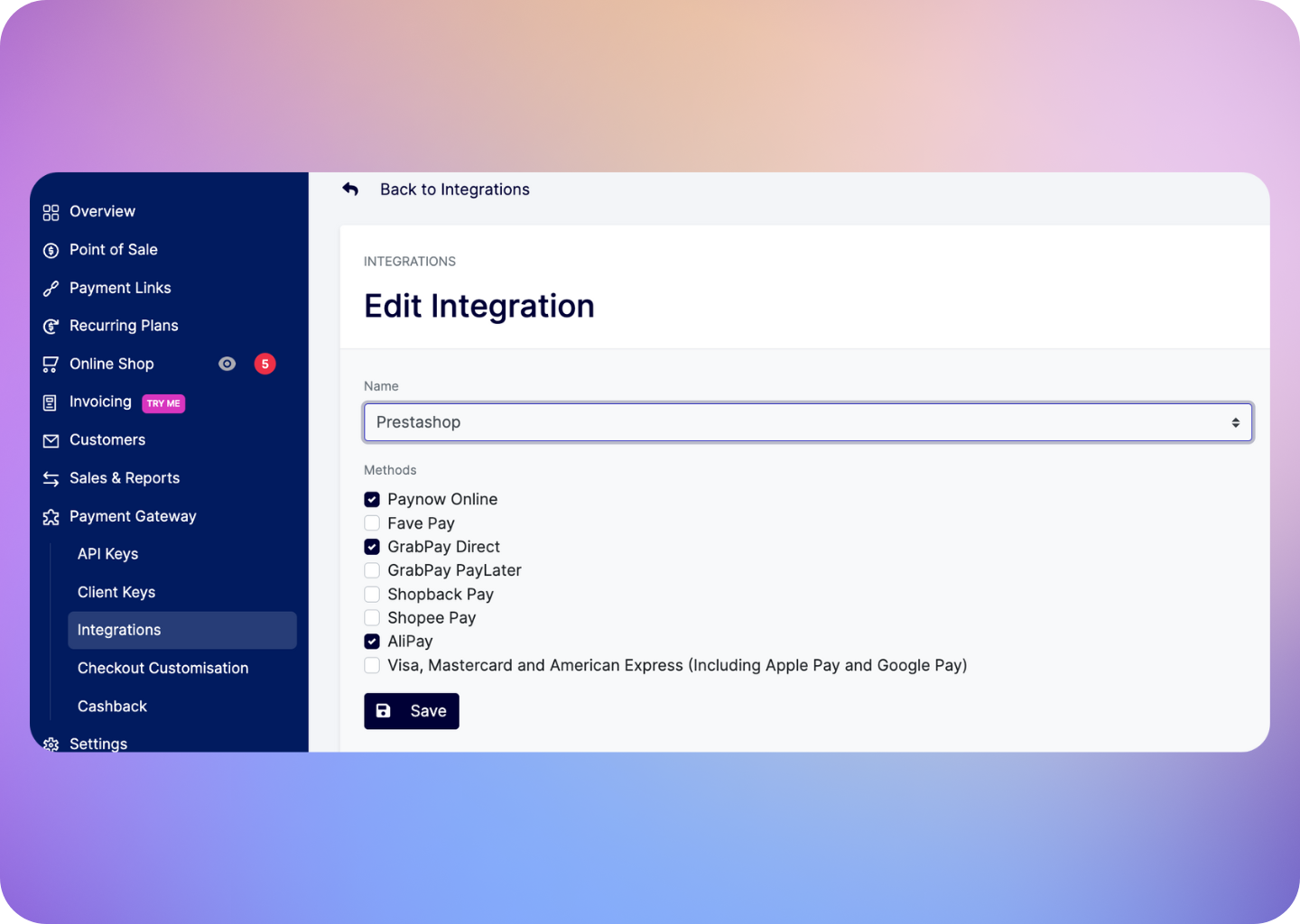
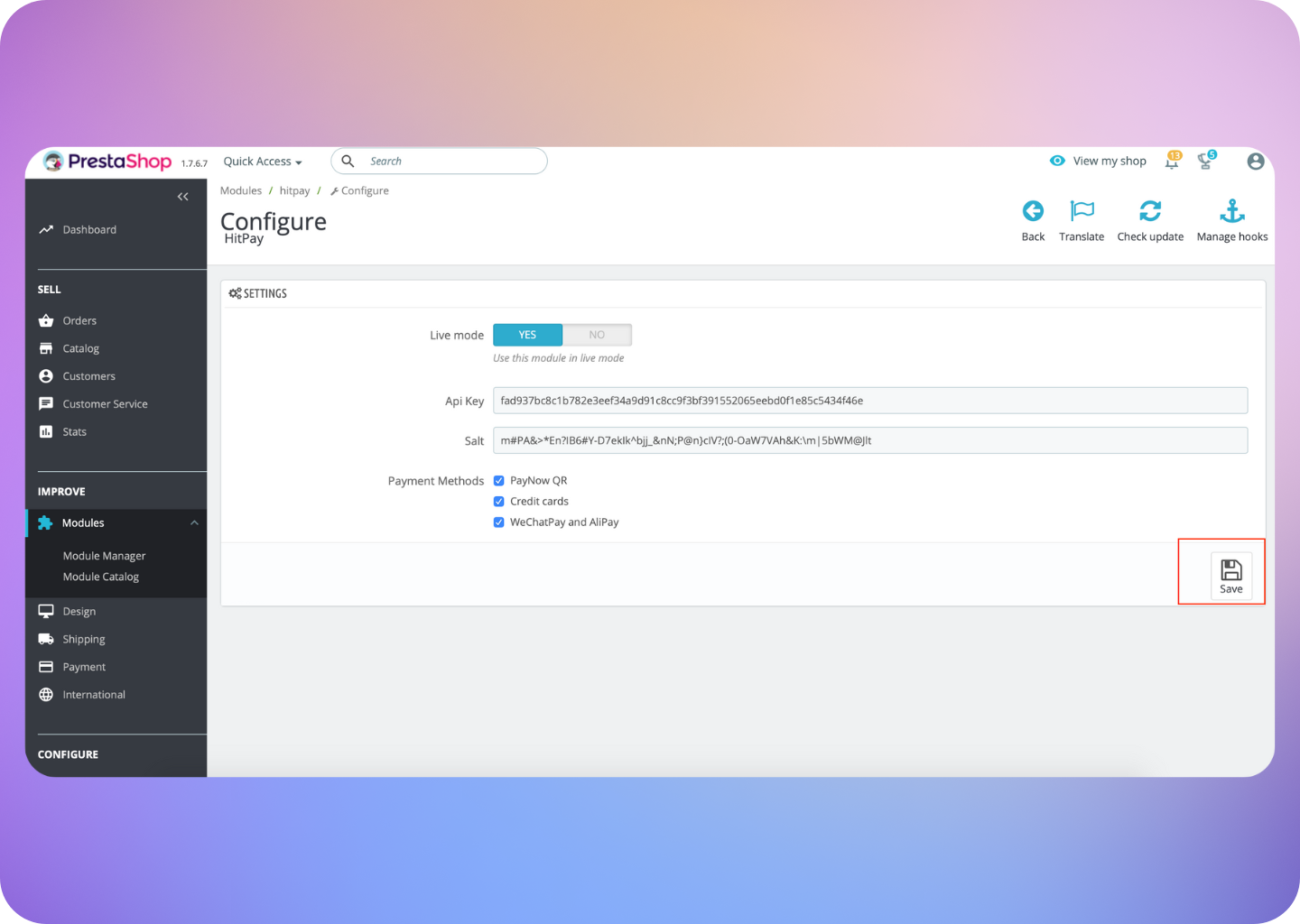 8. Enable/disable the payment methods for your Prestashop Checkout by updating your [Integration Settings](https://hitpay.mintlify.app/payments/online_payments#how-to-enable-payment-methods) for Prestashop
 That’s it! You’re all set up with HitPay on PretaShop. 🎉
## FAQs
No, HitPay does not send an email confirmation to your customer if the payment is made through PrestaShop. This is because PrestaShop, by default, sends an email to your customer with the order details. To prevent duplicate emails, HitPay does not send an additional email to your customers. As a merchant, you will receive a payment alert email.
If a user is stuck on the "We are retrieving your payment status, please wait..." page, it might be necessary to clear the JavaScript cache from your PrestaShop settings. You can refer to [this guide](https://bobcares.com/blog/clear-cache-in-prestashop/) for detailed instructions on how to clear the JS cache.
That’s it! You’re all set up with HitPay on PretaShop. 🎉
## FAQs
No, HitPay does not send an email confirmation to your customer if the payment is made through PrestaShop. This is because PrestaShop, by default, sends an email to your customer with the order details. To prevent duplicate emails, HitPay does not send an additional email to your customers. As a merchant, you will receive a payment alert email.
If a user is stuck on the "We are retrieving your payment status, please wait..." page, it might be necessary to clear the JavaScript cache from your PrestaShop settings. You can refer to [this guide](https://bobcares.com/blog/clear-cache-in-prestashop/) for detailed instructions on how to clear the JS cache.