> ## Documentation Index
> Fetch the complete documentation index at: https://docs.hitpayapp.com/llms.txt
> Use this file to discover all available pages before exploring further.
# OpenCart
> Integrate HitPay payment gateway into your OpenCart store
## Overview
Integrating your OpenCart site with HitPay allows you to accept payments via the HitPay Payment Gateway.
The extension offers seamless integration allowing the customer to pay on your website without being redirected. This allows the extension to work across all browsers and ensures compatibility with the latest version of OpenCart.
Currently, we support the following versions of OpenCart with separate extensions:
OpenCart 3
OpenCart 2.x below 2.3
OpenCart 2.3 and above
Other Open Cart Versions: [Extension Link](https://www.opencart.com/index.php?route=marketplace/extension/info\&extension_id=40691\&filter_license=0) (requires copying files into the store root folder)
## Account Setup
Before you begin integrating HitPay payments into your OpenCart store, you need to set up your HitPay account and ensure some prerequisites are met:
1. If you haven't already, create an account on [HitPay](/setup/account_creation).
2. Ensure that you have the necessary payment methods [activated](payments/online_payments#how-to-activate-payment-methods) in your HitPay account.
3. Make sure the payment methods you want to offer are [enabled](/payments/online_payments#how-to-enable-payment-methods) in your OpenCart sales channel.
## Integration Guide
Follow these steps to seamlessly integrate HitPay payments into your OpenCart store:
1. Install the Plugin
Download the latest Source code zip file of the required version of the plugin:
Download the latest release of the OpenCart 3 plugin from the link [here](https://github.com/hit-pay/opencart-extension/releases)
Download the latest release of the OpenCart 2.x below 2.3 plugin from the link [here](https://drive.google.com/file/d/1WGQCP65B2_Uu3U4pLOlwsFxtECj3fIM0/view?usp=sharing)
Download the latest release of the OpenCart 2.3 and above plugin from the link [here](https://drive.google.com/file/d/1qKD3QEUTTjQB8EmgJzhuTjPe7QD02Fos/view?usp=sharing)
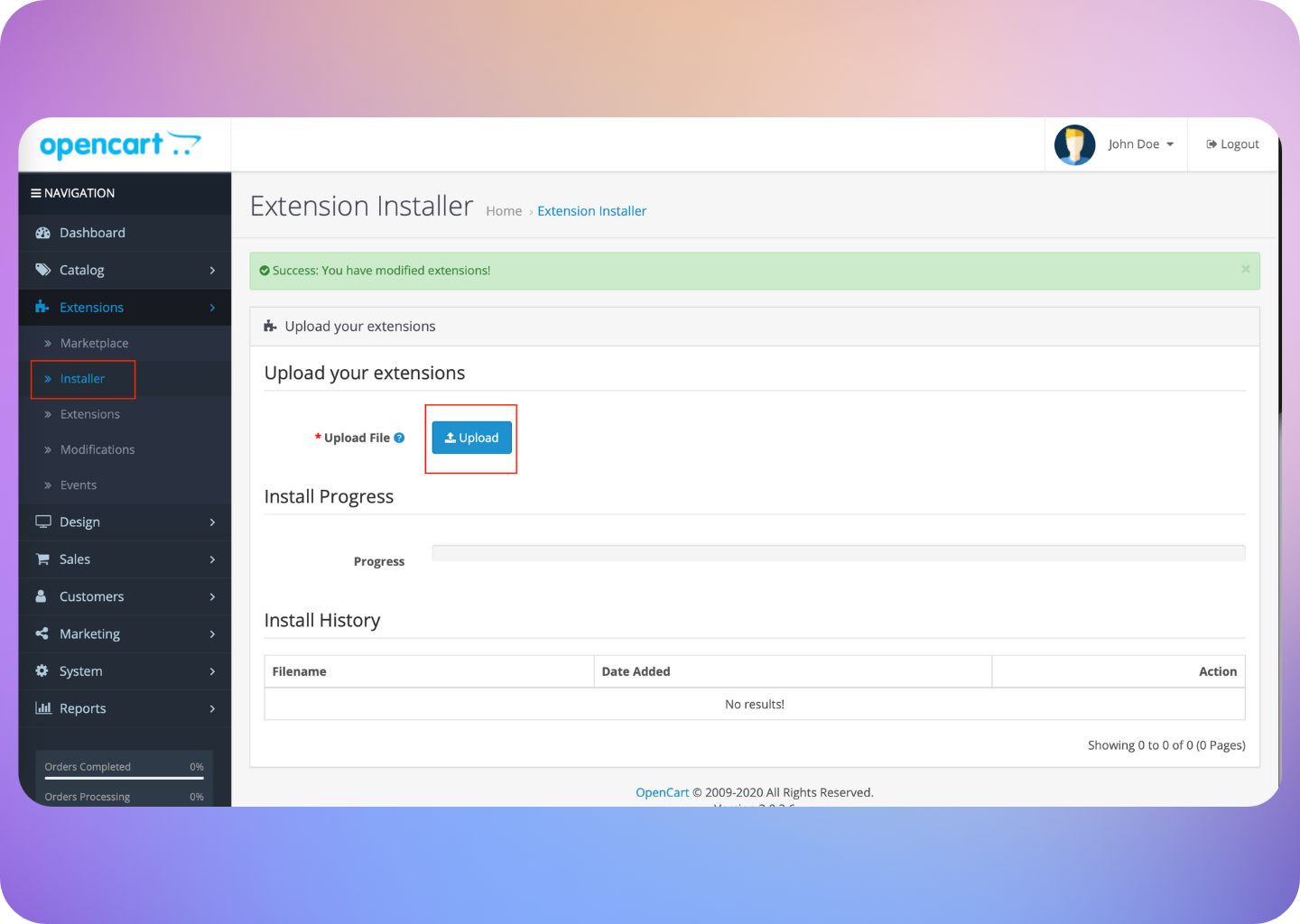
2. Upload the extension file under Installer as shown below
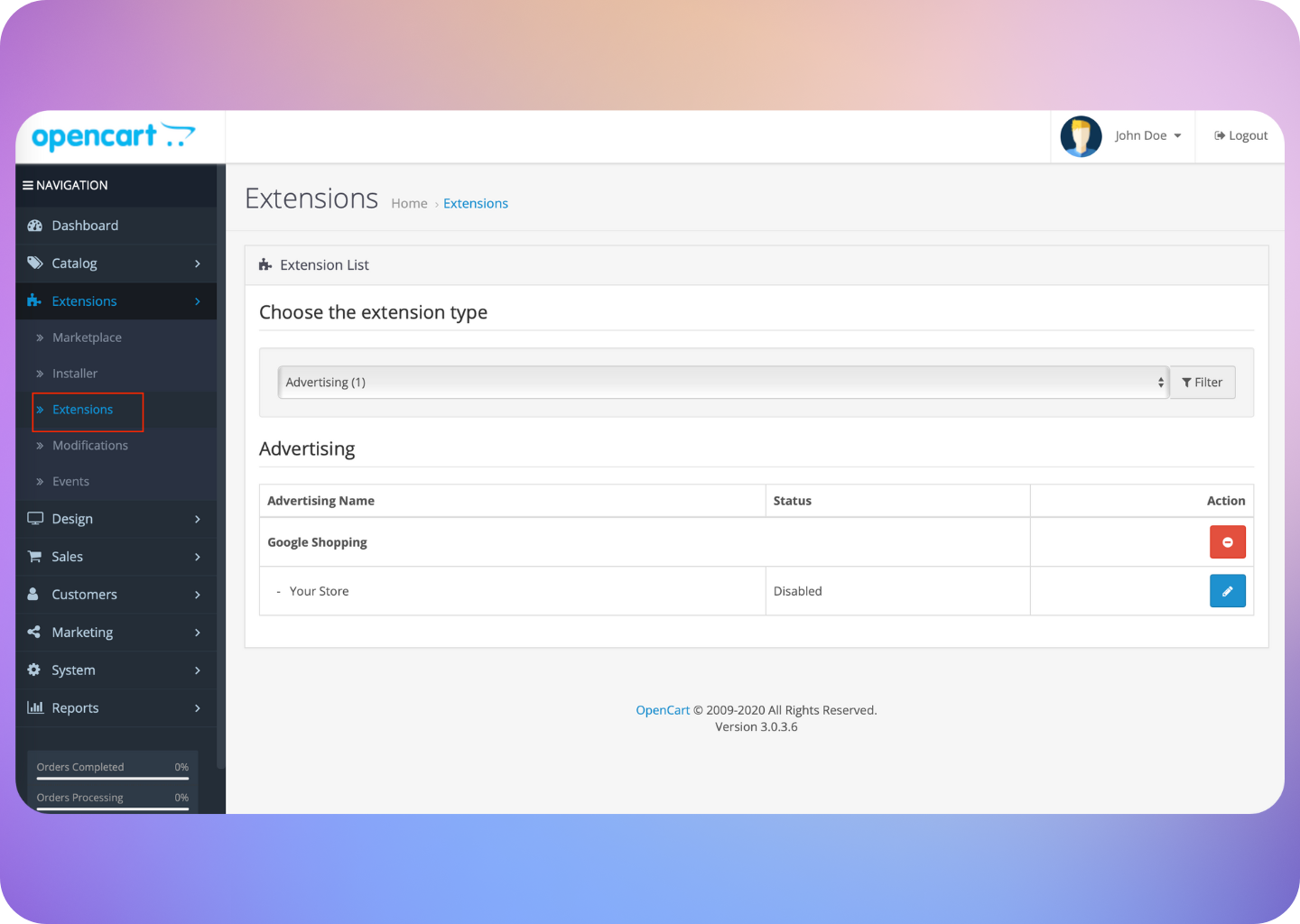
 3. Navigate to Extensions, choose extensions type as Payment Gateway
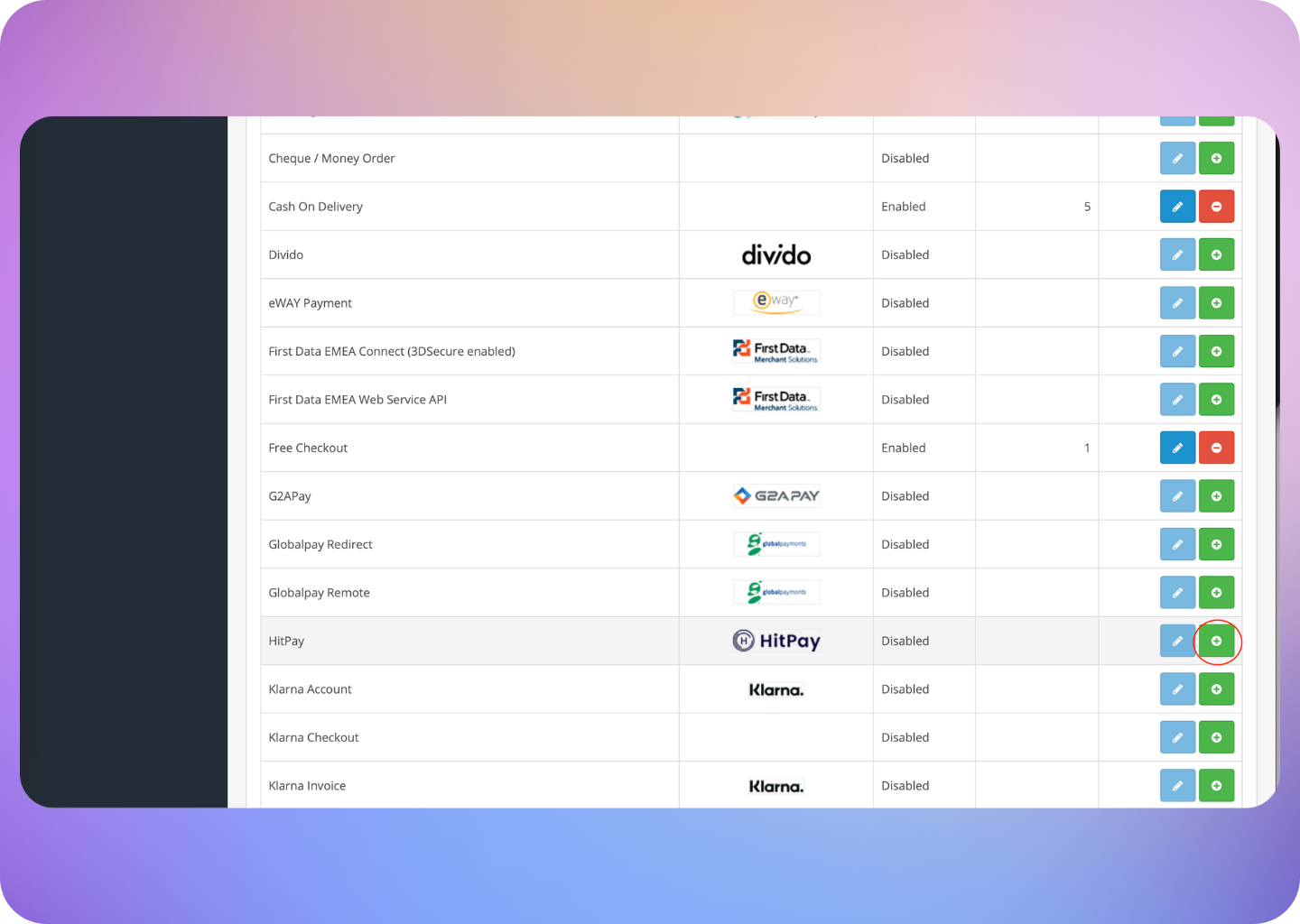
 4. Click on the **Install** button (in green) next to HitPay:
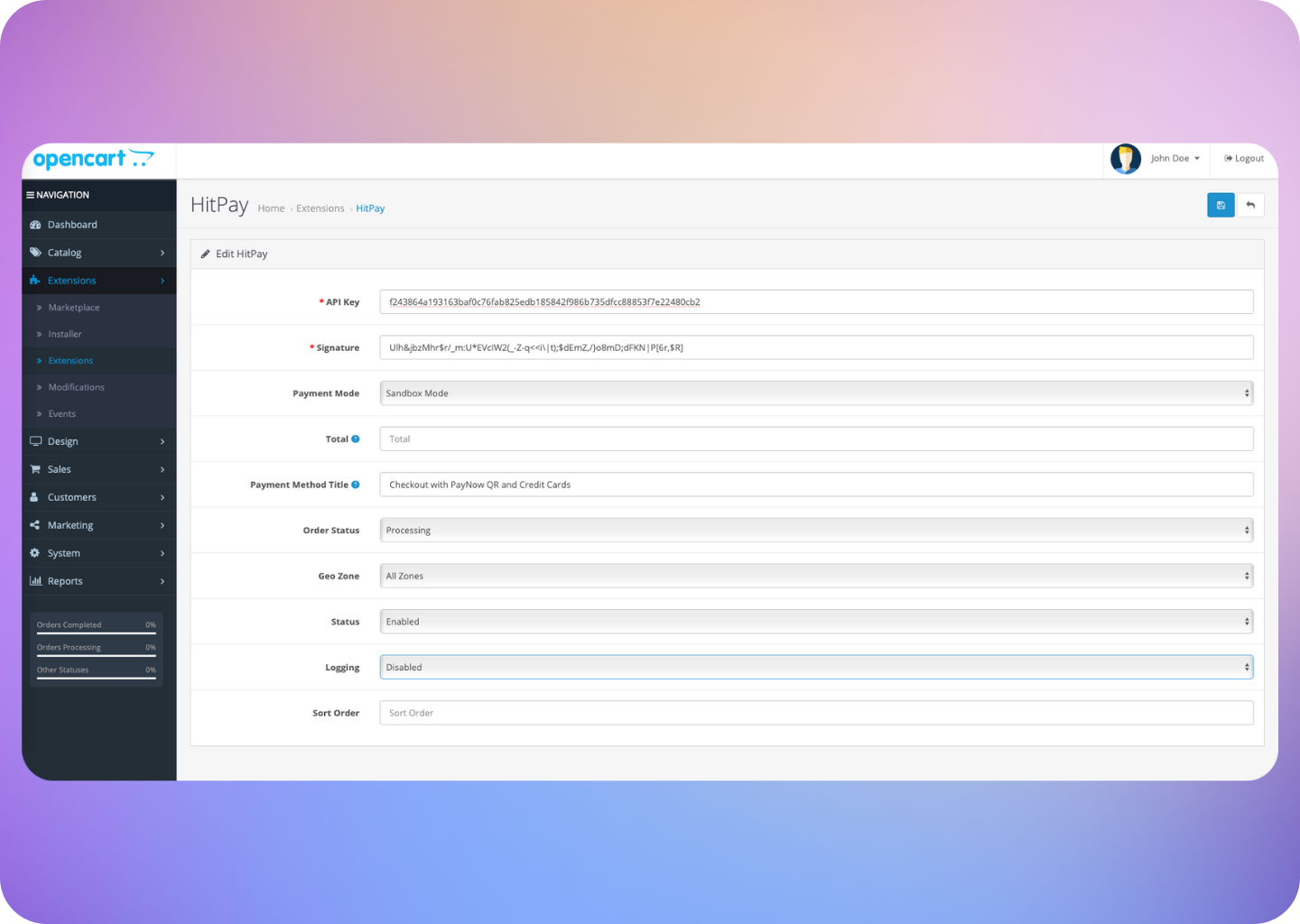
 5. Click on the **Edit** button
6. Configure the HitPay Settings in Open Cart and click on **Save**
You can find your HitPay API Key and Salt Keys by navigating to **Payment Gateway > API** in the HitPay dashboard.
5. Click on the **Edit** button
6. Configure the HitPay Settings in Open Cart and click on **Save**
You can find your HitPay API Key and Salt Keys by navigating to **Payment Gateway > API** in the HitPay dashboard.
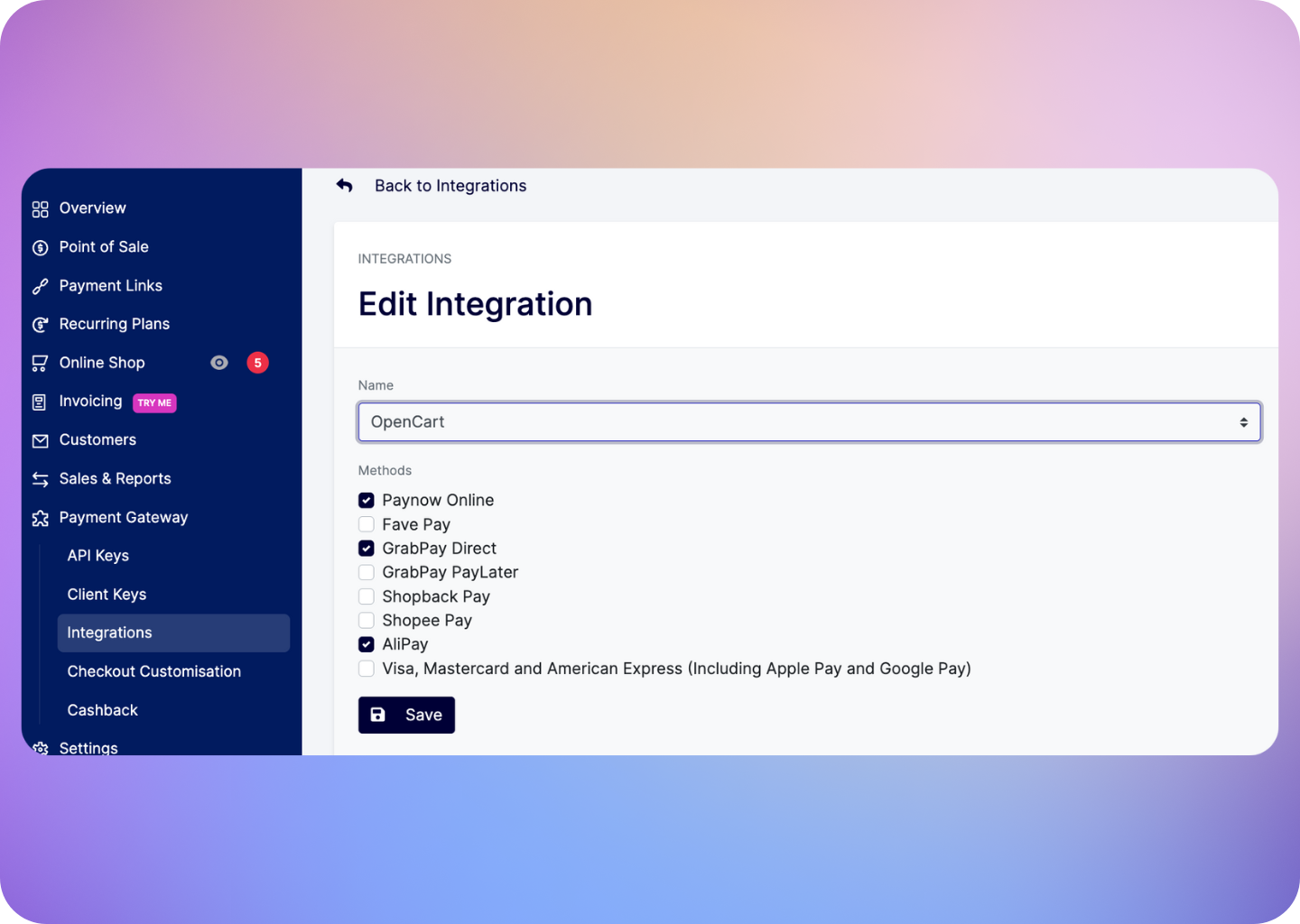
 7. Enable/disable the payment methods for your OpenCart Checkout by updating your [Integration Settings](https://hitpay.mintlify.app/payments/online_payments#how-to-enable-payment-methods) for OpenCart:
 That’s it! You’re all set up with HitPay on OpenCart. 🎉
## FAQs
No, HitPay does not send an email confirmation to your customer if the payment is made through OpenCart. This is because OpenCart, by default, sends an email to your customer with the order details. To prevent duplicate emails, HitPay does not send an additional email to your customers. As a merchant, you will receive a payment alert email.
That’s it! You’re all set up with HitPay on OpenCart. 🎉
## FAQs
No, HitPay does not send an email confirmation to your customer if the payment is made through OpenCart. This is because OpenCart, by default, sends an email to your customer with the order details. To prevent duplicate emails, HitPay does not send an additional email to your customers. As a merchant, you will receive a payment alert email.