> ## Documentation Index
> Fetch the complete documentation index at: https://docs.hitpayapp.com/llms.txt
> Use this file to discover all available pages before exploring further.
# Ecwid
> Integrate HitPay payment gateway into your Ecwid store
## Account Setup
Before you begin integrating HitPay payments into your Ecwid store, you need to set up your HitPay account and ensure some prerequisites are met:
1. If you haven't already, create an account on [HitPay](/setup/account_creation).
2. Ensure that you have the necessary payment methods [activated](payments/online_payments#how-to-activate-payment-methods) in your HitPay account.
3. Make sure the payment methods you want to offer are [enabled](/payments/online_payments#how-to-enable-payment-methods) in your Ecwid sales channel.
## Integration Guide
Follow these steps to seamlessly integrate HitPay payments into your Ecwid store:
1. Click on this [link](https://my.ecwid.com/cp#apps:view=app\&name=custom-app-11573331-14) to add HitPay payment gateway to your Ecwid App
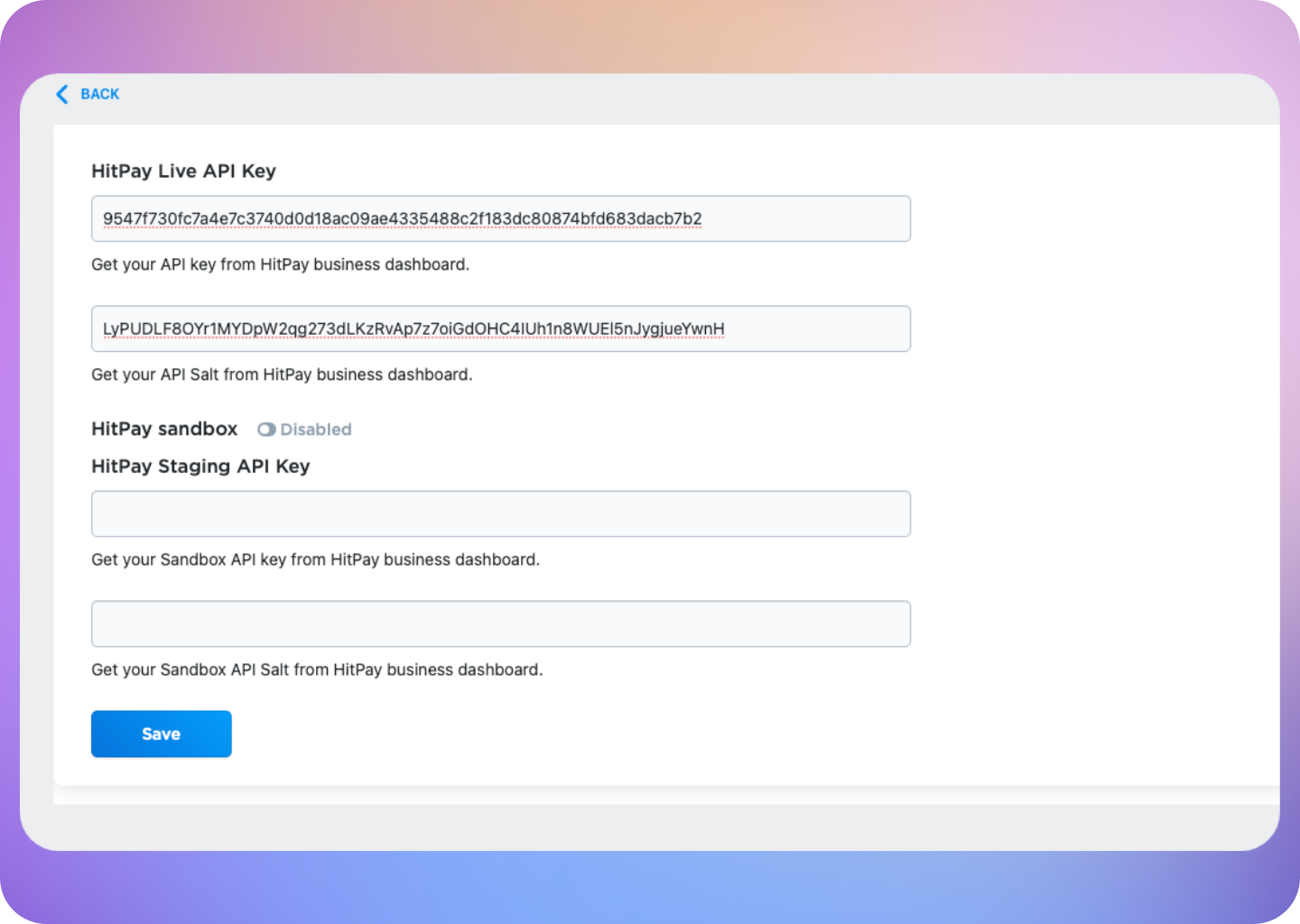
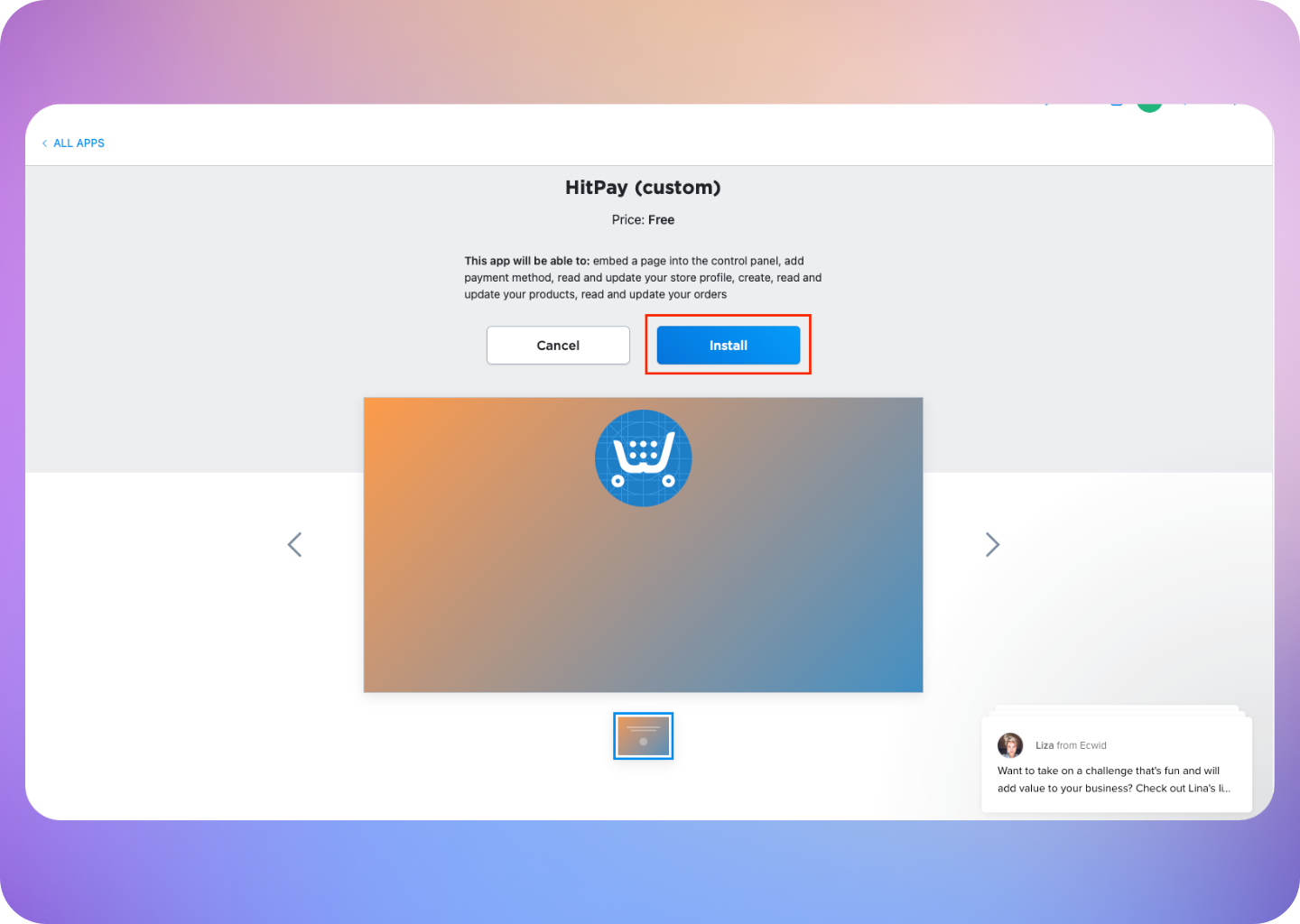 2. Add the API Keys and Salt Values from HitPay in the fields below. You can find your API and Salt Keys by navigating to **Developers > API and Salt Keys** in the HitPay dashboard.
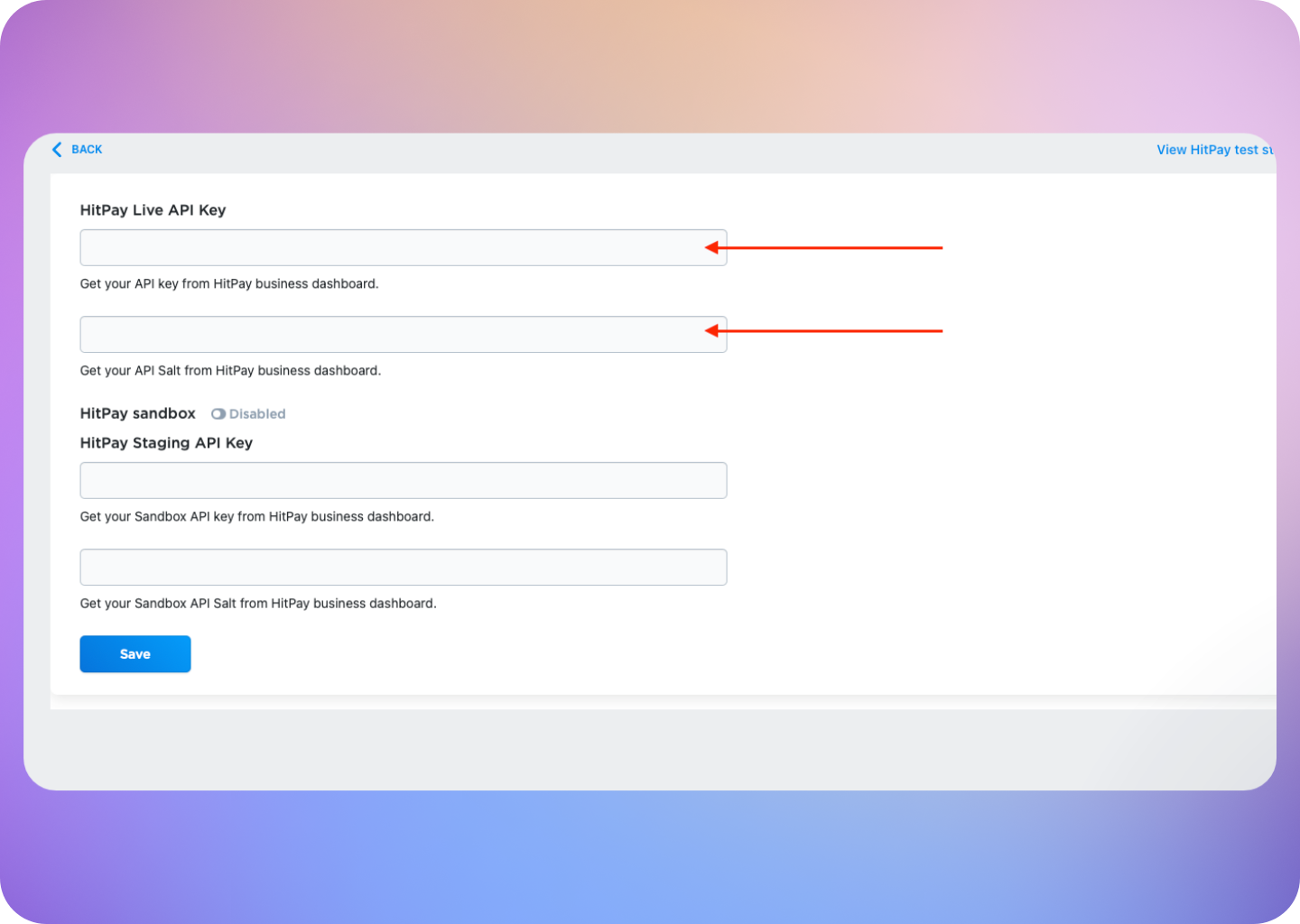 Please note that sandbox testing is not currently available on Ecwid.
3. Click **Save**
Please note that sandbox testing is not currently available on Ecwid.
3. Click **Save**
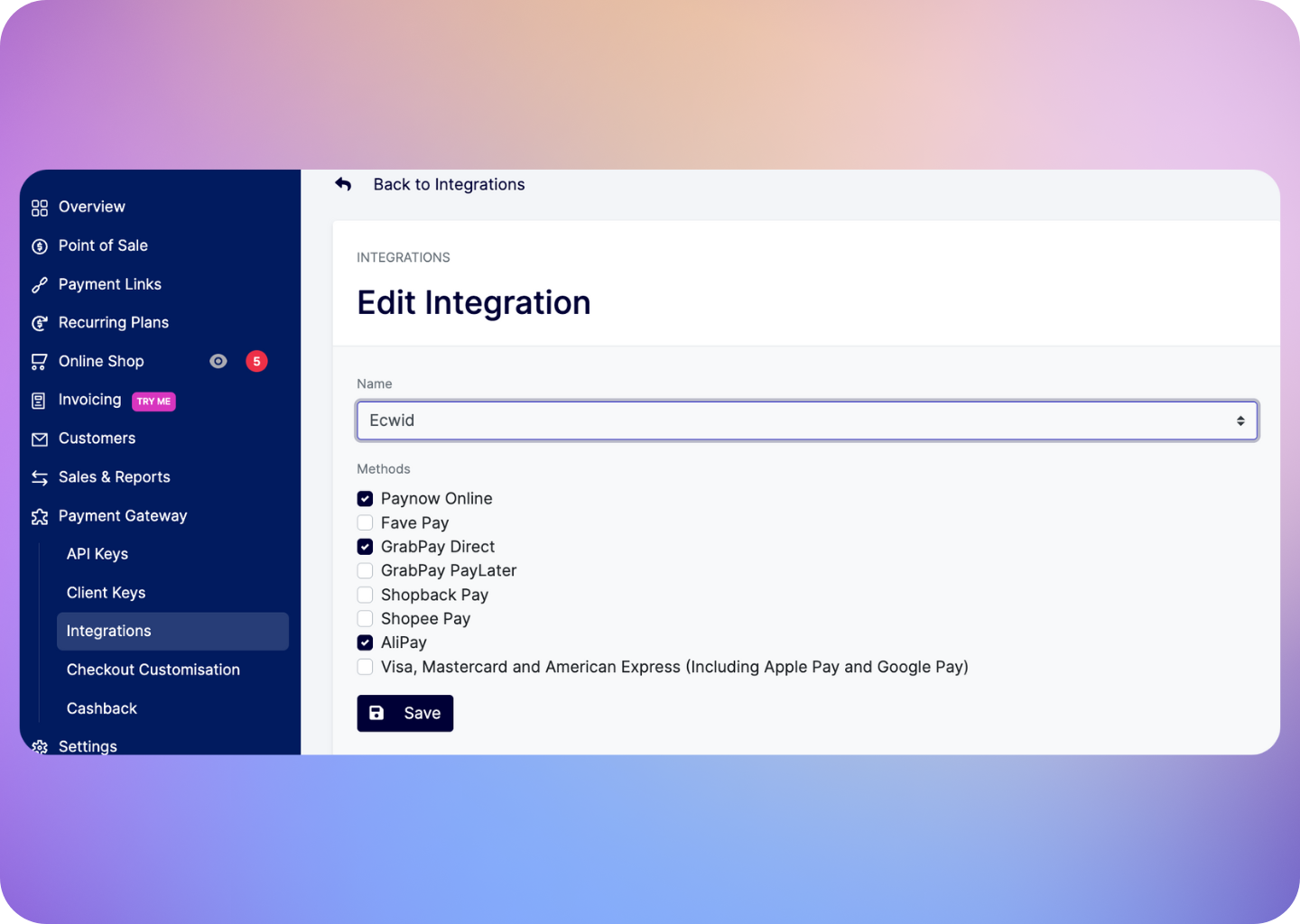
 4. Enable/disable the payment methods for your Ecwid Checkout by updating your [Integration Settings](https://hitpay.mintlify.app/payments/online_payments#how-to-enable-payment-methods) for Ecwid:
 HitPay is now live on your Ecwid Store! 🎉
## FAQs
No, HitPay does not send an email confirmation to your customer if the payment is made through Ecwid. This is because Ecwid, by default, sends an email to your customer with the order details. To avoid sending duplicate emails, HitPay does not send an additional email to your customers. As a merchant, you will receive a payment alert email.
HitPay is now live on your Ecwid Store! 🎉
## FAQs
No, HitPay does not send an email confirmation to your customer if the payment is made through Ecwid. This is because Ecwid, by default, sends an email to your customer with the order details. To avoid sending duplicate emails, HitPay does not send an additional email to your customers. As a merchant, you will receive a payment alert email.