> ## Documentation Index
> Fetch the complete documentation index at: https://docs.hitpayapp.com/llms.txt
> Use this file to discover all available pages before exploring further.
# Admin Fees
> Configure pass-the-fees surcharge to add processing fees to checkout by payment method
## Overview
Dynamically update the checkout pricing by adding administrative fees to the final amount based on the selected payment method.
With HitPay's Pass-the-Fees feature, you can now include a surcharge fee in the form of a fixed percentage (%). This feature can be customized for specific payment methods and HitPay sales channels (such as Shopify, WooCommerce, Payment Links, etc.).
 ## Activate Pass-the-Fees
This feature is intended for online payments only. If you are using HitPay POS, please refer to the [POS surcharge](pos/surcharge) section.
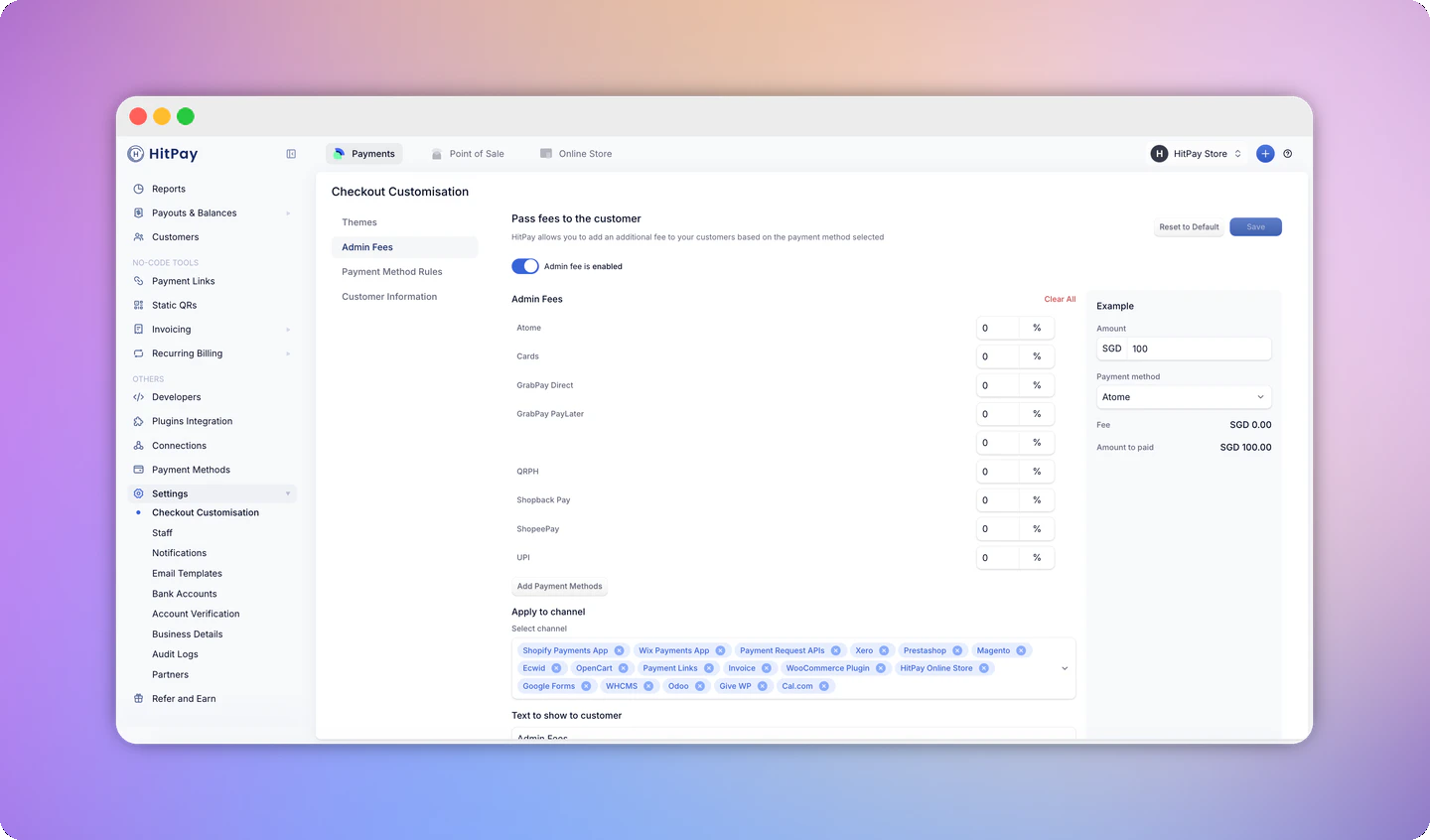
1. Navigate to Settings > Checkout Customization.
2. Configure the Pass-the-Fees settings.
3. Choose which payment methods you want to apply the payment processing fees to be passed on to the customer.
4. Enter the surcharge percentage and select the HitPay sales channel for which you want the Pass-the-Fee function to be applicable.
5. Specify the sales channels where you want to apply the Pass-the-Fee feature.
6. Enter the text you wish to display to the customer.
7. Click "Save."
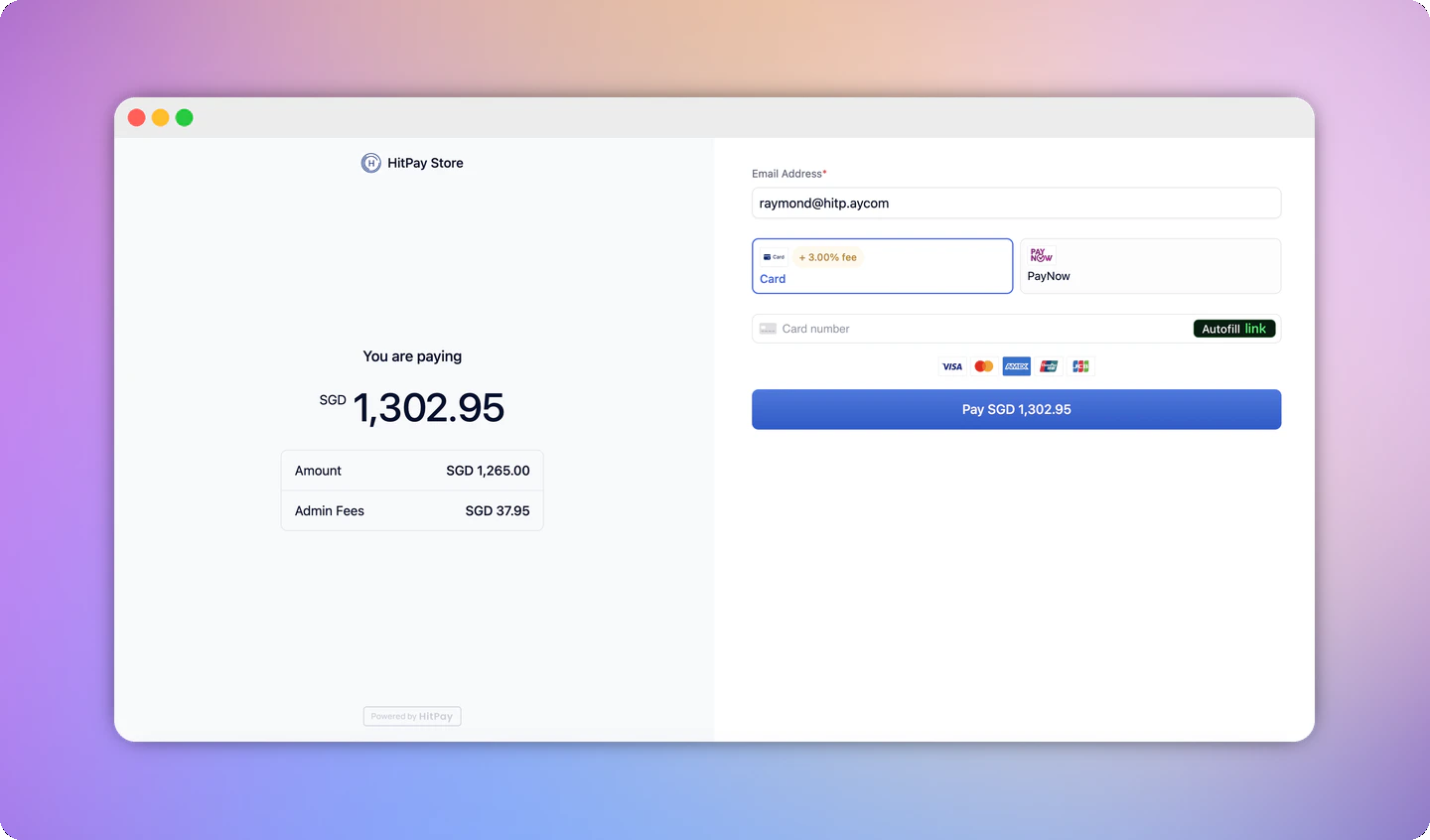
**Sample HitPay Checkout Page with Pass-the-Fees Enabled**
## Activate Pass-the-Fees
This feature is intended for online payments only. If you are using HitPay POS, please refer to the [POS surcharge](pos/surcharge) section.
1. Navigate to Settings > Checkout Customization.
2. Configure the Pass-the-Fees settings.
3. Choose which payment methods you want to apply the payment processing fees to be passed on to the customer.
4. Enter the surcharge percentage and select the HitPay sales channel for which you want the Pass-the-Fee function to be applicable.
5. Specify the sales channels where you want to apply the Pass-the-Fee feature.
6. Enter the text you wish to display to the customer.
7. Click "Save."
**Sample HitPay Checkout Page with Pass-the-Fees Enabled**
 ### Note on Fees
Note: HitPay transaction fees are applied on the final amount, after the surcharge fee has been added.
Example:
* A product is \$100
* You've set a 5% fees
* The final amount on the payment page will reflect \$105
* HitPay transaction fees are then applied on $105 (Not $100)
Hence, do set the % accordingly.
## FAQs
No, it is not possible to pass the exact fees that HitPay charges because the fees depend on various factors that are hard to predict before the payment. It is recommended that you set an approximate fee based on your average order value. You can use the example widget to view the approximate values.
### Note on Fees
Note: HitPay transaction fees are applied on the final amount, after the surcharge fee has been added.
Example:
* A product is \$100
* You've set a 5% fees
* The final amount on the payment page will reflect \$105
* HitPay transaction fees are then applied on $105 (Not $100)
Hence, do set the % accordingly.
## FAQs
No, it is not possible to pass the exact fees that HitPay charges because the fees depend on various factors that are hard to predict before the payment. It is recommended that you set an approximate fee based on your average order value. You can use the example widget to view the approximate values.