> ## Documentation Index
> Fetch the complete documentation index at: https://docs.hitpayapp.com/llms.txt
> Use this file to discover all available pages before exploring further.
# Overview
> Upload, approve, schedule, and pay vendor bills - locally and internationally - from the same HitPay account you use to accept payments.
## Overview
Bill Pay brings accounts payable into the same platform you already use to accept payments - no separate AP tool, no moving money between providers, no manual reconciliation. Upload or forward an invoice, let HitPay extract the details, route it through your approval workflow, and pay the vendor locally or internationally.
With Bill Pay, you can:
* Upload a bill or forward an invoice by email - OCR extracts the vendor, amount, and dates automatically
* Maintain a vendor directory instead of scattered spreadsheets and bank details
* Require approval before any payment goes out, with rules based on amount
* Pay local and international vendors from the same workflow
* Schedule payments ahead of their due date
* Sync every bill and payment with Xero automatically
Bill Pay is available to **Singapore-registered** businesses (local and international payments) and **Philippines-registered** businesses (local payments only). See [Payments & Scheduling](/finance/bill-pay/payments-scheduling) for the full breakdown of supported countries, currencies, and funding methods.
 ## Creating a bill
There are three ways to get a bill into HitPay:
### Upload a file
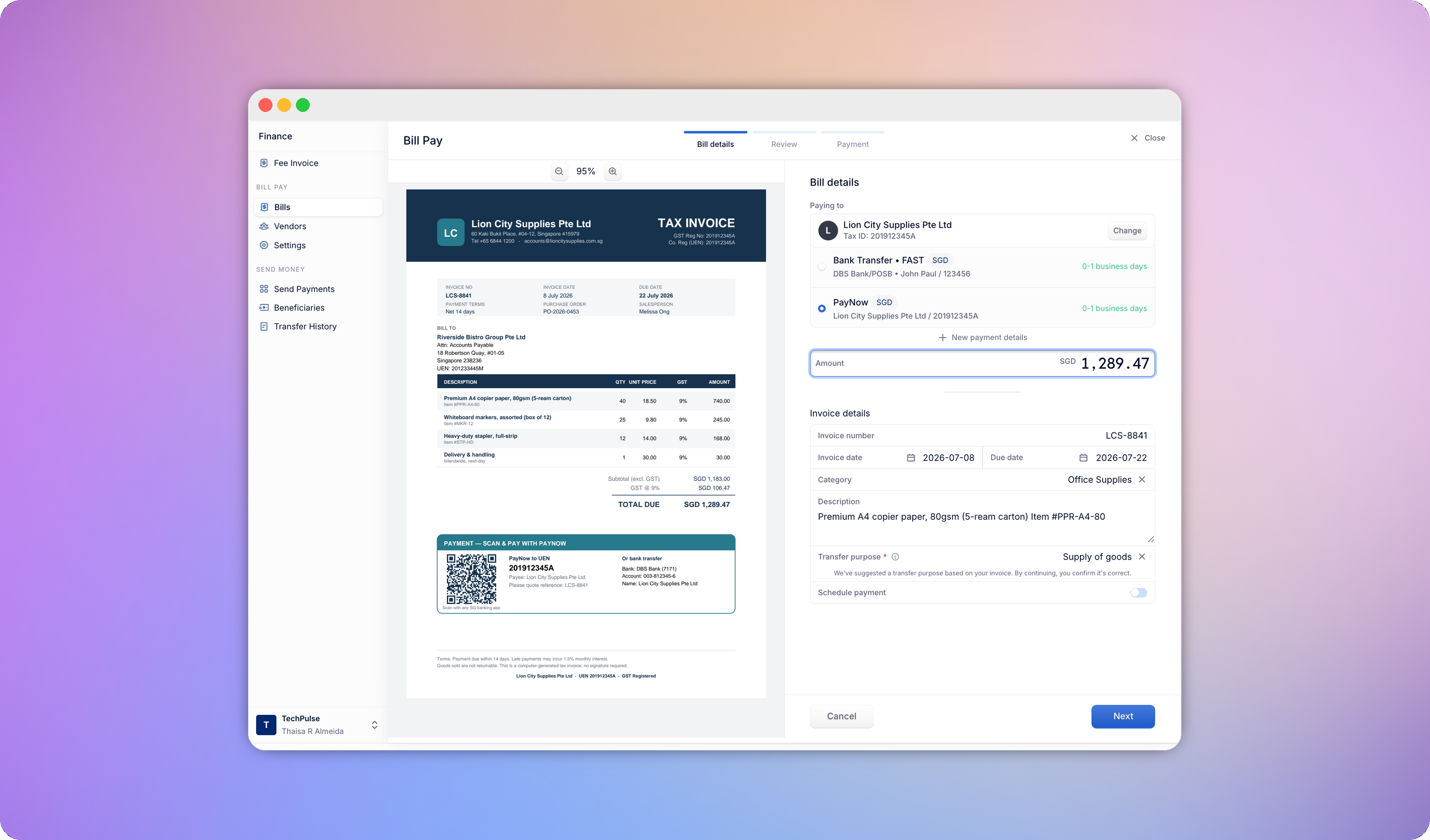
Drag and drop a PDF, JPG, or PNG (up to 10MB), or click **Upload Bill**. Once uploaded, you'll see a two-column view: the file preview on the left, and an editable form on the right pre-filled by OCR - vendor, payment details, invoice number, amount, currency, invoice date, due date, and notes. Every field remains editable before you submit.
## Creating a bill
There are three ways to get a bill into HitPay:
### Upload a file
Drag and drop a PDF, JPG, or PNG (up to 10MB), or click **Upload Bill**. Once uploaded, you'll see a two-column view: the file preview on the left, and an editable form on the right pre-filled by OCR - vendor, payment details, invoice number, amount, currency, invoice date, due date, and notes. Every field remains editable before you submit.
 ### Enter a bill manually
If you don't have a file to upload, start directly from the editable form. Enter the vendor, amount, invoice number, dates, category, and notes. The bill follows the same review and approval flow as an uploaded bill - it just won't have an attached file.
### Forward an invoice by email
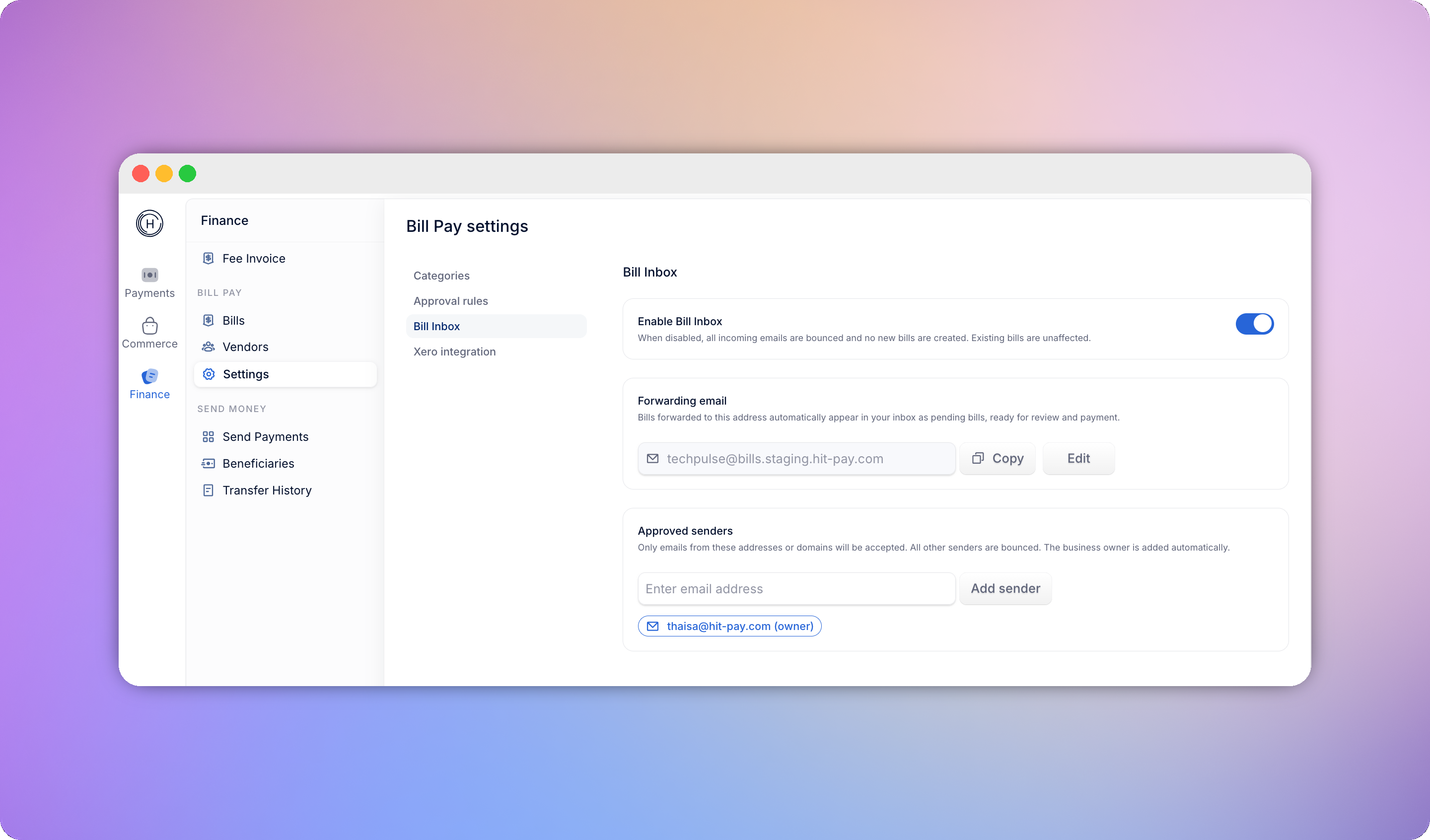
Every business gets a dedicated forwarding address:
```
{your-business-slug}@bills.hitpay.com
```
Found under **Settings > Bill Inbox**, with a one-click copy button. You can customise the slug portion of the address.
Only emails from **approved senders** are accepted - add trusted addresses or entire domains (e.g. `@yourvendor.com`) under **Settings > Bill Inbox > Approved Senders**. Your own email is added automatically so you can start forwarding immediately. Emails from senders not on the list are bounced back with a message explaining how to get added.
### Enter a bill manually
If you don't have a file to upload, start directly from the editable form. Enter the vendor, amount, invoice number, dates, category, and notes. The bill follows the same review and approval flow as an uploaded bill - it just won't have an attached file.
### Forward an invoice by email
Every business gets a dedicated forwarding address:
```
{your-business-slug}@bills.hitpay.com
```
Found under **Settings > Bill Inbox**, with a one-click copy button. You can customise the slug portion of the address.
Only emails from **approved senders** are accepted - add trusted addresses or entire domains (e.g. `@yourvendor.com`) under **Settings > Bill Inbox > Approved Senders**. Your own email is added automatically so you can start forwarding immediately. Emails from senders not on the list are bounced back with a message explaining how to get added.
 When an approved sender forwards an invoice:
* Each attachment becomes its own bill, pre-filled by OCR, same as a manual upload
* Supported formats are PDF, JPG, and PNG, up to 10MB each
* An email with no attachment, an unsupported file type, or an oversized file is bounced back to the sender with the reason
* HitPay tries to match the sender to an existing vendor automatically
## Duplicate bill warning
Before payment, HitPay checks whether a bill looks like a duplicate of one you've already got - matching on vendor, currency, amount, and invoice number. When the invoice number is missing (common on manual entries), it falls back to vendor, currency, and amount plus a confirming signal, such as a matching payee account number.
If a likely duplicate is found, a dismissible warning banner appears on the **Bill Details** and **Review** screens, listing the matching bill(s) with a link to view each one. The warning doesn't block payment - it's there so you can catch a double payment before it happens.
## Categories
Every bill is assigned a category, either automatically suggested by OCR and keyword matching (for example, "Electricity" maps to Utilities) or chosen manually. If nothing matches, the bill defaults to **Miscellaneous**. You can override the suggested category or create your own.
If you connect Xero, categories map to your chart of accounts - see [Xero Integration](/finance/bill-pay/xero-integration).
## Bill statuses
| Status | Meaning |
| ------------------------ | --------------------------------------------------------------------------------------------------------------------------------------------- |
| **Pending** | Uploaded or created, not yet submitted. Fully editable. |
| **Need Approval** | Submitted, waiting on an approver. |
| **Approved** | Approved by all required approvers, waiting to fund the transfer. |
| **Scheduled** | Funded and waiting for its scheduled payment date. |
| **Processing** | Payment has been initiated; funds are in motion. |
| **Compliance Screening** | The payment is on hold while our compliance team reviews it. |
| **Completed** | Payment successfully executed. |
| **Failed** | The payment attempt was unsuccessful (for example, insufficient funds or an invalid account). |
| **Expired** | Approval wasn't completed within 3 days of the funds being collected; the collected funds were automatically returned to your HitPay Balance. |
| **Rejected** | Declined by an approver before payment. |
| **Canceled** | Canceled by the user after submission but before processing. |
See [Approval Workflows](/finance/bill-pay/approvals) for how bills move between **Need Approval**, **Approved**, and **Rejected**, and [Payments & Scheduling](/finance/bill-pay/payments-scheduling) for how scheduling and the **Expired** auto-return work.
Every bill keeps an activity timeline - who created it, submitted it, approved or rejected it, and paid it - so you always have an audit trail to refer back to.
## The Bill Pay dashboard
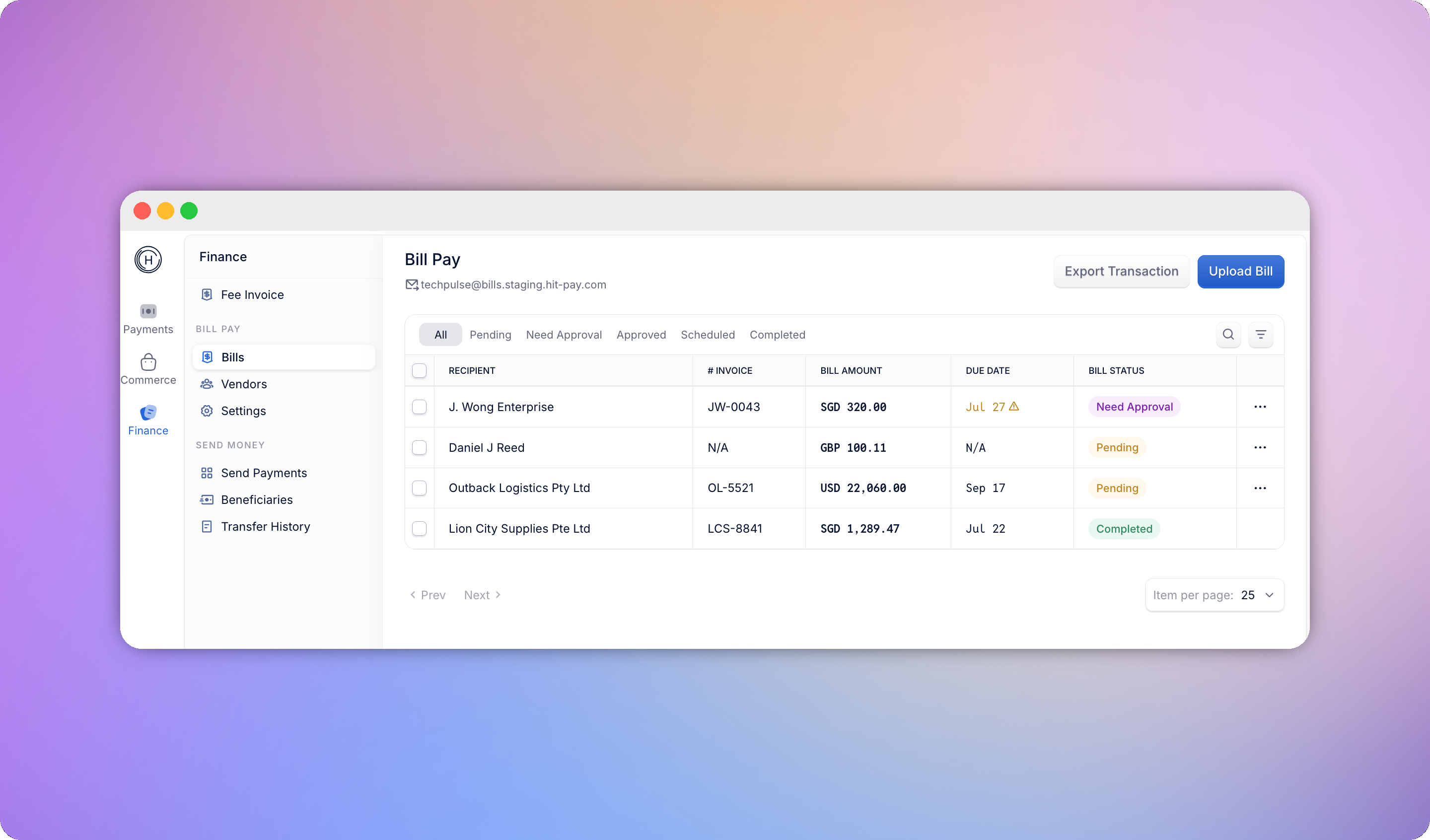
The dashboard lists every bill in a table: vendor, invoice number, amount, due date, and status. You can:
* Filter by status using the tabs at the top
* Search and sort the list
* Select bills with the checkbox column to act on multiple at once - see [Batch Actions](/finance/bill-pay/batch-actions)
* Export the current view to CSV
## Notifications
HitPay sends email notifications to merchants and vendors at each key step - when a bill is submitted for approval, approved, rejected, paid, or when collected funds are returned because a bill expired.
## FAQs
Any Admin or manager member access can create and submit bills. Approval depends on your business's approval rules - by default, every bill routes to the Owner, but Owners and Admins can configure multi-level rules that route different amount ranges to different approvers. See [Approval Workflows](/finance/bill-pay/approvals).
Singapore-registered businesses can pay local vendors (SGD via FAST/PayNow) or international vendors in 150+ countries and territories. Philippines-registered businesses can currently pay local PHP vendors only. See [Payments & Scheduling](/finance/bill-pay/payments-scheduling) for the full breakdown.
You can set an optional future payment date when creating a bill. Funding opens within a compliant window ahead of that date, and payment executes automatically once it arrives. See [Payments & Scheduling](/finance/bill-pay/payments-scheduling).
See the [Bill statuses](#bill-statuses) table above.
No limit on the total number of bills. Batch actions on the dashboard act on up to 50 bills at a time, and vendor CSV imports are capped at 500 rows per file.
Any PDF, JPG, or PNG under 10MB - invoices, receipts, or other bill documents. Other file formats, like Word or Excel files, aren't currently supported and will be bounced back.
No. HitPay Balance can't be used to fund a Bill Pay transfer - you fund each one directly with PayNow, Bank Transfer, or QRPH (Philippines). See [Payments & Scheduling](/finance/bill-pay/payments-scheduling).
Bills still in Pending are directly editable. Once a bill is Need Approval or Approved, you'll need to recall it first, which returns it to Pending for editing and clears the approval chain. See [Recalling a bill](/finance/bill-pay/approvals#recalling-a-bill).
Only if you've set up approval rules. By default every bill routes to the Owner, but approval is opt-in - if you delete all your rules, submitted bills skip approval and go straight to the next step. See [Approval Workflows](/finance/bill-pay/approvals).
Yes. An approver can approve a bill without funding it, leaving it in Approved until someone funds it later with Fund Transfer. See [Approving without paying](/finance/bill-pay/approvals#approving-without-paying).
S\$0.50 per local transfer in Singapore (PayNow/FAST), ₱15 per local transfer in the Philippines, and a competitive FX rate for international transfers from Singapore. See [Pricing](/finance/bill-pay/payments-scheduling#pricing) for the full breakdown.
When an approved sender forwards an invoice:
* Each attachment becomes its own bill, pre-filled by OCR, same as a manual upload
* Supported formats are PDF, JPG, and PNG, up to 10MB each
* An email with no attachment, an unsupported file type, or an oversized file is bounced back to the sender with the reason
* HitPay tries to match the sender to an existing vendor automatically
## Duplicate bill warning
Before payment, HitPay checks whether a bill looks like a duplicate of one you've already got - matching on vendor, currency, amount, and invoice number. When the invoice number is missing (common on manual entries), it falls back to vendor, currency, and amount plus a confirming signal, such as a matching payee account number.
If a likely duplicate is found, a dismissible warning banner appears on the **Bill Details** and **Review** screens, listing the matching bill(s) with a link to view each one. The warning doesn't block payment - it's there so you can catch a double payment before it happens.
## Categories
Every bill is assigned a category, either automatically suggested by OCR and keyword matching (for example, "Electricity" maps to Utilities) or chosen manually. If nothing matches, the bill defaults to **Miscellaneous**. You can override the suggested category or create your own.
If you connect Xero, categories map to your chart of accounts - see [Xero Integration](/finance/bill-pay/xero-integration).
## Bill statuses
| Status | Meaning |
| ------------------------ | --------------------------------------------------------------------------------------------------------------------------------------------- |
| **Pending** | Uploaded or created, not yet submitted. Fully editable. |
| **Need Approval** | Submitted, waiting on an approver. |
| **Approved** | Approved by all required approvers, waiting to fund the transfer. |
| **Scheduled** | Funded and waiting for its scheduled payment date. |
| **Processing** | Payment has been initiated; funds are in motion. |
| **Compliance Screening** | The payment is on hold while our compliance team reviews it. |
| **Completed** | Payment successfully executed. |
| **Failed** | The payment attempt was unsuccessful (for example, insufficient funds or an invalid account). |
| **Expired** | Approval wasn't completed within 3 days of the funds being collected; the collected funds were automatically returned to your HitPay Balance. |
| **Rejected** | Declined by an approver before payment. |
| **Canceled** | Canceled by the user after submission but before processing. |
See [Approval Workflows](/finance/bill-pay/approvals) for how bills move between **Need Approval**, **Approved**, and **Rejected**, and [Payments & Scheduling](/finance/bill-pay/payments-scheduling) for how scheduling and the **Expired** auto-return work.
Every bill keeps an activity timeline - who created it, submitted it, approved or rejected it, and paid it - so you always have an audit trail to refer back to.
## The Bill Pay dashboard
The dashboard lists every bill in a table: vendor, invoice number, amount, due date, and status. You can:
* Filter by status using the tabs at the top
* Search and sort the list
* Select bills with the checkbox column to act on multiple at once - see [Batch Actions](/finance/bill-pay/batch-actions)
* Export the current view to CSV
## Notifications
HitPay sends email notifications to merchants and vendors at each key step - when a bill is submitted for approval, approved, rejected, paid, or when collected funds are returned because a bill expired.
## FAQs
Any Admin or manager member access can create and submit bills. Approval depends on your business's approval rules - by default, every bill routes to the Owner, but Owners and Admins can configure multi-level rules that route different amount ranges to different approvers. See [Approval Workflows](/finance/bill-pay/approvals).
Singapore-registered businesses can pay local vendors (SGD via FAST/PayNow) or international vendors in 150+ countries and territories. Philippines-registered businesses can currently pay local PHP vendors only. See [Payments & Scheduling](/finance/bill-pay/payments-scheduling) for the full breakdown.
You can set an optional future payment date when creating a bill. Funding opens within a compliant window ahead of that date, and payment executes automatically once it arrives. See [Payments & Scheduling](/finance/bill-pay/payments-scheduling).
See the [Bill statuses](#bill-statuses) table above.
No limit on the total number of bills. Batch actions on the dashboard act on up to 50 bills at a time, and vendor CSV imports are capped at 500 rows per file.
Any PDF, JPG, or PNG under 10MB - invoices, receipts, or other bill documents. Other file formats, like Word or Excel files, aren't currently supported and will be bounced back.
No. HitPay Balance can't be used to fund a Bill Pay transfer - you fund each one directly with PayNow, Bank Transfer, or QRPH (Philippines). See [Payments & Scheduling](/finance/bill-pay/payments-scheduling).
Bills still in Pending are directly editable. Once a bill is Need Approval or Approved, you'll need to recall it first, which returns it to Pending for editing and clears the approval chain. See [Recalling a bill](/finance/bill-pay/approvals#recalling-a-bill).
Only if you've set up approval rules. By default every bill routes to the Owner, but approval is opt-in - if you delete all your rules, submitted bills skip approval and go straight to the next step. See [Approval Workflows](/finance/bill-pay/approvals).
Yes. An approver can approve a bill without funding it, leaving it in Approved until someone funds it later with Fund Transfer. See [Approving without paying](/finance/bill-pay/approvals#approving-without-paying).
S\$0.50 per local transfer in Singapore (PayNow/FAST), ₱15 per local transfer in the Philippines, and a competitive FX rate for international transfers from Singapore. See [Pricing](/finance/bill-pay/payments-scheduling#pricing) for the full breakdown.