> ## Documentation Index
> Fetch the complete documentation index at: https://docs.hitpayapp.com/llms.txt
> Use this file to discover all available pages before exploring further.
# Xero Sync
> Sync your HitPay sales, fees and refund data to Xero
## Overview
The HitPay Xero integration automatically feeds your HitPay sales, processing fees, and refund data into Xero once a day. This keeps your books up to date without manual data entry.
### What Gets Synced
| Item | What HitPay creates in Xero |
| -------------------- | ------------------------------------------------------------------------------------------------------------------------------------------------------------------------------- |
| **Sales** | A sales invoice for each transaction (or one combined invoice per day, depending on your import setting), with payment recorded against the **HitPay Clearing Account** |
| **Processing fees** | A spend transaction from the HitPay Clearing Account to your selected fee account |
| **Refunds** | Recorded against your selected refund account |
| **Daily settlement** | A daily transfer from the HitPay Clearing Account to your selected bank account, equal to total sales minus fees — so the feed matches the money actually arriving in your bank |
This page covers the **sales data feed**. If you want your customers to pay your Xero invoices using HitPay payment methods, see [Xero Invoices Payment](/plugins/xero). If you use HitPay Bill Pay, your vendor bills and bill payments can also sync to Xero — set this up from the **Xero (Bill Pay)** card under Accounting.
***
## Prerequisites
1. A **Xero** account with access to the organisation you want to connect.
2. A verified **HitPay** business account with admin access.
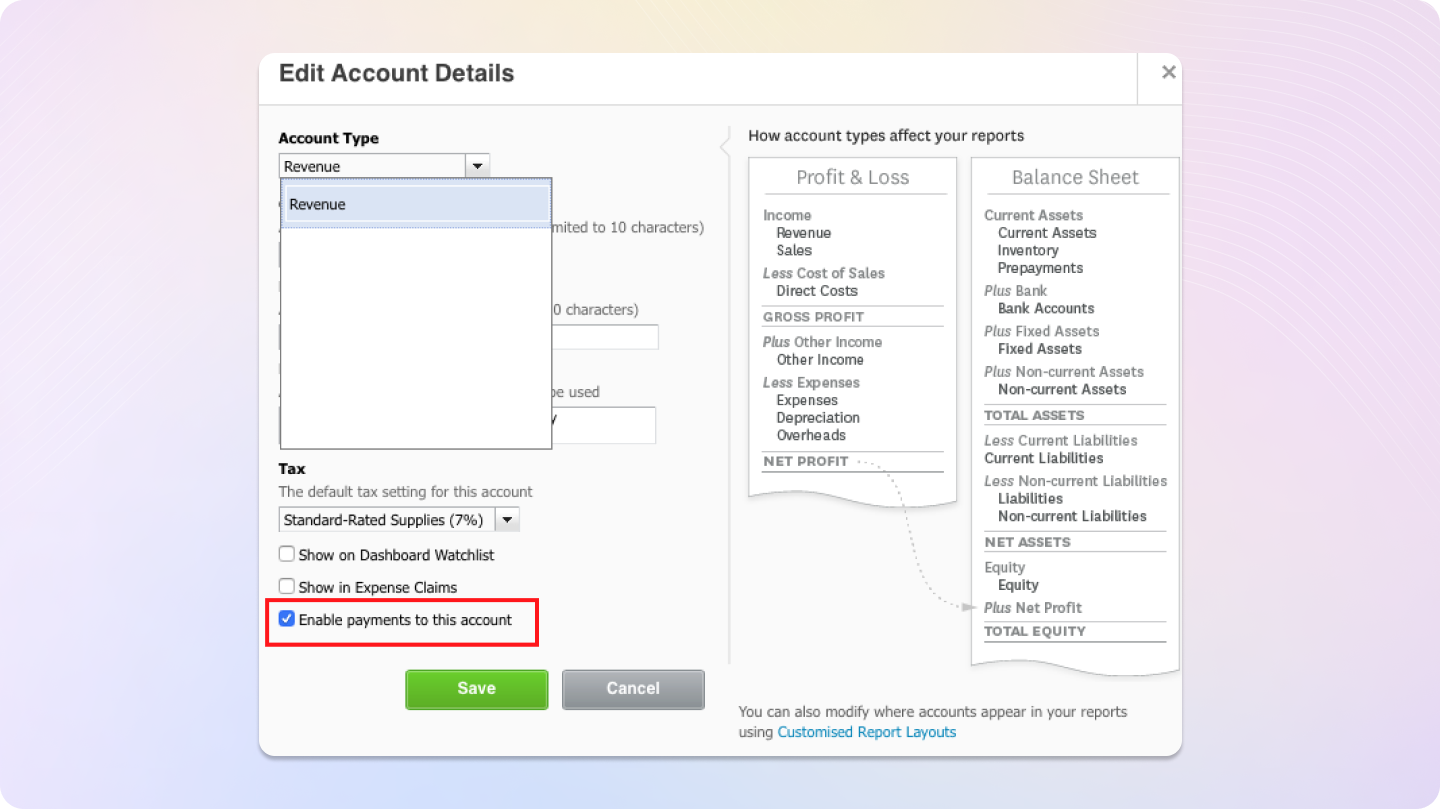
3. The Xero accounts you plan to use for **Sales** and **Fees** must have payments enabled. In your Xero dashboard, go to **Accounting > Chart of Accounts**, open the account, and tick **"Enable payments to this account"**. Accounts without this setting will not appear in the HitPay dropdowns.
 Each Xero organisation can only be connected to **one** HitPay account. If your organisation is already connected to another HitPay account, the connection will fail with an error message.
***
## Connecting Xero
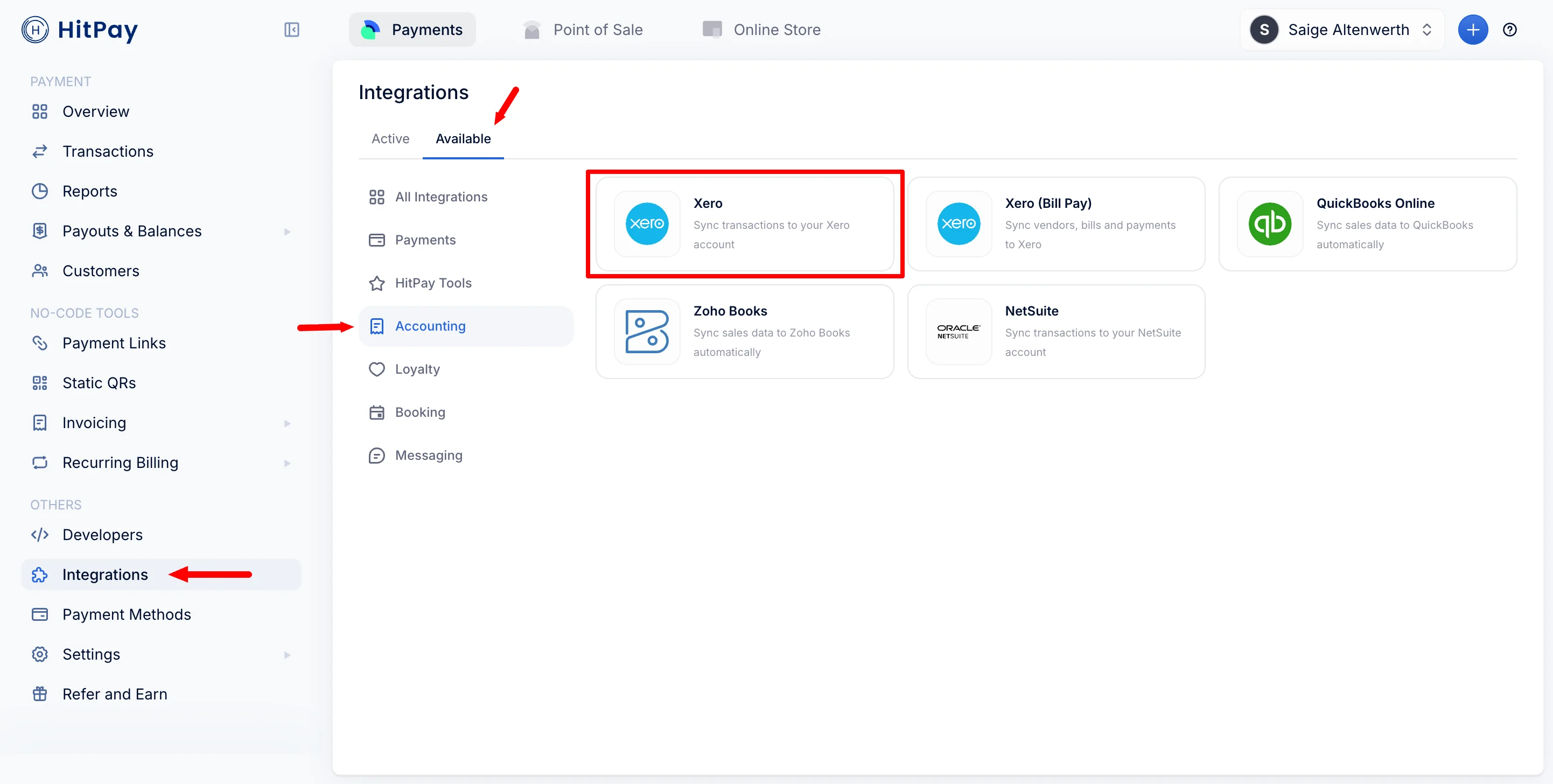
1. In your HitPay dashboard, go to **Others > Integrations**.
2. Under the **Accounting** section, find the **Xero** card and click **Manage**.
Each Xero organisation can only be connected to **one** HitPay account. If your organisation is already connected to another HitPay account, the connection will fail with an error message.
***
## Connecting Xero
1. In your HitPay dashboard, go to **Others > Integrations**.
2. Under the **Accounting** section, find the **Xero** card and click **Manage**.
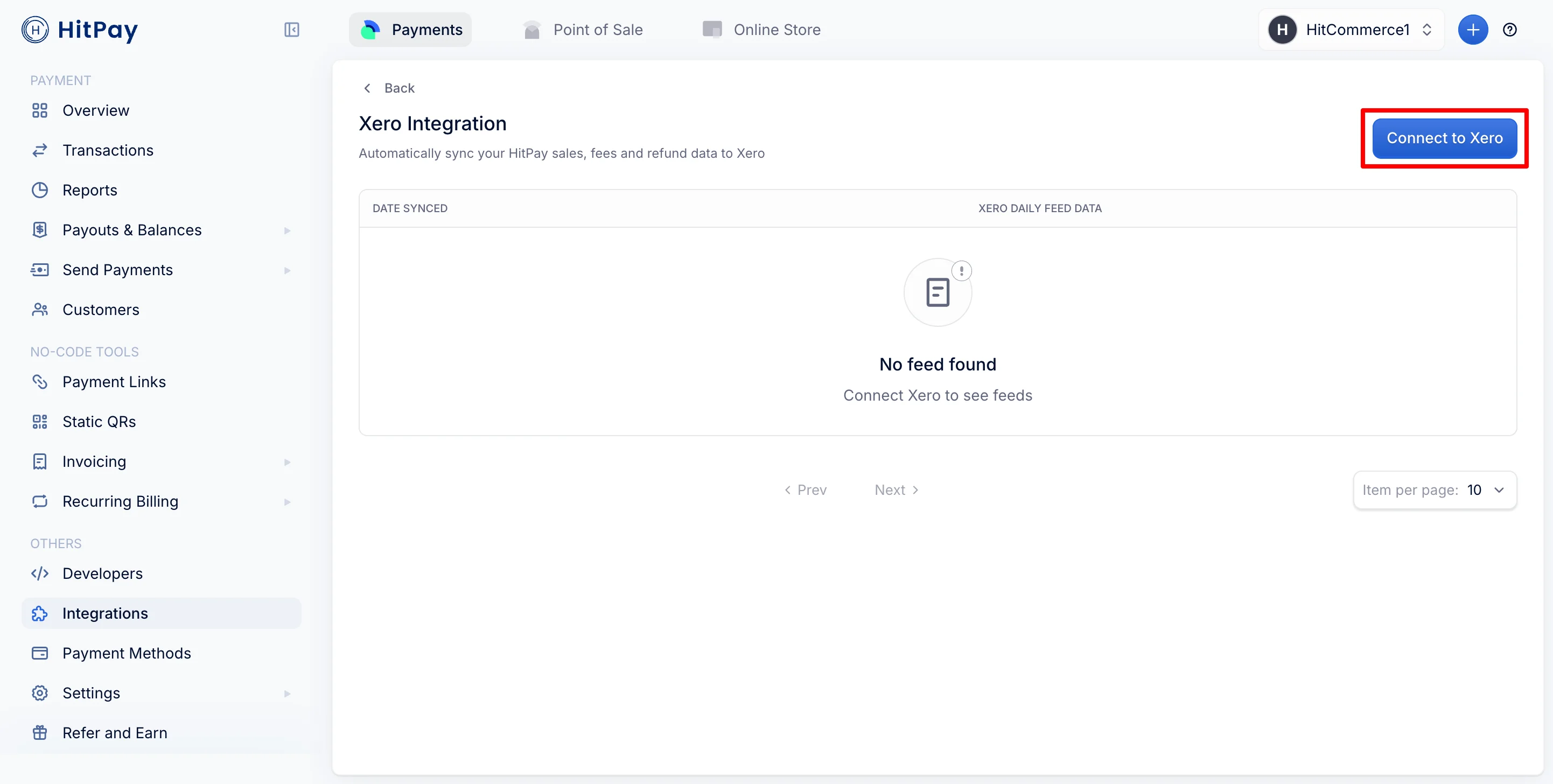
 3. On the Xero Integration page, click **Connect to Xero**. A Xero login page opens — sign in and select the organisation you want to connect.
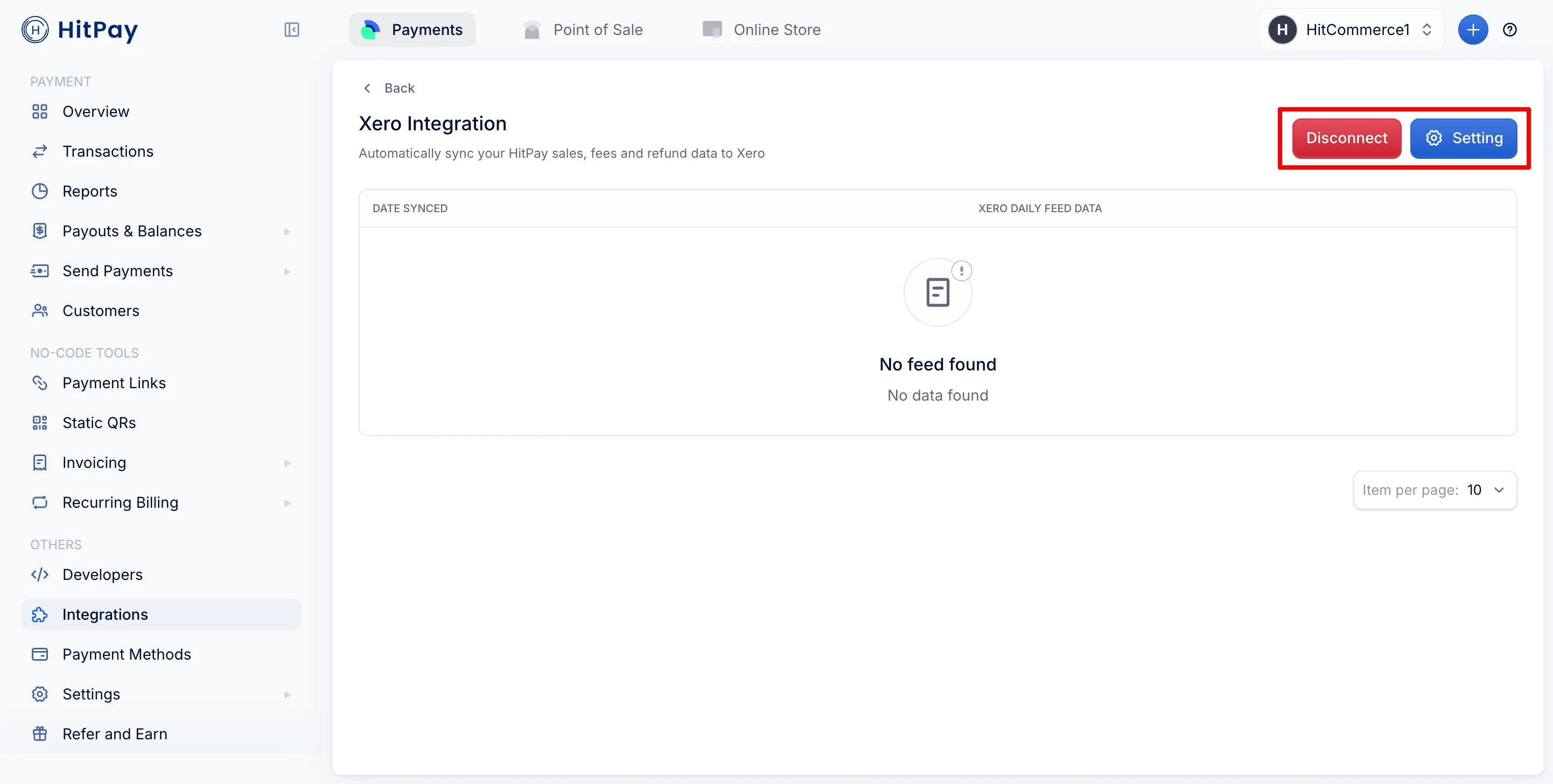
 4. After you authorise, you are returned to the Xero Integration page in HitPay with a **"Successfully authorized"** confirmation. The page now shows **Setting** and **Disconnect** buttons — this means your connection is active.
 If you grant access to more than one organisation during login, HitPay connects the most recently active one. To be sure the right organisation is connected, select only one during the Xero authorisation step. You can verify the connected organisation under **Setting** at any time.
***
## Configuring Sync Settings
After connecting, click **Setting** on the Xero Integration page. You'll see your **Connected Email** and **Connected Xero Organization** at the top, followed by the sync configuration:
If you grant access to more than one organisation during login, HitPay connects the most recently active one. To be sure the right organisation is connected, select only one during the Xero authorisation step. You can verify the connected organisation under **Setting** at any time.
***
## Configuring Sync Settings
After connecting, click **Setting** on the Xero Integration page. You'll see your **Connected Email** and **Connected Xero Organization** at the top, followed by the sync configuration:
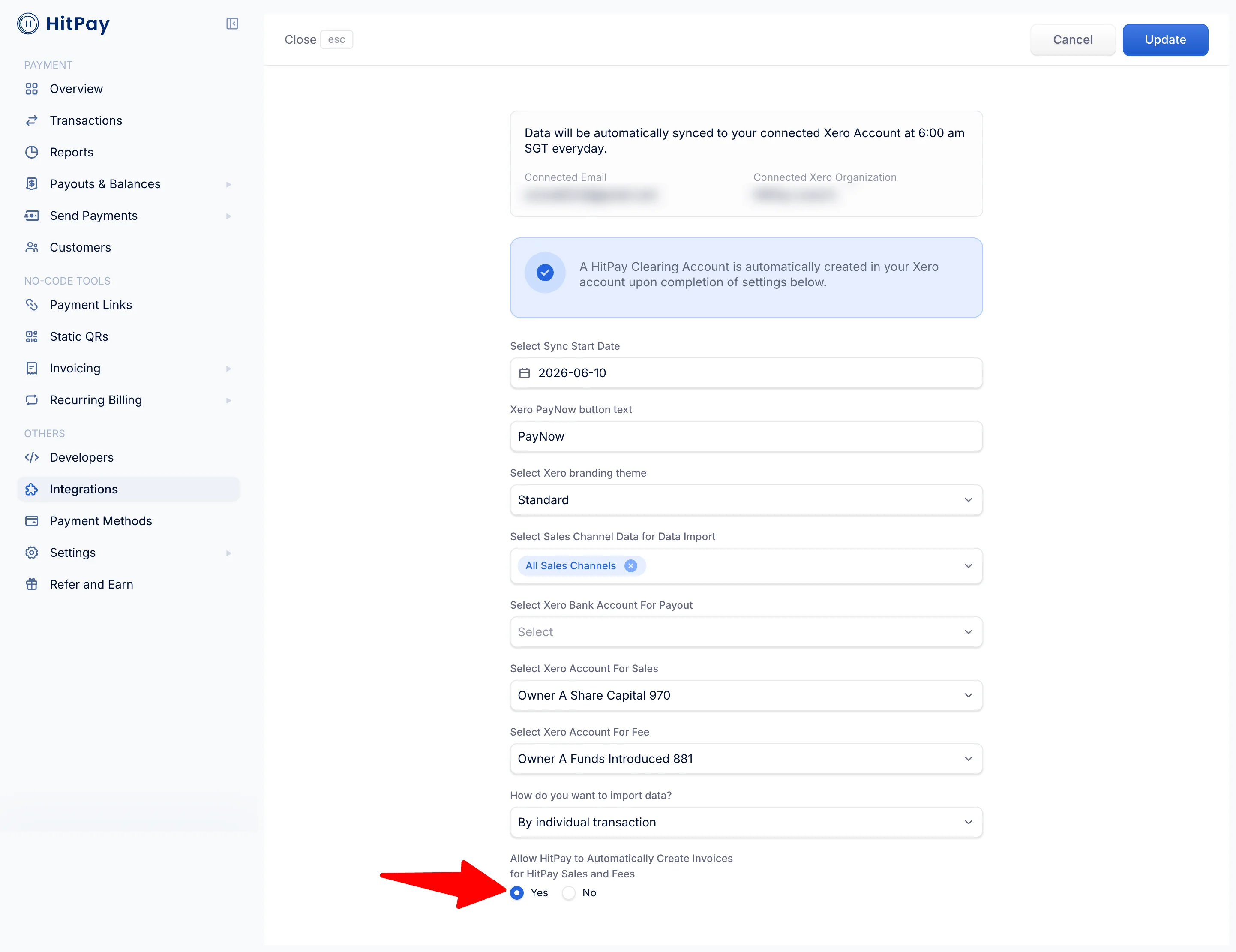 | Setting | What it does |
| --------------------------------------------------------------------------- | ------------------------------------------------------------------------------------------------------------------------------------------------ |
| **Select Sync Start Date** | Transactions from this date onwards are included in the feed. Must be set for the feed to run. |
| **Xero PayNow button text** | The label shown on the payment button if you also use [Xero Invoices Payment](/plugins/xero). Defaults to "PayNow". |
| **Select Xero branding theme** | The Xero branding theme applied to invoices HitPay creates. "Standard" works for most businesses. |
| **Select Sales Channel Data for Data Import** | Which HitPay sales channels are included in the feed. Choose **All Sales Channels** unless you specifically want to limit the feed. |
| **Select Xero Bank Account For Payout** | Your real bank account in Xero — the one your HitPay payouts arrive in. Used for the daily settlement transfer from the HitPay Clearing Account. |
| **Select Xero Account For Sales** | The Xero account your sales revenue is posted to. |
| **Select Xero Account For Fee** | The Xero account HitPay processing fees are posted to. |
| **How do you want to import data?** | **Lumpsum for each day**: one invoice per day combining all transactions. **By individual transaction**: one invoice per transaction. |
| **Allow HitPay to Automatically Create Invoices for HitPay Sales and Fees** | **Yes**: the daily feed runs and creates records in Xero. **No**: the feed is paused — nothing is sent to Xero until you switch back to Yes. |
If **Allow HitPay to Automatically Create Invoices** is set to **No**, no data will appear in Xero at all — this is the most common reason merchants see no feed data. Set it to **Yes** to enable the sync.
When you save your settings for the first time, HitPay automatically creates a **HitPay Clearing Account** in your Xero organisation. Sales payments are recorded into this clearing account, and a daily transfer moves the settled amount (sales minus fees) to your selected bank account so reconciliation matches your actual bank credits.
Sales channels you don't tick are silently excluded from the feed. If some of your payments aren't appearing in Xero, check this setting first — **All Sales Channels** is the safe choice.
***
## How Syncing Works
* The feed runs automatically **once a day in the early morning (Singapore time)** — sales first, refunds after, followed by the daily settlement transfer.
* Each transaction is only ever synced **once**. Re-running the feed never duplicates records in Xero.
* New transactions since the last successful feed are picked up in the next run — including days the feed may have missed.
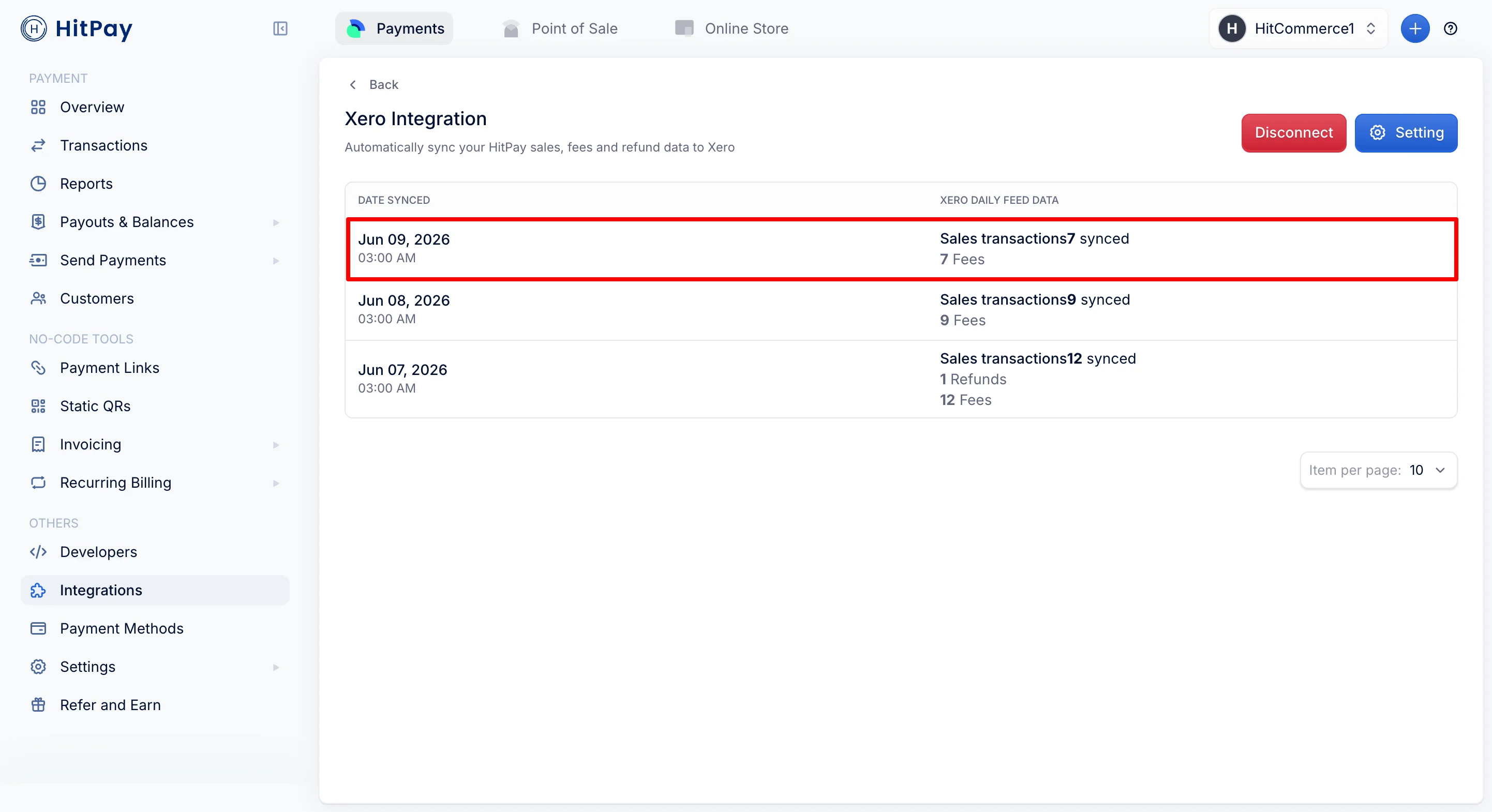
* The **Xero Integration page** shows a daily feed history: the date synced and the number of sales, refunds, and fees pushed in each run.
| Setting | What it does |
| --------------------------------------------------------------------------- | ------------------------------------------------------------------------------------------------------------------------------------------------ |
| **Select Sync Start Date** | Transactions from this date onwards are included in the feed. Must be set for the feed to run. |
| **Xero PayNow button text** | The label shown on the payment button if you also use [Xero Invoices Payment](/plugins/xero). Defaults to "PayNow". |
| **Select Xero branding theme** | The Xero branding theme applied to invoices HitPay creates. "Standard" works for most businesses. |
| **Select Sales Channel Data for Data Import** | Which HitPay sales channels are included in the feed. Choose **All Sales Channels** unless you specifically want to limit the feed. |
| **Select Xero Bank Account For Payout** | Your real bank account in Xero — the one your HitPay payouts arrive in. Used for the daily settlement transfer from the HitPay Clearing Account. |
| **Select Xero Account For Sales** | The Xero account your sales revenue is posted to. |
| **Select Xero Account For Fee** | The Xero account HitPay processing fees are posted to. |
| **How do you want to import data?** | **Lumpsum for each day**: one invoice per day combining all transactions. **By individual transaction**: one invoice per transaction. |
| **Allow HitPay to Automatically Create Invoices for HitPay Sales and Fees** | **Yes**: the daily feed runs and creates records in Xero. **No**: the feed is paused — nothing is sent to Xero until you switch back to Yes. |
If **Allow HitPay to Automatically Create Invoices** is set to **No**, no data will appear in Xero at all — this is the most common reason merchants see no feed data. Set it to **Yes** to enable the sync.
When you save your settings for the first time, HitPay automatically creates a **HitPay Clearing Account** in your Xero organisation. Sales payments are recorded into this clearing account, and a daily transfer moves the settled amount (sales minus fees) to your selected bank account so reconciliation matches your actual bank credits.
Sales channels you don't tick are silently excluded from the feed. If some of your payments aren't appearing in Xero, check this setting first — **All Sales Channels** is the safe choice.
***
## How Syncing Works
* The feed runs automatically **once a day in the early morning (Singapore time)** — sales first, refunds after, followed by the daily settlement transfer.
* Each transaction is only ever synced **once**. Re-running the feed never duplicates records in Xero.
* New transactions since the last successful feed are picked up in the next run — including days the feed may have missed.
* The **Xero Integration page** shows a daily feed history: the date synced and the number of sales, refunds, and fees pushed in each run.
 ***
## Limitations
* **Home currency only.** Only transactions in your HitPay account's home currency are fed to Xero. Foreign-currency transactions are skipped.
* **Xero invoice payments are excluded.** Payments your customers make on Xero invoices via [Xero Invoices Payment](/plugins/xero) are reconciled through the invoice itself, so the sales feed intentionally skips them to avoid double counting.
* **One organisation per account.** A Xero organisation cannot be connected to more than one HitPay account.
* **Forward-looking.** The feed starts from your Sync Start Date. Older transactions are not imported.
***
## Disconnecting
On the Xero Integration page, click **Disconnect** and confirm. This stops the daily feed and removes the connection. Records already created in Xero are not deleted.
Disconnecting cannot be undone — reconnecting later requires authorising with Xero again and reviewing your settings.
***
## Troubleshooting
Check these in order:
1. **Allow HitPay to Automatically Create Invoices** is set to **Yes** in Setting — if it's No, the feed never runs.
2. Your **Sync Start Date** is set and is not in the future.
3. **Select Sales Channel Data for Data Import** includes the channels you actually sell on — channels that aren't ticked are skipped silently. Choose **All Sales Channels** if unsure.
4. The transaction is in your **home currency** — foreign-currency transactions are not fed.
5. The feed runs once a day — payments taken today appear after the next morning's run, not immediately.
This is usually the **sales channel filter**: only ticked channels are included. Open **Setting** and select **All Sales Channels**. Foreign-currency transactions and payments made on Xero invoices (via Xero Invoices Payment) are also excluded by design.
HitPay never sends the same transaction twice. Duplicates usually mean the same transactions were **also entered manually** in Xero (or imported via another tool). If you've been recording HitPay sales manually, stop manual entry from the day the feed is enabled, and remove manual entries that overlap with fed data.
Only Xero accounts with **"Enable payments to this account"** ticked appear in the dropdowns. In Xero, go to **Accounting > Chart of Accounts**, open the account, tick the option and save — then reopen Setting in HitPay.
That Xero organisation is linked to a different HitPay account. Disconnect it from the other account first, or connect a different organisation.
Click **Disconnect**, then reconnect and grant access to only the correct organisation during the Xero authorisation step.
***
## Limitations
* **Home currency only.** Only transactions in your HitPay account's home currency are fed to Xero. Foreign-currency transactions are skipped.
* **Xero invoice payments are excluded.** Payments your customers make on Xero invoices via [Xero Invoices Payment](/plugins/xero) are reconciled through the invoice itself, so the sales feed intentionally skips them to avoid double counting.
* **One organisation per account.** A Xero organisation cannot be connected to more than one HitPay account.
* **Forward-looking.** The feed starts from your Sync Start Date. Older transactions are not imported.
***
## Disconnecting
On the Xero Integration page, click **Disconnect** and confirm. This stops the daily feed and removes the connection. Records already created in Xero are not deleted.
Disconnecting cannot be undone — reconnecting later requires authorising with Xero again and reviewing your settings.
***
## Troubleshooting
Check these in order:
1. **Allow HitPay to Automatically Create Invoices** is set to **Yes** in Setting — if it's No, the feed never runs.
2. Your **Sync Start Date** is set and is not in the future.
3. **Select Sales Channel Data for Data Import** includes the channels you actually sell on — channels that aren't ticked are skipped silently. Choose **All Sales Channels** if unsure.
4. The transaction is in your **home currency** — foreign-currency transactions are not fed.
5. The feed runs once a day — payments taken today appear after the next morning's run, not immediately.
This is usually the **sales channel filter**: only ticked channels are included. Open **Setting** and select **All Sales Channels**. Foreign-currency transactions and payments made on Xero invoices (via Xero Invoices Payment) are also excluded by design.
HitPay never sends the same transaction twice. Duplicates usually mean the same transactions were **also entered manually** in Xero (or imported via another tool). If you've been recording HitPay sales manually, stop manual entry from the day the feed is enabled, and remove manual entries that overlap with fed data.
Only Xero accounts with **"Enable payments to this account"** ticked appear in the dropdowns. In Xero, go to **Accounting > Chart of Accounts**, open the account, tick the option and save — then reopen Setting in HitPay.
That Xero organisation is linked to a different HitPay account. Disconnect it from the other account first, or connect a different organisation.
Click **Disconnect**, then reconnect and grant access to only the correct organisation during the Xero authorisation step.