> ## Documentation Index
> Fetch the complete documentation index at: https://docs.hitpayapp.com/llms.txt
> Use this file to discover all available pages before exploring further.
# Overview
> Integrate HitPay payment methods into Stripe's Payment Element using Custom Payment Methods
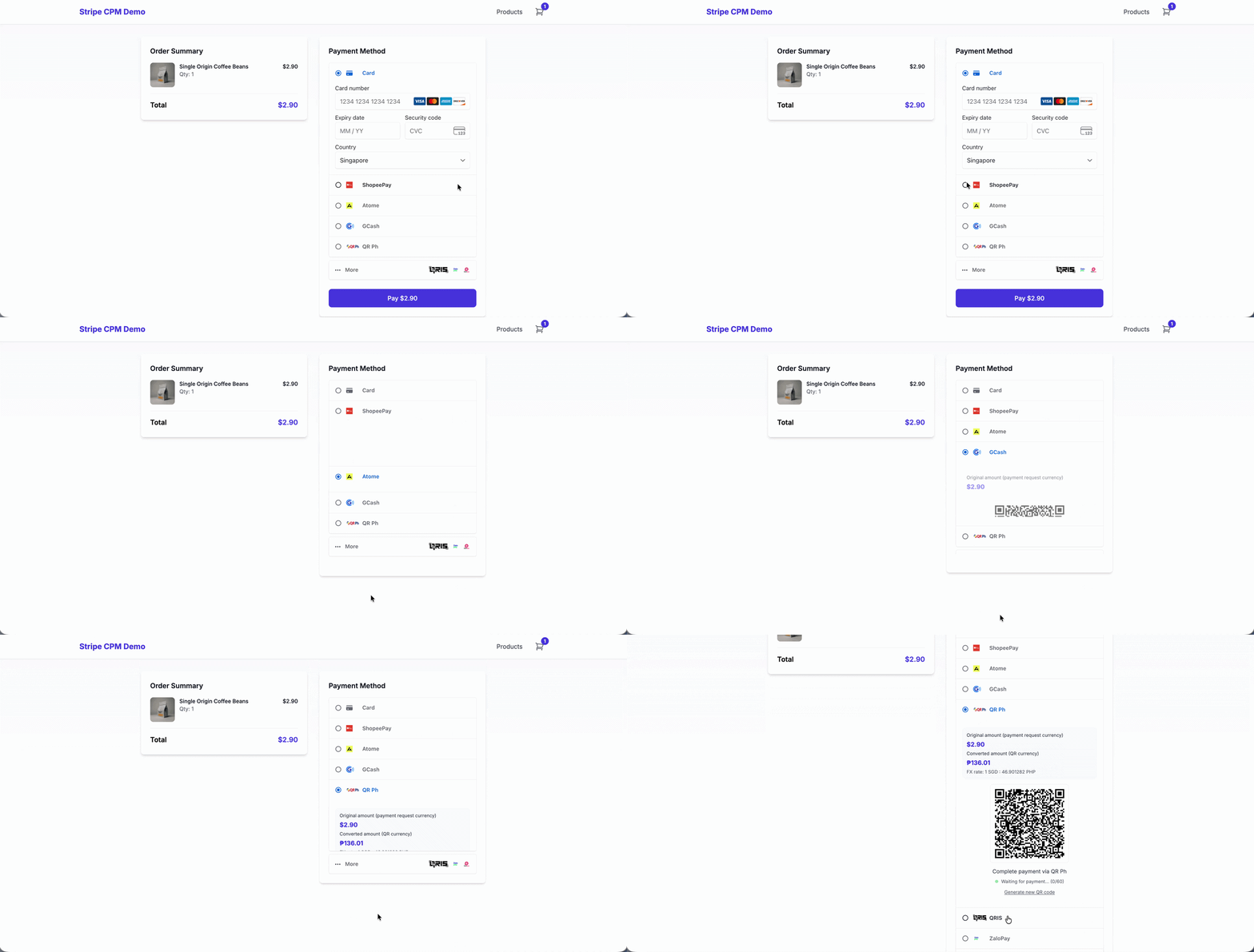 Stripe Custom Payment Methods (CPM) allow you to offer HitPay payment methods (PayNow, ShopeePay, GrabPay, etc.) directly within Stripe's Payment Element. This provides a unified checkout experience while leveraging HitPay's local payment processing capabilities.
While you process custom payment method transactions outside of Stripe, you can still record the transaction details to your Stripe account to unify reporting and build back office workflows.
Learn how Stripe Custom Payment Methods work and how to configure them in your account.
Understand how to record external payments in Stripe using the Payment Records API.
## Supported Payment Flows
| Flow | Description |
| ------------------------------- | ----------------------------------------------------------------------------------------------------------------------------------- |
| **One-Time Payments** | Customer selects a HitPay payment method, scans QR code or completes via redirect, payment recorded in Stripe |
| **Subscriptions (Auto-Charge)** | Customer authorizes and tokenizes a payment method once, future invoices charged automatically via HitPay |
| **Subscriptions (Out-of-Band)** | Customer completes a one-time payment for each invoice (not tokenized) - same flow as one-time payments, repeated per billing cycle |
**Choosing a subscription flow:** Use **Auto-Charge** for the best customer experience with cards, ShopeePay, or GrabPay. Use **Out-of-Band** when customers prefer QR-based methods like PayNow, or when you want customers to actively approve each payment.
***
## Supported Payment Methods
HitPay supports a wide range of local payment methods across Southeast Asia, including PayNow, ShopeePay, GrabPay, FPX, Boost, Touch 'n Go, and more.
View the full list of payment methods and supported currencies available through HitPay.
Learn how to embed QR codes directly in your checkout page for seamless mobile payments.
**Auto-Charge Support:** Not all payment methods support tokenization for recurring charges. QR-based methods like PayNow require the "Out-of-Band" invoice flow where customers pay each invoice manually. Methods like Cards, ShopeePay, and GrabPay support auto-charge subscriptions.
***
## Architecture Overview
```mermaid theme={"system"}
flowchart TB
subgraph Browser["User's Browser"]
PE["Stripe Payment Element"]
end
subgraph Backend["Your Backend Server"]
StripeAPI["Stripe API"]
HitPayAPI["HitPay API"]
end
subgraph External["Payment Platforms"]
Stripe["Stripe"]
HitPay["HitPay Gateway"]
end
Browser --> Backend
StripeAPI --> Stripe
HitPayAPI --> HitPay
```
***
## Before you begin
Ensure your business verification is complete to access Custom Payment Methods and the Payment Records API.
Go to **Settings** → **Payments** → **Custom Payment Methods** and create a CPM for each HitPay method you want to offer. Provide the name and logo for the Payment Element to display.
**Logo guidelines:**
* For logos with a transparent background, consider the background colour of the Payment Element on your page and make sure that it stands out
* For logos with a background fill, include rounded corners in your file, if needed
* Choose a logo variant that can scale down to 16x16 pixels (often the standalone logo mark for a brand)
After creating each custom payment method, copy the **CPM Type ID** (format: `cpmt_xxx`) - you'll need this for your integration.
* **Activate payment methods**: Go to **Settings** → **Payment Methods** and enable the methods you want to offer (PayNow, ShopeePay, GrabPay, FPX, etc.)
* **Get API credentials**: Go to **Settings** → **Payment Gateway** → **API Keys** and copy your **API Key** and **Salt**
* **Use sandbox for testing**: Toggle to sandbox/test mode in your HitPay dashboard for development
## Build Your Integration
Implement single payment flow with QR codes
Set up recurring billing with tokenized payment methods
Set up recurring billing with one-time payments per invoice
***
## FAQ
While Stripe offers excellent global payment coverage, **local payment methods in Southeast Asia** often have limited availability or higher fees through Stripe's native integrations. By integrating HitPay as a Custom Payment Method provider:
**Benefits for You:**
* **Better Local Rates** - HitPay's direct partnerships with local payment providers often result in lower transaction fees compared to Stripe's pass-through rates for regional methods.
* **Consolidated Reporting** - All HitPay transactions are recorded in Stripe via the Payment Records API - view all your payments in one dashboard without switching between platforms.
**Benefits for Your Customers:**
* **Unified Checkout Experience** - Customers see all payment options in a single Stripe Payment Element - no redirects to separate checkout pages or fragmented payment flows.
* **Expanded Local Coverage** - Access to PayNow, ShopeePay, GrabPay, FPX, Boost, Touch 'n Go, and other regional payment methods that customers prefer.
**Best of both worlds:** Use Stripe's native support for cards and global methods, while leveraging HitPay for local Southeast Asian payment methods at competitive rates.
Yes! Instead of handling custom payment methods via the submit flow, you can use the **embedded** type to display your custom content (like QR codes) directly within the Payment Element.
Use `type: 'embedded'` with `handleRender` and `handleDestroy` callbacks:
```tsx theme={"system"}
const options = {
customPaymentMethods: [
{
id: '{{CUSTOM_PAYMENT_METHOD_TYPE_ID}}',
options: {
type: 'embedded',
subtitle: 'Pay with PayNow',
embedded: {
handleRender: (container) => {
// Render your QR code or custom content in the container
setEmbedContainer(container);
},
handleDestroy: () => {
// Cleanup when payment method is deselected
setEmbedContainer(null);
}
}
}
}
]
};
```
This allows you to render HitPay QR codes directly inside the Payment Element when customers select a custom payment method.
Learn more about embedding custom content in the Payment Element.
You can customize how your custom payment methods appear in the Payment Element through the Stripe Dashboard.
**To add or update the name and logo:**
1. Go to your [Stripe Dashboard](https://dashboard.stripe.com)
2. Navigate to **Settings** → **Payments** → **Custom Payment Methods**
3. Select the custom payment method you want to edit
4. Update the **Display name** and upload a **Logo** image
**Logo requirements:**
* Recommended size: 128x128 pixels minimum
* Supported formats: PNG, JPG, SVG
* For transparent backgrounds, ensure the logo contrasts with your Payment Element background
* Choose a logo variant that scales well to 16x16 pixels
Download a ZIP file containing official HitPay payment method icons (PayNow, ShopeePay, GrabPay, FPX, and more) optimized for Stripe Custom Payment Methods.
Stripe Custom Payment Methods (CPM) allow you to offer HitPay payment methods (PayNow, ShopeePay, GrabPay, etc.) directly within Stripe's Payment Element. This provides a unified checkout experience while leveraging HitPay's local payment processing capabilities.
While you process custom payment method transactions outside of Stripe, you can still record the transaction details to your Stripe account to unify reporting and build back office workflows.
Learn how Stripe Custom Payment Methods work and how to configure them in your account.
Understand how to record external payments in Stripe using the Payment Records API.
## Supported Payment Flows
| Flow | Description |
| ------------------------------- | ----------------------------------------------------------------------------------------------------------------------------------- |
| **One-Time Payments** | Customer selects a HitPay payment method, scans QR code or completes via redirect, payment recorded in Stripe |
| **Subscriptions (Auto-Charge)** | Customer authorizes and tokenizes a payment method once, future invoices charged automatically via HitPay |
| **Subscriptions (Out-of-Band)** | Customer completes a one-time payment for each invoice (not tokenized) - same flow as one-time payments, repeated per billing cycle |
**Choosing a subscription flow:** Use **Auto-Charge** for the best customer experience with cards, ShopeePay, or GrabPay. Use **Out-of-Band** when customers prefer QR-based methods like PayNow, or when you want customers to actively approve each payment.
***
## Supported Payment Methods
HitPay supports a wide range of local payment methods across Southeast Asia, including PayNow, ShopeePay, GrabPay, FPX, Boost, Touch 'n Go, and more.
View the full list of payment methods and supported currencies available through HitPay.
Learn how to embed QR codes directly in your checkout page for seamless mobile payments.
**Auto-Charge Support:** Not all payment methods support tokenization for recurring charges. QR-based methods like PayNow require the "Out-of-Band" invoice flow where customers pay each invoice manually. Methods like Cards, ShopeePay, and GrabPay support auto-charge subscriptions.
***
## Architecture Overview
```mermaid theme={"system"}
flowchart TB
subgraph Browser["User's Browser"]
PE["Stripe Payment Element"]
end
subgraph Backend["Your Backend Server"]
StripeAPI["Stripe API"]
HitPayAPI["HitPay API"]
end
subgraph External["Payment Platforms"]
Stripe["Stripe"]
HitPay["HitPay Gateway"]
end
Browser --> Backend
StripeAPI --> Stripe
HitPayAPI --> HitPay
```
***
## Before you begin
Ensure your business verification is complete to access Custom Payment Methods and the Payment Records API.
Go to **Settings** → **Payments** → **Custom Payment Methods** and create a CPM for each HitPay method you want to offer. Provide the name and logo for the Payment Element to display.
**Logo guidelines:**
* For logos with a transparent background, consider the background colour of the Payment Element on your page and make sure that it stands out
* For logos with a background fill, include rounded corners in your file, if needed
* Choose a logo variant that can scale down to 16x16 pixels (often the standalone logo mark for a brand)
After creating each custom payment method, copy the **CPM Type ID** (format: `cpmt_xxx`) - you'll need this for your integration.
* **Activate payment methods**: Go to **Settings** → **Payment Methods** and enable the methods you want to offer (PayNow, ShopeePay, GrabPay, FPX, etc.)
* **Get API credentials**: Go to **Settings** → **Payment Gateway** → **API Keys** and copy your **API Key** and **Salt**
* **Use sandbox for testing**: Toggle to sandbox/test mode in your HitPay dashboard for development
## Build Your Integration
Implement single payment flow with QR codes
Set up recurring billing with tokenized payment methods
Set up recurring billing with one-time payments per invoice
***
## FAQ
While Stripe offers excellent global payment coverage, **local payment methods in Southeast Asia** often have limited availability or higher fees through Stripe's native integrations. By integrating HitPay as a Custom Payment Method provider:
**Benefits for You:**
* **Better Local Rates** - HitPay's direct partnerships with local payment providers often result in lower transaction fees compared to Stripe's pass-through rates for regional methods.
* **Consolidated Reporting** - All HitPay transactions are recorded in Stripe via the Payment Records API - view all your payments in one dashboard without switching between platforms.
**Benefits for Your Customers:**
* **Unified Checkout Experience** - Customers see all payment options in a single Stripe Payment Element - no redirects to separate checkout pages or fragmented payment flows.
* **Expanded Local Coverage** - Access to PayNow, ShopeePay, GrabPay, FPX, Boost, Touch 'n Go, and other regional payment methods that customers prefer.
**Best of both worlds:** Use Stripe's native support for cards and global methods, while leveraging HitPay for local Southeast Asian payment methods at competitive rates.
Yes! Instead of handling custom payment methods via the submit flow, you can use the **embedded** type to display your custom content (like QR codes) directly within the Payment Element.
Use `type: 'embedded'` with `handleRender` and `handleDestroy` callbacks:
```tsx theme={"system"}
const options = {
customPaymentMethods: [
{
id: '{{CUSTOM_PAYMENT_METHOD_TYPE_ID}}',
options: {
type: 'embedded',
subtitle: 'Pay with PayNow',
embedded: {
handleRender: (container) => {
// Render your QR code or custom content in the container
setEmbedContainer(container);
},
handleDestroy: () => {
// Cleanup when payment method is deselected
setEmbedContainer(null);
}
}
}
}
]
};
```
This allows you to render HitPay QR codes directly inside the Payment Element when customers select a custom payment method.
Learn more about embedding custom content in the Payment Element.
You can customize how your custom payment methods appear in the Payment Element through the Stripe Dashboard.
**To add or update the name and logo:**
1. Go to your [Stripe Dashboard](https://dashboard.stripe.com)
2. Navigate to **Settings** → **Payments** → **Custom Payment Methods**
3. Select the custom payment method you want to edit
4. Update the **Display name** and upload a **Logo** image
**Logo requirements:**
* Recommended size: 128x128 pixels minimum
* Supported formats: PNG, JPG, SVG
* For transparent backgrounds, ensure the logo contrasts with your Payment Element background
* Choose a logo variant that scales well to 16x16 pixels
Download a ZIP file containing official HitPay payment method icons (PayNow, ShopeePay, GrabPay, FPX, and more) optimized for Stripe Custom Payment Methods.