> ## Documentation Index
> Fetch the complete documentation index at: https://docs.hitpayapp.com/llms.txt
> Use this file to discover all available pages before exploring further.
# QuickBooks Sync
> Sync your sales, processing fees, and refund data to QuickBooks Online
## Overview
The HitPay QuickBooks integration automatically syncs your sales, processing fees, and refund data from HitPay to QuickBooks Online. This keeps your books up to date without manual data entry.
### What Gets Synced
Each of the following items only syncs when its corresponding account is configured in your settings. You can choose to sync all of them, or only the ones relevant to your bookkeeping workflow.
| Item | Requires | Description |
| -------------------------- | ---------------------------------------- | ----------------------------------------------------------------------------------------------------------------------------------------------------------------------------------------- |
| **Sales (Invoices)** | Sales Account | Each charge creates an invoice (individual mode) or charges are grouped into a daily invoice per currency (bulk mode) |
| **Payments** | Sales Account + Clearing Account (Bank) | Payments are recorded against invoices and deposited into your selected clearing account. If no clearing account is configured, payments are still created but without a deposit account. |
| **Processing Fees** | Fee Account + Clearing Account (Bank) | HitPay processing fees are recorded as expenses paid from your clearing account |
| **Refunds (Credit Memos)** | Refund Account | Refunded charges create credit memos linked to the original invoice |
| **Payouts** | Clearing Account (Bank) + Payout Account | Transfers from HitPay clearing to your bank account |
If you only configure a Sales Account, HitPay will sync invoices and payments but skip fees and refunds. Add more accounts as needed — you can update your settings at any time.
***
## Prerequisites
1. A **QuickBooks Online** account (any plan — Simple Start, Essentials, or Plus)
2. A **HitPay** business account with admin access
That's it. Account mappings are configured during setup. A **Sales Account** and a **Default Item** are required to enable sync; everything else is optional — you decide which accounts to map based on what you want to sync.
***
## Connecting QuickBooks
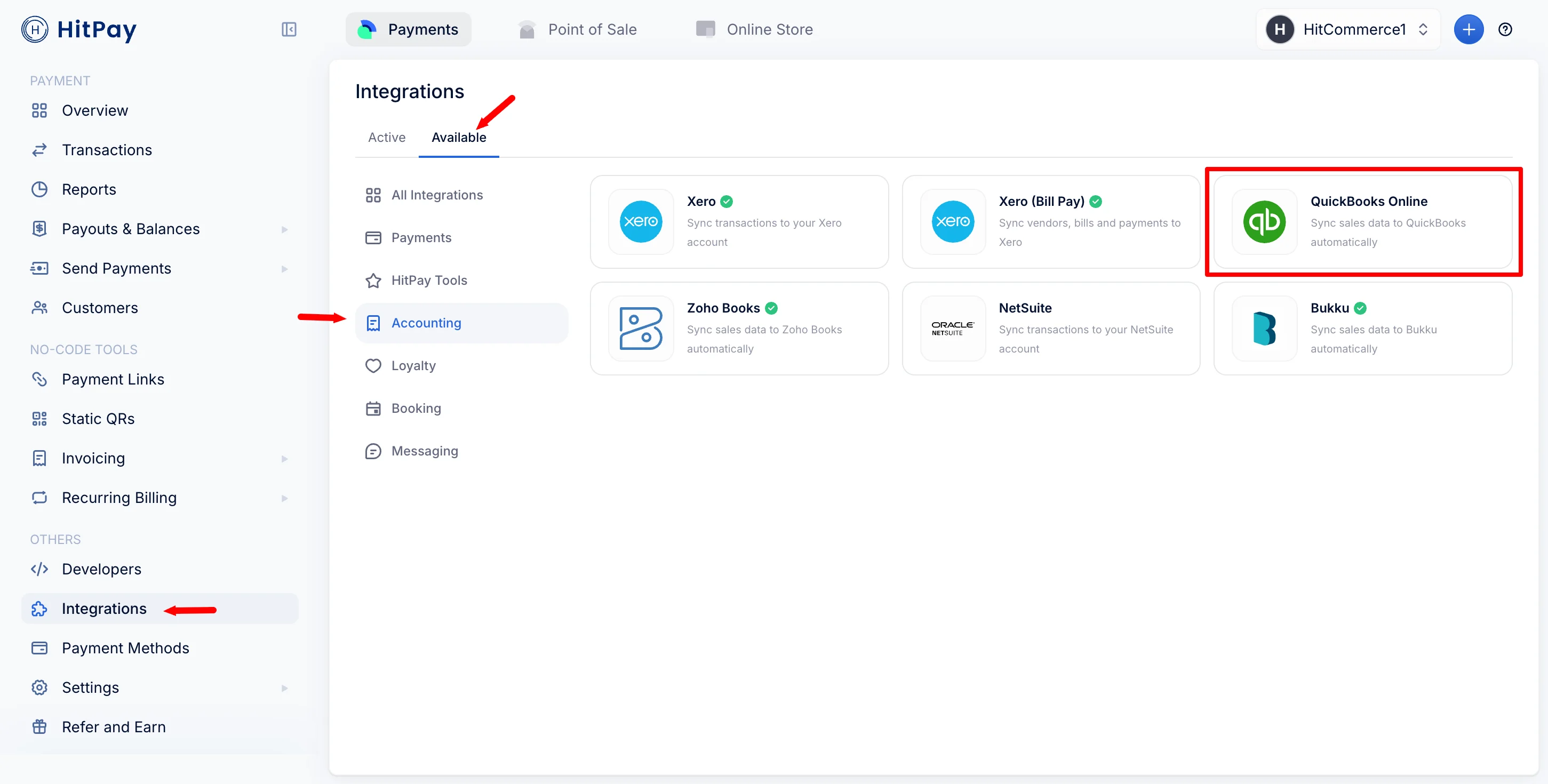
1. In your HitPay dashboard, go to **Others > Integrations**.
2. On the **Available** tab, find the **QuickBooks Online** card under the Accounting category and click it. Then, click **Connect to QuickBooks**.
 3. A popup window will open prompting you to sign in to your QuickBooks account and authorize HitPay.
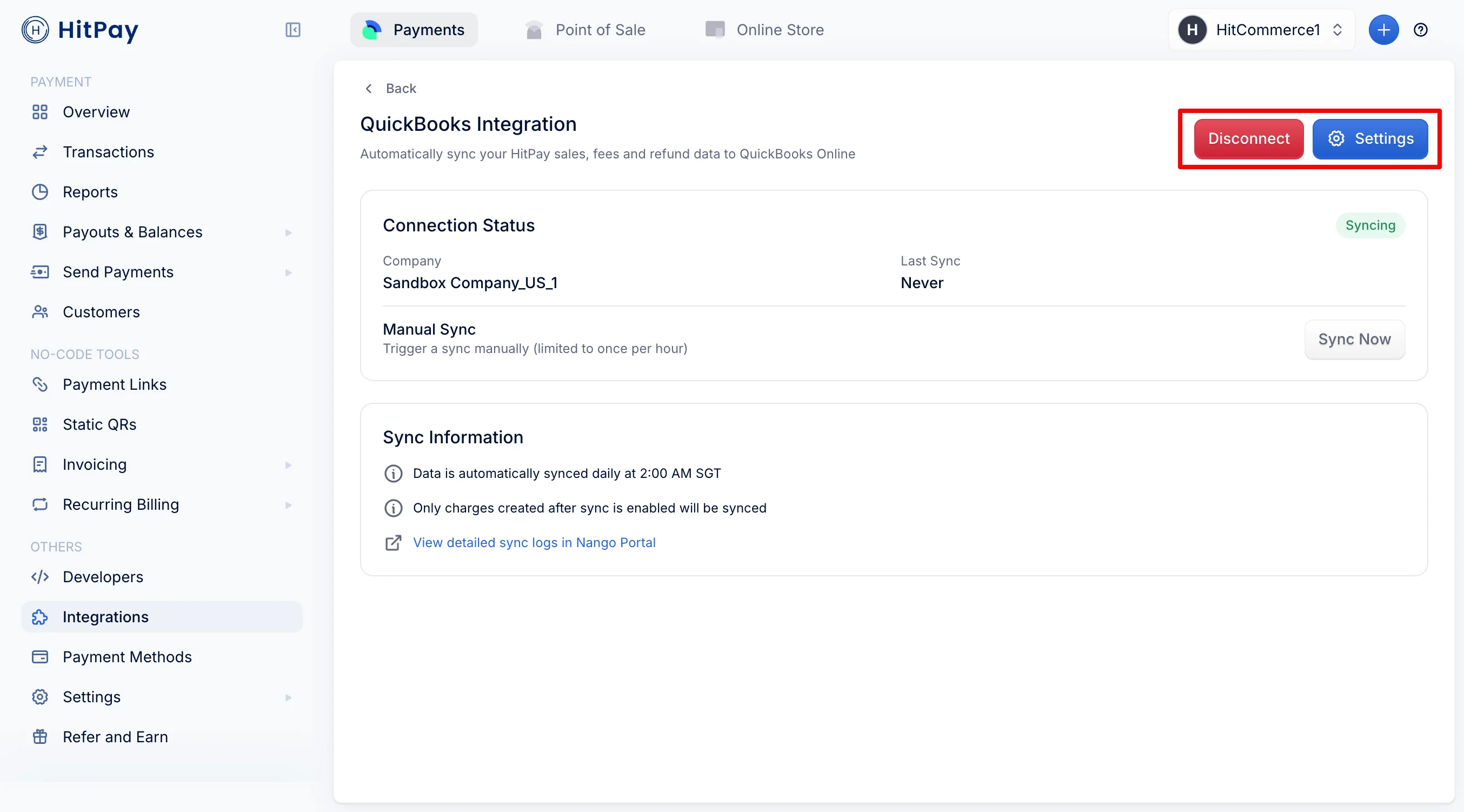
4. After authorizing, close the popup. HitPay will confirm the connection — you will see your QuickBooks company name and connection status on the integration page.
3. A popup window will open prompting you to sign in to your QuickBooks account and authorize HitPay.
4. After authorizing, close the popup. HitPay will confirm the connection — you will see your QuickBooks company name and connection status on the integration page.
 Each QuickBooks company can only be connected to one HitPay business. If the company is already connected elsewhere, you'll see an error message.
***
## Configuring Sync Settings
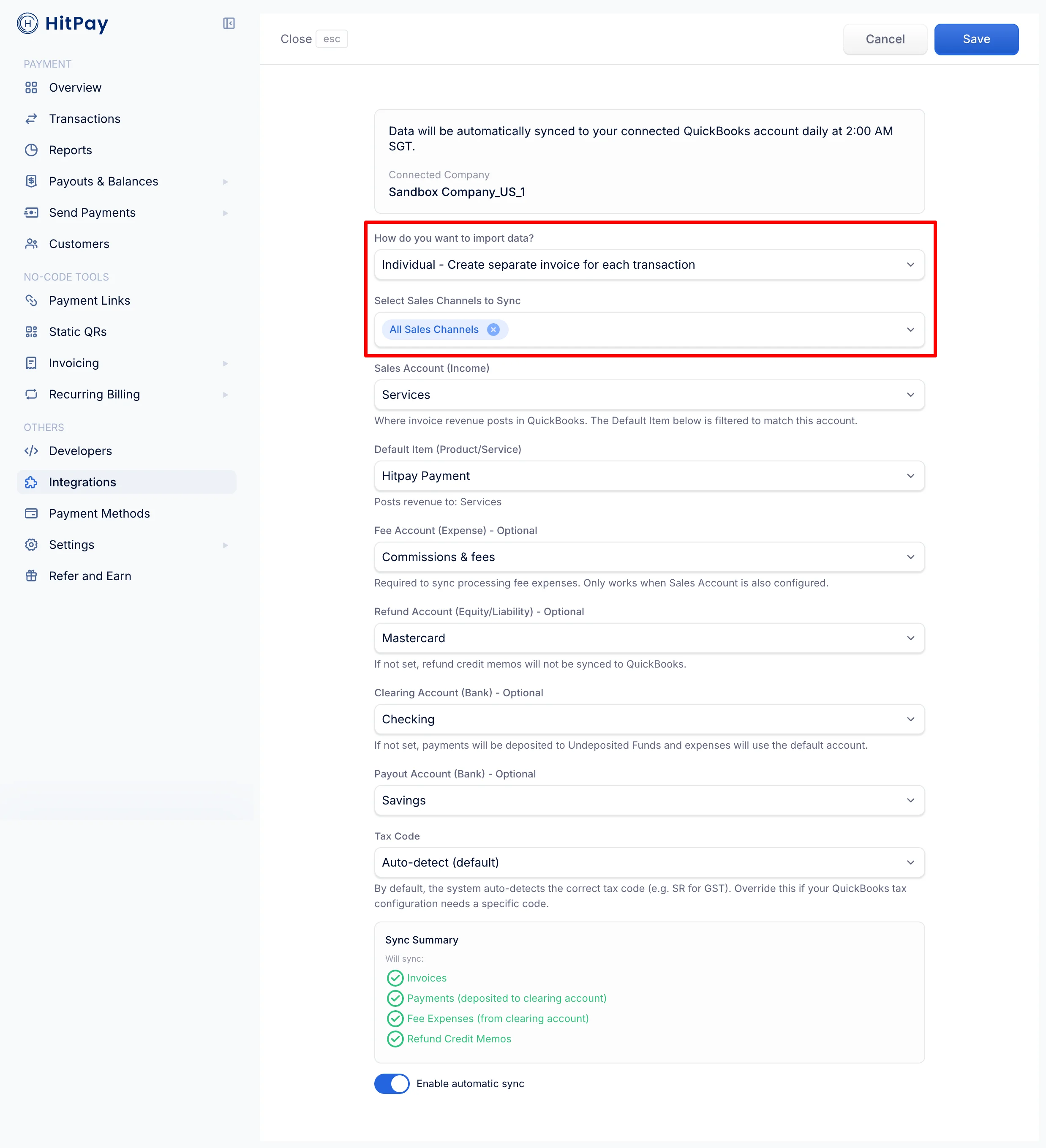
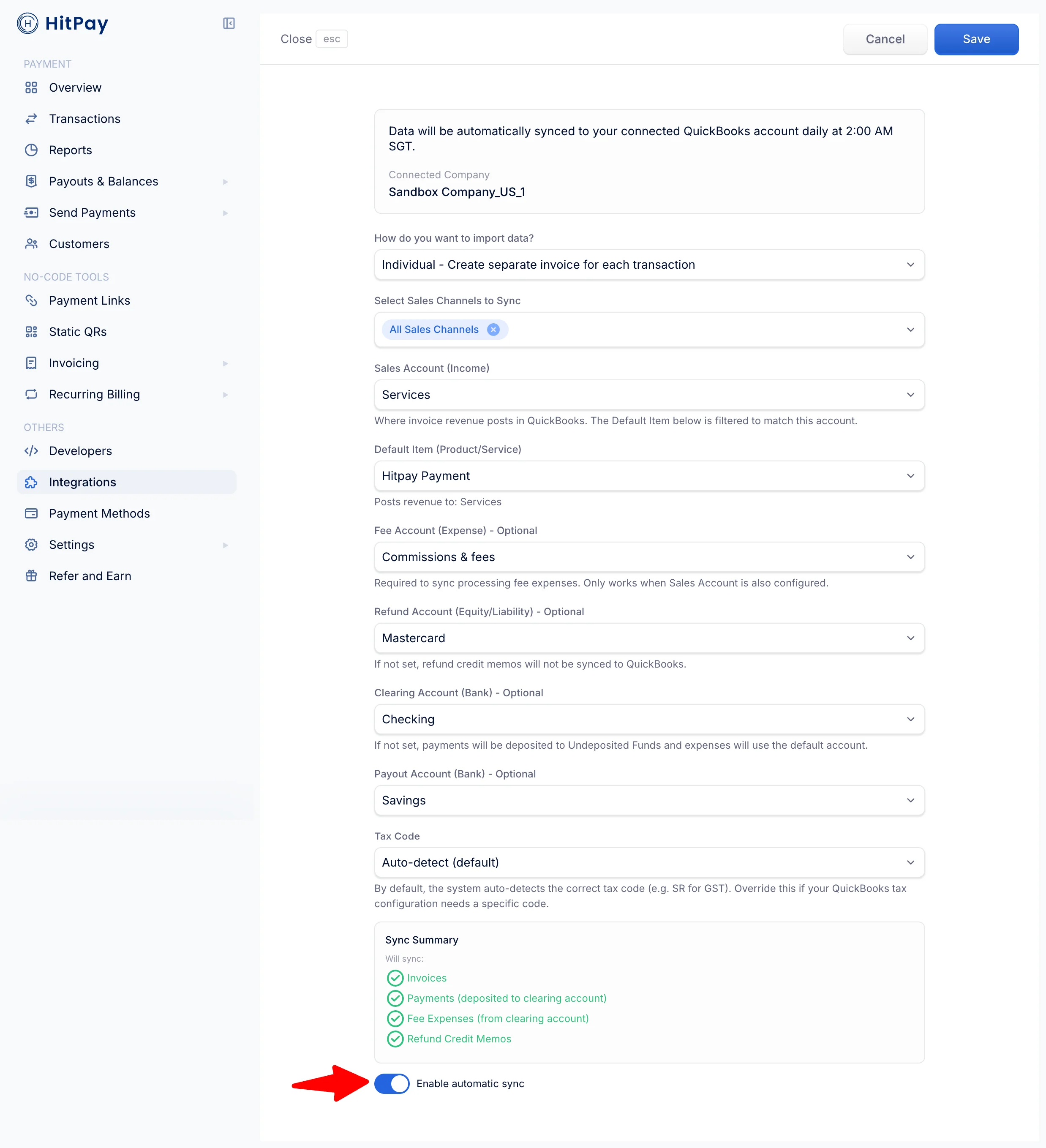
After connecting, click **Settings** to configure your sync preferences.
### Invoice Grouping
| Mode | Description |
| -------------------- | --------------------------------------------------------------------------------------------------------------------------------------------------------- |
| **Bulk** *(default)* | Groups all charges into one invoice per day per currency. Line items are broken down by payment method. Best for high-volume businesses. |
| **Individual** | Creates a separate invoice for each charge, with a QuickBooks customer created per HitPay customer. Best for businesses that need per-transaction detail. |
### Sales Channels
Use **Select Sales Channels to Sync** to choose which sales channels are included:
* **All** — Sync every charge regardless of source
* Or select specific sources: Shopify, WooCommerce, Point of Sale, Payment Links, Online Store, Recurring Billing, etc.
Each QuickBooks company can only be connected to one HitPay business. If the company is already connected elsewhere, you'll see an error message.
***
## Configuring Sync Settings
After connecting, click **Settings** to configure your sync preferences.
### Invoice Grouping
| Mode | Description |
| -------------------- | --------------------------------------------------------------------------------------------------------------------------------------------------------- |
| **Bulk** *(default)* | Groups all charges into one invoice per day per currency. Line items are broken down by payment method. Best for high-volume businesses. |
| **Individual** | Creates a separate invoice for each charge, with a QuickBooks customer created per HitPay customer. Best for businesses that need per-transaction detail. |
### Sales Channels
Use **Select Sales Channels to Sync** to choose which sales channels are included:
* **All** — Sync every charge regardless of source
* Or select specific sources: Shopify, WooCommerce, Point of Sale, Payment Links, Online Store, Recurring Billing, etc.
 ### Account Mappings
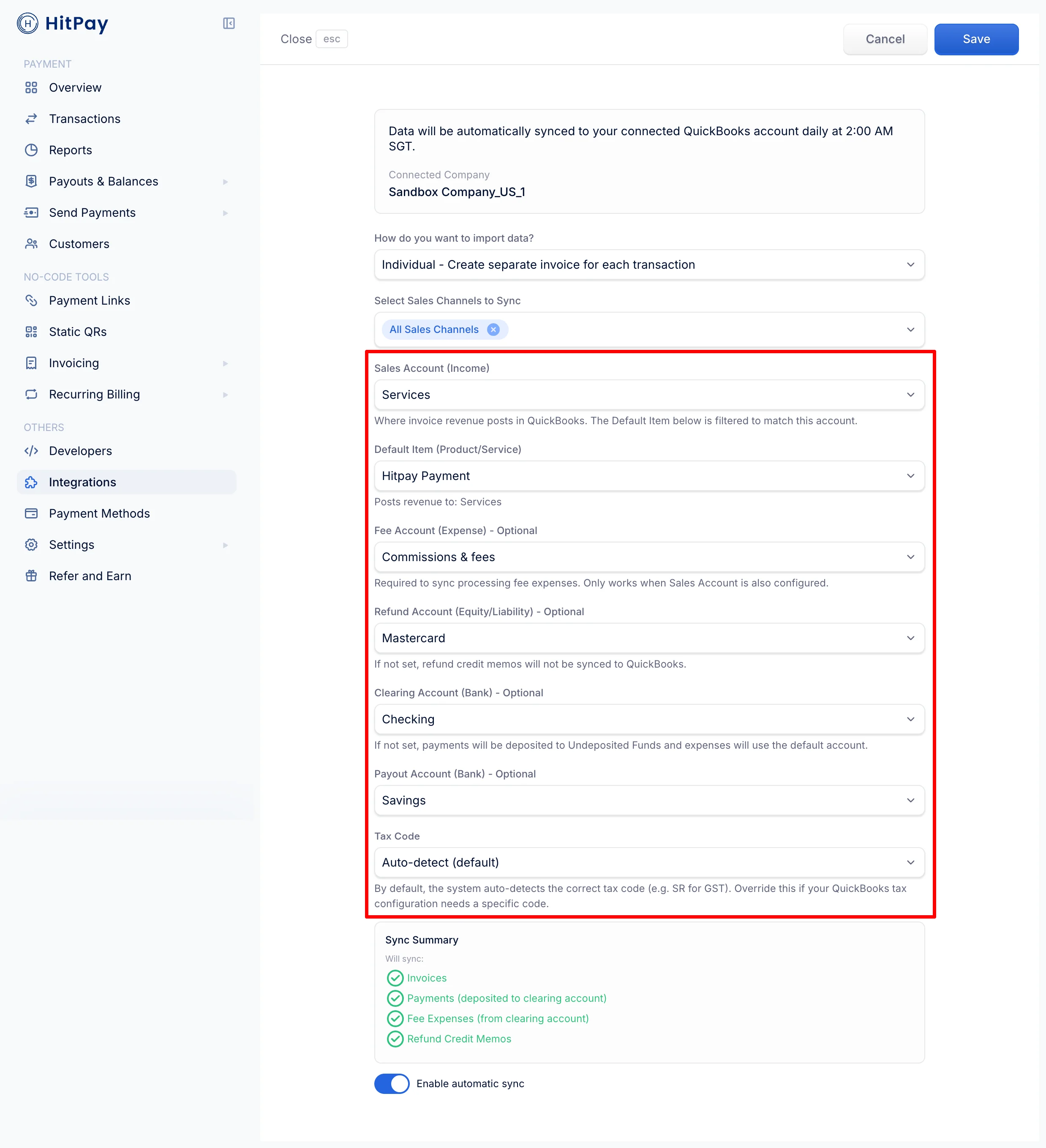
The **Sales Account** is required to enable sync. The other mappings are optional — HitPay only syncs the corresponding items for accounts that are set up.
| Account | Required? | What It Enables | Account Types | Classification |
| ------------------------------------- | ---------- | ------------------------------------------------------------------------ | ----------------- | ------------------- |
| **Sales Account (Income)** | Required | Invoices for your charges | Income | Revenue |
| **Fee Account (Expense)** | Optional | Expense entries for HitPay processing fees | Expense | Expense |
| **Refund Account (Equity/Liability)** | Optional | Credit memos for refunded charges | Equity, Liability | Equity or Liability |
| **Clearing Account (Bank)** | Optional\* | Deposit account for payments (and clearing account for fees and payouts) | Bank | Asset |
| **Payout Account (Bank)** | Optional | Destination account for payout transfers | Bank | Asset |
\*A Clearing Account (Bank) is required when a Fee Account is set, because QuickBooks records processing fees as expenses paid from a bank account.
### Account Mappings
The **Sales Account** is required to enable sync. The other mappings are optional — HitPay only syncs the corresponding items for accounts that are set up.
| Account | Required? | What It Enables | Account Types | Classification |
| ------------------------------------- | ---------- | ------------------------------------------------------------------------ | ----------------- | ------------------- |
| **Sales Account (Income)** | Required | Invoices for your charges | Income | Revenue |
| **Fee Account (Expense)** | Optional | Expense entries for HitPay processing fees | Expense | Expense |
| **Refund Account (Equity/Liability)** | Optional | Credit memos for refunded charges | Equity, Liability | Equity or Liability |
| **Clearing Account (Bank)** | Optional\* | Deposit account for payments (and clearing account for fees and payouts) | Bank | Asset |
| **Payout Account (Bank)** | Optional | Destination account for payout transfers | Bank | Asset |
\*A Clearing Account (Bank) is required when a Fee Account is set, because QuickBooks records processing fees as expenses paid from a bank account.
 **Flexible account type matching:** HitPay uses QuickBooks' Classification field to validate accounts, not just the specific AccountType. This means related account types work automatically across all QBO regions. For example, both "Income" and "Other Income" accounts are accepted for the Sales Account because they share the "Revenue" classification. Similarly, both "Equity" and "Other Current Liability" work for the Refund Account because HitPay accepts both the "Equity" and "Liability" classifications.
### Default Item
Select the QuickBooks Product/Service item that appears on each synced invoice line. This is **required to enable sync**.
The dropdown is filtered to items whose income account matches your selected Sales Account, so invoice revenue always posts to the account you chose. If you change the Sales Account, re-select a matching item.
### Tax Code
Controls the tax code applied to synced invoice and credit memo line items:
* **Auto-detect (default)** — HitPay automatically detects the appropriate tax code from your QuickBooks company (e.g., GST for Singapore companies)
* **Specific tax code** — Pick a tax code to apply to all synced line items, overriding auto-detection
If your QuickBooks company requires a tax rate on every transaction (common for SG GST-registered companies), this ensures synced records pass that validation.
### Enabling Sync
After configuring your accounts, toggle **Enable automatic sync** on. HitPay will only sync charges created after the moment you enable sync — no historical charges are synced retroactively.
If you disable and re-enable sync later, only new charges from the re-enable point forward will be synced. Charges created during the disabled period are skipped.
**Flexible account type matching:** HitPay uses QuickBooks' Classification field to validate accounts, not just the specific AccountType. This means related account types work automatically across all QBO regions. For example, both "Income" and "Other Income" accounts are accepted for the Sales Account because they share the "Revenue" classification. Similarly, both "Equity" and "Other Current Liability" work for the Refund Account because HitPay accepts both the "Equity" and "Liability" classifications.
### Default Item
Select the QuickBooks Product/Service item that appears on each synced invoice line. This is **required to enable sync**.
The dropdown is filtered to items whose income account matches your selected Sales Account, so invoice revenue always posts to the account you chose. If you change the Sales Account, re-select a matching item.
### Tax Code
Controls the tax code applied to synced invoice and credit memo line items:
* **Auto-detect (default)** — HitPay automatically detects the appropriate tax code from your QuickBooks company (e.g., GST for Singapore companies)
* **Specific tax code** — Pick a tax code to apply to all synced line items, overriding auto-detection
If your QuickBooks company requires a tax rate on every transaction (common for SG GST-registered companies), this ensures synced records pass that validation.
### Enabling Sync
After configuring your accounts, toggle **Enable automatic sync** on. HitPay will only sync charges created after the moment you enable sync — no historical charges are synced retroactively.
If you disable and re-enable sync later, only new charges from the re-enable point forward will be synced. Charges created during the disabled period are skipped.
 ***
## How Syncing Works
### Automatic Sync
HitPay runs an automatic sync daily at **2:00 AM SGT**. All charges since the last sync (or since sync was enabled) are processed.
### Manual Sync
Once sync is enabled, a **Manual Sync** section appears on the QuickBooks integration page — click **Sync Now** to trigger a sync immediately. Manual sync is limited to **once per hour**.
### Sync Process
For each charge, HitPay creates the following records in QuickBooks (depending on which accounts are configured):
1. **Invoice** — Records the sale amount
2. **Payment** — Marks the invoice as paid, depositing to your bank account
3. **Expense** — Records the HitPay processing fee (if fee account is configured)
4. **Credit Memo** — For refunded charges, linked to the original invoice (if refund account is configured)
For charges that were refunded before being synced, HitPay creates the complete history: invoice, payment, and credit memo in one go.
### Idempotency
Syncing is fully idempotent. If a sync is interrupted or partially completes, the next run picks up where it left off without creating duplicates.
***
## Multi-Currency Support
HitPay handles multi-currency automatically:
* In **Bulk** mode, charges are grouped by date and currency, creating separate invoices per currency
* In **Individual** mode, each invoice uses the charge's original currency
* Your QuickBooks company must have multi-currency enabled if you process payments in multiple currencies
***
## Sync Status & Errors
The QuickBooks integration page shows:
* **Connection status** — Whether your QuickBooks connection is active
* **Last sync time** — When the most recent **successful** sync completed (it only updates when charges actually synced, so a failed run never masks the last real success)
* **Sync results** — Number of charges synced and any failures
* **Recent errors** — The last 10 sync errors with timestamps
If a sync error occurs for a specific charge, HitPay skips it and continues with the remaining charges. Failed charges are automatically retried on the next sync run.
### Connection Failures
If your QuickBooks connection loses authorization (e.g., token refresh fails), HitPay will:
1. Automatically disable sync to prevent repeated failures
2. Send you an email notification
3. Mark the connection as **Failed** in the dashboard
To resolve, disconnect and reconnect your QuickBooks account.
***
## Disconnecting
1. Go to the QuickBooks integration page.
2. Click **Disconnect**.
3. Confirm the disconnection.
Disconnecting removes the QuickBooks authorization but preserves all sync records in HitPay for audit purposes. If you reconnect later, sync starts fresh from the new connection point — previously synced charges are not re-synced.
***
## Important Notes
* **Future-only sync** — Only charges created after sync is enabled are synced. There is no historical backfill.
* **Flexible account types** — HitPay automatically recognizes related account types across QuickBooks Online regions using QuickBooks' Classification system. You don't need to worry about regional differences in account type naming (e.g., "Cash and cash equivalents" vs "Bank" both work for bank accounts if they have the correct classification).
* **Account lists are cached for up to 1 hour** — If you just created an account or item in QuickBooks and it's not showing, use the refresh button in the settings to fetch the latest list.
* **Tax codes** — Synced line items carry a QuickBooks tax code (auto-detected, or the one you pick in the **Tax Code** setting). Amounts are synced as tax-inclusive.
***
## Troubleshooting
If a QuickBooks account doesn't appear in the expected dropdown:
* **Check the account type** — Each dropdown only shows accounts with compatible Classifications. For example, the Sales Account dropdown shows accounts with the "Revenue" classification (which includes both "Income" and "Other Income" account types).
* **Check if the account is active** — Only active accounts are shown. Archived or inactive accounts are hidden.
* **Regional account types** — QuickBooks uses different account type names in different regions (e.g., "Cash and cash equivalents" in some regions vs. "Bank" in others). HitPay handles this automatically through Classification matching, but if an account has an unexpected Classification, it may appear in a different group.
* **Refresh the list** — Click the refresh button to fetch the latest accounts from QuickBooks.
* Verify that **Enable automatic sync** is toggled on
* Check that a **Sales Account** and **Default Item** are configured (both are required for sync)
* Ensure your QuickBooks connection is in **Linked** status (not Failed)
HitPay tracks every synced record. If you see duplicates, it may be because:
* The same charge was processed through multiple payment sources
* A charge was manually created in QuickBooks before the sync ran
HitPay will never create duplicate records for the same charge — each charge is tracked by its unique ID.
This typically means QuickBooks revoked or couldn't refresh the authorization token. To fix:
1. Disconnect the integration
2. Reconnect by going through the OAuth flow again
3. Re-configure your settings
4. Re-enable sync
Your previous sync records are preserved.
***
## How Syncing Works
### Automatic Sync
HitPay runs an automatic sync daily at **2:00 AM SGT**. All charges since the last sync (or since sync was enabled) are processed.
### Manual Sync
Once sync is enabled, a **Manual Sync** section appears on the QuickBooks integration page — click **Sync Now** to trigger a sync immediately. Manual sync is limited to **once per hour**.
### Sync Process
For each charge, HitPay creates the following records in QuickBooks (depending on which accounts are configured):
1. **Invoice** — Records the sale amount
2. **Payment** — Marks the invoice as paid, depositing to your bank account
3. **Expense** — Records the HitPay processing fee (if fee account is configured)
4. **Credit Memo** — For refunded charges, linked to the original invoice (if refund account is configured)
For charges that were refunded before being synced, HitPay creates the complete history: invoice, payment, and credit memo in one go.
### Idempotency
Syncing is fully idempotent. If a sync is interrupted or partially completes, the next run picks up where it left off without creating duplicates.
***
## Multi-Currency Support
HitPay handles multi-currency automatically:
* In **Bulk** mode, charges are grouped by date and currency, creating separate invoices per currency
* In **Individual** mode, each invoice uses the charge's original currency
* Your QuickBooks company must have multi-currency enabled if you process payments in multiple currencies
***
## Sync Status & Errors
The QuickBooks integration page shows:
* **Connection status** — Whether your QuickBooks connection is active
* **Last sync time** — When the most recent **successful** sync completed (it only updates when charges actually synced, so a failed run never masks the last real success)
* **Sync results** — Number of charges synced and any failures
* **Recent errors** — The last 10 sync errors with timestamps
If a sync error occurs for a specific charge, HitPay skips it and continues with the remaining charges. Failed charges are automatically retried on the next sync run.
### Connection Failures
If your QuickBooks connection loses authorization (e.g., token refresh fails), HitPay will:
1. Automatically disable sync to prevent repeated failures
2. Send you an email notification
3. Mark the connection as **Failed** in the dashboard
To resolve, disconnect and reconnect your QuickBooks account.
***
## Disconnecting
1. Go to the QuickBooks integration page.
2. Click **Disconnect**.
3. Confirm the disconnection.
Disconnecting removes the QuickBooks authorization but preserves all sync records in HitPay for audit purposes. If you reconnect later, sync starts fresh from the new connection point — previously synced charges are not re-synced.
***
## Important Notes
* **Future-only sync** — Only charges created after sync is enabled are synced. There is no historical backfill.
* **Flexible account types** — HitPay automatically recognizes related account types across QuickBooks Online regions using QuickBooks' Classification system. You don't need to worry about regional differences in account type naming (e.g., "Cash and cash equivalents" vs "Bank" both work for bank accounts if they have the correct classification).
* **Account lists are cached for up to 1 hour** — If you just created an account or item in QuickBooks and it's not showing, use the refresh button in the settings to fetch the latest list.
* **Tax codes** — Synced line items carry a QuickBooks tax code (auto-detected, or the one you pick in the **Tax Code** setting). Amounts are synced as tax-inclusive.
***
## Troubleshooting
If a QuickBooks account doesn't appear in the expected dropdown:
* **Check the account type** — Each dropdown only shows accounts with compatible Classifications. For example, the Sales Account dropdown shows accounts with the "Revenue" classification (which includes both "Income" and "Other Income" account types).
* **Check if the account is active** — Only active accounts are shown. Archived or inactive accounts are hidden.
* **Regional account types** — QuickBooks uses different account type names in different regions (e.g., "Cash and cash equivalents" in some regions vs. "Bank" in others). HitPay handles this automatically through Classification matching, but if an account has an unexpected Classification, it may appear in a different group.
* **Refresh the list** — Click the refresh button to fetch the latest accounts from QuickBooks.
* Verify that **Enable automatic sync** is toggled on
* Check that a **Sales Account** and **Default Item** are configured (both are required for sync)
* Ensure your QuickBooks connection is in **Linked** status (not Failed)
HitPay tracks every synced record. If you see duplicates, it may be because:
* The same charge was processed through multiple payment sources
* A charge was manually created in QuickBooks before the sync ran
HitPay will never create duplicate records for the same charge — each charge is tracked by its unique ID.
This typically means QuickBooks revoked or couldn't refresh the authorization token. To fix:
1. Disconnect the integration
2. Reconnect by going through the OAuth flow again
3. Re-configure your settings
4. Re-enable sync
Your previous sync records are preserved.