> ## Documentation Index
> Fetch the complete documentation index at: https://docs.hitpayapp.com/llms.txt
> Use this file to discover all available pages before exploring further.
# Make.com
> Automate payments, refunds, and order workflows seamlessly with HitPay on Make.com.
This guide will walk you through connecting your HitPay account to Make.com, enabling you to automate payment workflows, order management, and business operations with ease.
With the HitPay Make App, you can build custom workflows (called scenarios) that trigger actions in response to payment events — for example, automatically sending receipts, updating your CRM when a charge is created, or notifying your team when a refund is processed.
Whether you’re a developer integrating deeply or a business owner looking to simplify operations, this guide will help you get started quickly.
## About HitPay on Make
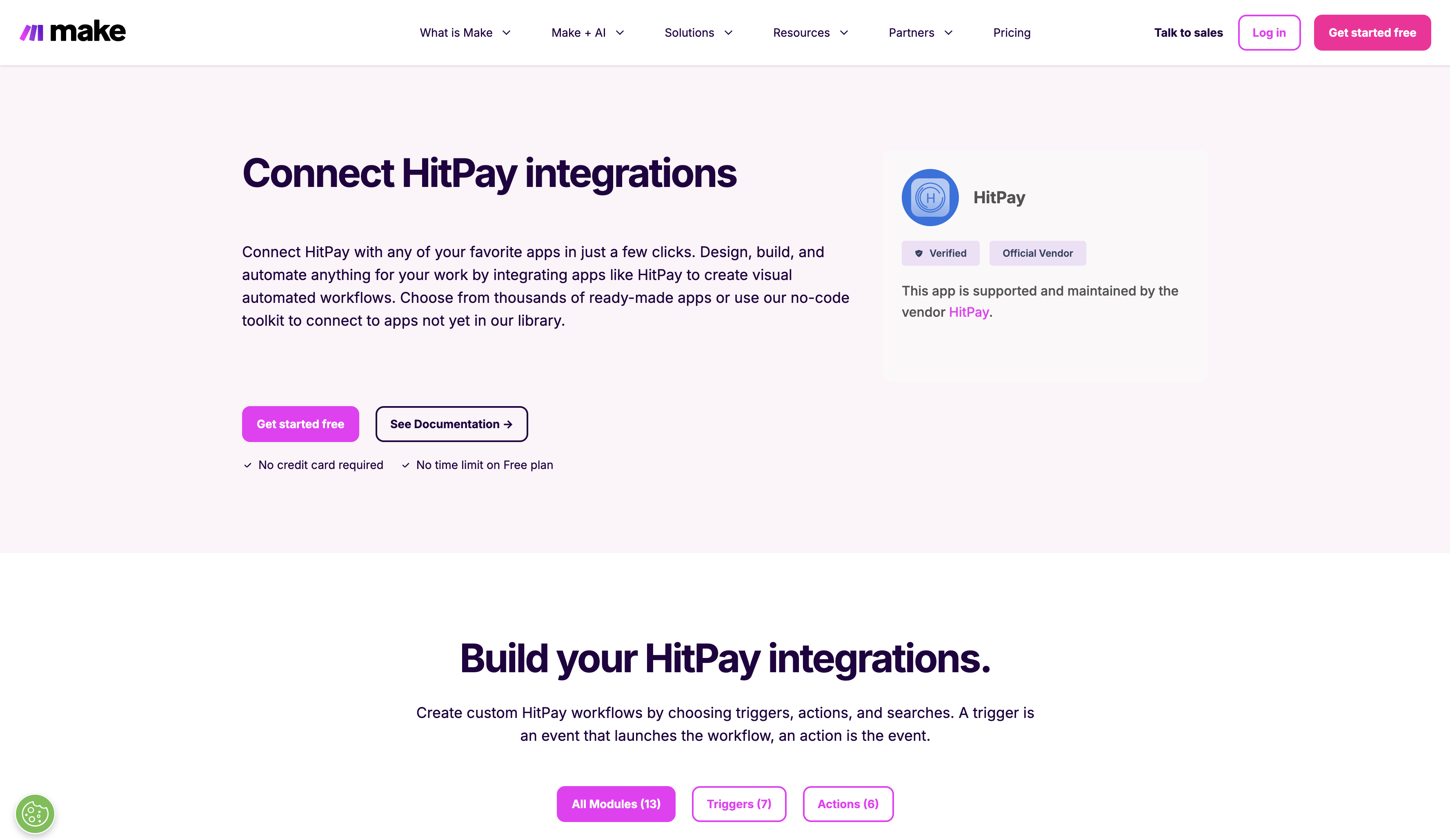
HitPay is now available as a public integration on [Make.com](https://www.make.com/en/integrations/hitpay), enabling you to connect HitPay with thousands of popular apps & services to automate and streamline your payment and order workflows.
With the HitPay app on Make, you can build powerful visual automations that trigger based on payment events, update your systems in real time, and eliminate repetitive manual tasks — all without writing a single line of code. Visit [Make’s pricing page](https://www.make.com/en/pricing) to learn more about their available plans and features.
 ## Before You Start
Before creating your first scenario, make sure you have:
* A **HitPay account** — sign up at [www.hitpayapp.com](https://www.hitpayapp.com)
* Your **HitPay API key** (found in your dashboard under *Developers → API Keys*)
* A **Make.com account** — create one at [make.com](https://www.make.com)
## Connecting HitPay to Make.com
If you don’t already have one, create your HitPay account on [hitpayapp.com](https://www.hitpayapp.com).\
Once logged in, go to your **Dashboard → Developers → API Keys** to generate your API key.\
You’ll use this key to authenticate your HitPay connection in Make.
## Before You Start
Before creating your first scenario, make sure you have:
* A **HitPay account** — sign up at [www.hitpayapp.com](https://www.hitpayapp.com)
* Your **HitPay API key** (found in your dashboard under *Developers → API Keys*)
* A **Make.com account** — create one at [make.com](https://www.make.com)
## Connecting HitPay to Make.com
If you don’t already have one, create your HitPay account on [hitpayapp.com](https://www.hitpayapp.com).\
Once logged in, go to your **Dashboard → Developers → API Keys** to generate your API key.\
You’ll use this key to authenticate your HitPay connection in Make.
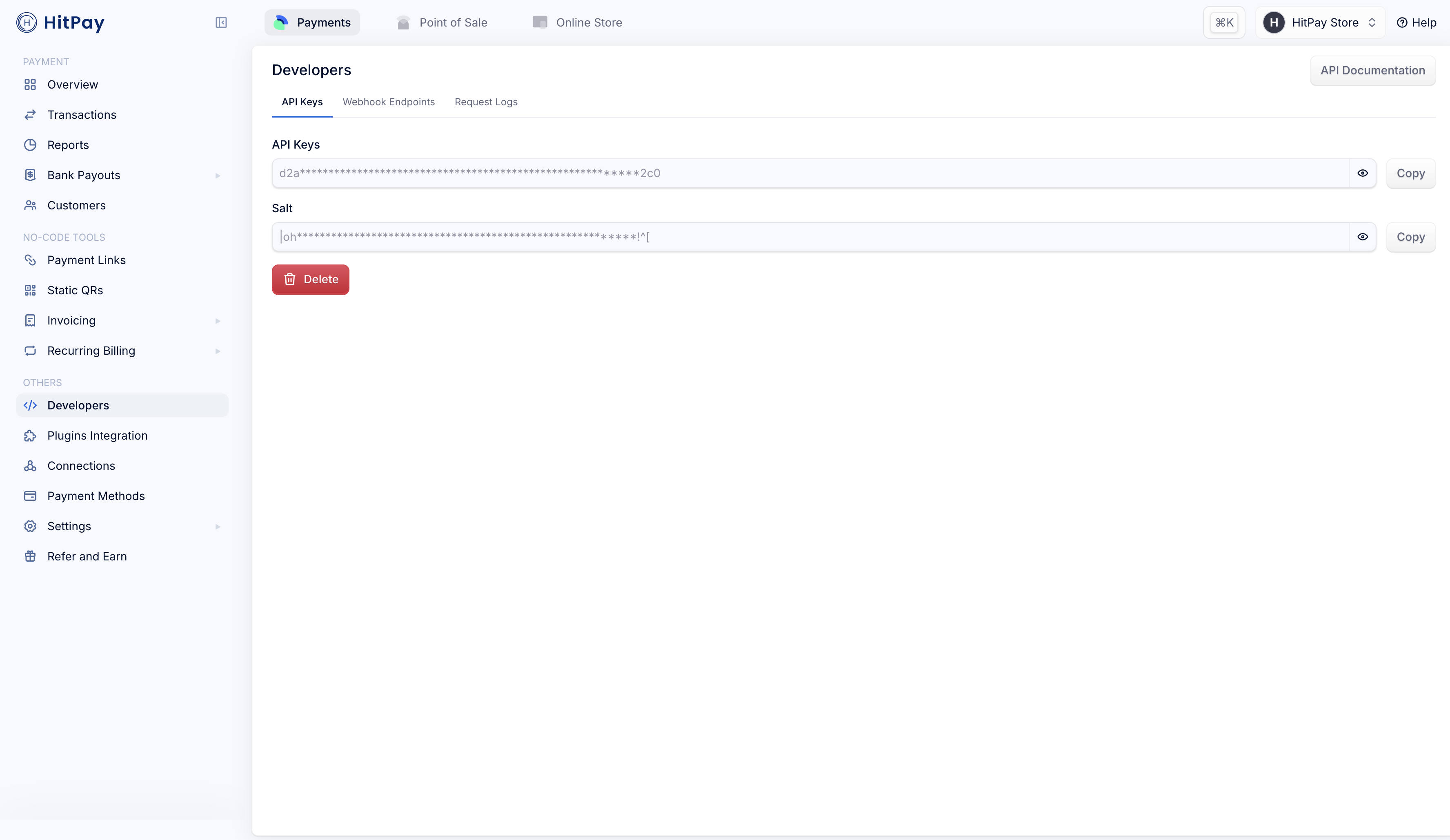 ⚠️ **Keep your API keys secure** — never share them publicly.
1. In Make, create a new **Scenario** (or open an existing one).
2. Add a **HitPay module**.
3. Select your preferred **Trigger** or **Action** (for example, *Create Payment Request*).
4. When prompted, click **Create a connection** to authenticate.
* For triggers, you’ll need to click **Create a Webhook** first before the connection step appears.
5. Enter your **API Key**, then choose whether to connect to the **Production** or [**Sandbox**](https://docs.hitpayapp.com/apis/guide/sandbox) environment.
⚠️ **Keep your API keys secure** — never share them publicly.
1. In Make, create a new **Scenario** (or open an existing one).
2. Add a **HitPay module**.
3. Select your preferred **Trigger** or **Action** (for example, *Create Payment Request*).
4. When prompted, click **Create a connection** to authenticate.
* For triggers, you’ll need to click **Create a Webhook** first before the connection step appears.
5. Enter your **API Key**, then choose whether to connect to the **Production** or [**Sandbox**](https://docs.hitpayapp.com/apis/guide/sandbox) environment.
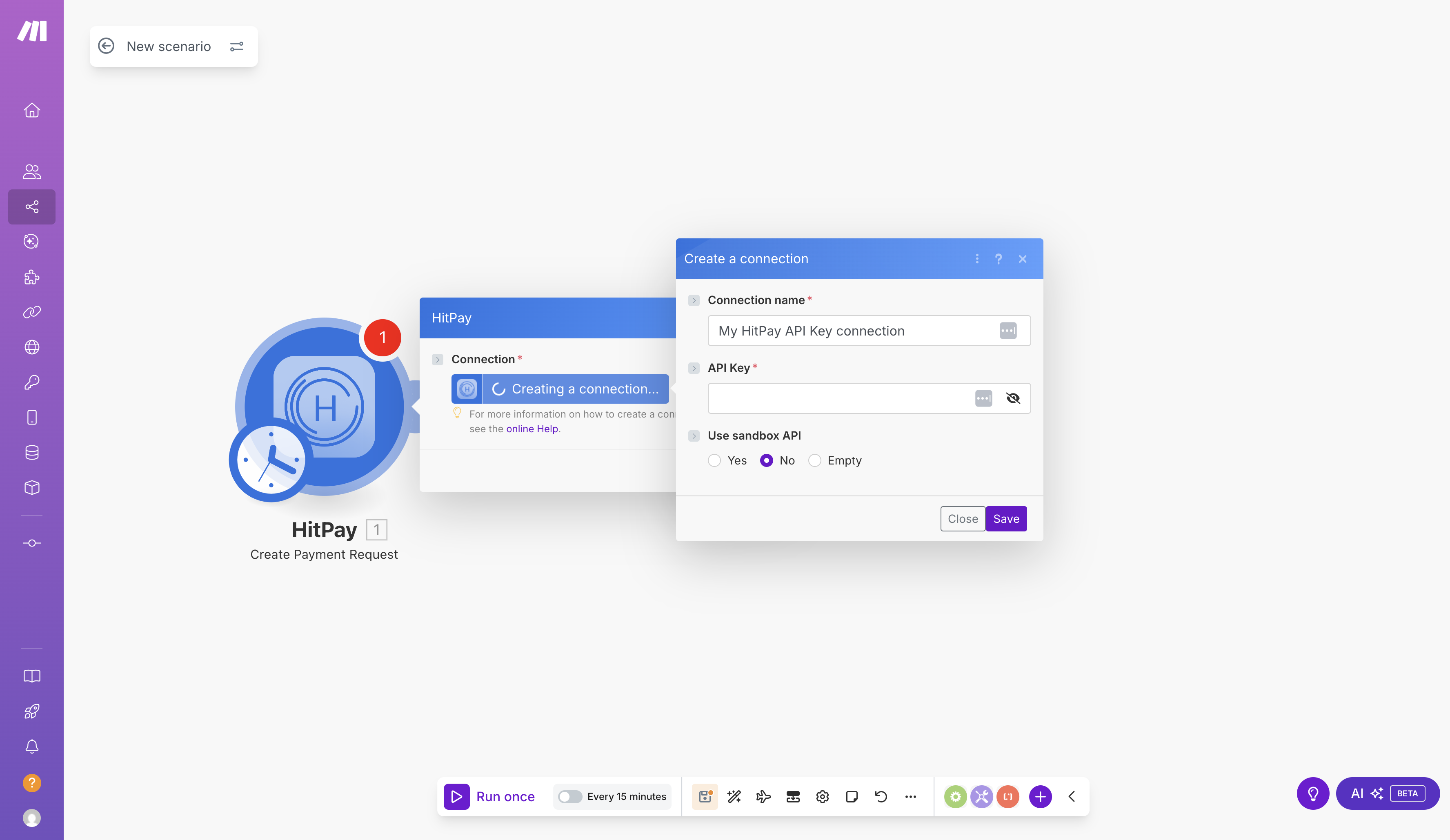 Click **Save** to confirm and establish your connection.
Triggers in Make start your scenario whenever a specific event occurs in HitPay — for example, when a payment is created or an order is updated.
To set up a webhook:
1. Create or open a scenario and select a **HitPay Trigger module** (e.g. *Watch Invoices Created*).
2. When prompted, click **Create a Webhook**.
3. Give your webhook a name for easy reference.
4. Save your scenario to activate it.
Click **Save** to confirm and establish your connection.
Triggers in Make start your scenario whenever a specific event occurs in HitPay — for example, when a payment is created or an order is updated.
To set up a webhook:
1. Create or open a scenario and select a **HitPay Trigger module** (e.g. *Watch Invoices Created*).
2. When prompted, click **Create a Webhook**.
3. Give your webhook a name for easy reference.
4. Save your scenario to activate it.
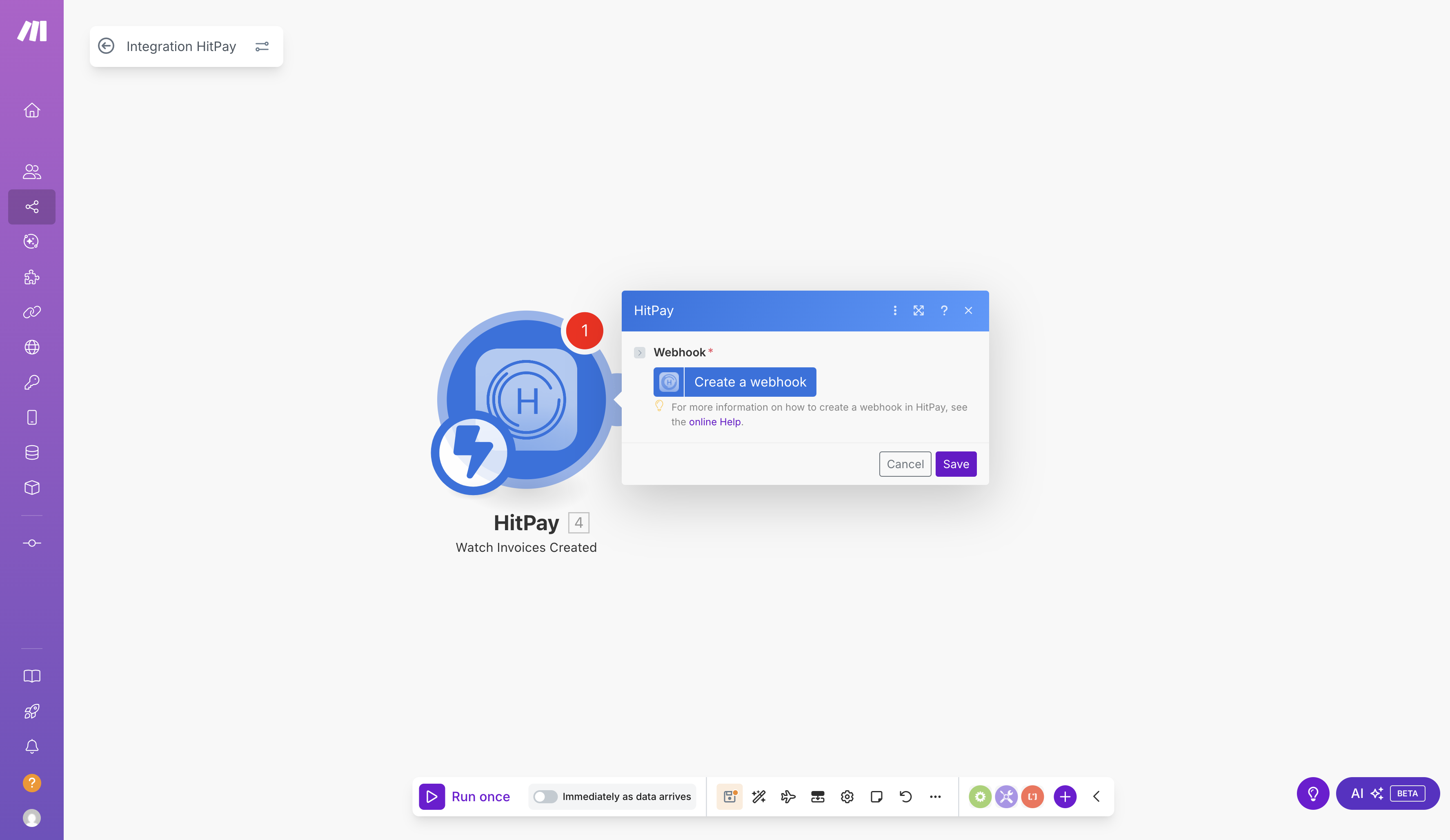 Once set up, Make will automatically listen for new events from your HitPay account.
## Available Triggers and Actions
### Triggers (Start your automation)
All HitPay triggers on Make are instant — they fire the moment the event occurs and sends data to your scenarios via webhook.
These events in HitPay can start your Make scenarios:
* **Watch Charges Created**: Triggers when a payment is successfully completed.
* **Watch Invoices Created**: Triggers when a new invoice is created.
* **Watch Orders Created**: Triggers when an order is created successfully.
* **Watch Payouts Created**: Triggers when a payout is successfully completed.
* **Watch Updated Charges**: Triggers when a payment is refunded/partially refunded.
* **Watch Updated Invoices**: Triggers when an invoice is marked as paid or partially paid.
* **Watch Updated Orders**: Triggers when an order status is updated.
### Actions (Tasks HitPay can perform)
You can also perform these actions in HitPay through Make:
* **Create Payment Request**: Creates a payment request & generates a new payment link.
* **Delete Payment Request**: Deletes a payment request.
* **Get Payment Request Details**: Retrieve details of the specified payment request.
* **Make an API Call**: Performs an arbitrary authorized API call - this can be used to access HitPay endpoints that aren't available in Make yet.
* **Refund Payment**: Process a refund for a specific transaction.
* **Update Payment Request**: Updates an existing payment request.
## Example Workflows
Here are some popular ways businesses use HitPay with Make.com:
### 1. Send Thank You Emails
* **Trigger:** Charge/Payment Created in HitPay
* **Action:** Send Email in Gmail or Mailchimp
* Automatically thank customers after successful payments.
### 2. Log Payments in Google Sheets
* **Trigger:** Charge/Payment Created in HitPay
* **Action:** Add a Row in Google Sheets
* Keep a live record of all transactions in a spreadsheet.
### 3. Notify Your Team
* **Trigger:** Charge/Payment Created in HitPay
* **Action:** Send a Message in Slack or Microsoft Teams
* Instantly alert your team when new payments are received.
### 4. Sync with Accounting
* **Trigger:** Charge/Payment Created in HitPay
* **Action:** Create an Invoice in Xero or QuickBooks
* Easily sync all new payments into your accounting system.
### 5. Update CRM Contacts
* **Trigger:** Charge/Payment Created in HitPay
* **Action:** Create or Update a Contact in HubSpot
* Keep customer data up to date automatically.
## Tips & Best Practices
* ✅ **Test before activating** — Test and run your scenarios with sample data before turning them on.
* 🔎 **Use filters** — Limit automations to only specific transactions, amounts or conditions.
* 🏷️ **Label your scenarios** — Helps you stay organized as your automations grow.
* 🚨 **Enable error notifications** — Set up error notifications to get alerts if any step fails.
* ♻️ **Review regularly** — Update your automations periodically as your business evolves.
## Troubleshooting
If something isn’t working as expected:
* Double-check that your **API Key** is valid.
* Ensure your webhook is **active** and properly linked.
* Try re-authenticating your HitPay connection in Make.
* Check HitPay’s API status or logs for recent activity.
For persistent issues, contact:
* **HitPay Support:** [support@hitpayapp.com](mailto:support@hitpayapp.com)
* **Make Support:** [help.make.com](https://www.make.com/en/help)
## Support and Resources
* 📘 **HitPay API Docs:** [https://docs.hitpayapp.com](https://docs.hitpayapp.com)
* 💬 **Make Help Center:** [https://www.make.com/en/help](https://www.make.com/en/help)
* ✉️ **HitPay Support:** [support@hitpayapp.com](mailto:support@hitpayapp.com)
* 👥 **Make Community:** You can also connect with other Make users in the [Make Community](https://community.make.com/)
***
## You’re All Set!
Once you’ve successfully connected HitPay with Make.com, your HitPay account is now linked with thousands of other apps, allowing you to automate your payment, order, and customer workflows effortlessly.
Start building — and watch your business run itself. 🚀
Once set up, Make will automatically listen for new events from your HitPay account.
## Available Triggers and Actions
### Triggers (Start your automation)
All HitPay triggers on Make are instant — they fire the moment the event occurs and sends data to your scenarios via webhook.
These events in HitPay can start your Make scenarios:
* **Watch Charges Created**: Triggers when a payment is successfully completed.
* **Watch Invoices Created**: Triggers when a new invoice is created.
* **Watch Orders Created**: Triggers when an order is created successfully.
* **Watch Payouts Created**: Triggers when a payout is successfully completed.
* **Watch Updated Charges**: Triggers when a payment is refunded/partially refunded.
* **Watch Updated Invoices**: Triggers when an invoice is marked as paid or partially paid.
* **Watch Updated Orders**: Triggers when an order status is updated.
### Actions (Tasks HitPay can perform)
You can also perform these actions in HitPay through Make:
* **Create Payment Request**: Creates a payment request & generates a new payment link.
* **Delete Payment Request**: Deletes a payment request.
* **Get Payment Request Details**: Retrieve details of the specified payment request.
* **Make an API Call**: Performs an arbitrary authorized API call - this can be used to access HitPay endpoints that aren't available in Make yet.
* **Refund Payment**: Process a refund for a specific transaction.
* **Update Payment Request**: Updates an existing payment request.
## Example Workflows
Here are some popular ways businesses use HitPay with Make.com:
### 1. Send Thank You Emails
* **Trigger:** Charge/Payment Created in HitPay
* **Action:** Send Email in Gmail or Mailchimp
* Automatically thank customers after successful payments.
### 2. Log Payments in Google Sheets
* **Trigger:** Charge/Payment Created in HitPay
* **Action:** Add a Row in Google Sheets
* Keep a live record of all transactions in a spreadsheet.
### 3. Notify Your Team
* **Trigger:** Charge/Payment Created in HitPay
* **Action:** Send a Message in Slack or Microsoft Teams
* Instantly alert your team when new payments are received.
### 4. Sync with Accounting
* **Trigger:** Charge/Payment Created in HitPay
* **Action:** Create an Invoice in Xero or QuickBooks
* Easily sync all new payments into your accounting system.
### 5. Update CRM Contacts
* **Trigger:** Charge/Payment Created in HitPay
* **Action:** Create or Update a Contact in HubSpot
* Keep customer data up to date automatically.
## Tips & Best Practices
* ✅ **Test before activating** — Test and run your scenarios with sample data before turning them on.
* 🔎 **Use filters** — Limit automations to only specific transactions, amounts or conditions.
* 🏷️ **Label your scenarios** — Helps you stay organized as your automations grow.
* 🚨 **Enable error notifications** — Set up error notifications to get alerts if any step fails.
* ♻️ **Review regularly** — Update your automations periodically as your business evolves.
## Troubleshooting
If something isn’t working as expected:
* Double-check that your **API Key** is valid.
* Ensure your webhook is **active** and properly linked.
* Try re-authenticating your HitPay connection in Make.
* Check HitPay’s API status or logs for recent activity.
For persistent issues, contact:
* **HitPay Support:** [support@hitpayapp.com](mailto:support@hitpayapp.com)
* **Make Support:** [help.make.com](https://www.make.com/en/help)
## Support and Resources
* 📘 **HitPay API Docs:** [https://docs.hitpayapp.com](https://docs.hitpayapp.com)
* 💬 **Make Help Center:** [https://www.make.com/en/help](https://www.make.com/en/help)
* ✉️ **HitPay Support:** [support@hitpayapp.com](mailto:support@hitpayapp.com)
* 👥 **Make Community:** You can also connect with other Make users in the [Make Community](https://community.make.com/)
***
## You’re All Set!
Once you’ve successfully connected HitPay with Make.com, your HitPay account is now linked with thousands of other apps, allowing you to automate your payment, order, and customer workflows effortlessly.
Start building — and watch your business run itself. 🚀