> ## Documentation Index
> Fetch the complete documentation index at: https://docs.hitpayapp.com/llms.txt
> Use this file to discover all available pages before exploring further.
# Send Payments
> Learn how to send payments to suppliers, contractors, and other business vendors using HitPay
# Send Payments Overview
HitPay merchants can send payments to suppliers, contractors, and other business vendors from over 150 countries using local bank transfer rails or traditional SWIFT payment rails. This guide will help you add beneficiaries and send payments efficiently.
## Adding a Beneficiary
Go to **Send Payments > Beneficiaries** from the HitPay Dashboard.
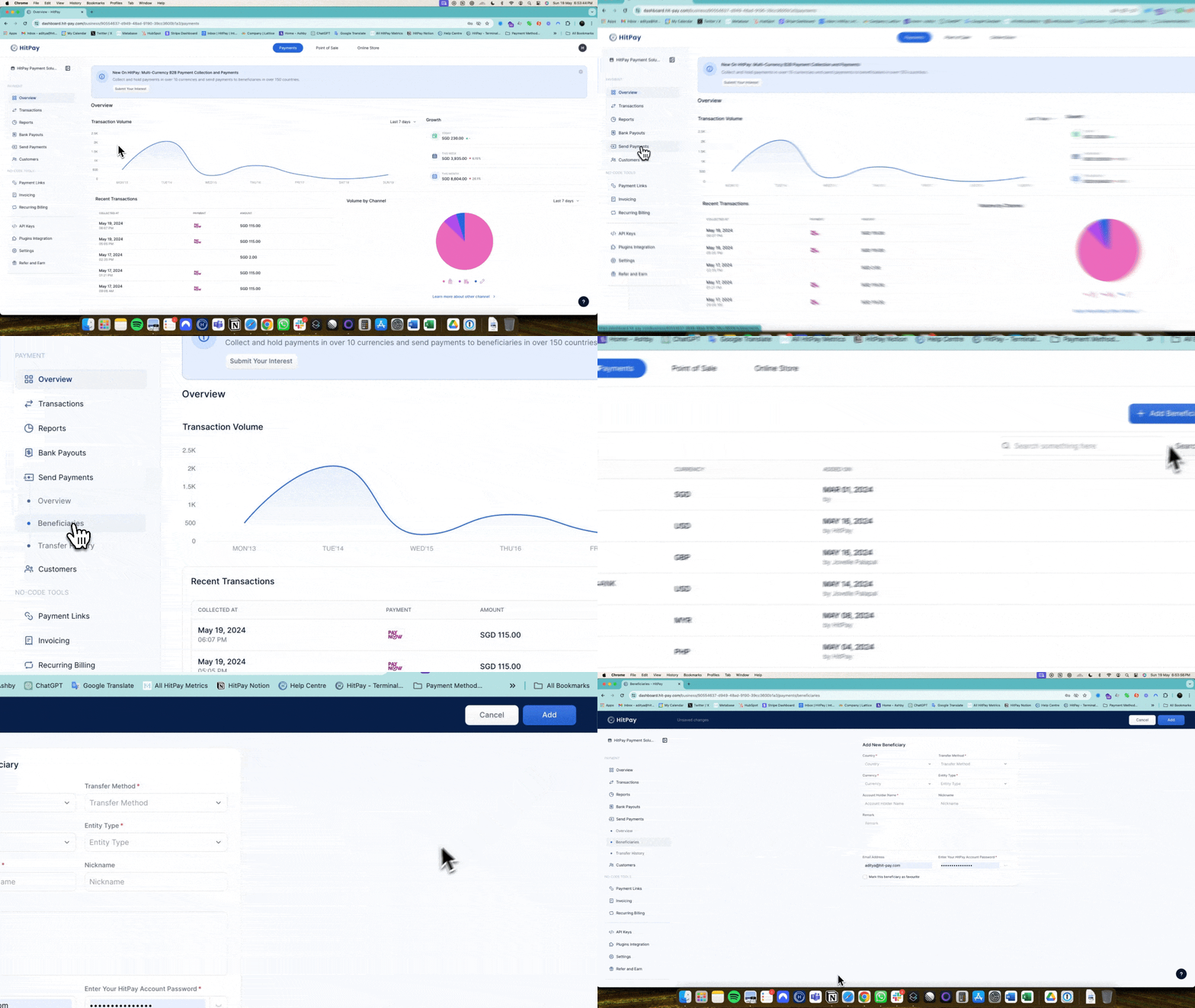 Click on **Add Beneficiary** and fill in the required details.
## Sending a Payment
From the HitPay Dashboard, go to **Send Payments > Overview**.
Click on **Add Beneficiary** and fill in the required details.
## Sending a Payment
From the HitPay Dashboard, go to **Send Payments > Overview**.
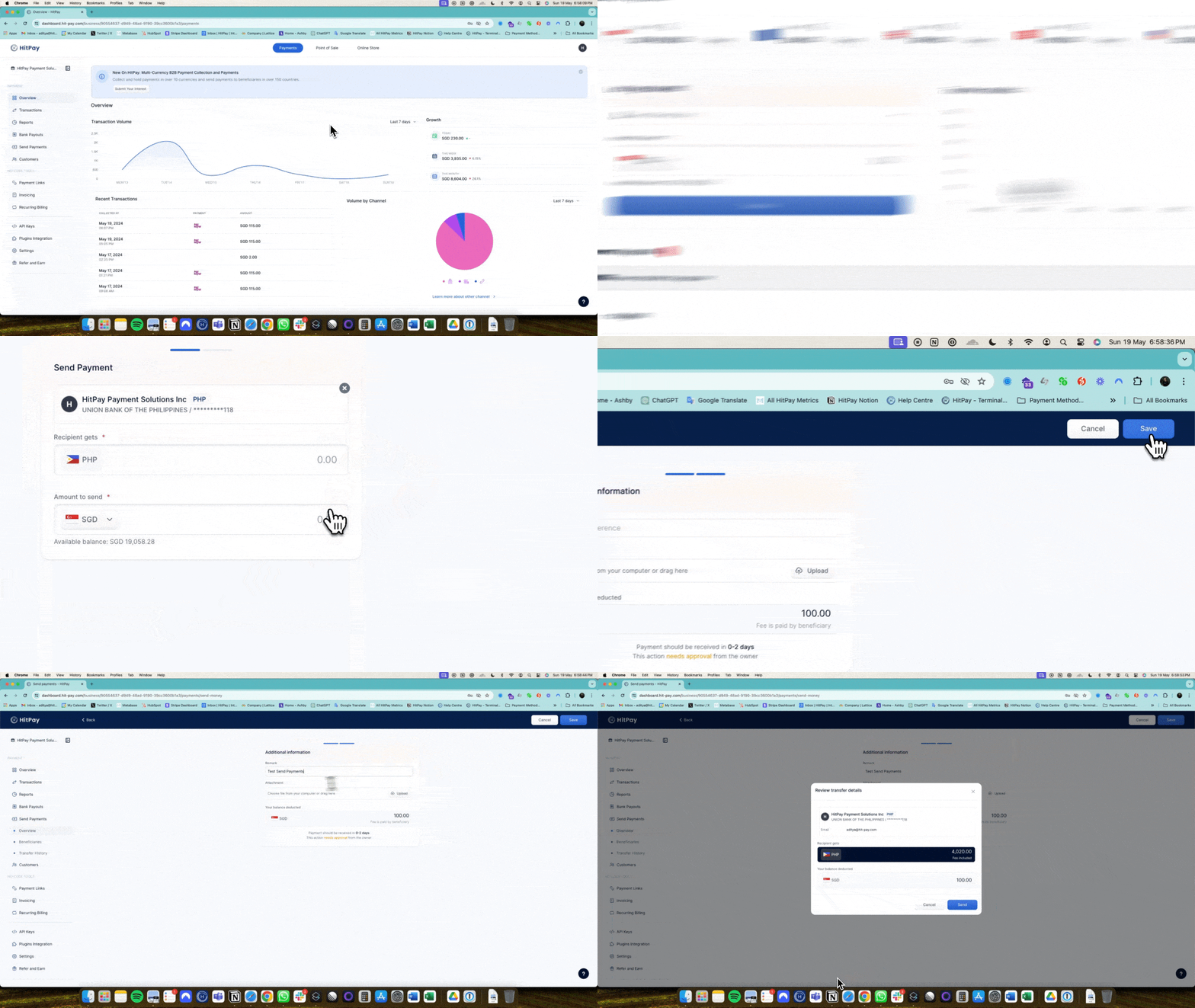 Click on the **Send Payment** button.
Select the beneficiary and enter the transfer details as shown below.
## Send Payments - Status
Click on the **Send Payment** button.
Select the beneficiary and enter the transfer details as shown below.
## Send Payments - Status
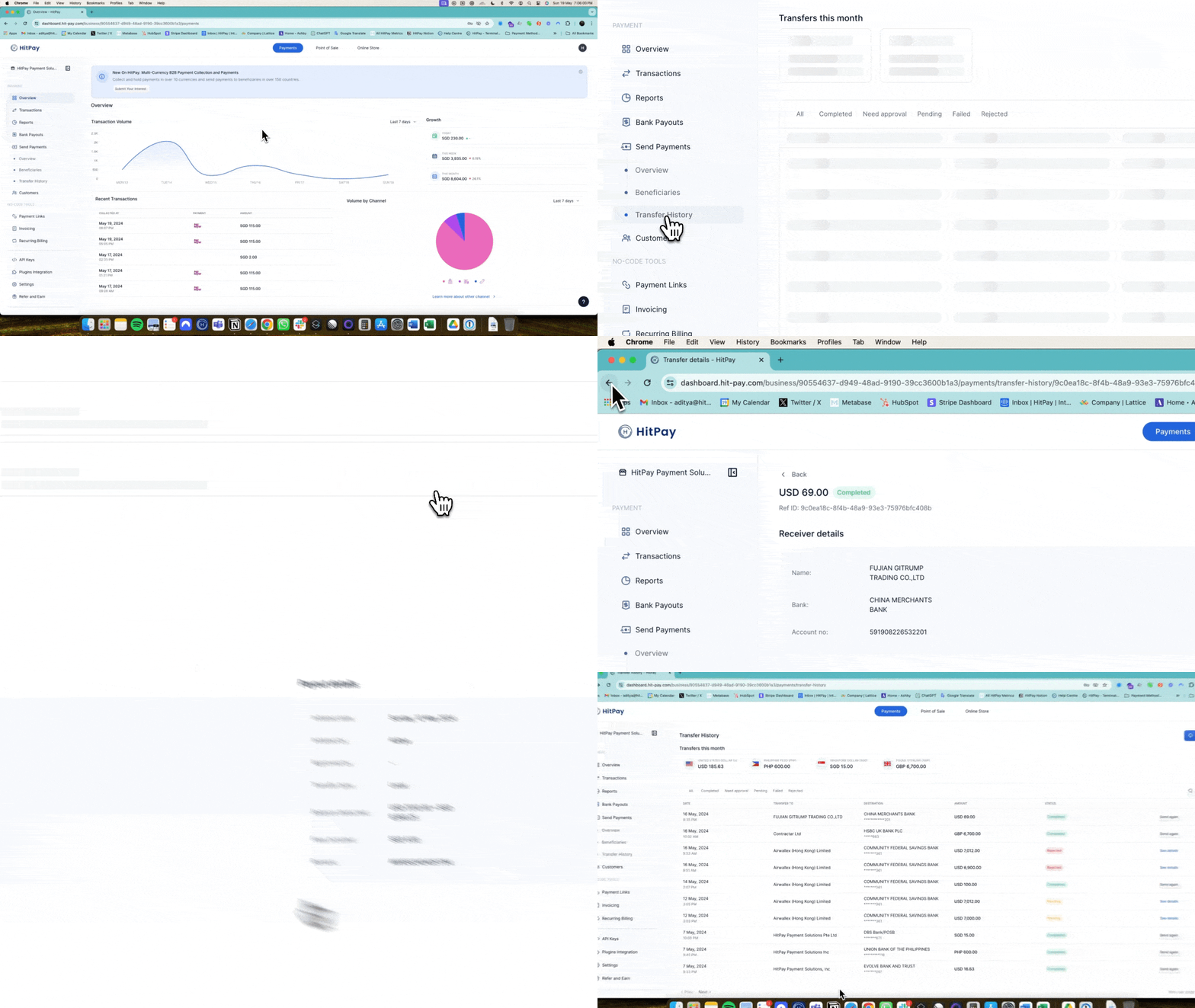 After successfully initiating a send payment transaction, the transaction status can be:
A) **Pending**
B) **Completed**
The transaction status can be viewed under **Send Payments > Transfer History**.
This documentation is built and hosted on [Mintlify](https://mintlify.com), a developer documentation platform.
After successfully initiating a send payment transaction, the transaction status can be:
A) **Pending**
B) **Completed**
The transaction status can be viewed under **Send Payments > Transfer History**.
This documentation is built and hosted on [Mintlify](https://mintlify.com), a developer documentation platform.