> ## Documentation Index
> Fetch the complete documentation index at: https://docs.hitpayapp.com/llms.txt
> Use this file to discover all available pages before exploring further.
# Platform Key
> Take commissions and receive unified webhooks across your sub-merchants with the X-PLATFORM-KEY header
## Overview
Once your HitPay account is enabled as a **Platform account** (see the [Platforms overview](/platforms/overview) and contact **[support@hit-pay.com](mailto:support@hit-pay.com)**), you receive a **Platform Key**, available in your dashboard under **Settings → Platform**. Passing it as an `X-PLATFORM-KEY` header on payment requests you create for your sub-merchants unlocks two capabilities:
1. **Commissions** - earn a share of each transaction, as a platform-wide percentage or a fixed amount per payment.
2. **Unified webhooks** - charge events for all your sub-merchants' payments are delivered to your platform account's webhook endpoints.
The Platform Key works alongside either authentication method: a sub-merchant's API key ([direct integration](/platforms/overview#option-1-direct-api-key-integration)) or an OAuth access token ([Connect Merchant Accounts](/platforms/oauth)).
## Authentication
Include `X-PLATFORM-KEY` in addition to the sub-merchant's credentials on each request:
```bash With a merchant API key theme={"system"}
curl "https://api.hit-pay.com/v1/payment-requests" \
-H "X-BUSINESS-API-KEY: MERCHANT_API_KEY" \
-H "X-PLATFORM-KEY: PLATFORM_KEY" \
-H "X-Requested-With: XMLHttpRequest"
```
```bash With an OAuth access token theme={"system"}
curl "https://api.hit-pay.com/v1/payment-requests" \
-H "Authorization: Bearer ACCESS_TOKEN" \
-H "X-PLATFORM-KEY: PLATFORM_KEY" \
-H "X-Requested-With: XMLHttpRequest"
```
In sandbox, your Platform Key is in the [sandbox dashboard](https://dashboard.sandbox.hit-pay.com) under the same **Settings → Platform** path, and requests go to `https://api.sandbox.hit-pay.com`.
## How to set `Commission Rate`
The `Commission Rate` applies a percentage commission to every transaction made through your platform.
1. Sign in to your platform-enabled HitPay account ([sandbox](https://dashboard.sandbox.hit-pay.com) or [live](https://dashboard.hit-pay.com)).
2. Go to **Settings → Platform** and click **Set Commission Rate**.
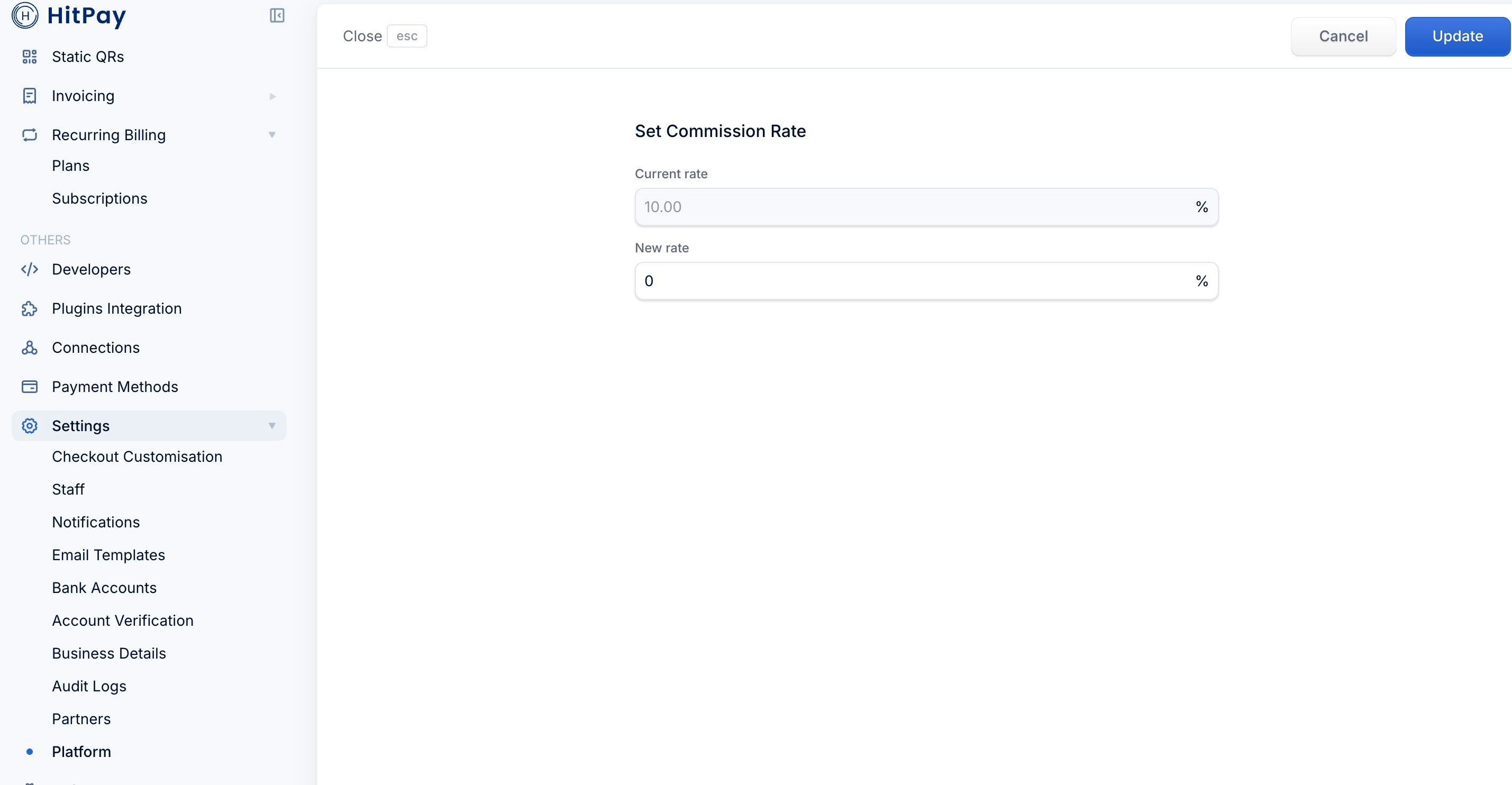 To charge a fixed amount on a specific transaction instead, use `platform_commission_amount` (see below).
## Set a commission per transaction
In addition to the percentage `Commission Rate`, platforms can set an exact commission amount on an individual payment request by passing the `platform_commission_amount` field when creating it. When provided, this fixed amount takes precedence over the percentage `Commission Rate` for that transaction.
| Field | Description |
| ---------------------------- | ------------------------------------------------------------------------------------------------------------------------------------------------------------------------------------------------------------- |
| `platform_commission_amount` | The commission your platform keeps for this transaction, in the same currency and units as `amount` (e.g. `30.00`). Must be greater than `0`, have at most two decimal places, and be **less than** `amount`. |
`platform_commission_amount` requires a valid `X-PLATFORM-KEY` and is currently supported for **PayNow (Singapore)**. It cannot be used on payment requests that allow repeated payments.
```bash Create a payment request with a fixed commission theme={"system"}
curl -X POST "https://api.hit-pay.com/v1/payment-requests" \
-H "X-BUSINESS-API-KEY: MERCHANT_API_KEY" \
-H "X-PLATFORM-KEY: PLATFORM_KEY" \
-H "X-Requested-With: XMLHttpRequest" \
-H "Content-Type: application/x-www-form-urlencoded" \
-d "amount=100.00" \
-d "currency=SGD" \
-d "payment_methods[]=paynow_online" \
-d "platform_commission_amount=30.00"
```
The created payment request echoes back `platform_commission_amount` so you can confirm it was applied. Once the customer pays, your platform receives the commission, and the sub-merchant receives the payment amount minus HitPay's processing fee and the commission.
## Unified webhooks
Becoming a Platform account does not automatically start sending webhooks. Register webhook endpoints on your platform's own HitPay account under **Developers → Webhook Endpoints** before you can receive events.
For sub-merchant payments created with `X-PLATFORM-KEY`:
* Charge events (`charge.created`, `charge.failed`, `charge.updated`) are delivered to webhook endpoints registered on the **platform account** - not the sub-merchant's endpoints. This gives you one webhook stream covering every sub-merchant.
* The payload is for the sub-merchant's transaction; use the charge or payment-request data (and `business_id` in the payload) to identify which sub-merchant it belongs to.
* Payment request events (`payment_request.completed`, `payment_request.failed`) are currently sent to the sub-merchant's registered webhook endpoints.
For webhook registration, payload structure, and signature validation, see [Webhooks](/apis/guide/events).
## In-Person Payments
Platforms can create in-person terminal payments on behalf of sub-merchants using Wi-Fi card readers and QR terminals.
To initiate an in-person payment as a platform:
1. Include the sub-merchant's credentials together with your `X-PLATFORM-KEY` header
2. Set `payment_methods[]` to `wifi_card_reader` (for card payments) or a [supported QR method](/apis/guide/embedded-qr-code-payments#supported-methods) (for QR payments)
3. Pass the sub-merchant's `wifi_terminal_id`
```bash theme={"system"}
curl -X POST "https://api.hit-pay.com/v1/payment-requests" \
-H "X-BUSINESS-API-KEY: MERCHANT_API_KEY" \
-H "X-PLATFORM-KEY: PLATFORM_KEY" \
-H "X-Requested-With: XMLHttpRequest" \
-H "Content-Type: application/x-www-form-urlencoded" \
-d "amount=599" \
-d "currency=SGD" \
-d "payment_methods[]=wifi_card_reader" \
-d "wifi_terminal_id=tmr_123123123"
```
For full details on terminal setup, supported devices, QR payments, and webhook handling, see [In-Person Payments](/apis/guide/in-person-payments/overview).
To charge a fixed amount on a specific transaction instead, use `platform_commission_amount` (see below).
## Set a commission per transaction
In addition to the percentage `Commission Rate`, platforms can set an exact commission amount on an individual payment request by passing the `platform_commission_amount` field when creating it. When provided, this fixed amount takes precedence over the percentage `Commission Rate` for that transaction.
| Field | Description |
| ---------------------------- | ------------------------------------------------------------------------------------------------------------------------------------------------------------------------------------------------------------- |
| `platform_commission_amount` | The commission your platform keeps for this transaction, in the same currency and units as `amount` (e.g. `30.00`). Must be greater than `0`, have at most two decimal places, and be **less than** `amount`. |
`platform_commission_amount` requires a valid `X-PLATFORM-KEY` and is currently supported for **PayNow (Singapore)**. It cannot be used on payment requests that allow repeated payments.
```bash Create a payment request with a fixed commission theme={"system"}
curl -X POST "https://api.hit-pay.com/v1/payment-requests" \
-H "X-BUSINESS-API-KEY: MERCHANT_API_KEY" \
-H "X-PLATFORM-KEY: PLATFORM_KEY" \
-H "X-Requested-With: XMLHttpRequest" \
-H "Content-Type: application/x-www-form-urlencoded" \
-d "amount=100.00" \
-d "currency=SGD" \
-d "payment_methods[]=paynow_online" \
-d "platform_commission_amount=30.00"
```
The created payment request echoes back `platform_commission_amount` so you can confirm it was applied. Once the customer pays, your platform receives the commission, and the sub-merchant receives the payment amount minus HitPay's processing fee and the commission.
## Unified webhooks
Becoming a Platform account does not automatically start sending webhooks. Register webhook endpoints on your platform's own HitPay account under **Developers → Webhook Endpoints** before you can receive events.
For sub-merchant payments created with `X-PLATFORM-KEY`:
* Charge events (`charge.created`, `charge.failed`, `charge.updated`) are delivered to webhook endpoints registered on the **platform account** - not the sub-merchant's endpoints. This gives you one webhook stream covering every sub-merchant.
* The payload is for the sub-merchant's transaction; use the charge or payment-request data (and `business_id` in the payload) to identify which sub-merchant it belongs to.
* Payment request events (`payment_request.completed`, `payment_request.failed`) are currently sent to the sub-merchant's registered webhook endpoints.
For webhook registration, payload structure, and signature validation, see [Webhooks](/apis/guide/events).
## In-Person Payments
Platforms can create in-person terminal payments on behalf of sub-merchants using Wi-Fi card readers and QR terminals.
To initiate an in-person payment as a platform:
1. Include the sub-merchant's credentials together with your `X-PLATFORM-KEY` header
2. Set `payment_methods[]` to `wifi_card_reader` (for card payments) or a [supported QR method](/apis/guide/embedded-qr-code-payments#supported-methods) (for QR payments)
3. Pass the sub-merchant's `wifi_terminal_id`
```bash theme={"system"}
curl -X POST "https://api.hit-pay.com/v1/payment-requests" \
-H "X-BUSINESS-API-KEY: MERCHANT_API_KEY" \
-H "X-PLATFORM-KEY: PLATFORM_KEY" \
-H "X-Requested-With: XMLHttpRequest" \
-H "Content-Type: application/x-www-form-urlencoded" \
-d "amount=599" \
-d "currency=SGD" \
-d "payment_methods[]=wifi_card_reader" \
-d "wifi_terminal_id=tmr_123123123"
```
For full details on terminal setup, supported devices, QR payments, and webhook handling, see [In-Person Payments](/apis/guide/in-person-payments/overview).