> ## Documentation Index
> Fetch the complete documentation index at: https://docs.hitpayapp.com/llms.txt
> Use this file to discover all available pages before exploring further.
# Overview
> Integrate embedded payments into your platform — generate QR codes or direct links to collect payments without redirecting the users away.
## Introduction
Embedded Payments allow seamless integration of payments directly into your platform without redirecting the users away. Two modes are available — pick based on the payment method and your preferred UX:
| Mode | Parameter | Customer experience |
| --------------- | ---------------------------- | ----------------------------------------------------------------------------- |
| **QR Code** | `generate_qr: true` | Customer scans a QR code rendered in your UI with their banking or wallet app |
| **Direct Link** | `generate_direct_link: true` | Customer is redirected to the payment provider's page, then back to your site |
**Serving international customers?** Once you've completed this setup, see [Borderless QR](/apis/guide/embedded-qr-code-payments/borderless-qr) to display real-time currency conversion for cross-border payments.
## Live Demo
Try the embedded payments live demo to see QR code and direct link flows in action before you integrate.
## Core Concept
The integration flow is the same for both modes — only the `generate_*` parameter and how you present the payment to the customer differ.
Call `POST /v1/payment-requests` with either `generate_qr: true` or `generate_direct_link: true`.
For QR: render the returned QR code in your UI. For direct link: redirect the customer to the provider URL.
The customer scans the QR code or pays on the provider's page.
`payment_request.completed` fires when payment succeeds. Validate and fulfil the order.
## Supported Methods
Some methods support both modes — choose whichever fits your UI.
| Payment Method | Code | QR | Direct Link |
| ---------------------- | ---------------------------------------------- | -- | ----------- |
| PayNow | `paynow_online` | ✓ | |
| ShopeePay | `shopee_pay` | ✓ | |
| QRIS | `doku_qris` (Indonesia), `ifpay_qris` (others) | ✓ | |
| WeChatPay | `wechat_pay` | ✓ | |
| PromptPay | `opn_prompt_pay` | ✓ | |
| TrueMoney | `opn_true_money_qr` | ✓ | |
| GrabPay | `grabpay_direct` | ✓ | ✓ |
| GrabPay PayLater | `grabpay_paylater` | ✓ | ✓ |
| UPI | `upi_qr` | ✓ | |
| GCash (QR) | `gcash_qr` | ✓ | |
| GCash (Direct Link) | `gcash` | | ✓ |
| QRPH | `qrph_netbank` | ✓ | |
| Touch 'n Go | `touch_n_go` | ✓ | ✓ |
| DuitNow | `duitnow` | ✓ | |
| Atome | `atome` | ✓ | |
| VietQR | `vietqr_zalopay` | ✓ | |
| ZaloPay | `zalopay` | ✓ | ✓ |
| ShopBack (QR) | `shopback_qr` (SG only) | ✓ | |
| ShopBack (Direct Link) | `shopback` (SG only) | | ✓ |
## Authentication
Before integration, it's essential to understand how Hitpay APIs are authenticated. Hitpay utilizes API keys to grant access to the API. You can locate this key in your dashboard under "API keys."
Hitpay requires the API key to be included in all API requests to the server. This key should be placed in a header that follows the format shown below:
`X-BUSINESS-API-KEY: meowmeowmeow`
```php PHP theme={"system"}
$request->setHeaders(array(
'X-BUSINESS-API-KEY' => 'meowmeowmeow',
'Content-Type' => 'application/x-www-form-urlencoded',
'X-Requested-With' => 'XMLHttpRequest'
));
```
```shell Shell theme={"system"}
# With shell, you can just pass the correct header with each request
curl "api_endpoint_here"
-H "X-BUSINESS-API-KEY: meowmeowmeow"
-H "X-Requested-With: XMLHttpRequest"
```
API keys should be kept confidential and only stored on your servers. Do not store it on your mobile or web client
## Step 1: Create a Payment Request
**POST /v1/payment-requests**
### Request Parameters
| Parameter | Type | Description |
| ---------------------- | ------- | --------------------------------------------------------------------------------------- |
| amount | string | Required. The amount to be paid. |
| currency | string | Required. The currency (e.g., `"sgd"`). |
| payment\_methods\[] | array | Required. The payment method. Only one method must be specified. |
| generate\_qr | boolean | Set to `true` to generate QR code data. |
| generate\_direct\_link | boolean | Set to `true` to generate a provider redirect URL. |
| redirect\_url | string | Required when using `generate_direct_link`. URL to redirect the customer after payment. |
| name | string | Optional. Customer name. |
| email | string | Optional. Customer email. |
| phone | string | Optional. Customer phone number. |
| purpose | string | Optional. Payment purpose. |
| reference\_number | string | Optional. Your internal reference number. |
Pass either `generate_qr: true` or `generate_direct_link: true` — not both in the same request and only one payment method.
#### Example Request
```json theme={"system"}
{
"amount": "123.00",
"currency": "sgd",
"payment_methods": ["paynow_online"],
"generate_qr": true
}
```
        ```json theme={"system"}
        {
          "id": "9c262fb5-f3cd-4187-8c3e-fbe20730b9c6",
          "name": null,
          "email": null,
          "phone": null,
          "amount": "123.00",
          "currency": "sgd",
          "is_currency_editable": false,
          "status": "pending",
          "purpose": null,
          "reference_number": null,
          "payment_methods": ["paynow_online"],
          "url": "https://securecheckout.hit-pay.com/payment-request/@merchant/9c262fb5/checkout",
          "redirect_url": null,
          "allow_repeated_payments": false,
          "expiry_date": null,
          "created_at": "2024-05-28T14:37:11",
          "updated_at": "2024-05-28T14:37:11",
          "qr_code_data": {
            "qr_code": "00020101021226550009SG.PAYNOW010120210201605883W030100414202405281445315204000053037025406123.005802SG5905Merchant6009Singapore62290125DICNP17168782314914MWULPX63043561",
            "qr_code_expiry": null
          }
        }
        ```
#### Example Request
```json theme={"system"}
{
"amount": "50.00",
"currency": "sgd",
"payment_methods": ["grabpay_direct"],
"generate_direct_link": true,
"redirect_url": "https://merchant.com/payment/complete"
}
```
#### `direct_link` Response Object
| Field | Type | Description |
| --------------------- | -------------- | -------------------------------------------------------------------------------------------------------- |
| `direct_link_url` | string | Web redirect URL. Always present. Redirect the customer here. |
| `direct_link_app_url` | string \| null | App deep link for mobile app-to-app flow (e.g. `grab://...`). `null` if the provider doesn't support it. |
| `expiry_time` | string \| null | ISO 8601 datetime when the link expires. |
        ```json theme={"system"}
        {
          "id": "9c262fb5-f3cd-4187-8c3e-fbe20730b9c6",
          "name": null,
          "email": null,
          "phone": null,
          "amount": "50.00",
          "currency": "sgd",
          "status": "pending",
          "payment_methods": ["grabpay_direct"],
          "url": "https://securecheckout.hit-pay.com/payment-request/@merchant/9c262fb5/checkout",
          "redirect_url": "https://merchant.com/payment/complete",
          "direct_link": {
            "direct_link_url": "https://pay.grab.com/v2/pay?token=abc123...",
            "direct_link_app_url": null,
            "expiry_time": null
          },
          "created_at": "2026-04-22T15:00:00",
          "updated_at": "2026-04-22T15:00:00"
        }
        ```
## Step 2: Present to Customer
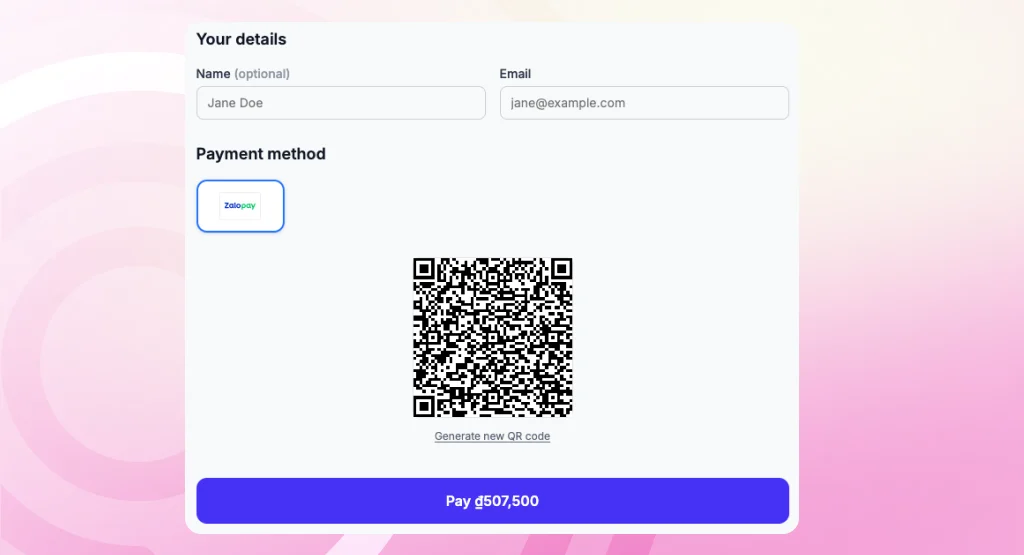
Use the `qr_code_data.qr_code` value from the response to render a scannable QR code in your UI.
 **Note for Sandbox Testing:**
In sandbox, the `qr_code` value may be a URL (e.g. `https://securecheckout.sandbox.hit-pay.com/...`) instead of a raw QR string. This is intended for testing — visit the URL directly or scan it with a standard QR reader.
In production, `qr_code` is a raw payload string (e.g. a PayNow EMV string) that you should convert into a scannable QR code using a QR code library.
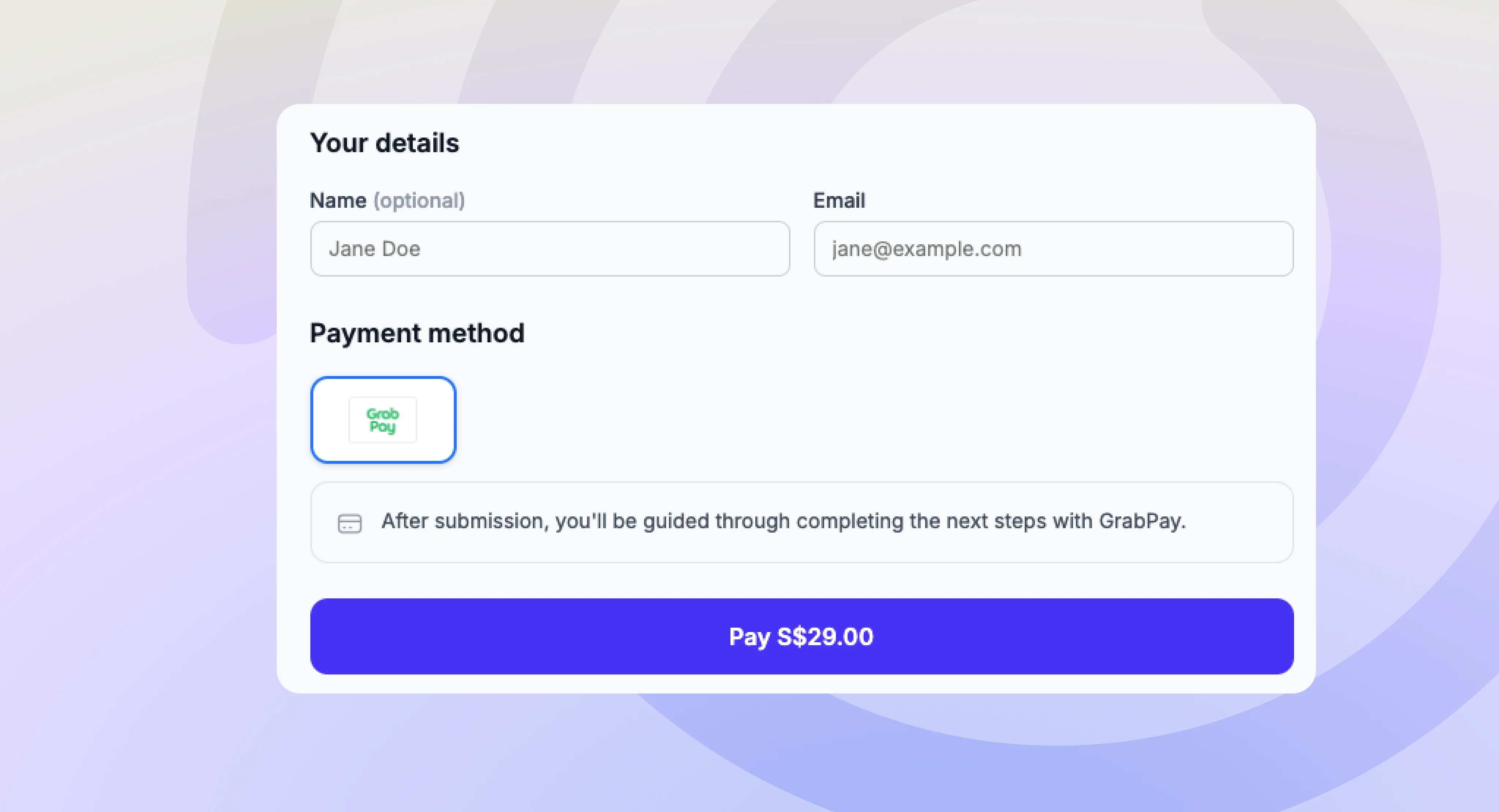
Redirect the customer to `direct_link.direct_link_url`. On mobile, use `direct_link_app_url` to open the provider's native app directly if available.
**Note for Sandbox Testing:**
In sandbox, the `qr_code` value may be a URL (e.g. `https://securecheckout.sandbox.hit-pay.com/...`) instead of a raw QR string. This is intended for testing — visit the URL directly or scan it with a standard QR reader.
In production, `qr_code` is a raw payload string (e.g. a PayNow EMV string) that you should convert into a scannable QR code using a QR code library.
Redirect the customer to `direct_link.direct_link_url`. On mobile, use `direct_link_app_url` to open the provider's native app directly if available.
 ```javascript Browser theme={"system"}
window.location.href = response.direct_link.direct_link_url;
```
```javascript Mobile (prefer app) theme={"system"}
const url = response.direct_link.direct_link_app_url ?? response.direct_link.direct_link_url;
window.location.href = url;
```
## Step 3: Customer Completes Payment
The customer scans the QR code with their banking app, or completes payment on the provider's page.
For direct link payments, the provider redirects the customer back to your `redirect_url` with `reference` (payment request ID) and `status` query parameters:
```
https://merchant.com/payment/complete?reference=9c262fb5-f3cd-4187-8c3e-fbe20730b9c6&status=completed
```
Do not mark orders as paid based on the redirect alone — the URL can be triggered by anyone. Always use the `payment_request.completed` webhook to securely confirm payment.
## Step 4: Handle Webhooks and Server Communication
After the payment is processed, handle webhooks to receive payment notifications and update the payment status in your system.
### What is a Webhook?
A webhook is a POST request sent from HitPay's server to your server about the payment confirmation. You must mark your order as paid ONLY after the webhook is received and validated.
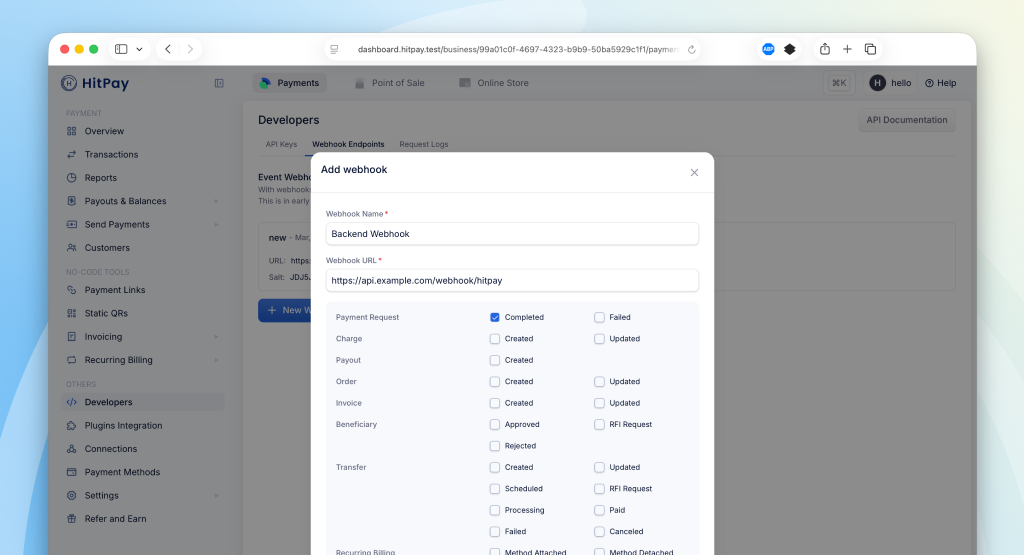
### Register Your Webhook
To receive payment notifications, register a webhook URL from your HitPay Dashboard:
1. Navigate to **Developers > Webhook Endpoints** in your dashboard
2. Click on **New Webhook**
3. Enter a name and your webhook URL
4. Select the `payment_request.completed` event
5. Save your webhook configuration
```javascript Browser theme={"system"}
window.location.href = response.direct_link.direct_link_url;
```
```javascript Mobile (prefer app) theme={"system"}
const url = response.direct_link.direct_link_app_url ?? response.direct_link.direct_link_url;
window.location.href = url;
```
## Step 3: Customer Completes Payment
The customer scans the QR code with their banking app, or completes payment on the provider's page.
For direct link payments, the provider redirects the customer back to your `redirect_url` with `reference` (payment request ID) and `status` query parameters:
```
https://merchant.com/payment/complete?reference=9c262fb5-f3cd-4187-8c3e-fbe20730b9c6&status=completed
```
Do not mark orders as paid based on the redirect alone — the URL can be triggered by anyone. Always use the `payment_request.completed` webhook to securely confirm payment.
## Step 4: Handle Webhooks and Server Communication
After the payment is processed, handle webhooks to receive payment notifications and update the payment status in your system.
### What is a Webhook?
A webhook is a POST request sent from HitPay's server to your server about the payment confirmation. You must mark your order as paid ONLY after the webhook is received and validated.
### Register Your Webhook
To receive payment notifications, register a webhook URL from your HitPay Dashboard:
1. Navigate to **Developers > Webhook Endpoints** in your dashboard
2. Click on **New Webhook**
3. Enter a name and your webhook URL
4. Select the `payment_request.completed` event
5. Save your webhook configuration
 ### Webhook Payload
When a payment is completed, HitPay sends a JSON payload to your registered webhook URL with the following headers:
| HTTP Header | Description |
| ------------------- | ---------------------------------------------------------------- |
| Hitpay-Signature | HMAC-SHA256 signature of the JSON payload, using your salt value |
| Hitpay-Event-Type | `completed` |
| Hitpay-Event-Object | `payment_request` |
| User-Agent | `HitPay v2.0` |
### Sample Webhook Payload
```json theme={"system"}
{
"id": "9c262fb5-f3cd-4187-8c3e-fbe20730b9c6",
"name": "John Doe",
"email": "john@example.com",
"phone": "+6512345678",
"amount": "123.00",
"currency": "SGD",
"status": "completed",
"purpose": "Order #12345",
"reference_number": "REF123",
"payment_methods": ["paynow_online"],
"created_at": "2024-05-28T14:37:11",
"updated_at": "2024-05-28T14:38:25",
"payments": [
{
"id": "9c262fb5-a1b2-4c3d-8e9f-123456789abc",
"status": "succeeded",
"buyer_email": "john@example.com",
"currency": "sgd",
"amount": "123.00",
"refunded_amount": "0.00",
"payment_type": "paynow_online",
"fees": "0.50",
"created_at": "2024-05-28T14:37:11",
"updated_at": "2024-05-28T14:38:25"
}
]
}
```
### Validating the Webhook
To ensure the webhook is authentic, validate the `Hitpay-Signature` header:
1. Receive the JSON payload and `Hitpay-Signature` from the request
2. Use your salt value (from the dashboard) as the secret key
3. Compute HMAC-SHA256 of the JSON payload using your salt
4. Compare the computed signature with `Hitpay-Signature` - they must match
```php PHP theme={"system"}
function validateWebhook($payload, $signature, $salt) {
$computedSignature = hash_hmac('sha256', $payload, $salt);
return hash_equals($computedSignature, $signature);
}
// Usage
$payload = file_get_contents('php://input');
$signature = $_SERVER['HTTP_HITPAY_SIGNATURE'];
$salt = 'your_salt_from_dashboard';
if (validateWebhook($payload, $signature, $salt)) {
$data = json_decode($payload, true);
// Process the payment confirmation
// Mark order as paid
} else {
http_response_code(401);
exit('Invalid signature');
}
```
```javascript NodeJS theme={"system"}
const crypto = require('crypto');
function validateWebhook(payload, signature, salt) {
const computedSignature = crypto
.createHmac('sha256', salt)
.update(payload)
.digest('hex');
return crypto.timingSafeEqual(
Buffer.from(computedSignature),
Buffer.from(signature)
);
}
// Usage in Express
app.post('/webhook', (req, res) => {
const payload = JSON.stringify(req.body);
const signature = req.headers['hitpay-signature'];
const salt = 'your_salt_from_dashboard';
if (validateWebhook(payload, signature, salt)) {
// Process the payment confirmation
// Mark order as paid
res.status(200).send('OK');
} else {
res.status(401).send('Invalid signature');
}
});
```
## FAQs
The `webhook` parameter in the payment request API is **deprecated** and will be removed in a future version.
**Why the change?**
* The new registered webhook system supports JSON payloads with richer data
* You can subscribe to multiple event types (not just payment completion)
* Centralized management from your dashboard
* Better scalability - one webhook URL handles all your payment requests
**Migration:**
1. Register your webhook URL in **Settings > API Keys**
2. Subscribe to `payment_request.completed` event
3. Update your webhook handler to accept JSON payloads
4. Remove the `webhook` parameter from your API calls
Possible reasons for signature mismatch:
* Ensure you are using the correct salt value from the correct environment (Sandbox or Production)
* Make sure you are computing the HMAC-SHA256 of the raw JSON payload
* Verify the signature is being read from the `Hitpay-Signature` header
Possible reasons for this error:
* You are using a production key in the sandbox or a sandbox key in production. Make sure the API base URL is correct.
* You are missing headers. Ensure you include both the 'Content-Type' and 'X-Requested-With' headers.
Ensure the following before moving to production:
* Change the base URL for all API calls to `https://api.hit-pay.com/v1/`
* Complete payment method setup in production
* Update API keys and Salt values from the production dashboard
* Register your webhook URL in production
### Webhook Payload
When a payment is completed, HitPay sends a JSON payload to your registered webhook URL with the following headers:
| HTTP Header | Description |
| ------------------- | ---------------------------------------------------------------- |
| Hitpay-Signature | HMAC-SHA256 signature of the JSON payload, using your salt value |
| Hitpay-Event-Type | `completed` |
| Hitpay-Event-Object | `payment_request` |
| User-Agent | `HitPay v2.0` |
### Sample Webhook Payload
```json theme={"system"}
{
"id": "9c262fb5-f3cd-4187-8c3e-fbe20730b9c6",
"name": "John Doe",
"email": "john@example.com",
"phone": "+6512345678",
"amount": "123.00",
"currency": "SGD",
"status": "completed",
"purpose": "Order #12345",
"reference_number": "REF123",
"payment_methods": ["paynow_online"],
"created_at": "2024-05-28T14:37:11",
"updated_at": "2024-05-28T14:38:25",
"payments": [
{
"id": "9c262fb5-a1b2-4c3d-8e9f-123456789abc",
"status": "succeeded",
"buyer_email": "john@example.com",
"currency": "sgd",
"amount": "123.00",
"refunded_amount": "0.00",
"payment_type": "paynow_online",
"fees": "0.50",
"created_at": "2024-05-28T14:37:11",
"updated_at": "2024-05-28T14:38:25"
}
]
}
```
### Validating the Webhook
To ensure the webhook is authentic, validate the `Hitpay-Signature` header:
1. Receive the JSON payload and `Hitpay-Signature` from the request
2. Use your salt value (from the dashboard) as the secret key
3. Compute HMAC-SHA256 of the JSON payload using your salt
4. Compare the computed signature with `Hitpay-Signature` - they must match
```php PHP theme={"system"}
function validateWebhook($payload, $signature, $salt) {
$computedSignature = hash_hmac('sha256', $payload, $salt);
return hash_equals($computedSignature, $signature);
}
// Usage
$payload = file_get_contents('php://input');
$signature = $_SERVER['HTTP_HITPAY_SIGNATURE'];
$salt = 'your_salt_from_dashboard';
if (validateWebhook($payload, $signature, $salt)) {
$data = json_decode($payload, true);
// Process the payment confirmation
// Mark order as paid
} else {
http_response_code(401);
exit('Invalid signature');
}
```
```javascript NodeJS theme={"system"}
const crypto = require('crypto');
function validateWebhook(payload, signature, salt) {
const computedSignature = crypto
.createHmac('sha256', salt)
.update(payload)
.digest('hex');
return crypto.timingSafeEqual(
Buffer.from(computedSignature),
Buffer.from(signature)
);
}
// Usage in Express
app.post('/webhook', (req, res) => {
const payload = JSON.stringify(req.body);
const signature = req.headers['hitpay-signature'];
const salt = 'your_salt_from_dashboard';
if (validateWebhook(payload, signature, salt)) {
// Process the payment confirmation
// Mark order as paid
res.status(200).send('OK');
} else {
res.status(401).send('Invalid signature');
}
});
```
## FAQs
The `webhook` parameter in the payment request API is **deprecated** and will be removed in a future version.
**Why the change?**
* The new registered webhook system supports JSON payloads with richer data
* You can subscribe to multiple event types (not just payment completion)
* Centralized management from your dashboard
* Better scalability - one webhook URL handles all your payment requests
**Migration:**
1. Register your webhook URL in **Settings > API Keys**
2. Subscribe to `payment_request.completed` event
3. Update your webhook handler to accept JSON payloads
4. Remove the `webhook` parameter from your API calls
Possible reasons for signature mismatch:
* Ensure you are using the correct salt value from the correct environment (Sandbox or Production)
* Make sure you are computing the HMAC-SHA256 of the raw JSON payload
* Verify the signature is being read from the `Hitpay-Signature` header
Possible reasons for this error:
* You are using a production key in the sandbox or a sandbox key in production. Make sure the API base URL is correct.
* You are missing headers. Ensure you include both the 'Content-Type' and 'X-Requested-With' headers.
Ensure the following before moving to production:
* Change the base URL for all API calls to `https://api.hit-pay.com/v1/`
* Complete payment method setup in production
* Update API keys and Salt values from the production dashboard
* Register your webhook URL in production