> ## Documentation Index
> Fetch the complete documentation index at: https://docs.hitpayapp.com/llms.txt
> Use this file to discover all available pages before exploring further.
# ⚠️ Cards Migration to Stripe Standard Connect
> Card payment users outside Singapore, Malaysia, the Philippines, and Indonesia must complete this migration by 5 June 2026 or card payments may be disrupted.
**Action required by 5 June 2026.** This affects HitPay users who accept card payments and are based **OUTSIDE** Singapore, Malaysia, the Philippines, and Indonesia. If you do not complete the migration before this date, your ability to accept card payments may be interrupted.
### What is changing?
HitPay is discontinuing support for **Stripe Custom Connect** for accounts that enabled Cards outside of Singapore, Malaysia, Phillipines and Indonesia.
Merchants affected would need to reconnect Stripe Standard Connect within the HitPay dashboard to continue using cards with HitPay.
### What needs to be done before 5 June 2026?
Log in to your **HitPay Dashboard** and go to **Settings → Payment Methods**. You will see a **Cards (Stripe Standard Account)** option — click on it to begin.
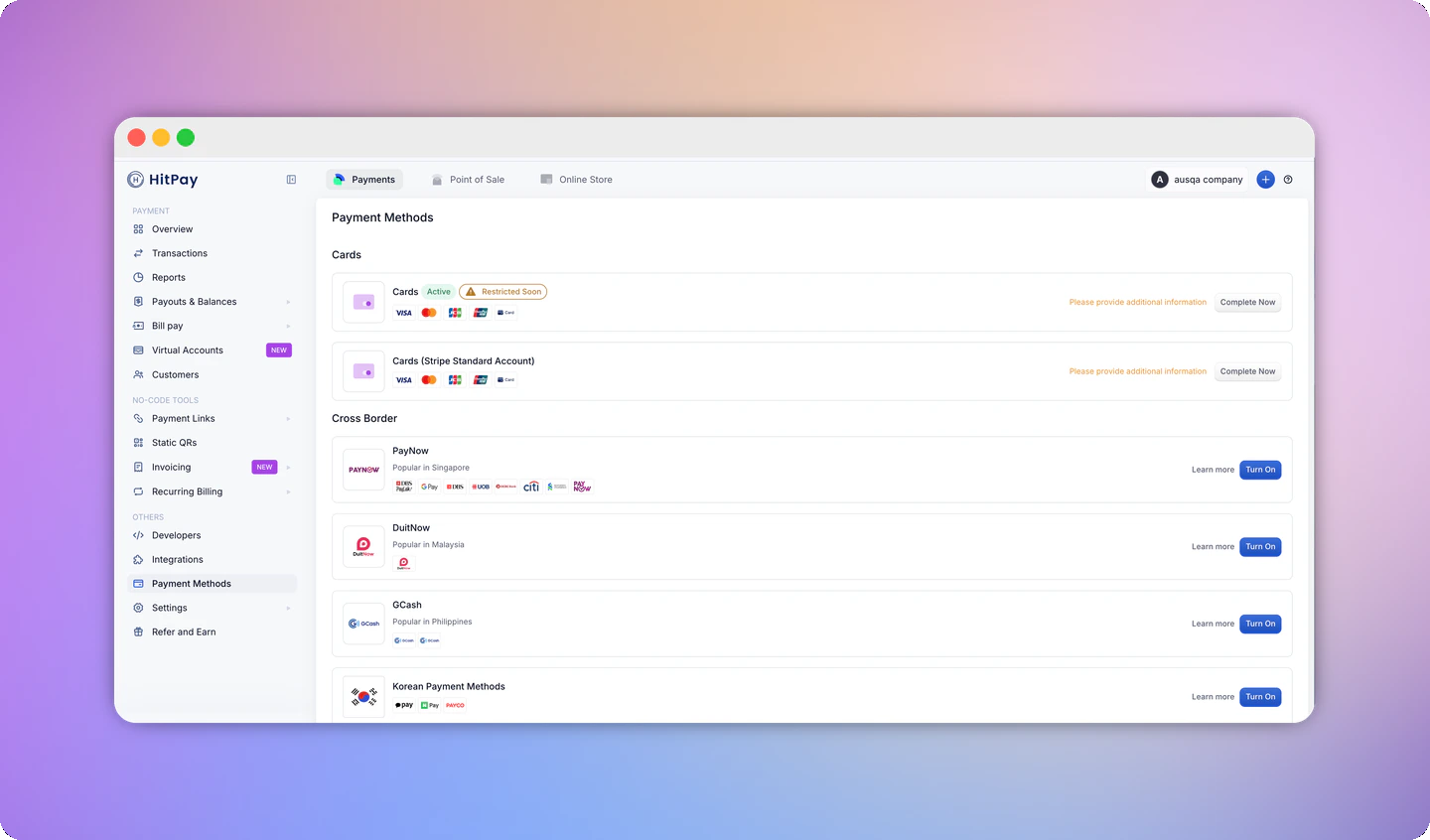 The Stripe onboarding page will open. You can either:
* **Connect an existing Stripe account** using your existing Stripe email, or
* **Create a new Stripe account** with a new email address.
Follow the prompts to complete the connection.
The Stripe onboarding page will open. You can either:
* **Connect an existing Stripe account** using your existing Stripe email, or
* **Create a new Stripe account** with a new email address.
Follow the prompts to complete the connection.
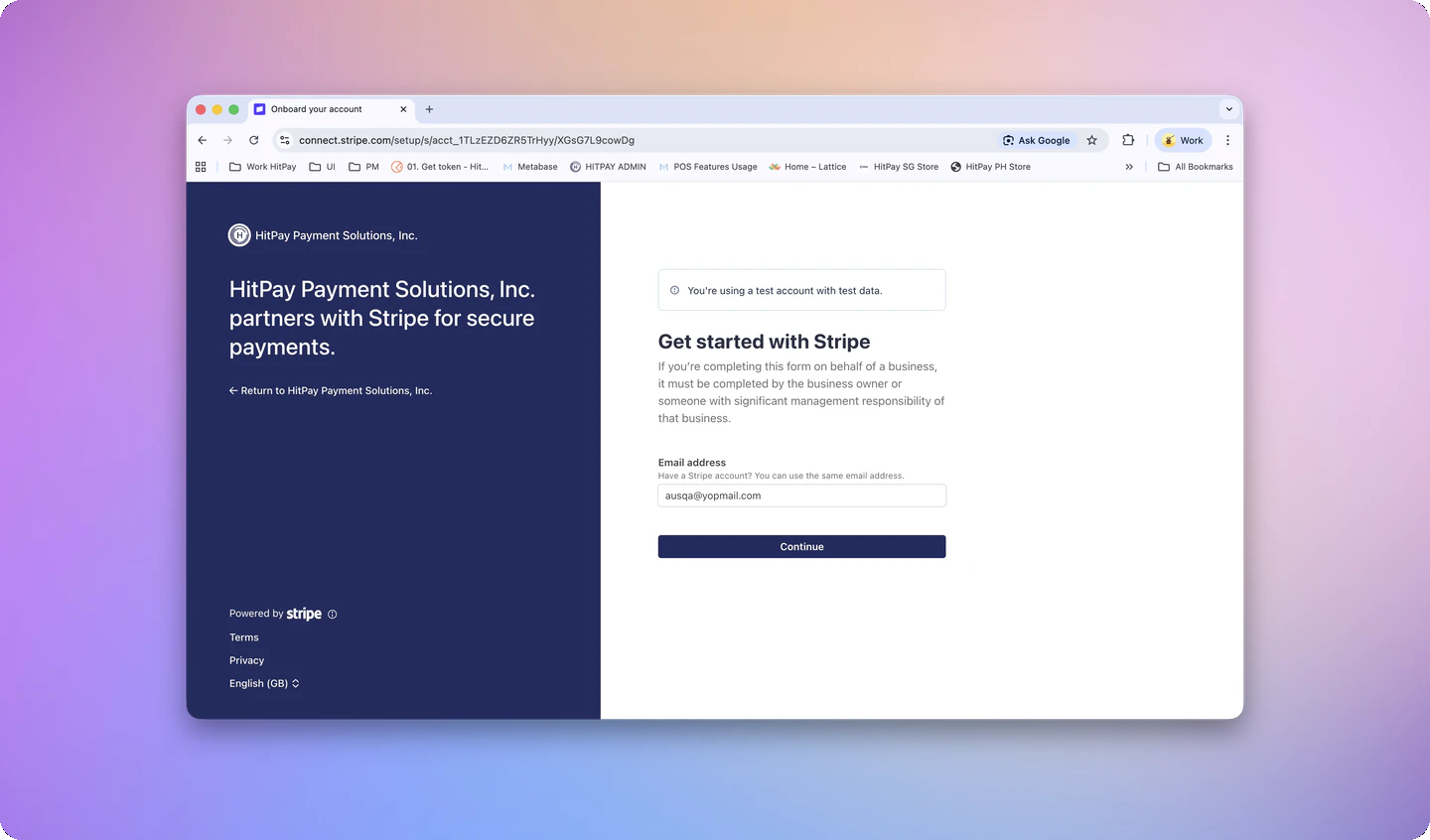 Fill in your business details as requested by Stripe. This may include business information, identity verification, and banking details. Complete all steps to activate your card payment capability.
Once done, you will see **Stripe Standard Connect** shown as active in your Payment Methods page. When you log in to your Stripe Dashboard, you will see the HitPay logo alongside your company logo — this confirms your Standard account is successfully linked to HitPay.
Fill in your business details as requested by Stripe. This may include business information, identity verification, and banking details. Complete all steps to activate your card payment capability.
Once done, you will see **Stripe Standard Connect** shown as active in your Payment Methods page. When you log in to your Stripe Dashboard, you will see the HitPay logo alongside your company logo — this confirms your Standard account is successfully linked to HitPay.

 The process typically takes a few minutes. You will see a confirmation once your account is successfully migrated.
### What are the actionables for terminal users?
**WiFi Terminals ⚠️ Action required**
After completing your Stripe Standard Connect migration, you must re-register all WiFi terminals:
1. Go to **Point of Sale → Card Terminals** in your HitPay Dashboard.
2. For each WiFi terminal, open the terminal details.
3. Select **Delete Terminal**, then **Register Terminal** to re-add it.
4. Repeat this process for every WiFi terminal.
**Important:** WiFi terminals will not work until you complete this re-registration process.
**Tap to Pay ⚠️ Action may be required**
After migration, you may need to reconfigure Tap to Pay:
* Your Tap to Pay functionality may need to be re-enabled on your new Standard account.
* Open your HitPay App > More > Terminal > Forget Terminal
* Reinitiate Tap to Pay pairing
**Bluetooth Terminals — no action needed**
Bluetooth terminals are not affected by this migration and will continue to work as normal.
### What changes after migration?
Rest assured, you can still accept card payments through HitPay in the same way you do today once migration is complete. Your transaction history and other payment methods are not affected.
With a Stripe Standard Connect account, your relationship with Stripe becomes more direct. Payouts and card balances can only be accessed via Stripe. For a full breakdown of what changes — including pricing and FAQ — see the [Standard Connect Integration guide](/connections/stripe/standard-connect).
### FAQ
Stripe Standard Connect through HitPay is available in the following countries:
| | | | |
| ------------------- | ------------------ | ------------------ | ------------------------- |
| Australia (AU) | Austria (AT) | Belgium (BE) | Bulgaria (BG) |
| Canada (CA) | Croatia (HR) | Cyprus (CY) | Czech Republic (CZ) |
| Denmark (DK) | Estonia (EE) | Finland (FI) | France (FR) |
| Germany (DE) | Gibraltar (GI) | Greece (GR) | Hong Kong (HK) |
| Hungary (HU) | India (IN) | Ireland (IE) | Italy (IT) |
| Japan (JP) | Latvia (LV) | Liechtenstein (LI) | Lithuania (LT) |
| Luxembourg (LU) | Malta (MT) | Mexico (MX) | Netherlands (NL) |
| New Zealand (NZ) | Norway (NO) | Poland (PL) | Portugal (PT) |
| Romania (RO) | Slovakia (SK) | Slovenia (SI) | Spain (ES) |
| Sweden (SE) | Switzerland (CH) | Thailand (TH) | United Arab Emirates (AE) |
| United Kingdom (GB) | United States (US) | | |
If your country is not listed, contact **[support@hit-pay.com](mailto:support@hit-pay.com)** for assistance.
### Need help?
Contact **[support@hit-pay.com](mailto:support@hit-pay.com)** and include your registered email address. If you are close to the deadline and have not yet received a migration email, reach out immediately so we can assist you.
The process typically takes a few minutes. You will see a confirmation once your account is successfully migrated.
### What are the actionables for terminal users?
**WiFi Terminals ⚠️ Action required**
After completing your Stripe Standard Connect migration, you must re-register all WiFi terminals:
1. Go to **Point of Sale → Card Terminals** in your HitPay Dashboard.
2. For each WiFi terminal, open the terminal details.
3. Select **Delete Terminal**, then **Register Terminal** to re-add it.
4. Repeat this process for every WiFi terminal.
**Important:** WiFi terminals will not work until you complete this re-registration process.
**Tap to Pay ⚠️ Action may be required**
After migration, you may need to reconfigure Tap to Pay:
* Your Tap to Pay functionality may need to be re-enabled on your new Standard account.
* Open your HitPay App > More > Terminal > Forget Terminal
* Reinitiate Tap to Pay pairing
**Bluetooth Terminals — no action needed**
Bluetooth terminals are not affected by this migration and will continue to work as normal.
### What changes after migration?
Rest assured, you can still accept card payments through HitPay in the same way you do today once migration is complete. Your transaction history and other payment methods are not affected.
With a Stripe Standard Connect account, your relationship with Stripe becomes more direct. Payouts and card balances can only be accessed via Stripe. For a full breakdown of what changes — including pricing and FAQ — see the [Standard Connect Integration guide](/connections/stripe/standard-connect).
### FAQ
Stripe Standard Connect through HitPay is available in the following countries:
| | | | |
| ------------------- | ------------------ | ------------------ | ------------------------- |
| Australia (AU) | Austria (AT) | Belgium (BE) | Bulgaria (BG) |
| Canada (CA) | Croatia (HR) | Cyprus (CY) | Czech Republic (CZ) |
| Denmark (DK) | Estonia (EE) | Finland (FI) | France (FR) |
| Germany (DE) | Gibraltar (GI) | Greece (GR) | Hong Kong (HK) |
| Hungary (HU) | India (IN) | Ireland (IE) | Italy (IT) |
| Japan (JP) | Latvia (LV) | Liechtenstein (LI) | Lithuania (LT) |
| Luxembourg (LU) | Malta (MT) | Mexico (MX) | Netherlands (NL) |
| New Zealand (NZ) | Norway (NO) | Poland (PL) | Portugal (PT) |
| Romania (RO) | Slovakia (SK) | Slovenia (SI) | Spain (ES) |
| Sweden (SE) | Switzerland (CH) | Thailand (TH) | United Arab Emirates (AE) |
| United Kingdom (GB) | United States (US) | | |
If your country is not listed, contact **[support@hit-pay.com](mailto:support@hit-pay.com)** for assistance.
### Need help?
Contact **[support@hit-pay.com](mailto:support@hit-pay.com)** and include your registered email address. If you are close to the deadline and have not yet received a migration email, reach out immediately so we can assist you.